

theme.liquid file, so it loads on your storefront pages.
This matters because Cometly has no record of a visit without the pixel. With it in your theme, Cometly can identify each store visitor and tie their orders back to the ad or channel that brought them in.
Before you start
Install the Cometly pixel on Shopify
1
Open the pixel step in Cometly
In Cometly, click Setup in the left sidebar and open step 2, Install the Cometly pixel.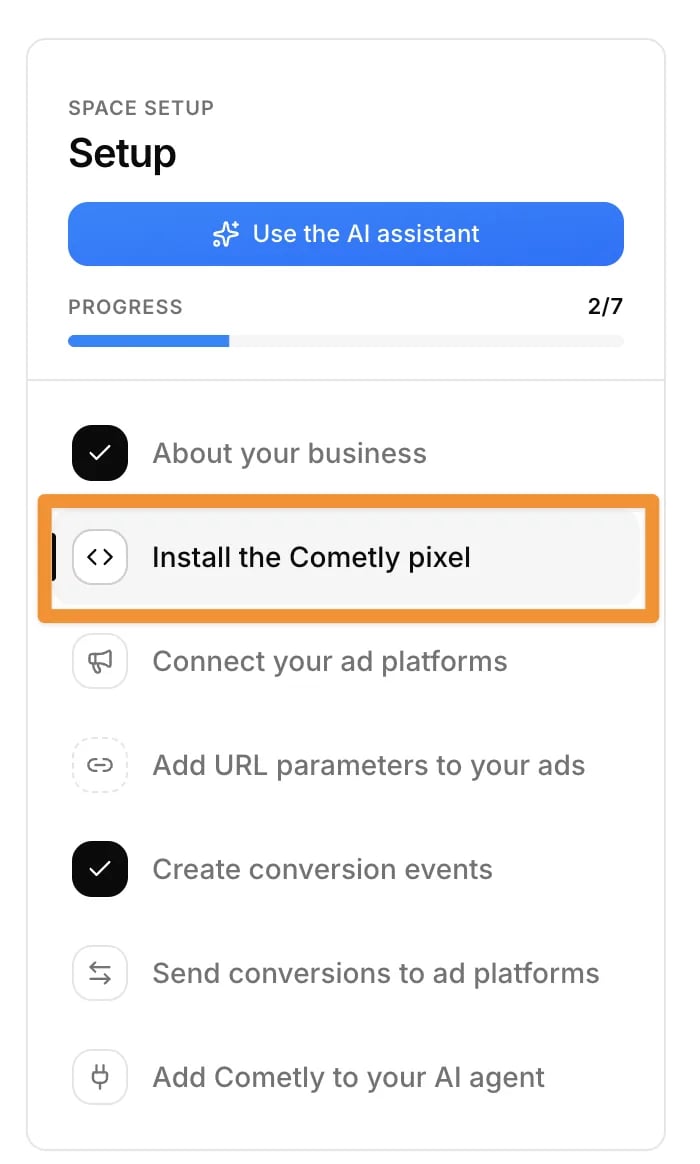
2
Copy the pixel
Under Install the pixel, click Copy Code. You will paste this code into the 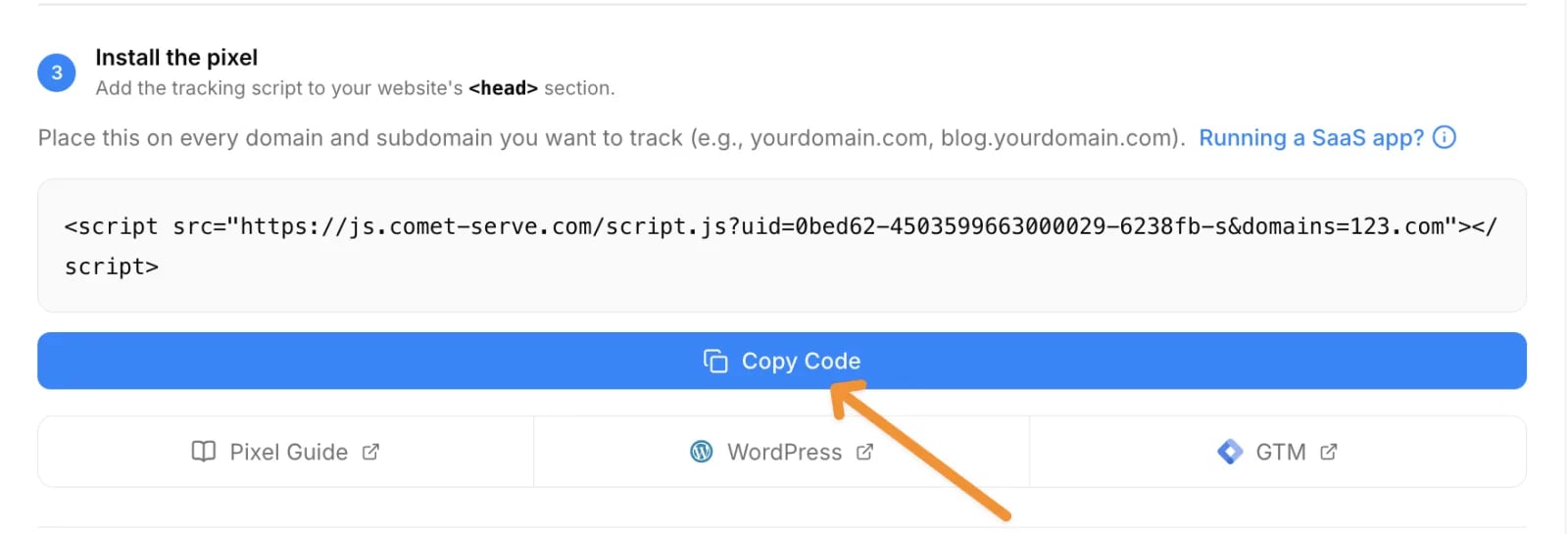
<head> section of your store theme.3
Open the theme code editor in Shopify
Log in to your Shopify store. Under Sales channels, click Online Store > Themes. Next to the Customize button, click the three dots, then click Edit code.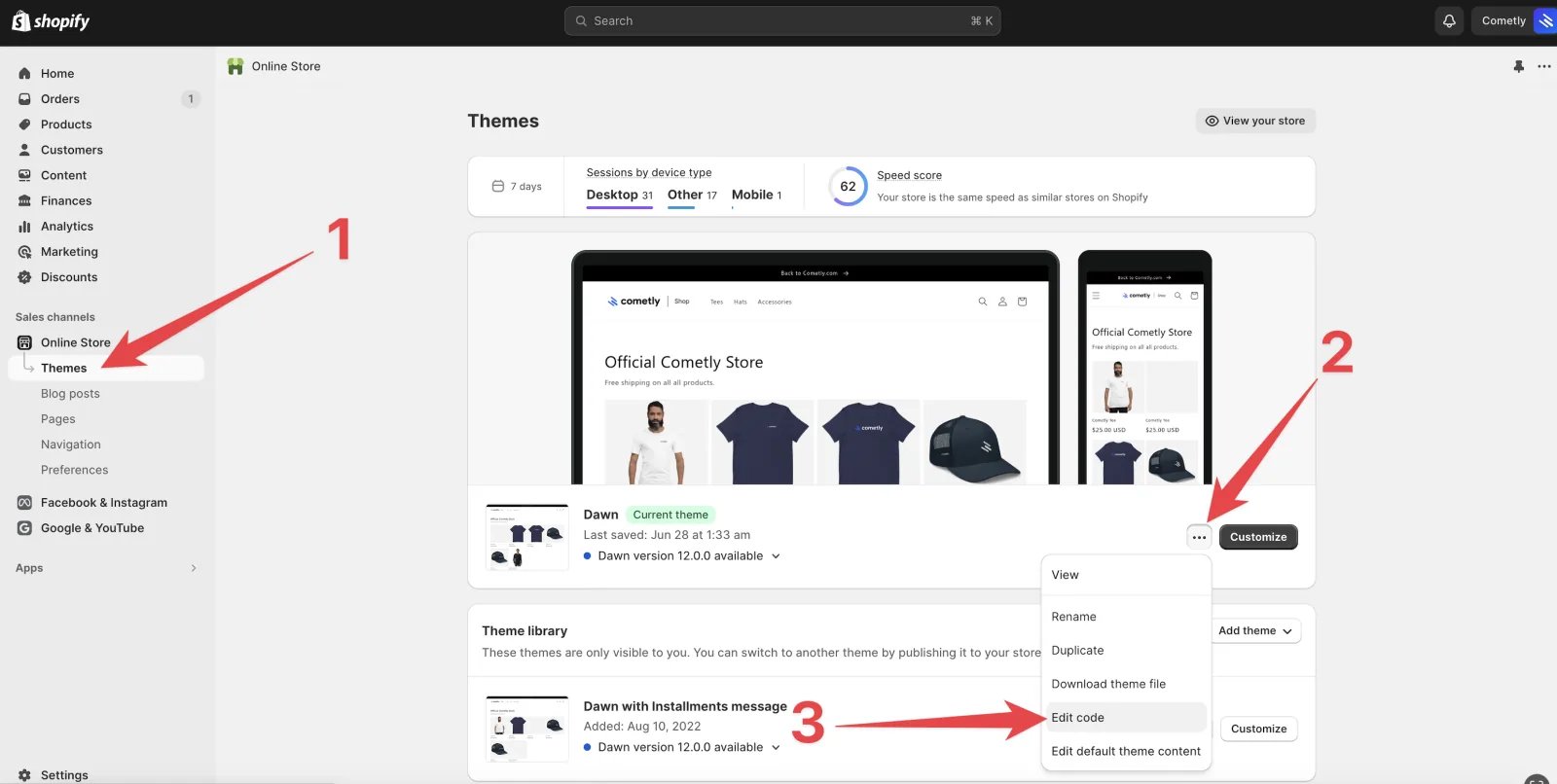
4
Open theme.liquid
In the left panel, choose theme.liquid.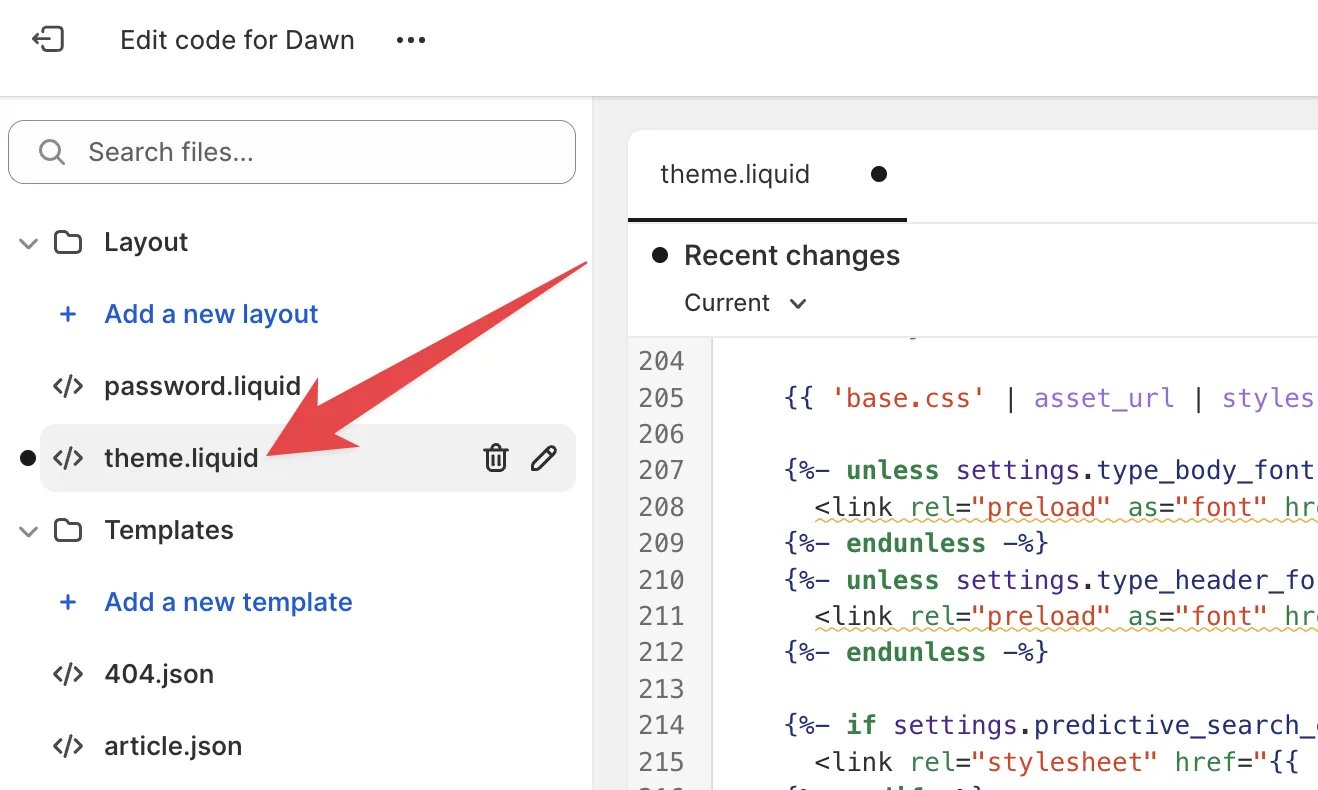
5
Paste the pixel before the closing head tag
If you no longer have the pixel on your clipboard, go back to Setup step 2 in your Cometly space and click Copy Code again.Search
theme.liquid for </head> and paste the Cometly pixel just before it.6
Save
Click Save.
Check it worked
In Cometly, go back to Setup step 2 and click Verify next to your store’s domain under Verify your pixel. The domain shows Pixel detected when the pixel is installed correctly. For the full verification steps, see Install and verify the Cometly pixel.For checkout events, also set up the Shopify integration in Cometly.
Frequently asked questions
Does the Cometly pixel track Shopify purchases on its own?
No. The pixel identifies each visitor to your store, and paid orders reach Cometly through the Shopify integration, which sends each order when payment is captured. Set up both so each order can be matched to the visitor who placed it. See Shopify integration.Do I need to add my Shopify store domain in Cometly?
Yes. In Setup step 2, add each domain and subdomain where you place the pixel under Add domains. Check whether your store’s address includeswww. when it loads, and enter the domain the same way.
Do I need to paste the pixel into Shopify again after changing my pixel settings?
Yes, if the script changes. The script changes when you add or remove domains, or change a setting under Pixel options. When Cometly tells you your tracking script has changed, click Copy Code again and replace the old script intheme.liquid.
Next steps
- Verify the Cometly pixel on your domains
- Set up the Shopify integration to track paid orders
- Check your installation with the Cometly Pixel Helper
- Fix a Cometly pixel that is not detected
- Check your Tracking Health score