

How it works
- The snippet you add to your website passes the visitor’s Cometly tracking token to LiveChat as a session variable named
cometlyTrackingToken. - Whenever a new lead chats through your LiveChat widget, their information is sent to Cometly.
- You map the LiveChat chat to a specific event in Cometly for accurate tracking and attribution.
Step 1: Connect your LiveChat account
- In Cometly, click Integrations in the sidebar.
- Find the LiveChat card (category Chat) and click Connect.
-
Click Sign in with LiveChat and approve the connection.
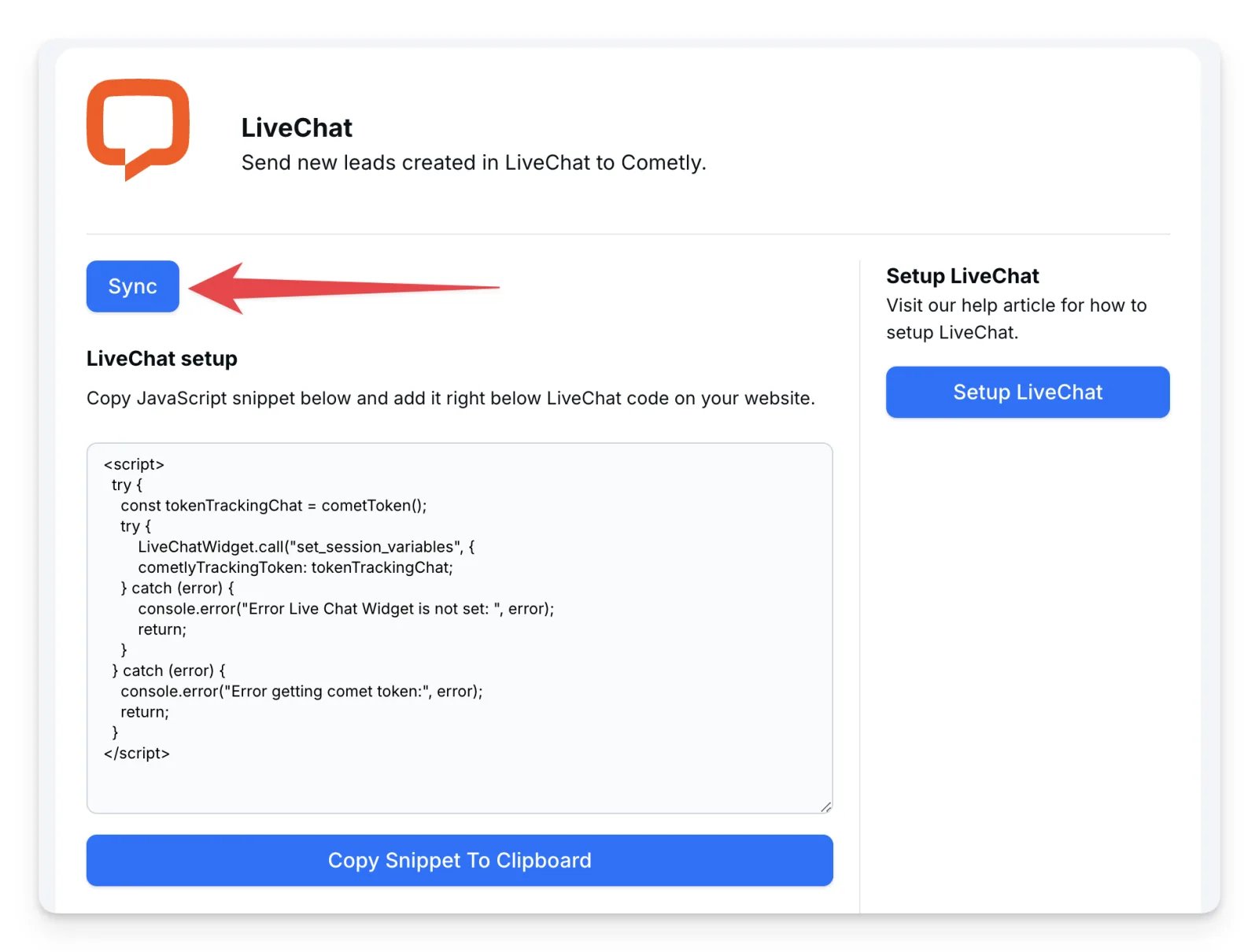
Step 2: Add the tracking snippet to your website
So that thecometlyTrackingToken is set for new chats:
- On the LiveChat integration page in Cometly, click Copy snippet to clipboard.
- Add the snippet right below the LiveChat code on your website.
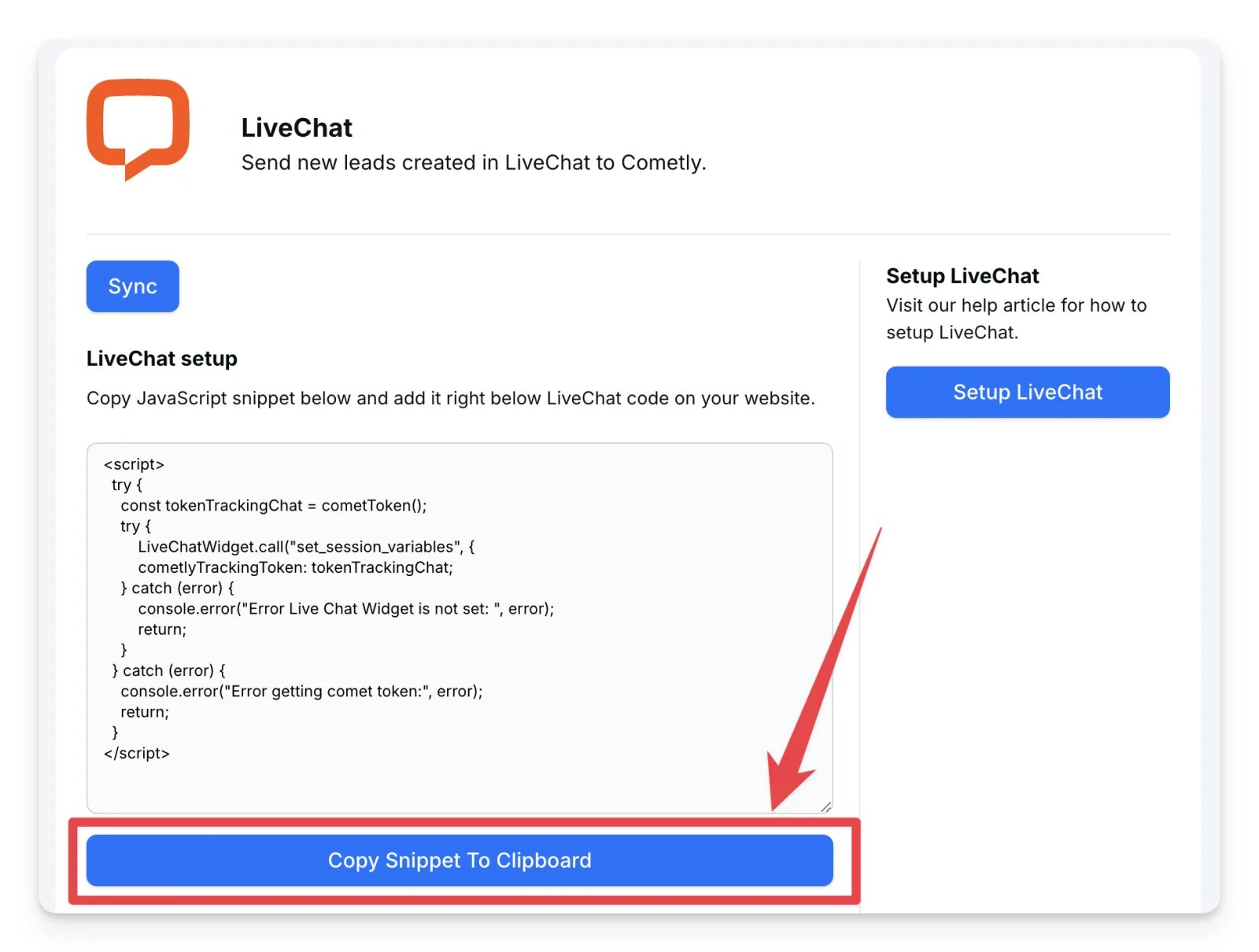
Step 3: Map new LiveChat leads to a Cometly event
On the LiveChat integration page, under Map LiveChat events to Cometly, choose the Cometly event that new chats should be recorded as (for example, Chat Lead or Lead), then click Save.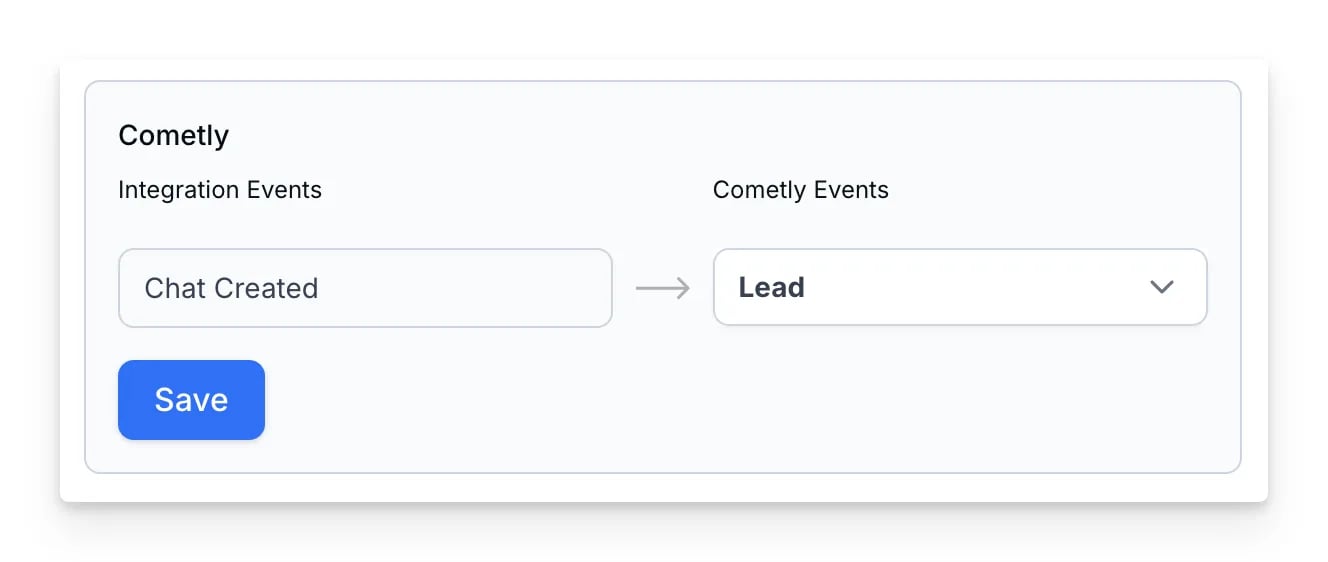
Choosing the event to map to
When you send Lead events to Cometly from LiveChat and from other platforms, consider the following:- If LiveChat leads are already in your CRM
- If your CRM (for example, HubSpot) already sends LiveChat leads as part of its Lead events, create a separate event in Cometly, such as Chat Lead, for LiveChat.
- This way you see both Lead (from your CRM) and Chat Lead (from LiveChat) on the contact’s timeline, without duplicates.
- If leads are sent from several sources
- If you send Lead events from various sources (for example forms, LiveChat and your CRM), you can include LiveChat leads in the general Lead event.