

Before you start
This setup is for a Zoho form embedded on your page as an iframe. Follow the steps in order: each one builds on the one before it.
Step 1: Add the Cometly pixel before the closing head tag
Install the Cometly pixel before the closing</head> tag on every page of your funnel or website.
Install the Cometly pixel
Step 2: Add custom code to the page that holds the Zoho form
On the web page where your Zoho form is embedded, add the following code before the closing</body> tag. It adds the fingerprint and Comet Token to the form’s iframe URL, so the hidden fields you create in the next steps are filled in automatically.
Step 3: Add hidden form fields to your Zoho form
For Cometly to attribute the Zoho form submission to the correct source, create two hidden fields on your form.1
Add two Multi Line fields
Add two Multi Line fields to your Zoho form.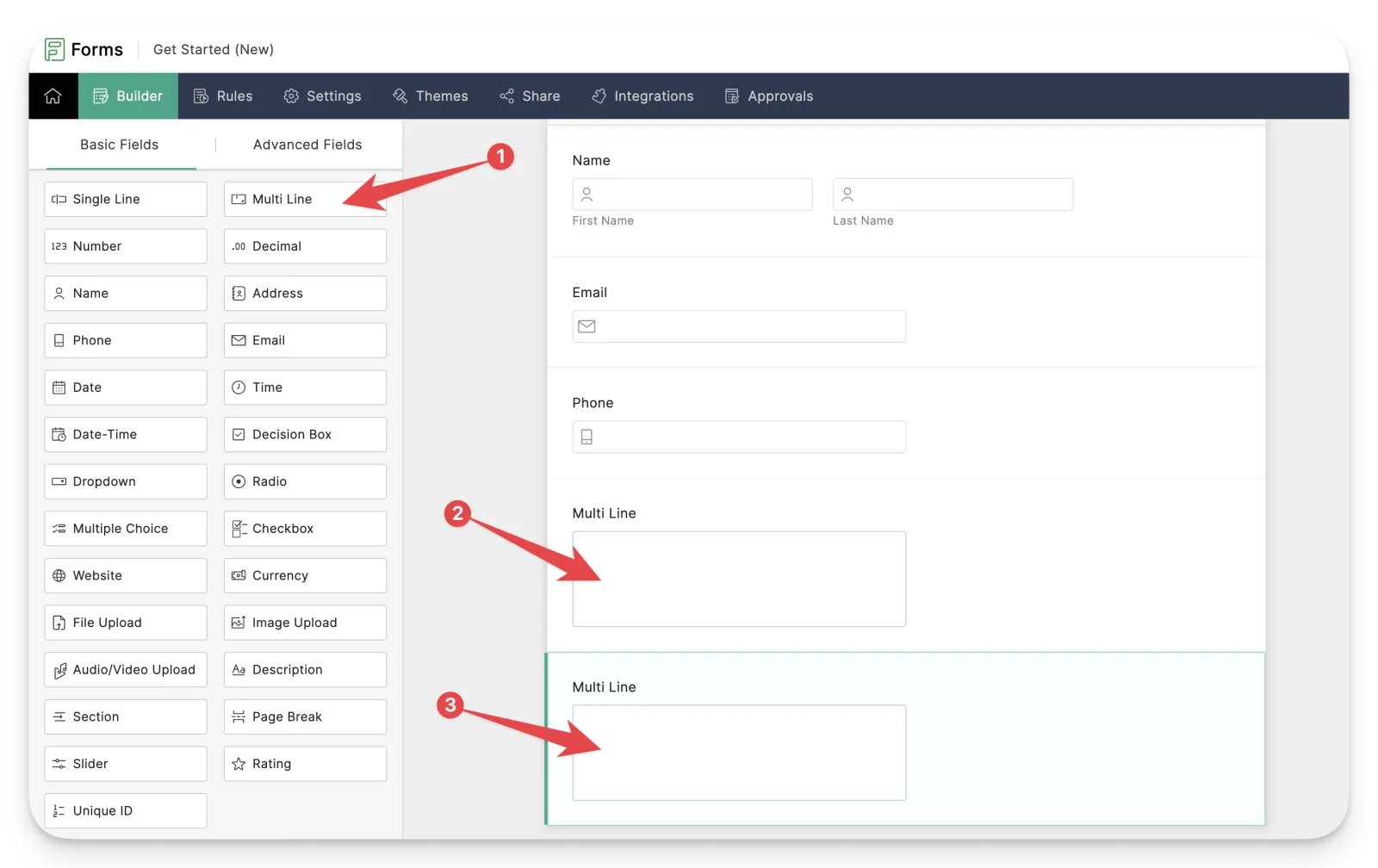
2
Open the first field's properties
Hover over the first Multi Line field and click Properties.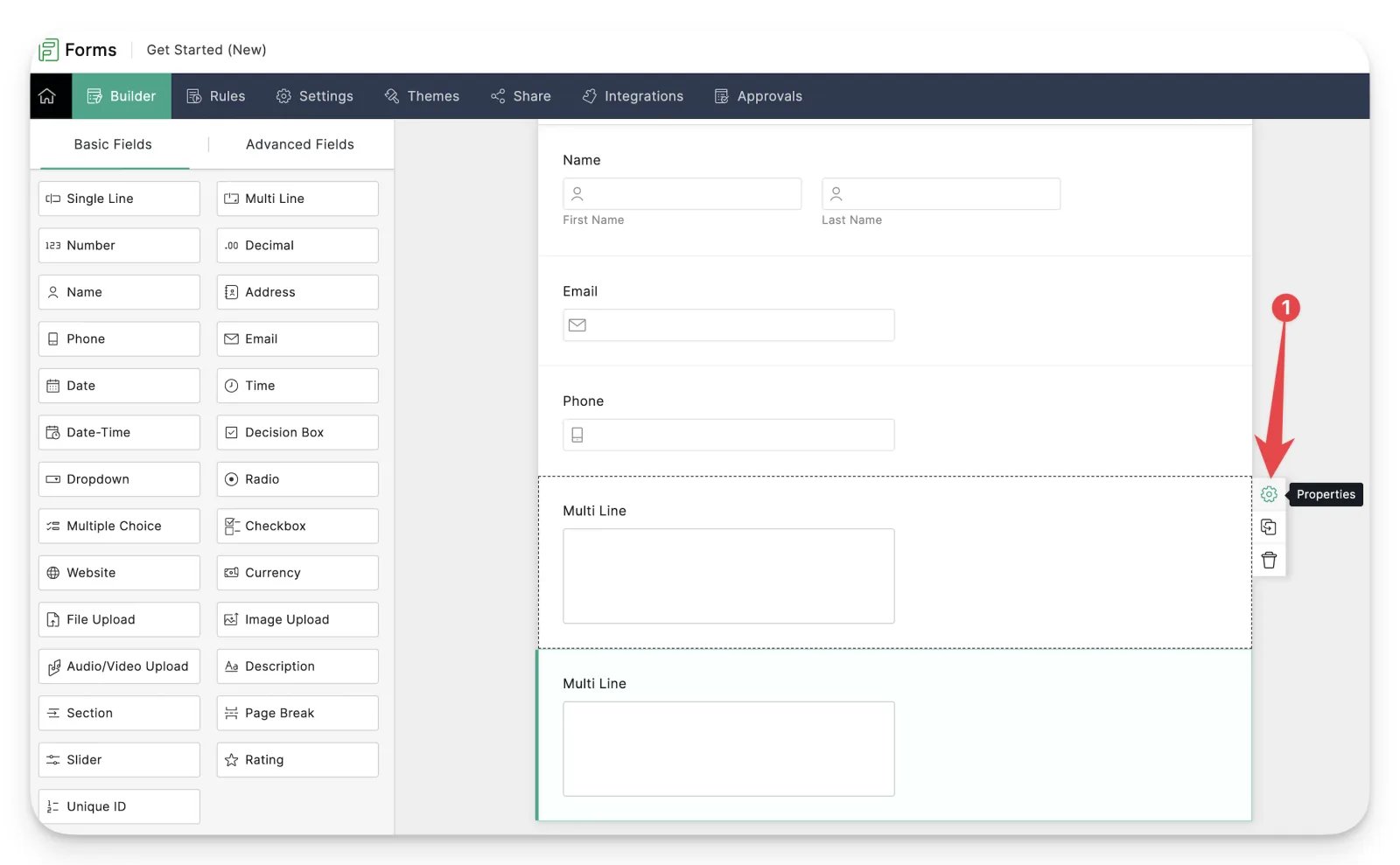
3
Rename the first field to fingerprint and hide it
Change the field label of the first Multi Line field to
fingerprint.- Select Hide Field Label.
- Select Hide Field under the Visibility section.
- Click Save.
4
Rename the second field to comet_token and hide it
Change the field label of the second Multi Line field to
comet_token.- Select Hide Field Label.
- Select Hide Field under the Visibility section.
- Click Save.
Step 4: Set up Zoho Forms to prefill the hidden fields
The script in step 2 appends the fingerprint and Comet Token to the iframe URL. Set up your Zoho form so Zoho prefills the hidden fields with those values.
- Edit your form and click Settings.
- Under General on the left panel, click Field Alias - Prefill URL.
- Click Configure Now.
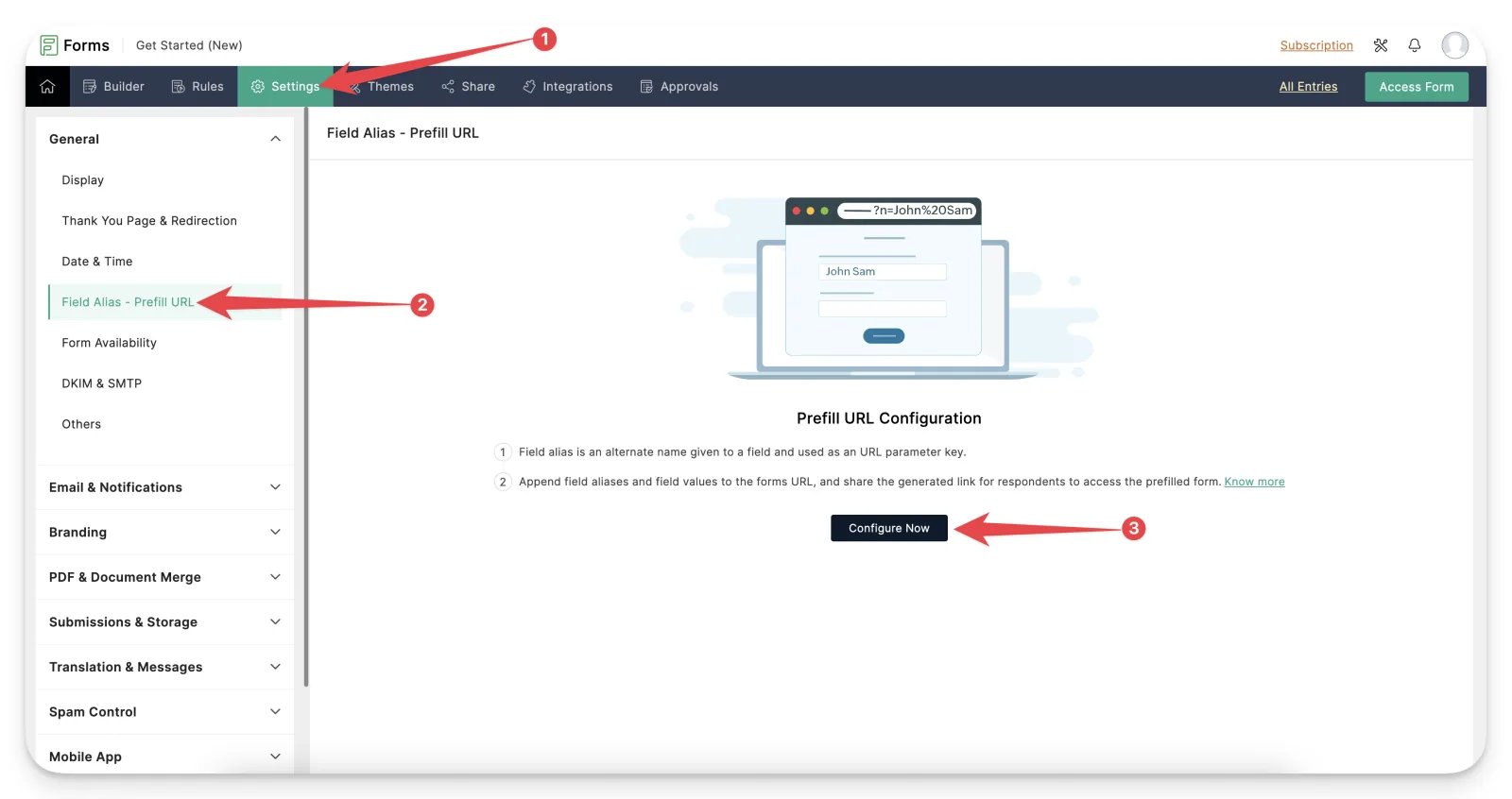
- In the Field Label selection, choose
fingerprint, and in the Field Alias box typefingerprint. - Click the + sign.
- In the second Field Label selection, choose
comet_token, and in the Field Alias box typecomet_token. - Click Save.
Step 5: Test that your entries include fingerprint and comet_token
Open the page that holds your embedded Zoho form and submit a test entry. Then open that entry in Zoho Forms and check that the fingerprint and Comet Token are included. Make sure both values are there before you continue to the next step. The video below shows the test.Step 6: Send event data from Zoho Forms or Zoho CRM
There are two ways to send event data from Zoho to Cometly. See the section of the Zoho integration guide that matches how you want to send events: Set up the Zoho integration (for Zoho Forms or Zoho CRM)Check it worked
Submit a test entry on the embedded form on your page. The entry in Zoho Forms now has a value in both thefingerprint and comet_token fields. Once you have also set up the Zoho Forms webhook in step 6, the event you chose appears in Cometly under Events Manager, on the Events Log tab.
Frequently asked questions
Why are fingerprint and comet_token empty in my Zoho Forms entries?
The code can only add the values when the Cometly pixel is installed on the page that holds the form, so check that first. Then check that the code from step 2 is on that same page, and that the field labels and field aliases are exactlyfingerprint and comet_token. The code adds the values about two seconds after the page loads, and only on the page it is installed on, so an entry submitted through a direct link to the form will not have them.
Does Zoho Forms form tracking send my entries to Cometly?
No. The hidden fields and the code only attach the fingerprint and Comet Token to each entry. To get the entry into Cometly as an event, you still add the Cometly webhook to your form in Zoho, as covered in step 6.Do I need both the fingerprint and comet_token hidden fields?
Yes, create both. The Zoho Forms webhook you set up in step 6 sends both fields to Cometly, and together they link the entry to the visitor’s session on your site. That link is how Cometly attributes the entry to an ad or channel.Next steps
- Send Zoho Forms entries to Cometly with the Zoho integration
- Use the Events Log to check incoming events
- Form tracking for third-party embedded forms
- Install the Cometly pixel
- Learn how events work in Cometly