

Start here
Set up the Drift integration to send new chat contacts (with email addresses) to Cometly and map them to the event of your choice.The Drift card is not shown on the Integrations page for most spaces. If you do not see it, contact support.
How it works
Cometly automatically creates two new attributes in your Drift account at the contact level: Cometly Tracking Token and Cometly Space ID. When a new lead with an email address is created through Drift, Drift sends the contact to Cometly. The Cometly Tracking Token links the lead back to their original journey.Step 1: Authenticate with Drift
-
In Cometly, click Integrations in the sidebar. Find the Drift card (it is in the Chat category) and click Connect.
The Drift page opens.
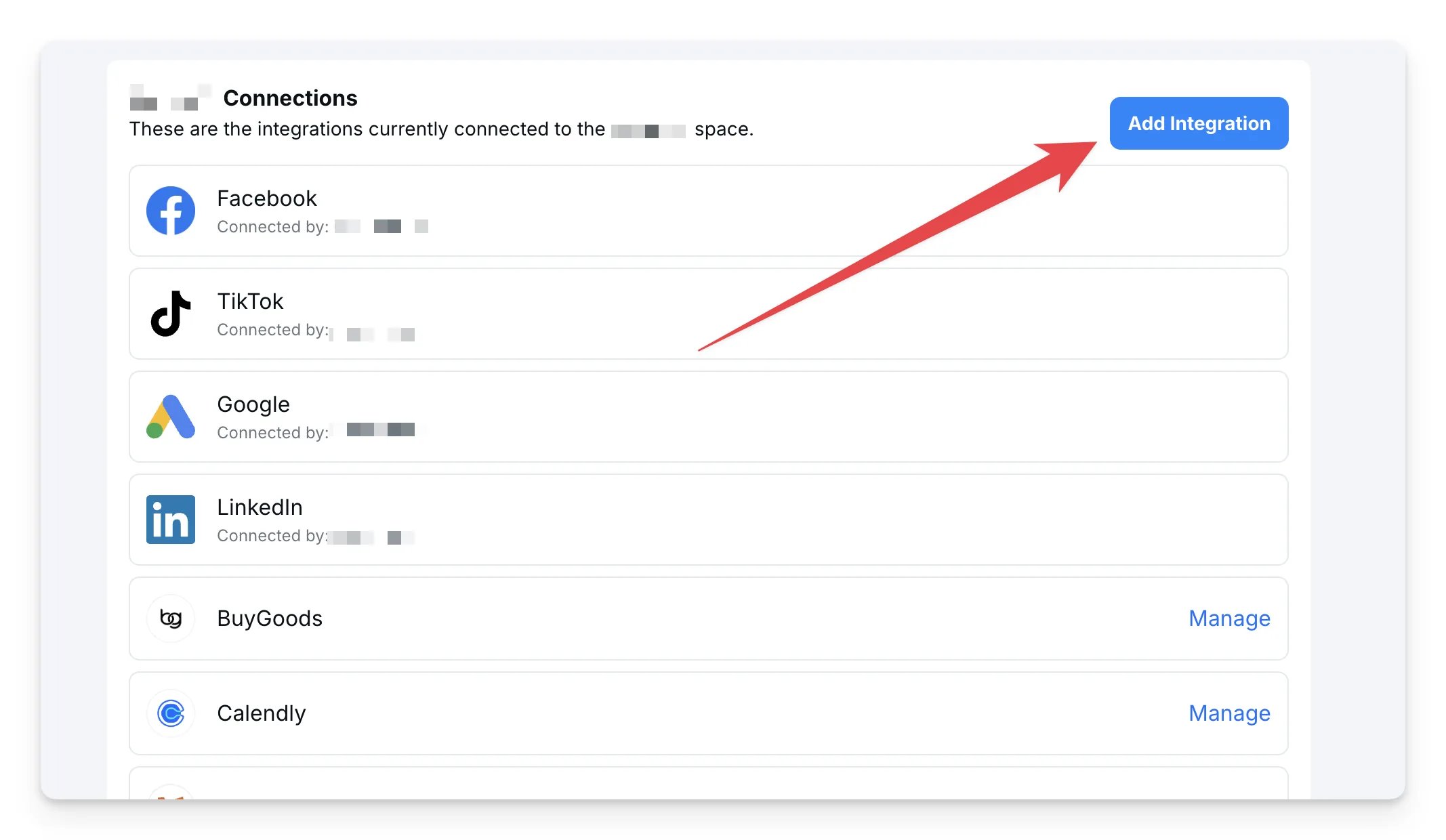
- Under Connect your Drift account, click Sign in with Drift and authorize Cometly in Drift.
-
When you return to Cometly, the page shows Drift connected. If you ever need to refresh the connection, click Re-sync Drift.
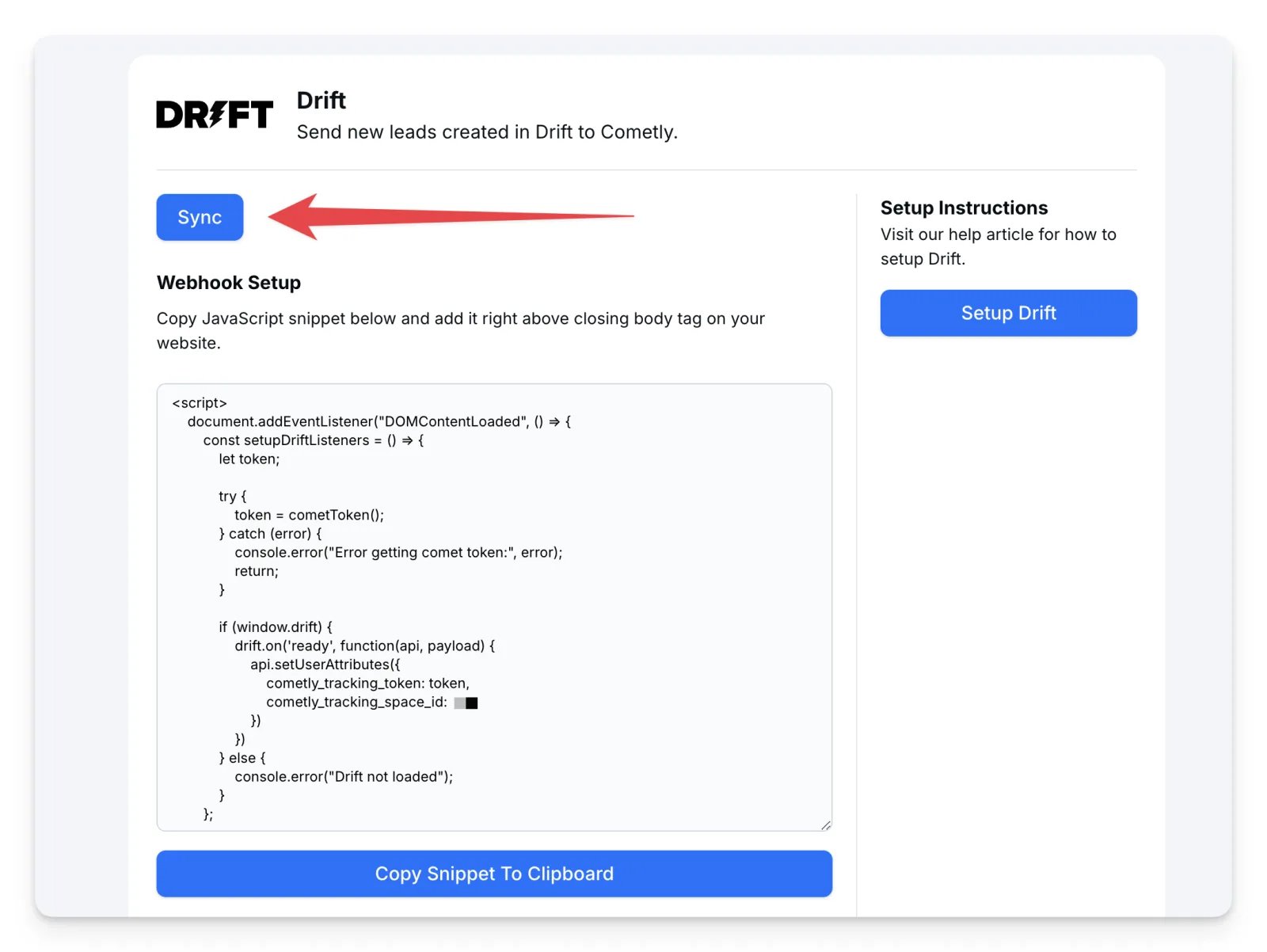
Step 2: Place the tracking code on your website
The tracking code fills in the Cometly Tracking Token and Cometly Space ID attributes for new contacts from Drift. On the Drift page in Cometly, under Add the tracking snippet to your website, click Copy snippet to clipboard. Paste the code right before the closing</body> tag on every page where the Drift widget loads.
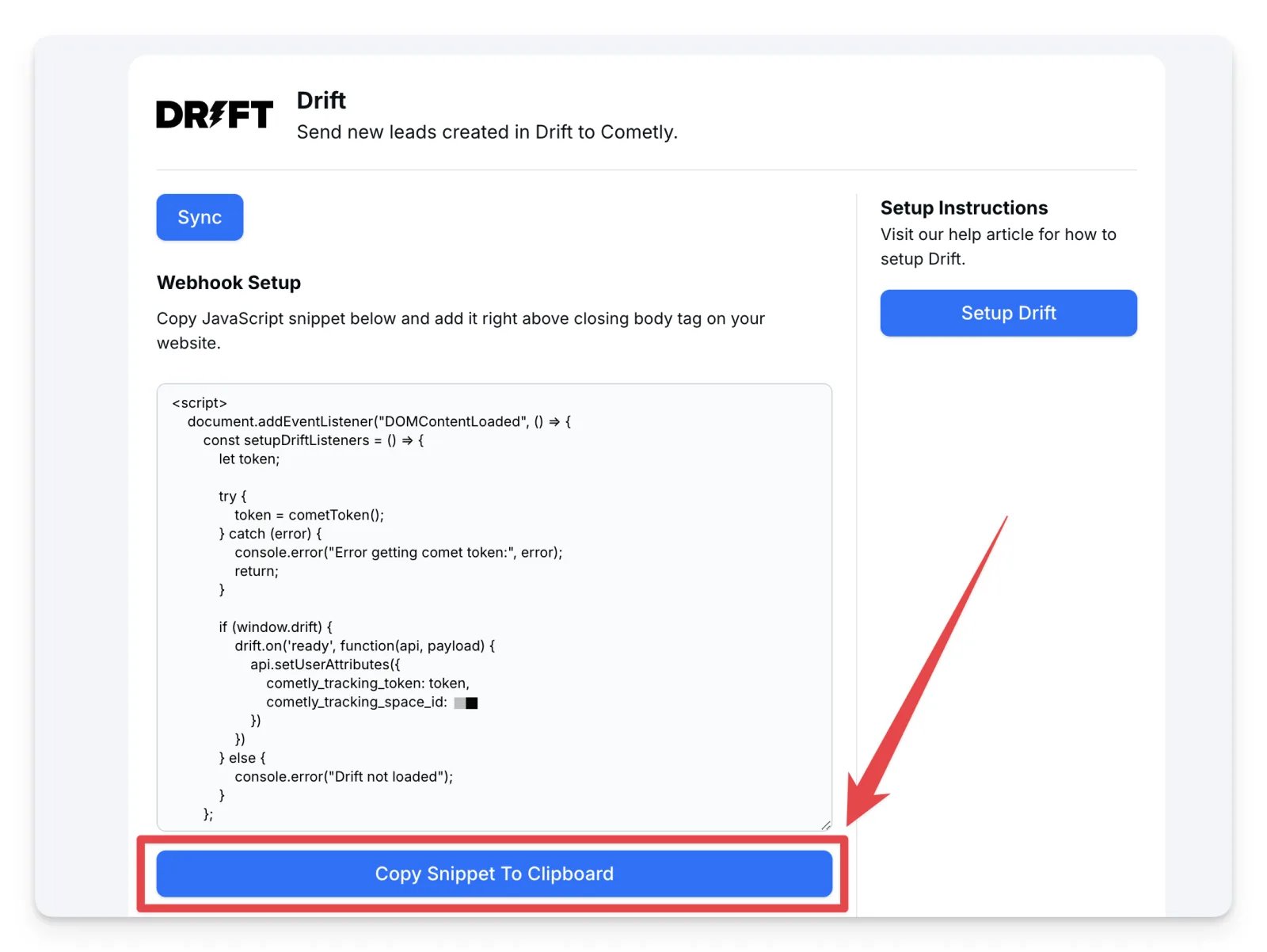
Step 3: Map new leads from Drift to a Cometly event
On the Drift page in Cometly, under Map Drift events to Cometly, choose the Cometly event that new Drift leads should be mapped to and click Save.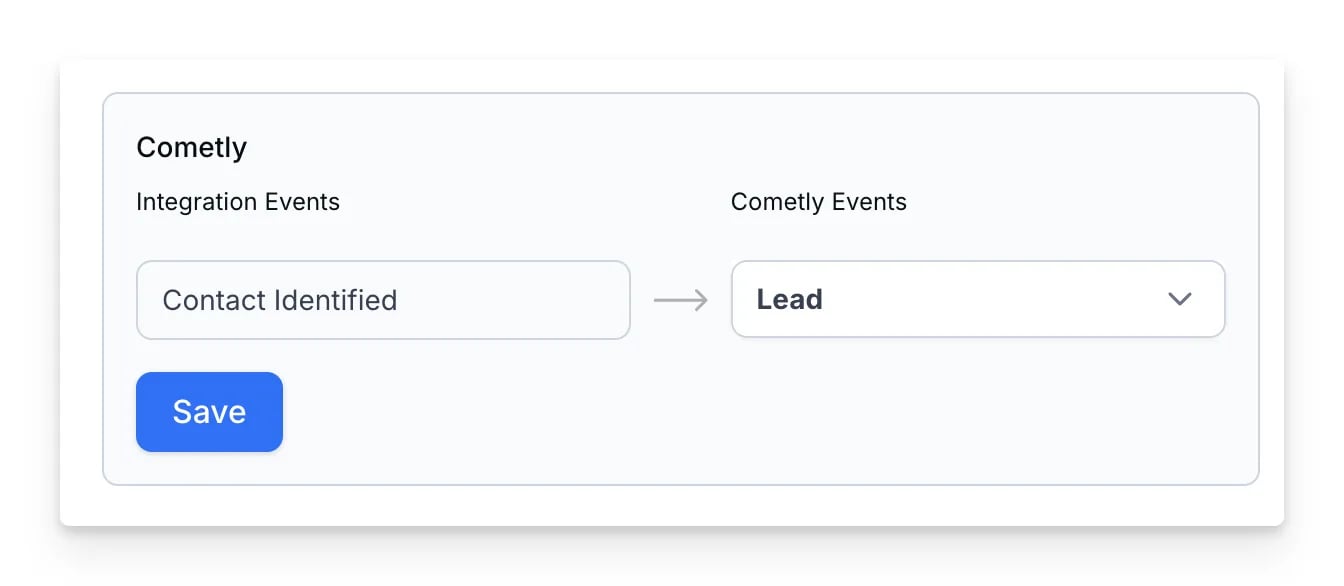
Important considerations for event mapping
When you send Lead events to Cometly from Drift and other platforms, consider the following:-
If Drift leads are already in your CRM
- If your CRM (for example HubSpot) already sends Drift leads as part of its Lead events, create a separate event in Cometly, such as Chat Lead, for Drift.
- You then see both Lead (from your CRM) and Chat Lead (from Drift) on the contact’s timeline, which avoids duplicates.
-
If leads are sent from multiple sources
- If you send Lead events from different sources (for example forms, Drift and your CRM), you can include Drift leads in the general Lead event.