

The integration sends purchases only. To send form submissions as leads, or any other event from your funnel, use Cometly webhooks.
Before you start
Install the Cometly pixel (the tracking script that records the visitors who reach your pages) on your Funnelish funnels. If you have not done this yet, follow the Funnelish pixel installation guide.Activate Funnelish in Cometly
-
In Cometly, click Integrations in the left sidebar, find the Funnelish card (category Ecommerce) and click Connect.
You can also start from Events Manager: click Create Event, choose Funnelish under App / Integration and click Integrate.
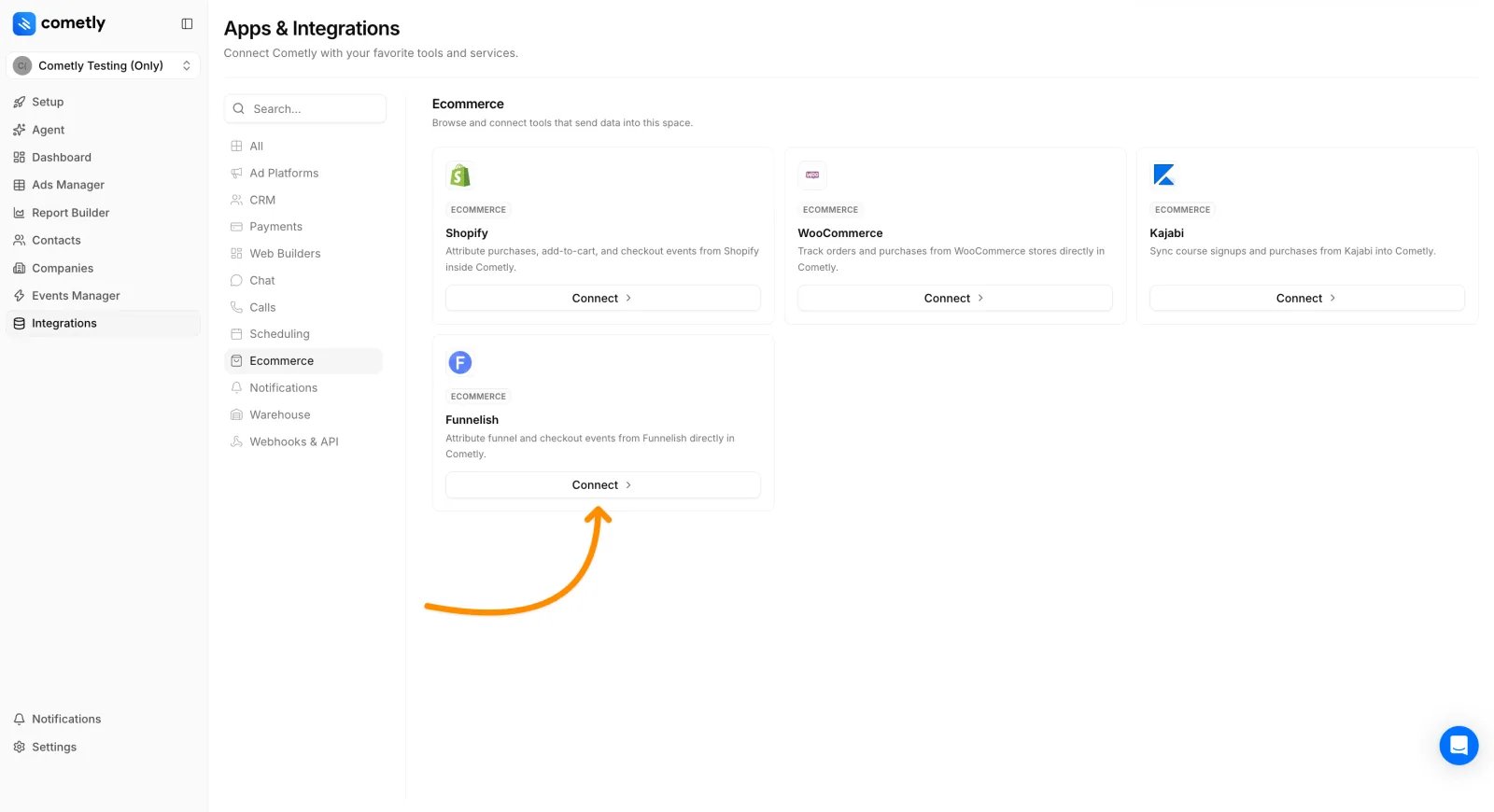
- On the Funnelish page, click Activate Funnelish.
- Under Copy the webhook URL, click Copy.
Add the Cometly webhook URL to Funnelish
-
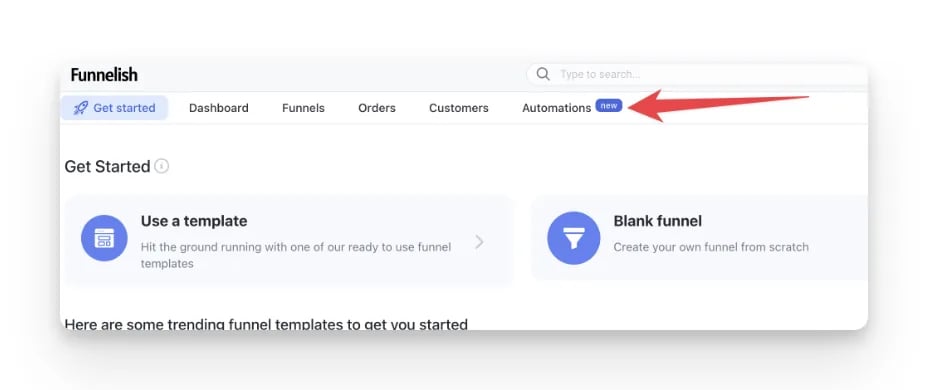
Log in to your Funnelish account and go to Automations.
-
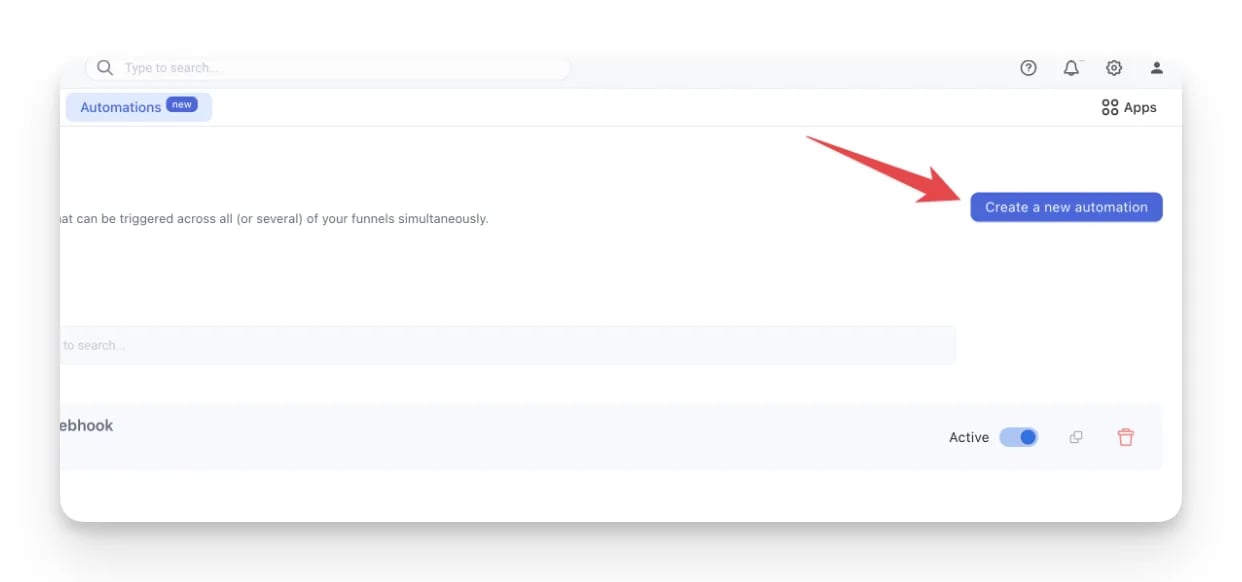
Click Create a new automation.
-
Select Start from scratch and click Create. Name the automation
Cometly Webhook, click + New Trigger and select On purchase.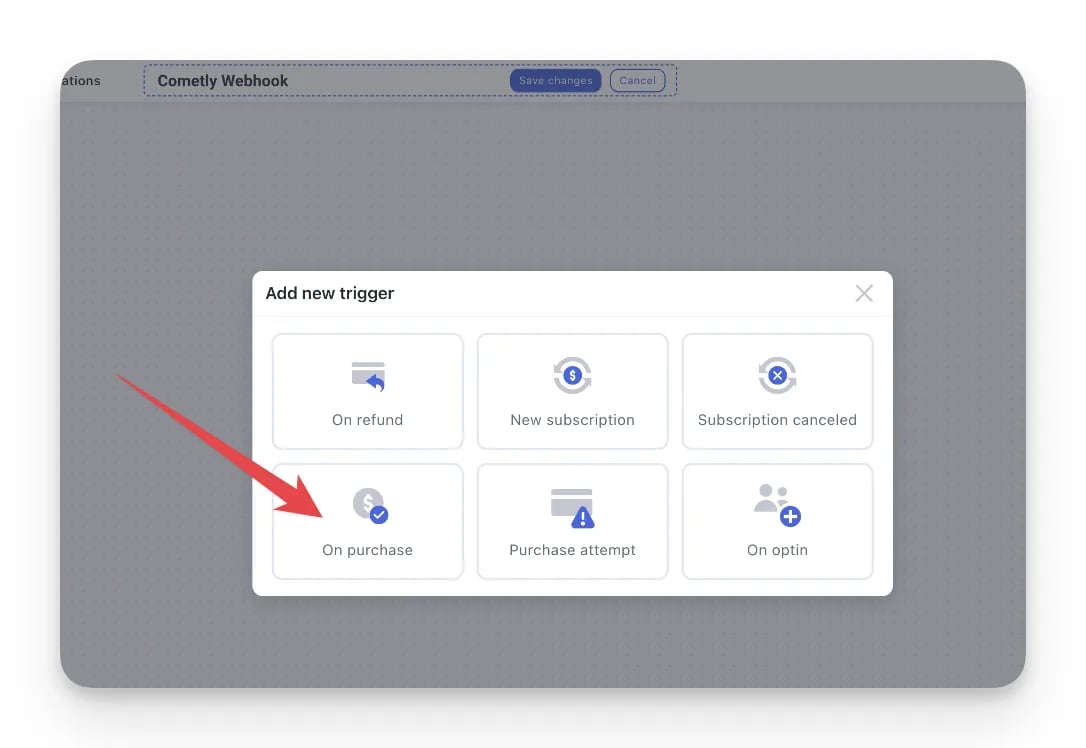
-
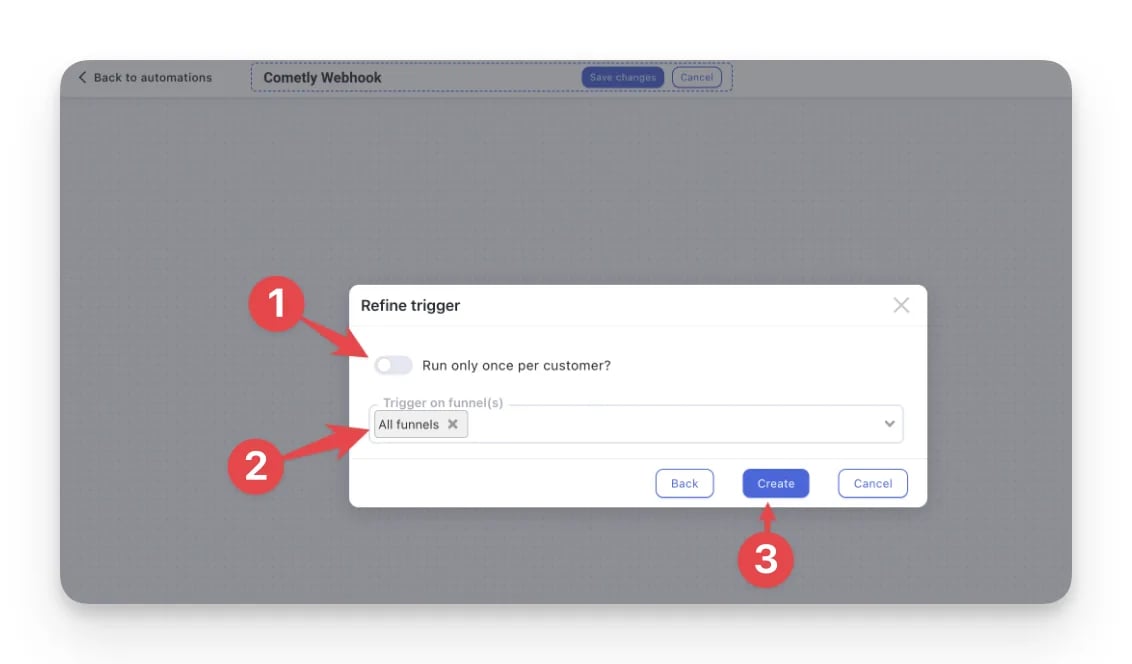
Keep Run only once per customer? turned off, so returning customers are tracked too. Make sure Trigger on funnel(s) is set to All funnels, then click Create.
-
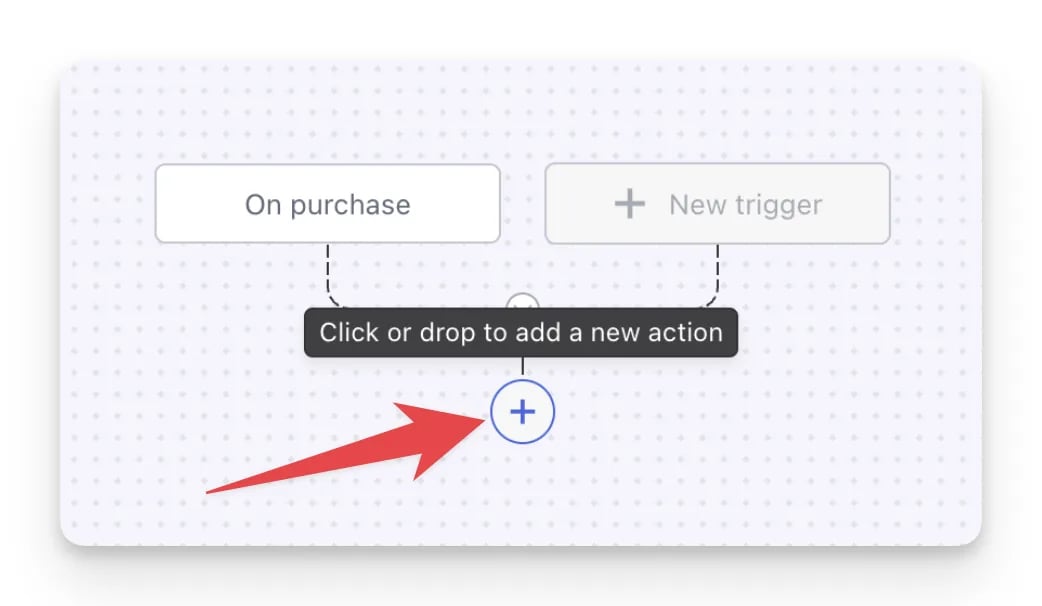
Click the + button to add an action.
-
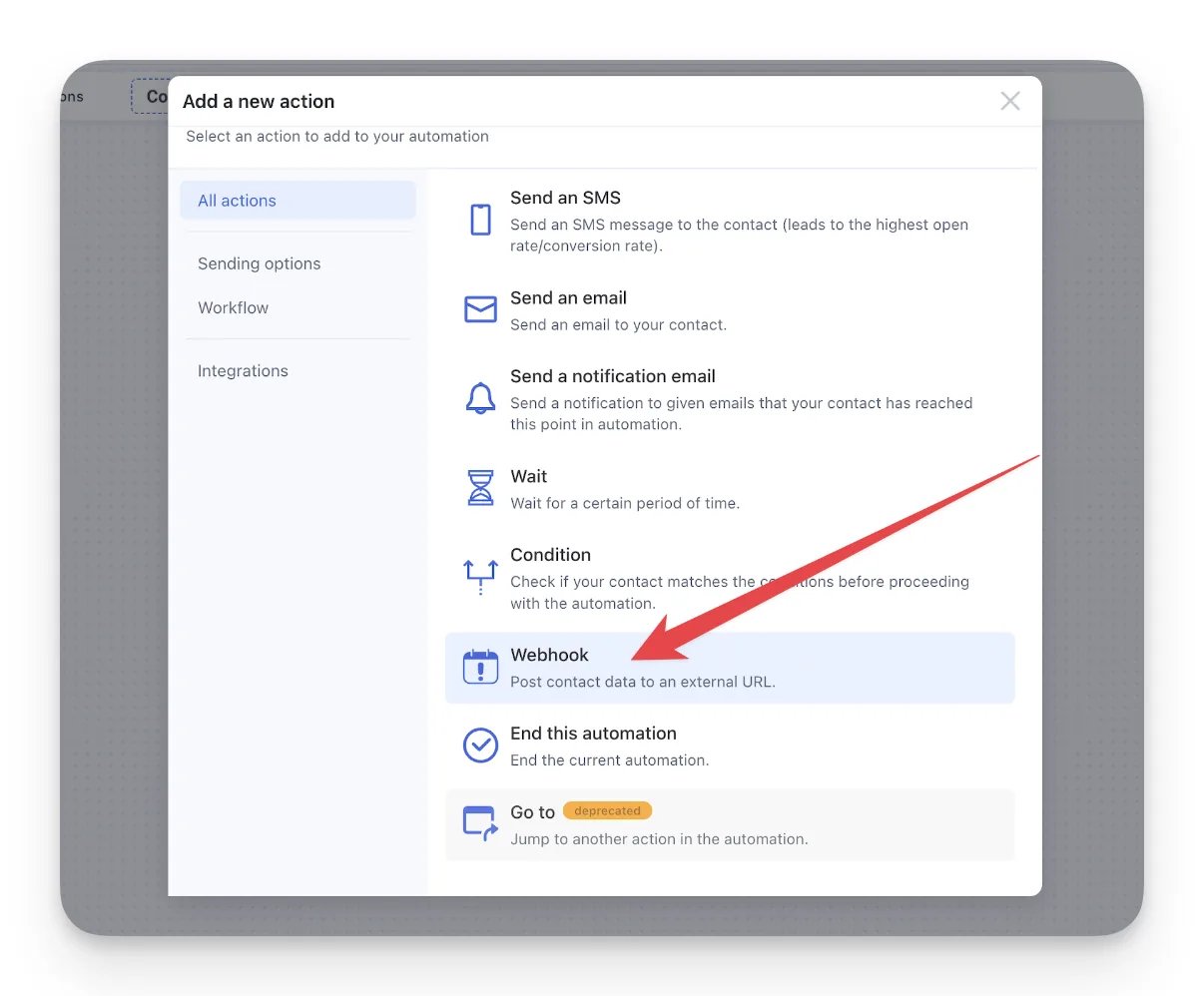
Select Webhook.
-
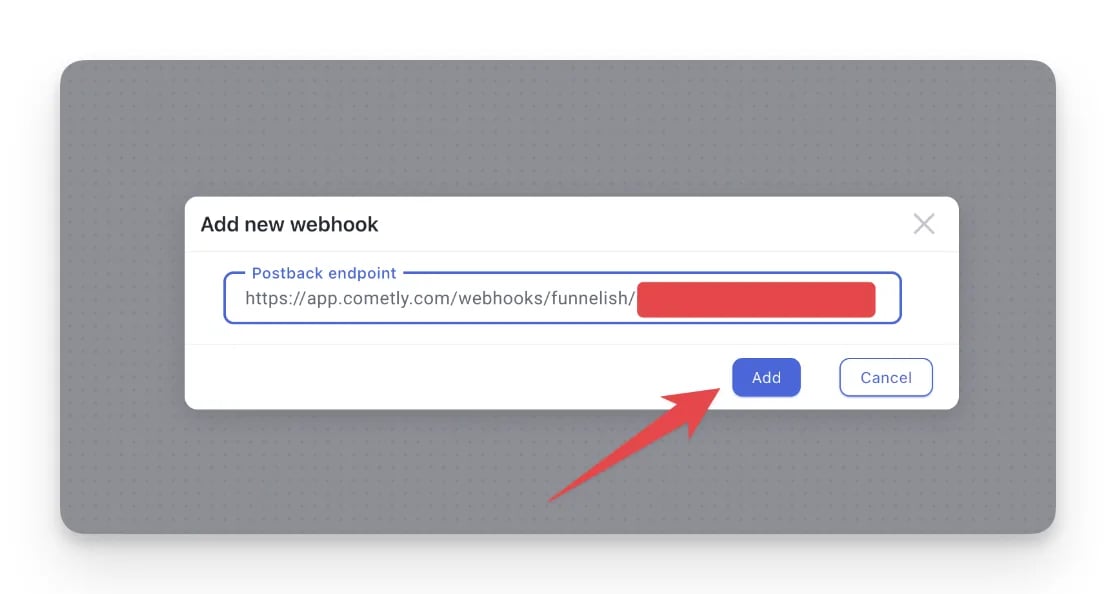
Paste the webhook URL you copied from Cometly into Postback endpoint and click Add.
Check it worked
Place a test order in one of your funnels. Then, in Cometly, click Events Manager in the left sidebar, open the Events Log tab and keep Source set to Server. The purchase appears in the list, and its Details column shows SUCCESS when it was processed without issues. See Use the Events Log for what each status means.Choose the Cometly event (optional)
An event is an action Cometly records, such as a purchase or a lead. By default, Funnelish purchases are recorded as the Purchase event. To record them as a different event, go back to the Funnelish page in Cometly, pick the event under Map Funnelish events to Cometly and click Save.Track Add to Cart and Initiate Checkout events
To fire the Add to Cart and Initiate Checkout events as soon as specific funnel pages load, add the matching browser code just before the closing</body> tag on the pages where you want each event to fire. See Add to Cart and Initiate Checkout events for more detail.
Add to Cart
Initiate Checkout
Frequently asked questions
What happens if my Funnelish funnel charges in a different currency?
Cometly converts the order total into your Space’s currency before it records the purchase (a Space is the Cometly workspace that holds one business’s tracking and reporting). Your revenue numbers stay in one currency, even when a funnel sells in another.How long does it take for a Funnelish purchase to show up in Cometly?
The purchase shows in the Events Log within 60 seconds. It can take up to 15 minutes to appear in the reporting areas, such as the Report Builder or Ads Manager.Why are my Funnelish purchases not matched to an ad in Cometly?
Check that the Cometly pixel is on every page of the funnel and that the checkout page has the hiddencomet_fp field. That field sends the visitor’s Cometly fingerprint with each order, which Cometly uses to connect the purchase to the visitor’s earlier ad clicks. Both are covered in the Funnelish pixel installation guide.
Next steps
- Install the Cometly pixel on your Funnelish funnels
- Track Add to Cart and Initiate Checkout events
- Send leads and other funnel events with Cometly webhooks
- Check incoming events in the Events Log
- Learn how events work in Cometly