

Activate the Nimbata webhook in Cometly
- In Cometly, click Integrations in the sidebar.
-
Find the Nimbata card (it is in the Calls category) and click Connect.
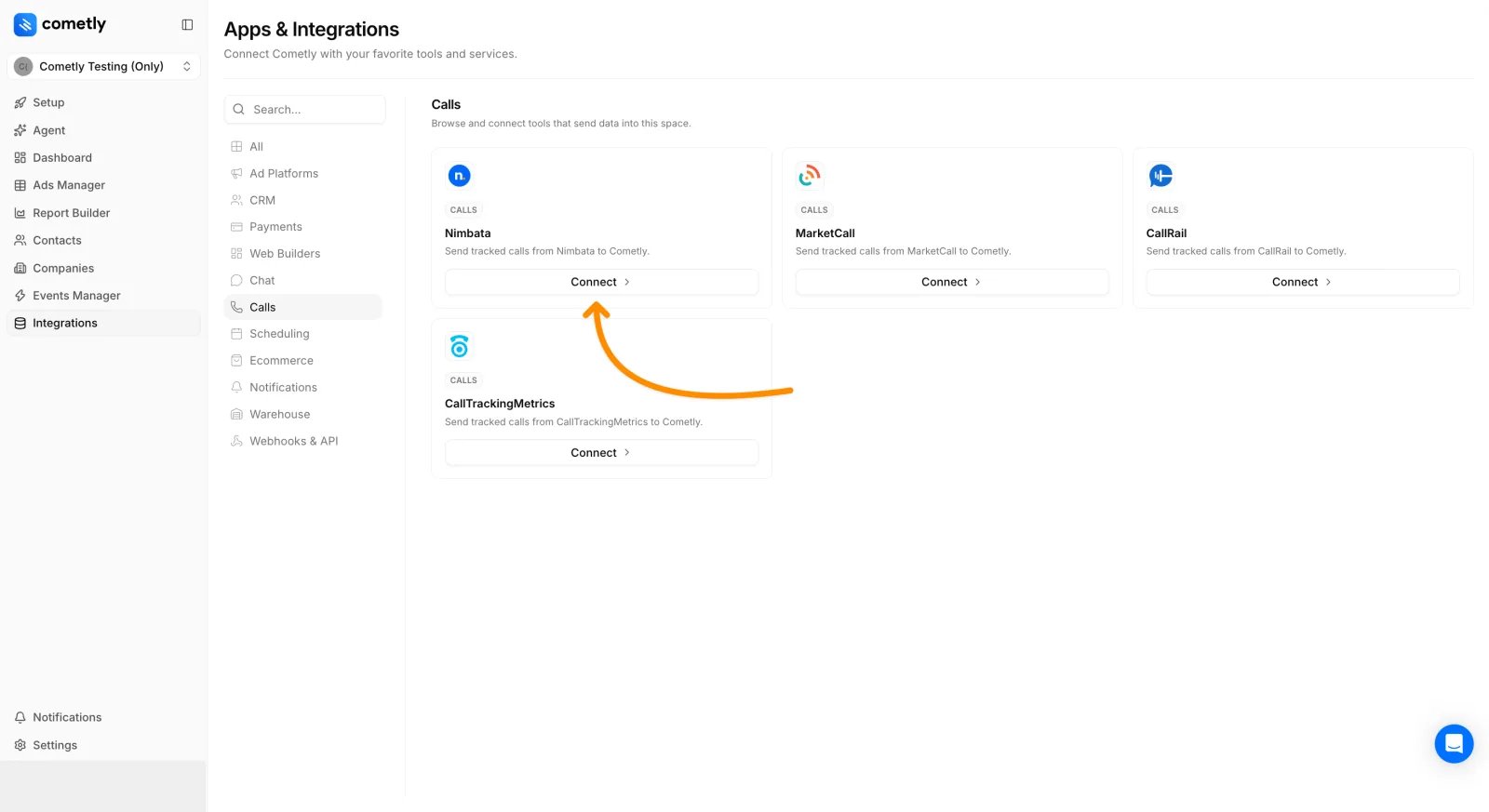
- Click Activate Nimbata.
- Under Copy the webhook URL, click Copy.
Configure Nimbata
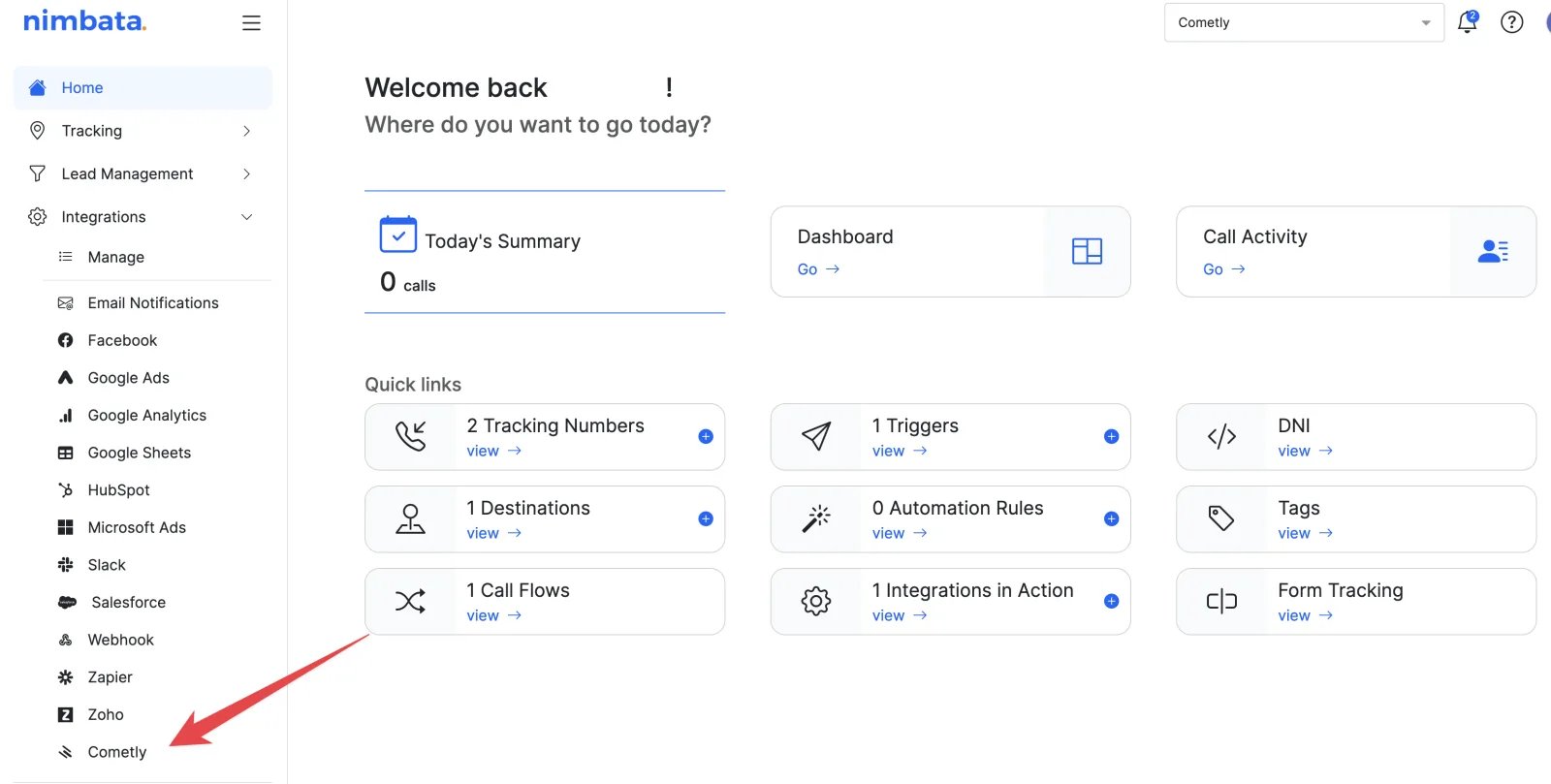
- In the Nimbata dashboard, click Integrations in the left panel.
-
Select Cometly.
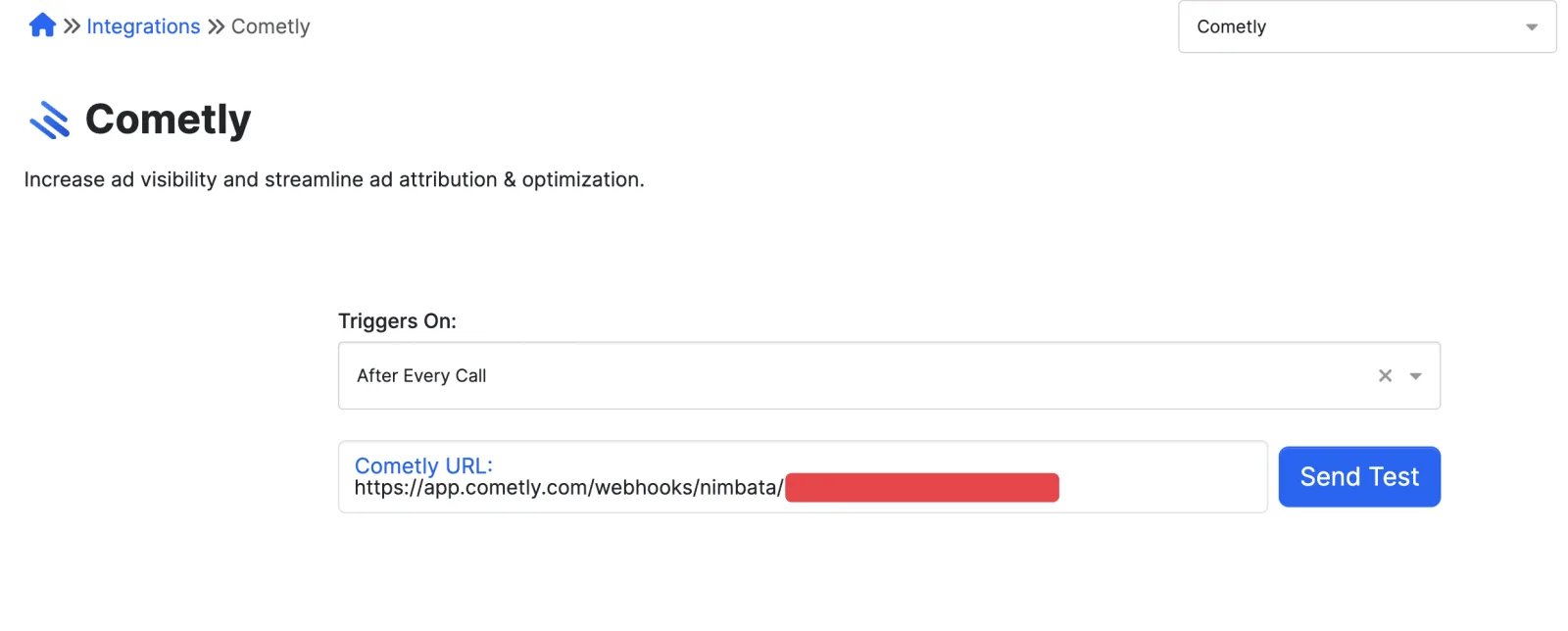
- For Triggers On, choose After Every Call.
-
Paste the webhook URL you copied from Cometly.
Map calls to a different event (optional)
If you want Nimbata calls to count as a different Cometly event, go back to Integrations > Nimbata in Cometly. Under Map Nimbata events to Cometly, pick the Cometly event for Contact and click Save.Check it worked
In Cometly, the Nimbata page shows Nimbata activated. After your next tracked call, go to Events Manager, click the Events Log tab and look for the call in the list.Frequently asked questions
Why are my Nimbata calls not showing up in Cometly?
Cometly only accepts calls sent to the exact webhook URL of an activated Nimbata integration. Check that the integration is activated in Cometly, that the URL pasted in Nimbata matches the one under Copy the webhook URL, and that Triggers On is set to After Every Call. Then make a test call and look for it in the Events Log.Do I need a separate Nimbata webhook URL for each Cometly space?
Yes. Each space (a workspace in your Cometly account) has its own Nimbata webhook URL. Activate Nimbata in each space that should receive calls, and paste that space’s URL into Nimbata.Do I need a developer or the Cometly API to track Nimbata calls?
No. The Nimbata integration needs no code and no API token: you activate it in Cometly and paste the webhook URL into Nimbata.Next steps
- Create and configure events
- How events work
- Set up call tracking with the Cometly API
- CallTrackingMetrics integration