

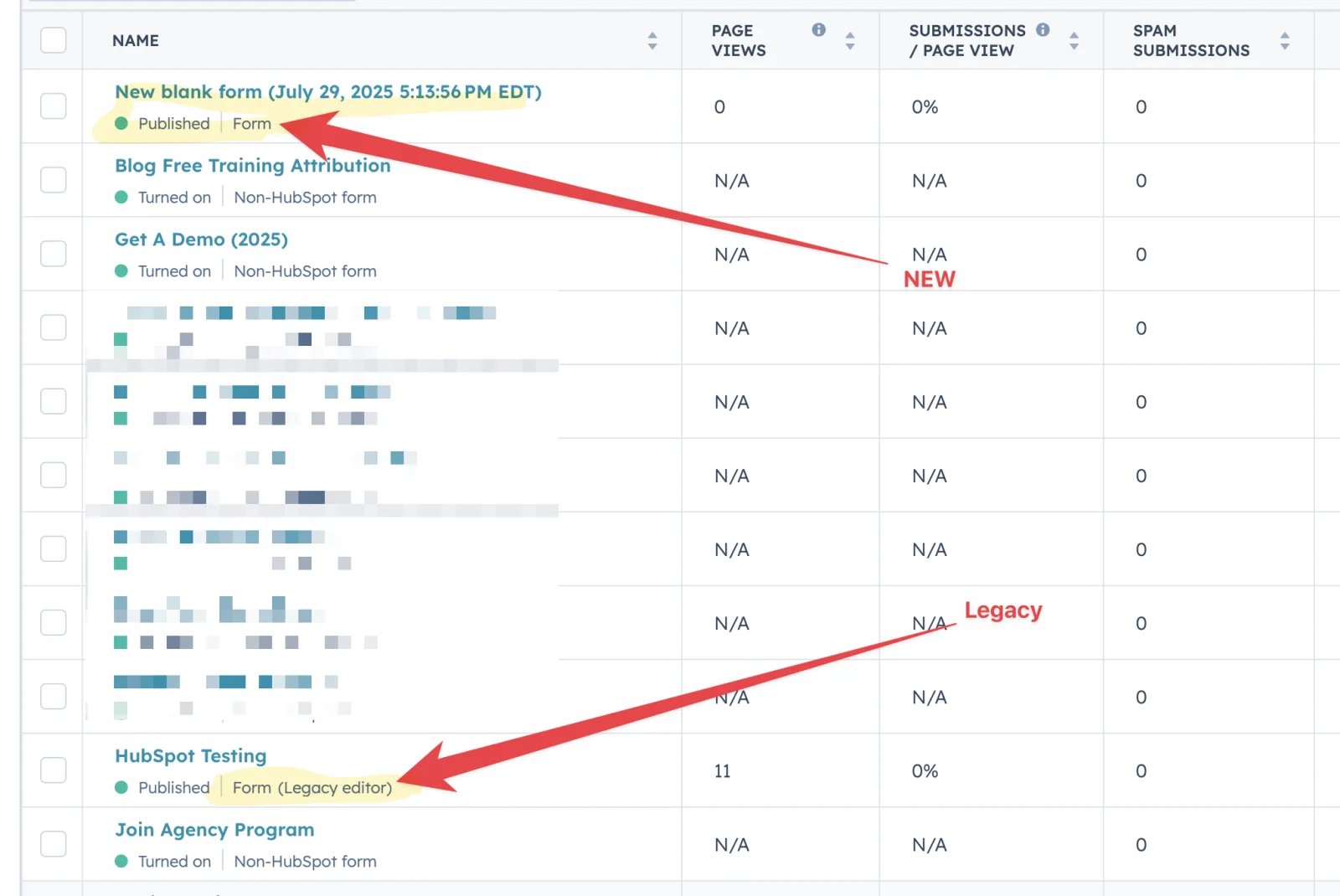
- Legacy forms, built with the old editor.
- New forms, built with the updated editor.
Step 1: Install and verify the Cometly pixel
Make sure the Cometly pixel is installed on every web page that holds one of your HubSpot marketing forms. If you have not installed and verified the pixel yet, see Install the Cometly pixel.Step 2: Test form tracking
Some HubSpot forms track without any extra work, so test the page first.- In Cometly, go to Setup > Install the Cometly pixel and scroll to Test form tracking.
- Under Test a page, pick your domain, enter the path of the page that holds your HubSpot form, and click Test.
- Click Open Page & Start Test. Your page opens in a pop-up window.
- Type something into every field of the form, but do not submit it. Then click Finish test at the top of the pop-up.
Step 3: Convert the HubSpot embed code in Cometly
1
Copy the embed code from HubSpot
Log in to HubSpot. In the left sidebar, click Marketing > Lead Capture > Forms.Find the HubSpot form you want to track and click edit. On the form page, click Share, then Embed code, and copy the code.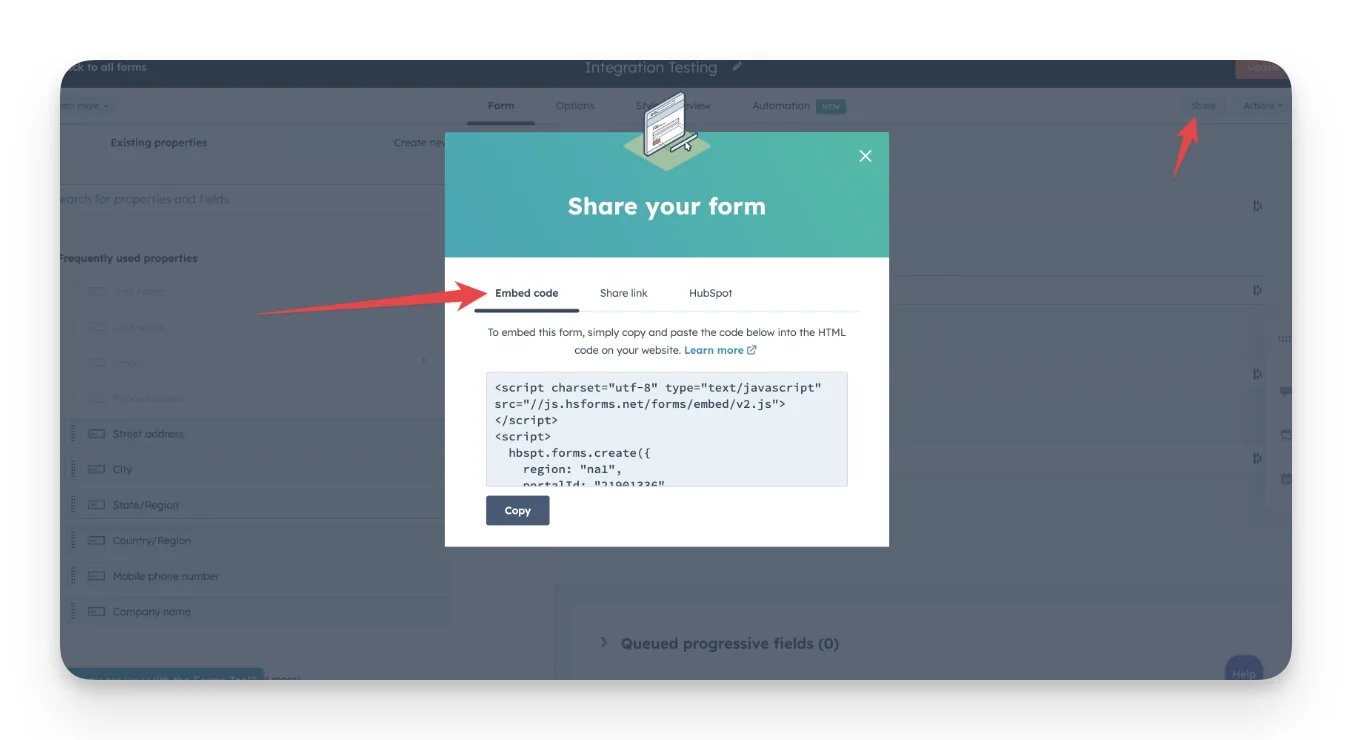
2
Open the converter in Cometly
In Cometly, go to Setup > Install the Cometly pixel and scroll to Test form tracking. Click HubSpot, then click Legacy Form.
3
Convert the code
Paste the HubSpot embed code into the box and click Convert Code.
4
Copy the converted code
Click Copy Converted Code.
5
Replace the code on your website
Paste the converted code into the HTML embed on your landing page, in place of the HubSpot form code you had there before. Your page should contain only the converted code, not the original code from HubSpot.With the converted code in place, the Cometly pixel captures the form fields for email, first name, last name and phone number.
Step 4: Test form tracking again
Go back to Setup > Install the Cometly pixel > Test form tracking, open the page under Tested pages and click Retest (or test the page again as in step 2) to confirm your HubSpot marketing form now tracks. If the test passes, you can continue with the rest of your setup.Check it worked
The page that holds your HubSpot form is listed under Tested pages with the green Forms detected status. When you click the page, the form shows Tracking correctly, and its email field appears under Detected fields.Frequently asked questions
Why does Cometly say “Unrecognized script” when I convert my HubSpot embed code?
Cometly did not recognize the code you pasted as a legacy HubSpot form embed code. Most often the form was built with the new editor, so check the label under the form name in HubSpot and follow HubSpot forms (new forms) if it is a new form. If it is a legacy form, copy the full embed code again from Share > Embed code and paste all of it.Do I need to convert the embed code for each HubSpot legacy form?
Yes. Each HubSpot form has its own embed code, and the converted code is for that one form. Repeat step 3 for every legacy form that does not pass the form tracking test.Does the converted code change my HubSpot form?
No. The converted code is your original HubSpot embed code with one addition: it loads Cometly’s tracking script inside the form once the form is ready. It still points to the same HubSpot form.Next steps
- Test form tracking on your other pages
- Connect HubSpot and send its events to Cometly
- Set up HubSpot forms built with the new editor
- Set up form tracking for third-party embedded forms
- Troubleshoot form tracking when a form or field is not detected