

Before you start
- If your Formstack form is on your website, set up form tracking first. Follow the Formstack form tracking guide.
-
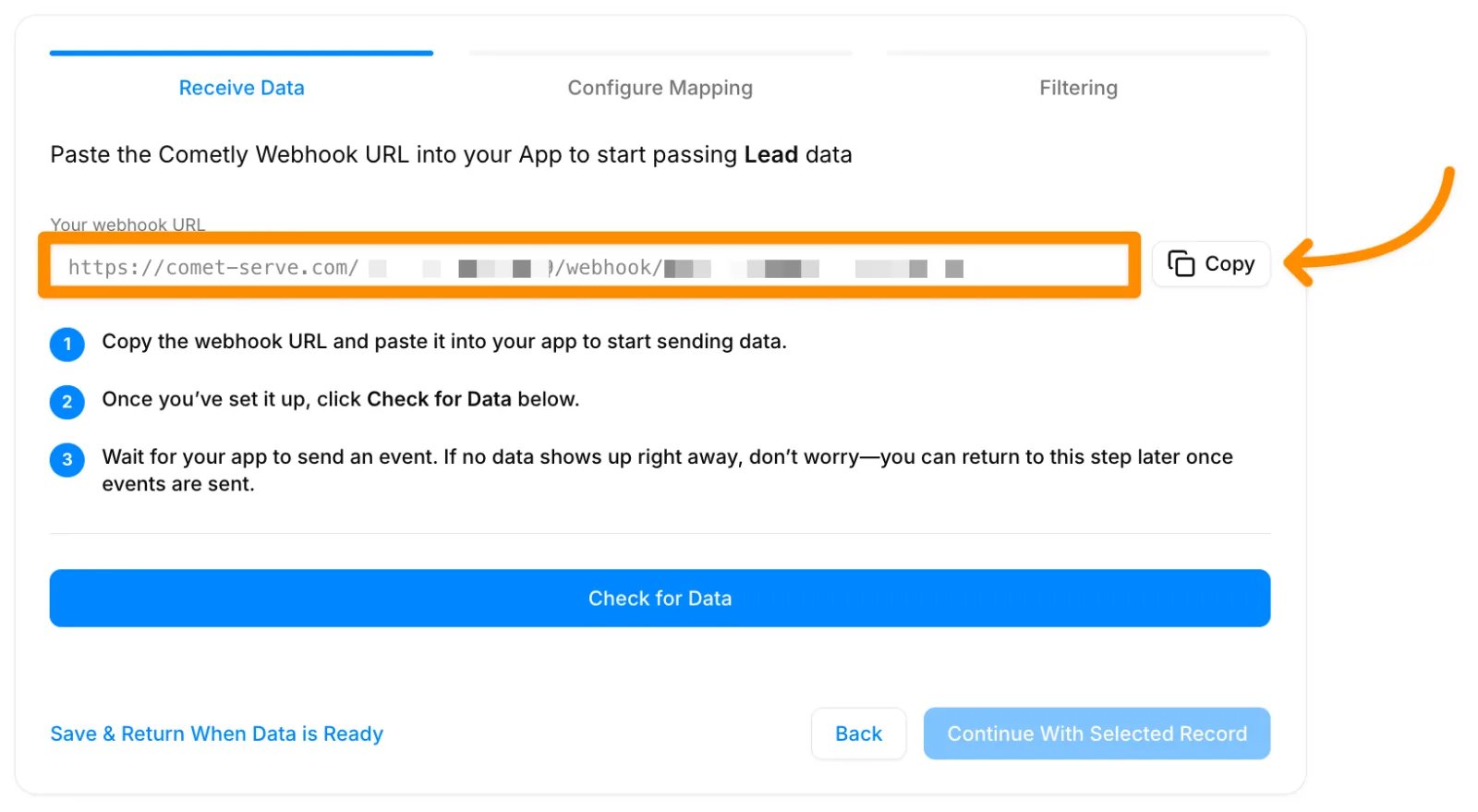
Get your Cometly webhook URL. In Cometly, go to Events Manager, click Create Event, choose Webhooks under App / Integration, pick the event name and click Create. Then click Configure next to the new event and copy the URL shown under Your webhook URL. The Cometly webhooks guide covers this in detail.
Add a webhook in Formstack
Follow these steps to add a webhook to your Formstack form. Formstack also documents this in its own article, Webhook Submit Actions.- Open the Settings tab of your Formstack form and click Emails & Actions in the left panel.
- Under Emails & Actions, scroll down to Advanced Settings and click Add a Webhook.
-
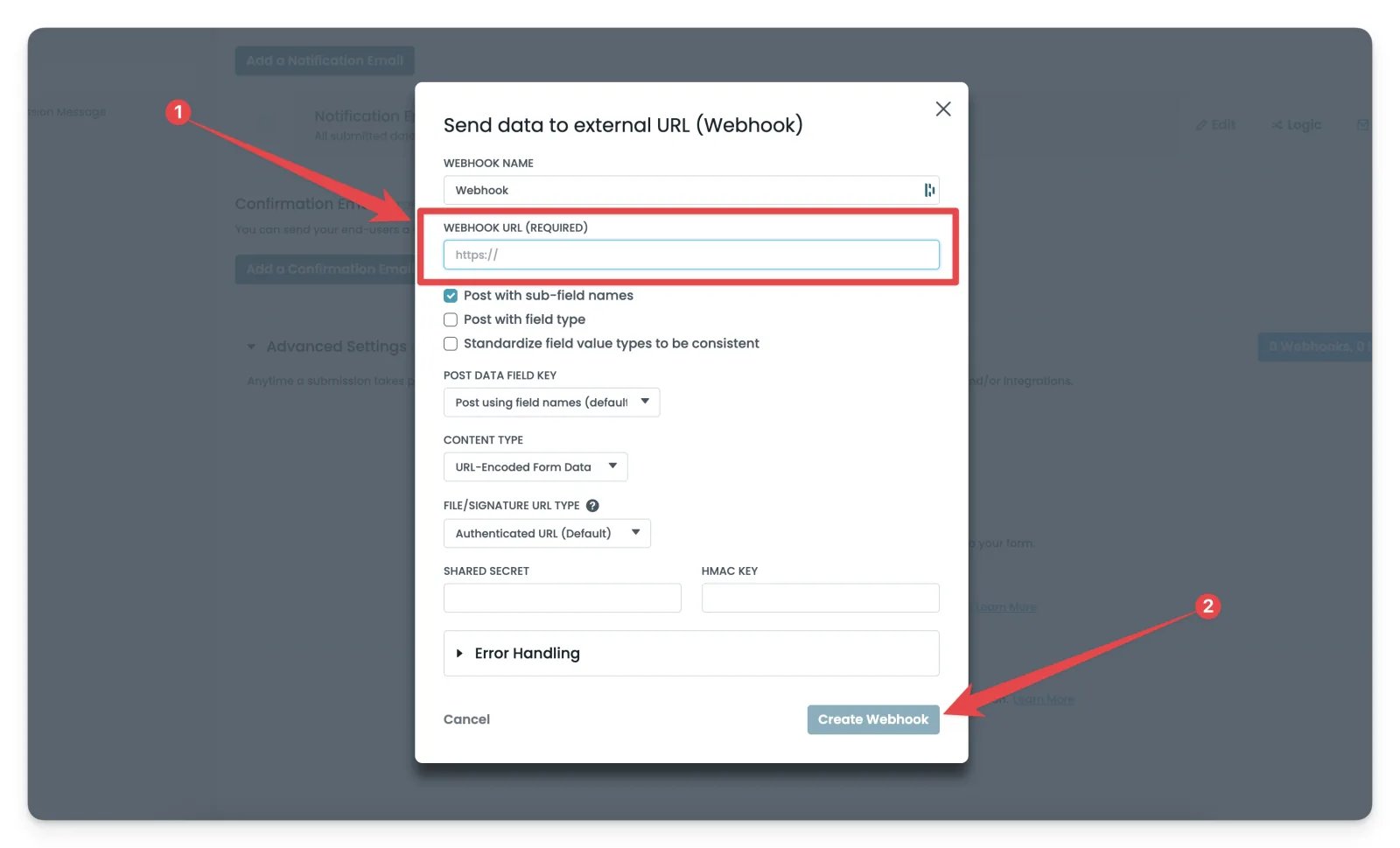
In the Send data to external URL (Webhook) dialog, fill in the following, then click Create Webhook:
- Webhook Name: Enter a descriptive name.
- Webhook URL: Paste your Cometly webhook URL.
- Post data settings: Check
Post with sub-field names. - Content Type: Select
URL-Encoded Form Dataunless instructed otherwise.
Finish the webhook in Cometly
Once the webhook is saved in Formstack, submit a test entry on your form, then go back to the event in Cometly and finish the setup. The Cometly webhooks guide has detailed instructions for:- Receiving the test submission with Check for Data.
- Mapping the webhook data to the right Cometly fields.
- Adding filters so only the submissions you want are tracked.
- Activating the event.
Check it worked
In Events Manager, your webhook event shows a switch that is turned on in the Status column. Submit a new entry on your Formstack form, then open the Events Log tab: the event appears there within 60 seconds, with SUCCESS in the Details column.Frequently asked questions
Do I need the Cometly pixel on my Formstack form if I already use the webhook?
Yes, if the form is on your website. The pixel (the Cometly tracking script) captures the email address a visitor types into the form, and Cometly uses that email to connect the webhook event to the right person and the ad they came from. Set it up with the Formstack form tracking guide.How long does it take for a Formstack submission to show up in Cometly?
The event shows in the Events Log within 60 seconds of being sent. It can take up to 15 minutes to appear in the reporting areas, such as the Report Builder or Ads Manager.Why is my Formstack test submission missing from my Cometly reports?
Test data sent before the webhook event was activated is not processed and does not appear in your reports. Activate the event, then submit a new entry on your form.Next steps
- Finish mapping, filters and activation with the Cometly webhooks guide
- Track your Formstack form fields with the Cometly pixel
- Use the Events Log to check incoming events
- Learn how events work in Cometly
- Plan which events to track