

- Connect Typeform with the Typeform integration
- Typeform submissions via Cometly webhooks (Recommended)
- Use Zapier to send events for form submissions from Typeform to Cometly
Connect Typeform with the Typeform integration
With the Typeform integration you connect your Typeform account, pick a form, and Cometly adds the webhook to that form for you.1
Connect your Typeform account
- In Cometly, click Integrations in the sidebar.
- Search for Typeform and click Connect on the Typeform card.
- Click Add connection in the top right, then log in to Typeform and approve access.
2
Create the event
- Click Events Manager in the sidebar, then click Create Event.
- Under App / Integration, select Typeform.
- Select an event name (for example Lead), or click Create New Event.
- Click Create, then click Configure on the new draft event.
3
Choose the account, form and trigger
- Under Account, select your Typeform connection.
- Under Form, select the form you want to track.
- Under Trigger, choose Form Submitted.
- Click Continue.
4
Map the data and activate
- Submit a test response through your Typeform.
- In Cometly, click Check for Data, select the record and click Continue With Selected Record.
- Map the fields. Email and Event Time are required. Click Save & Continue.
- (Optional) Add filters, then click Activate.
If you are using non-embedded Typeform forms (where your site visitors click a button that takes them to a Typeform URL), make sure you also map the
comet_token to the Comet Token field on the mapping step. If you are using embedded forms, you do not need to include the comet_token.Typeform submissions via Cometly webhooks (Recommended)
If you are using non-embedded Typeform forms (where your site visitors click a button that takes them to a Typeform URL), make sure the
comet_token is mapped in Cometly on the Cometly webhook step below. If you are using embedded forms, you do not need to include the comet_token.- In Typeform, open your form and go to Connect.
- Click Webhooks.
-
Click Add a webhook.
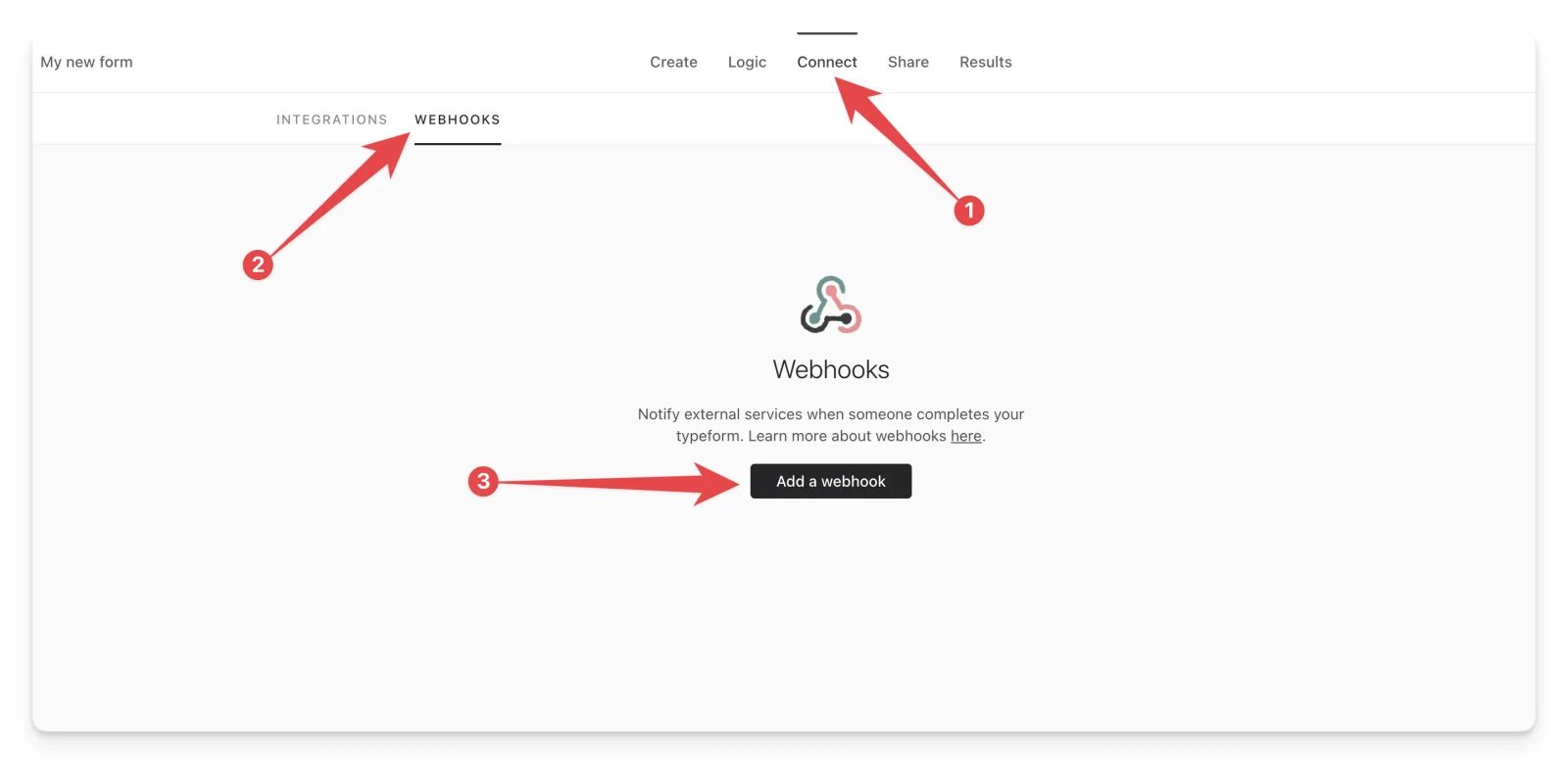
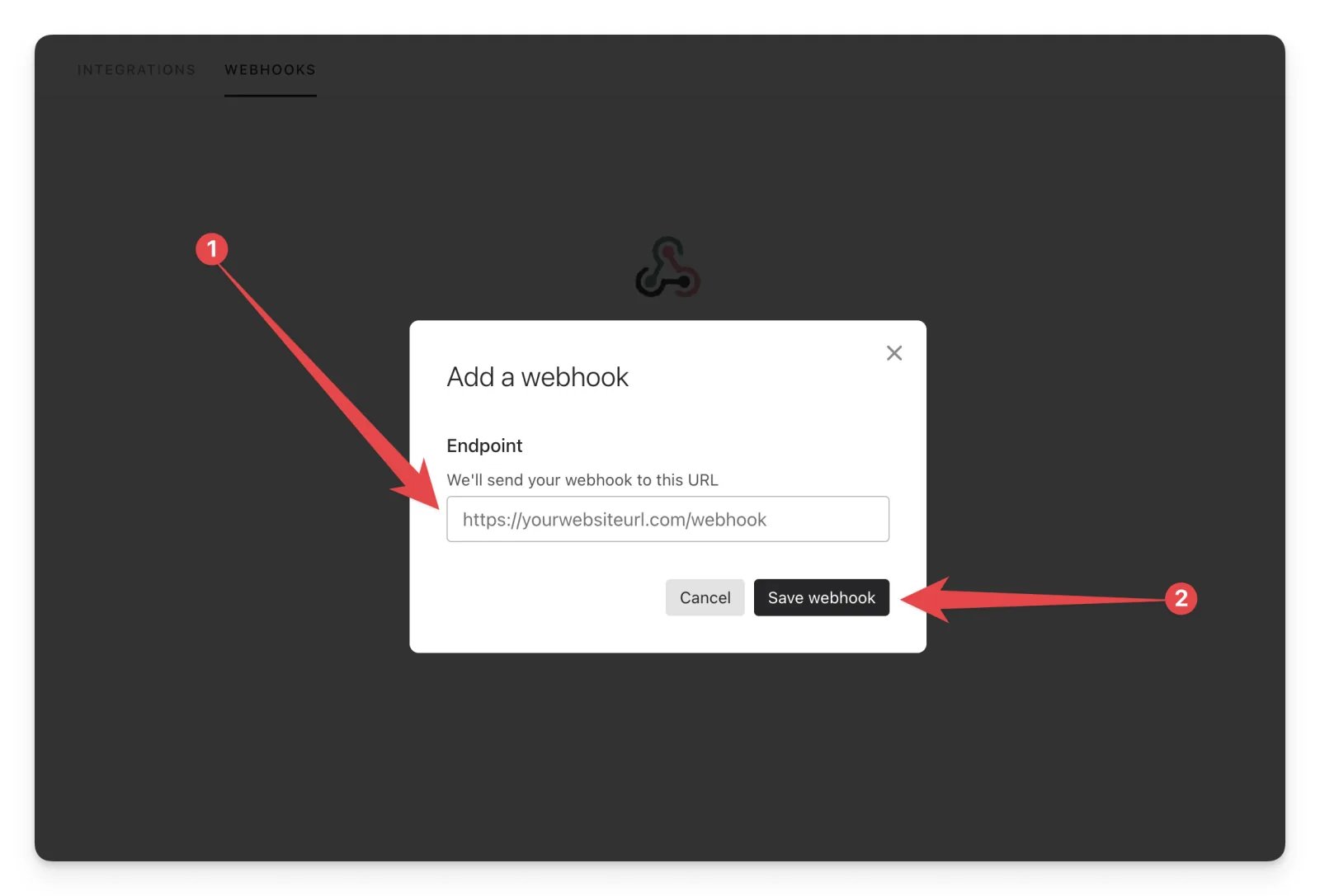
- In Cometly, choose the event you want to send when a Typeform is submitted and create a new Cometly webhook for it. Follow the steps in the webhooks guide.
-
Paste the Cometly webhook URL into Typeform and click Save webhook.
Use Zapier to send events for form submissions from Typeform to Cometly
If you are using non-embedded Typeform forms (where your site visitors click a button that takes them to a Typeform URL), make sure the
comet_token is mapped in the Cometly Zap action step. If you are using embedded forms, you do not need to include the comet_token.Use Cometly In Zapier
- Create your Zap in Zapier.
- Use Typeform as your trigger.
- Submit a new test response through your Typeform.
- Configure Cometly as your action.
- Choose the event you want to send to Cometly.
See the Zapier integration guide for how to connect Cometly in Zapier.
The video below shows how to set up Typeform as your trigger and Cometly as your action, so you can send Typeform responses to Cometly as events.
Check it worked
In the Events Manager, your Typeform event is no longer marked Draft. Submit a new response through your Typeform, then open the Events Log tab in the Events Manager: the event shows there within 60 seconds.Frequently asked questions
How long does it take for a Typeform submission to show up in Cometly?
The event shows in the Events Log within 60 seconds of being sent. It can take up to 15 minutes to appear in the reporting areas, such as the Report Builder or Ads Manager.Why do my Typeform submissions show up in Cometly without an ad source?
Cometly can only link a submission to an ad when it can match the response to a visitor the Cometly pixel (the tracking script on your website) has seen. Check that your form is set up as described in the Typeform form tracking guide, and for non-embedded forms that thecomet_token or fingerprint field is mapped. For other causes, see Understanding No Source in reports.
Do I need Zapier to connect Typeform to Cometly?
No. The Typeform integration and the Cometly webhook both send submissions from Typeform straight to Cometly. Zapier is a third option if you already build your automations there.Next steps
- Set up Typeform form tracking on your website
- Use the Events Log to confirm Typeform events arrive
- Map and format event data with Cometly webhooks
- Connect Cometly in Zapier
- Send conversions back to your ad platforms