

How it works
When you connect Help Scout, Cometly creates a customer property in your Help Scout account calledcometly_tracking_token. A small snippet on your website fills in that property when a visitor chats in through the Beacon widget. When Help Scout creates the new customer, it sends the customer to Cometly, and Cometly uses the tracking token to tie the lead back to the visitor’s original journey.
Only customers that carry a Cometly tracking token are recorded. A customer created in Help Scout without one is not recorded as an event in Cometly.
Before you start
- Install the Cometly pixel (the tracking script that identifies visitors on your website) on every page where your Beacon chat widget appears. The snippet in step 2 reads the visitor’s tracking token from the pixel. See Install the Cometly pixel.
Set up the Help Scout integration in Cometly
1
Connect your Help Scout account
In Cometly, click Integrations in the left sidebar, find the Help Scout card (category Chat) and click Connect.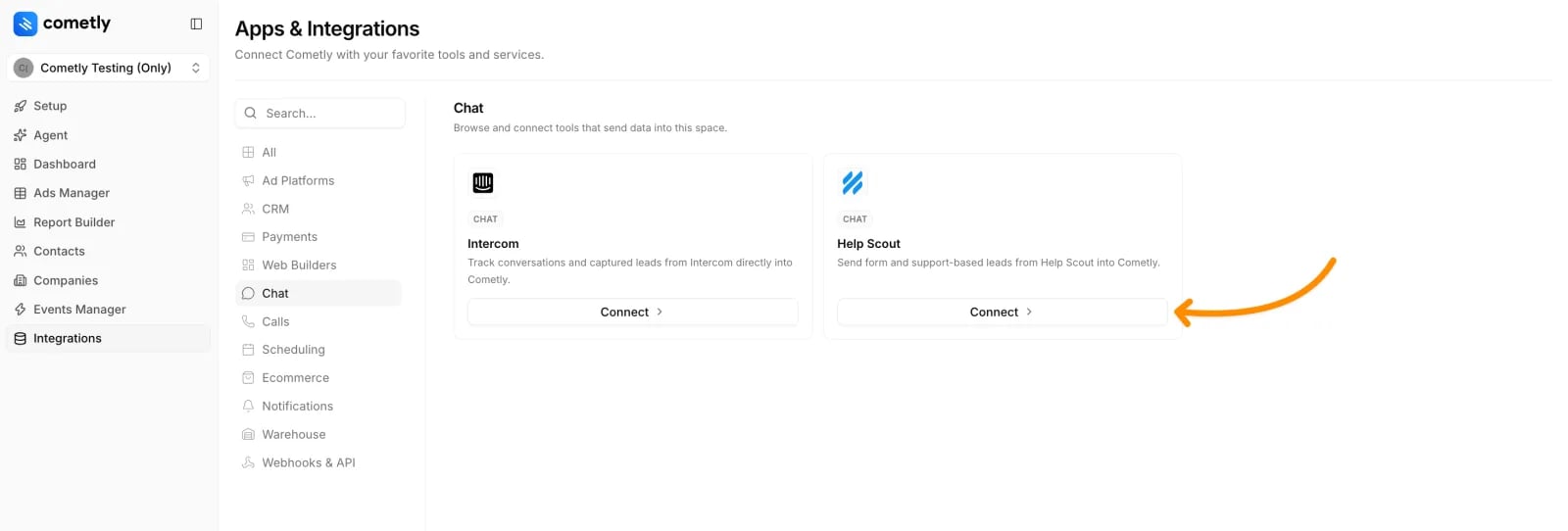
- Click Sign in with Help Scout. This activates the integration in Cometly, and the page changes to Help Scout connected.
- Click Re-sync Help Scout and authorize Cometly in Help Scout. This is the step that creates the
cometly_tracking_tokenproperty and the webhook in your Help Scout account, so do not skip it. When you are sent back to Cometly, a message confirms that the synchronization succeeded.
2
Add the tracking snippet to your website
The snippet updates the
cometly_tracking_token property in Help Scout when a new lead chats in through the Beacon widget.On the Help Scout page in Cometly, under Add the tracking snippet to your website, click Copy snippet to clipboard. Paste the snippet right below Beacon('init') on every page of your website where the Beacon chat widget is installed.3
Map new Help Scout leads to a Cometly event
Under Map Help Scout events to Cometly, choose which Cometly event the Help Scout Customer Created event should be recorded as (the default is Lead) and click Save.
Choosing the right event
When you send Lead events to Cometly from Help Scout and from other platforms, consider the following:- If Help Scout leads are already in your CRM: if your CRM (for example HubSpot) already sends Help Scout leads as part of its Lead events, map Help Scout to a separate event in Cometly, such as a custom event named “Chat Lead”. You will see both Lead (from your CRM) and Chat Lead (from Help Scout) on the contact’s timeline, without duplicates.
- If leads are sent from multiple sources: if you send Lead events from different sources (for example forms, Help Scout and a CRM), you can include Help Scout leads in the general Lead event.
Check it worked
The Help Scout page in Cometly shows Help Scout connected, and the re-sync ends with a message that the synchronization succeeded. To test the full flow, start a chat through the Beacon widget on your website with an email address that is not already a customer in Help Scout. Then click Events Manager in the sidebar and open the Events Log tab: the new lead appears in the list.Frequently asked questions
What data does Help Scout send to Cometly?
For each new customer, Cometly records the email address, first name, last name and the time the customer was created in Help Scout. It also reads thecometly_tracking_token property, which is what links the lead to the visitor’s journey.
Why are my Help Scout leads not showing up in Cometly?
The most common cause is a customer that reaches Cometly without a tracking token. Check that the Cometly pixel is on the page with the Beacon widget, that the snippet sits right belowBeacon('init'), and that you completed the Re-sync Help Scout step. Open the Events Log to see whether Cometly received the customer at all.
Does Cometly import my existing Help Scout customers?
No. Help Scout notifies Cometly only when a new customer is created, so customers that existed before you connected are not sent. Leads start to appear from the first new Beacon chat after setup.Next steps
- Check incoming events in the Events Log
- Create a custom event, such as “Chat Lead”
- Learn how events work in Cometly
- Browse all integrations