

To track first payments, you may not need Zapier. The direct Stripe integration has a First Payment trigger that fires only on a customer’s first payment greater than 0.00. See Stripe.
Before you start
- Connect Cometly to Zapier. In Cometly, go to Integrations > Zapier, click Activate Zapier and create an API token. See Zapier.
- Create the custom events (events you name yourself) you want to send, for example one for first-time payments and one for recurring payments. See Manage custom events.
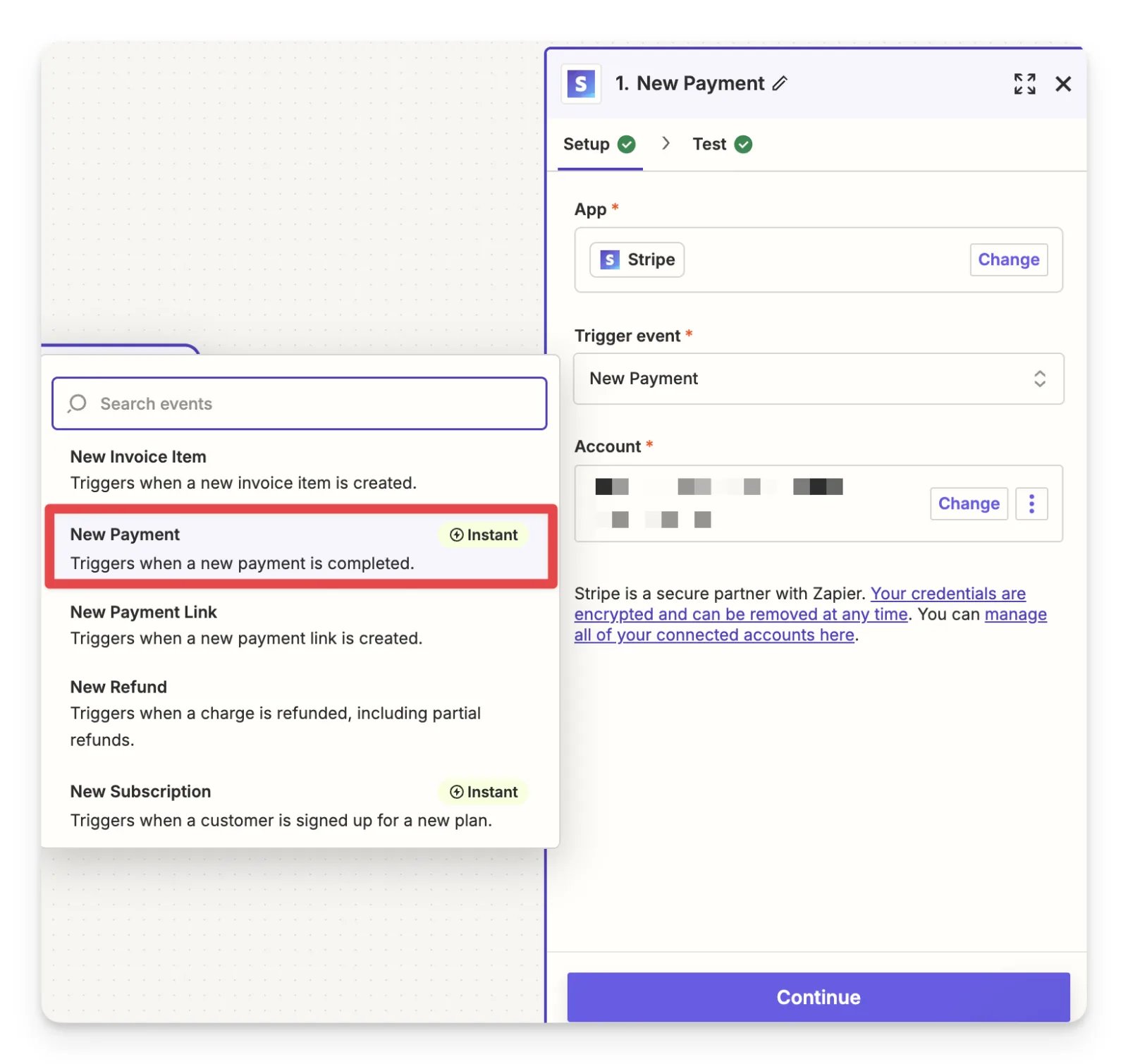
Step 1: Tell first-time payments from recurring payments
There are two ways to identify a first-time payment in Zapier when you use Stripe:- The Customer Next Invoice Sequence field.
- The Description field of the New Payment event.
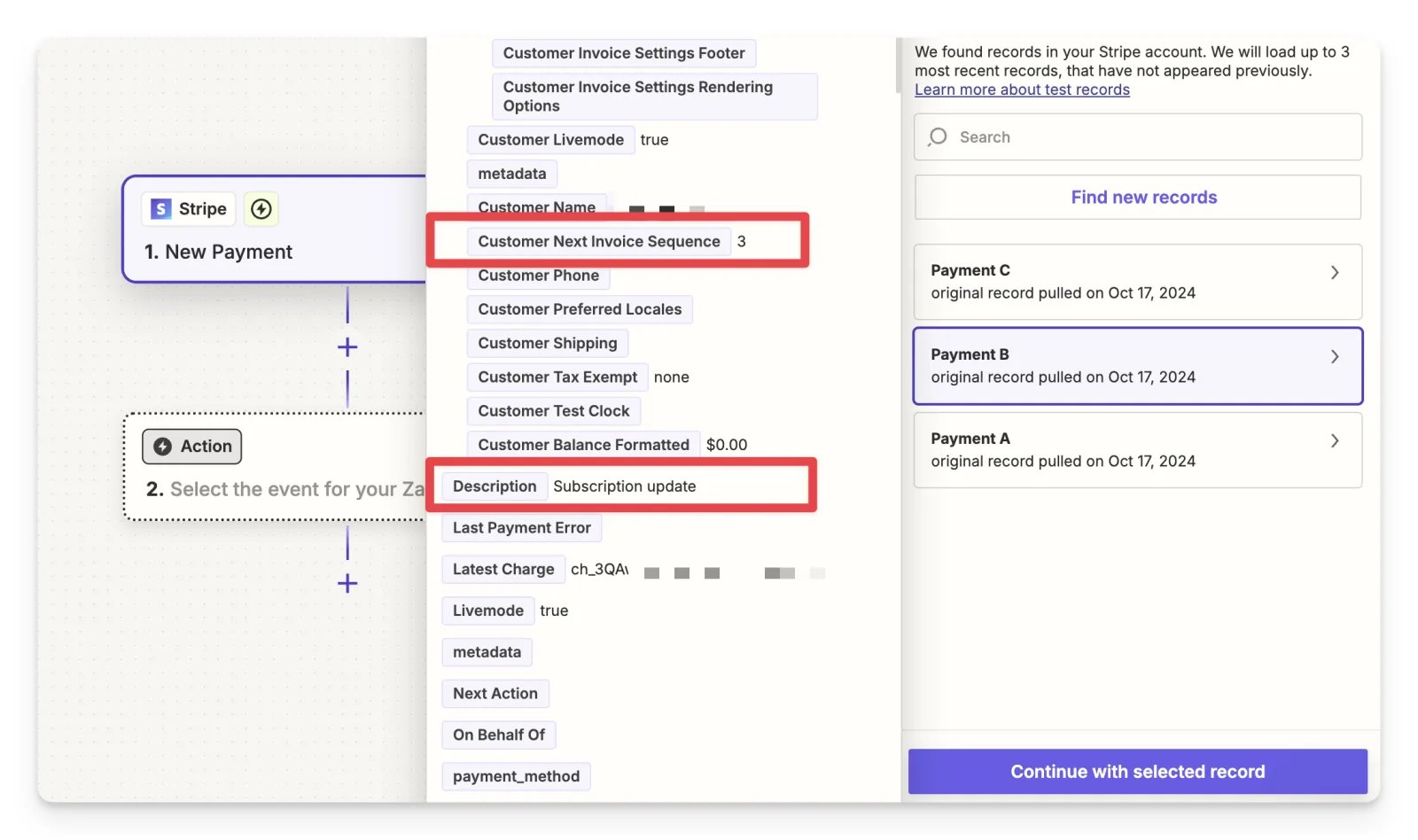
Option 1: Use the Customer Next Invoice Sequence
The Customer Next Invoice Sequence is a Stripe field that tracks the sequence of payments. A value of 2 indicates that the payment is the first one for a new subscription. In Zapier, add a filter step that only continues when Customer Next Invoice Sequence equals 2. Only first payments are then processed as new subscriptions.Option 2: Use the Description field
Each new payment from Stripe has a Description field, which tells a new subscription from an ongoing one:- Subscription creation: the first payment of a new subscription.
- Subscription update: an ongoing or recurring payment.
Step 2: Filter for successful payments
To send only successful payments to Cometly, add another filter step to your Zap. Under Filter setup & testing, configure the filter so it only continues if Status (Text) exactly matches succeeded. Click Continue, test the filter and go to the next step.Step 3: Send the event to Cometly
Choose Cometly as the next action in your Zap and send the Cometly event of your choice. For the fields to send to Cometly, see Stripe.Check it worked
In Zapier, click Test Step on the Cometly action to send a test event. Then open Events Manager in Cometly and check the Events Log tab: the event appears there within 60 seconds. Once your Zap is on, each successful first-time payment in Stripe shows up there too.Frequently asked questions
How do I send recurring Stripe payments to Cometly as their own event?
Create a second Zap with the same Stripe New Payment trigger. In its filter step, continue only when the Description field equals Subscription update, which marks an ongoing or recurring payment, and send a different Cometly event from the one you use for first-time payments.How long does it take for a Stripe payment sent through Zapier to show up in Cometly?
The event shows in the Events Log within 60 seconds of being sent. It can take up to 15 minutes to appear in the reporting areas, such as the Report Builder or Ads Manager.Why does my Stripe payment show up in Cometly without an ad source?
Cometly uses the email address to connect the payment to the visitor who clicked your ad. Make sure the customer’s email is captured earlier in your funnel (for example through a form submission) on a site with the Cometly pixel, the tracking script on your site, and that your Zap sends that email. For other causes, see Understanding No Source in reports.Next steps
- Set up the direct Stripe integration and its First Payment trigger
- Connect Cometly to Zapier and send events from any app
- Use the Events Log to confirm your payments arrive
- Manage the custom events your Zaps send to
- Set up Stripe webhooks or Zapier for more complex events