

Before you start
Copy your Cometly pixel. In Cometly, go to Setup > Install the Cometly pixel, find Install the pixel and click Copy Code. See Install the Cometly pixel for the full walkthrough.Add the pixel to your Paperform form
1
Open the Analytics settings
Log in to Paperform and open the form you want to set up. Click Configure in the top navigation bar, then select Analytics from the dropdown menu.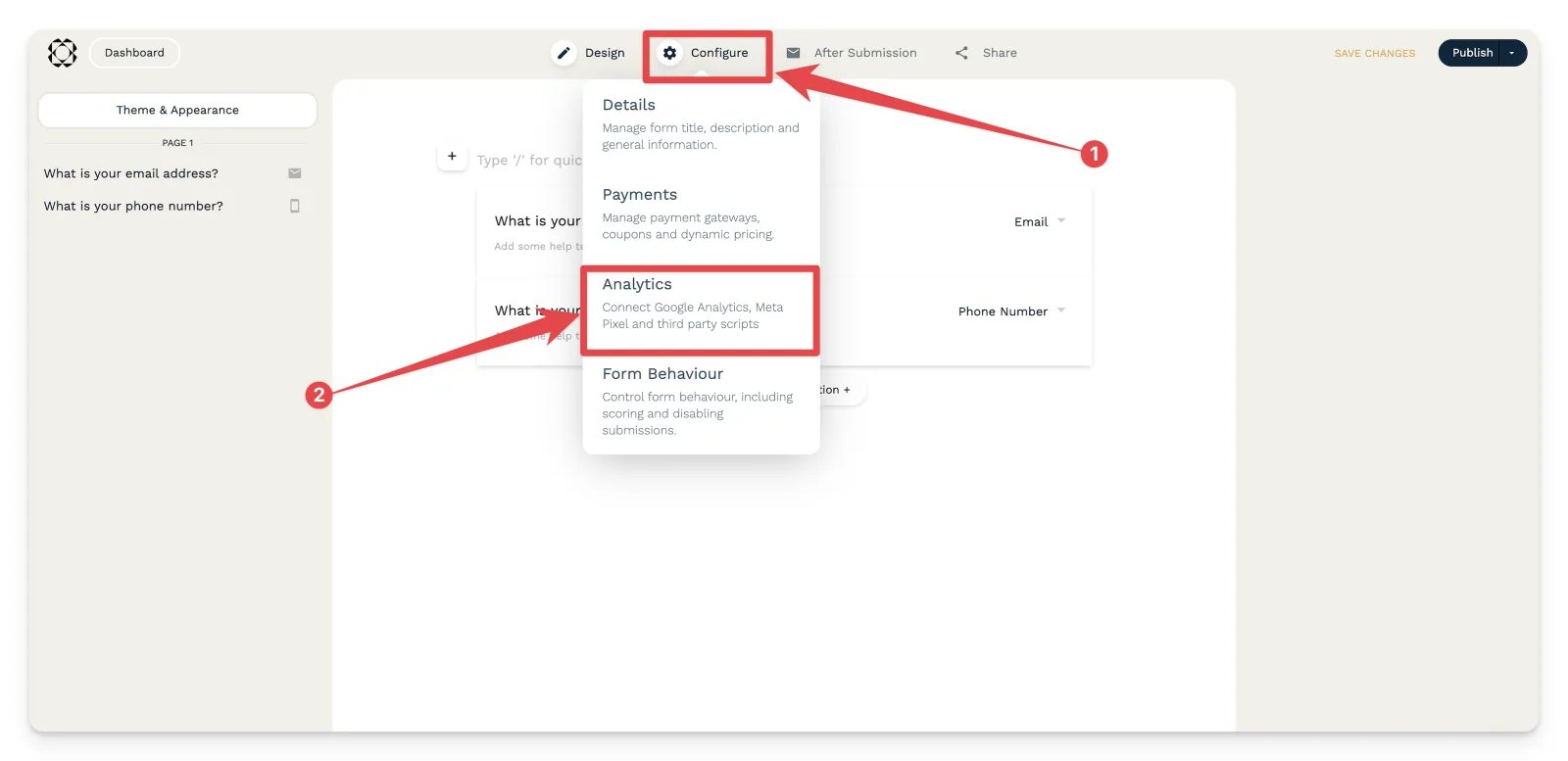
2
Paste the pixel into Page load scripts
Scroll down to Page load scripts and paste your Cometly pixel into the box.
3
Save and publish
Click Save Changes, then publish your form so the pixel goes live.
Confirm the pixel is in both places
The pixel must be in both locations for Cometly to capture form field data:- On the Paperform form itself, through the Page load scripts box.
- On the web page where the form is embedded.
Check it worked
Use the Cometly Pixel Helper to check that the email address field is captured automatically as you fill in the form. You can also test the page in Cometly under Setup, step 2, in the Test form tracking section. See Test form tracking. When the test passes, the page appears under Tested pages with the status Forms detected, and its email field is listed under Detected fields.Send Paperform submissions to Cometly as events
To send an event to Cometly for each Paperform submission, use a Cometly webhook. An event is an action Cometly records, such as a lead or a sale. Set up the Paperform integrationFrequently asked questions
Which Paperform fields does Cometly capture?
The Cometly pixel captures full name, first name, last name, email address and phone number. Email is the most important one, because Cometly uses it to match a form submission to the right person.Do I need the Paperform webhook as well as form tracking?
They do different jobs. Form tracking captures the contact details a visitor types into the form, and the webhook sends each submission to Cometly as an event. If you want submissions to appear as events in Cometly, set up form tracking first, then add the webhook.Why is Cometly not capturing data from my Paperform form?
Check that the Cometly pixel is in both places: in the form’s Page load scripts box and on the web page where the form is embedded. Then make sure you clicked Save Changes and published the form. If a field is still missing, follow the form tracking troubleshooting guide.Next steps
- Test form tracking on the page that holds your form
- Send Paperform submissions to Cometly as events
- Learn how form tracking works
- Troubleshoot form tracking
- Set up form tracking for other third-party embedded forms