

Agencies: if you work with Business Partner access, see Lead form tracking for agency clients to make sure you are set up correctly.
Connect Meta and choose your pages
1
Connect your Meta profile to Cometly
In Cometly, go to Integrations, open Meta Ads under Ad Platforms and click Sign in with Facebook. Log in to Facebook if you are asked to.
2
Select your business
In the Facebook dialog, select the business (Business Manager) that owns the page running your lead forms. Check that it is the right one before you continue.
3
Choose the pages to track
Select the page or pages whose lead forms you want to track, then confirm.
4
Connect the ad account to your space
Back in Cometly, click Connect & Sync Data on the ad account that runs your lead form ads, if it is not connected yet. Cometly matches each lead to an ad in a connected ad account.
Add a new page or resync your Meta profile
If your Meta profile is already connected but you need to add a new page, or leads are not showing up in Cometly:- Go to Integrations and open Meta Ads under Ad Platforms.
-
Click Resync. In the Facebook dialog, click Edit previous settings if you want to add a business or a page.
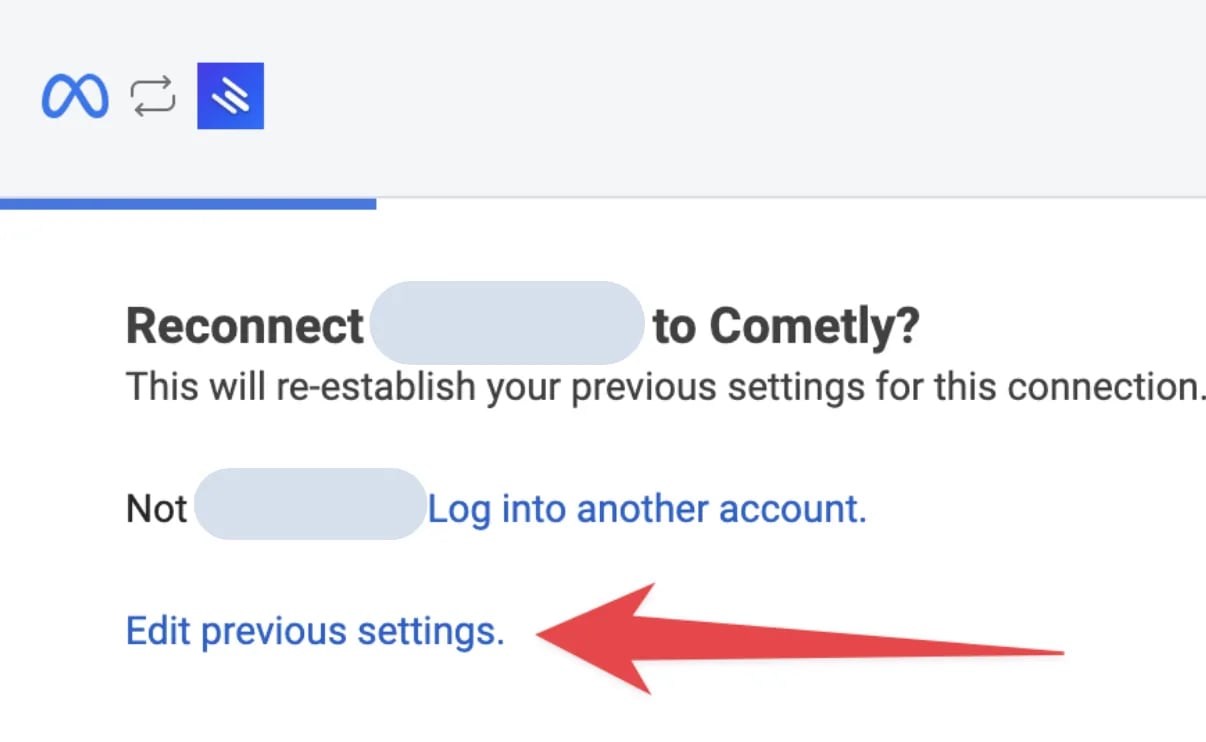
- Select the business and the pages you want to track lead forms for again.
Check Leads Access in Meta Business settings
Both Cometly and the connected Meta profile need Leads Access to your page.-
In Meta Business settings, click Integrations > Leads Access.
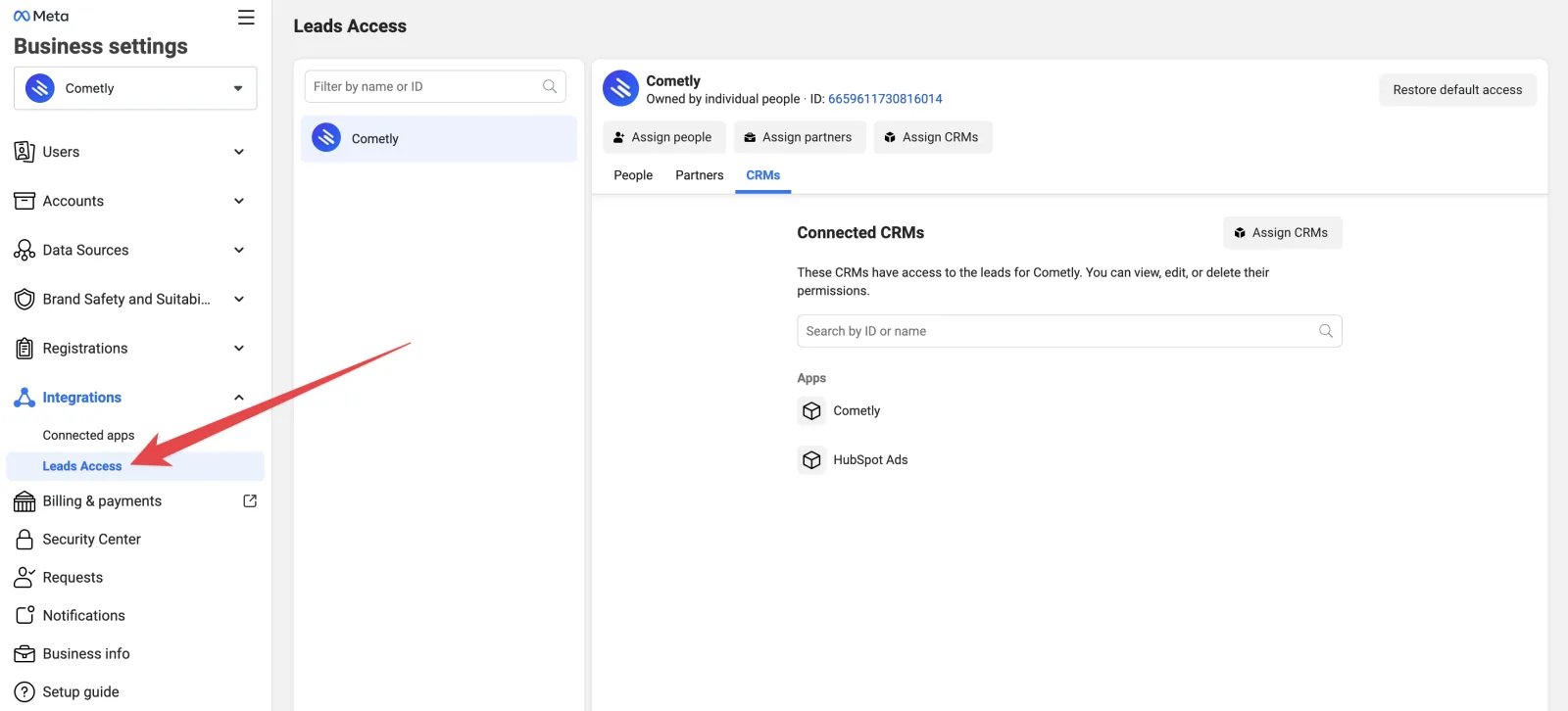
-
Click CRMs. If Cometly is not listed for your page, click Assign CRMs and assign Cometly.
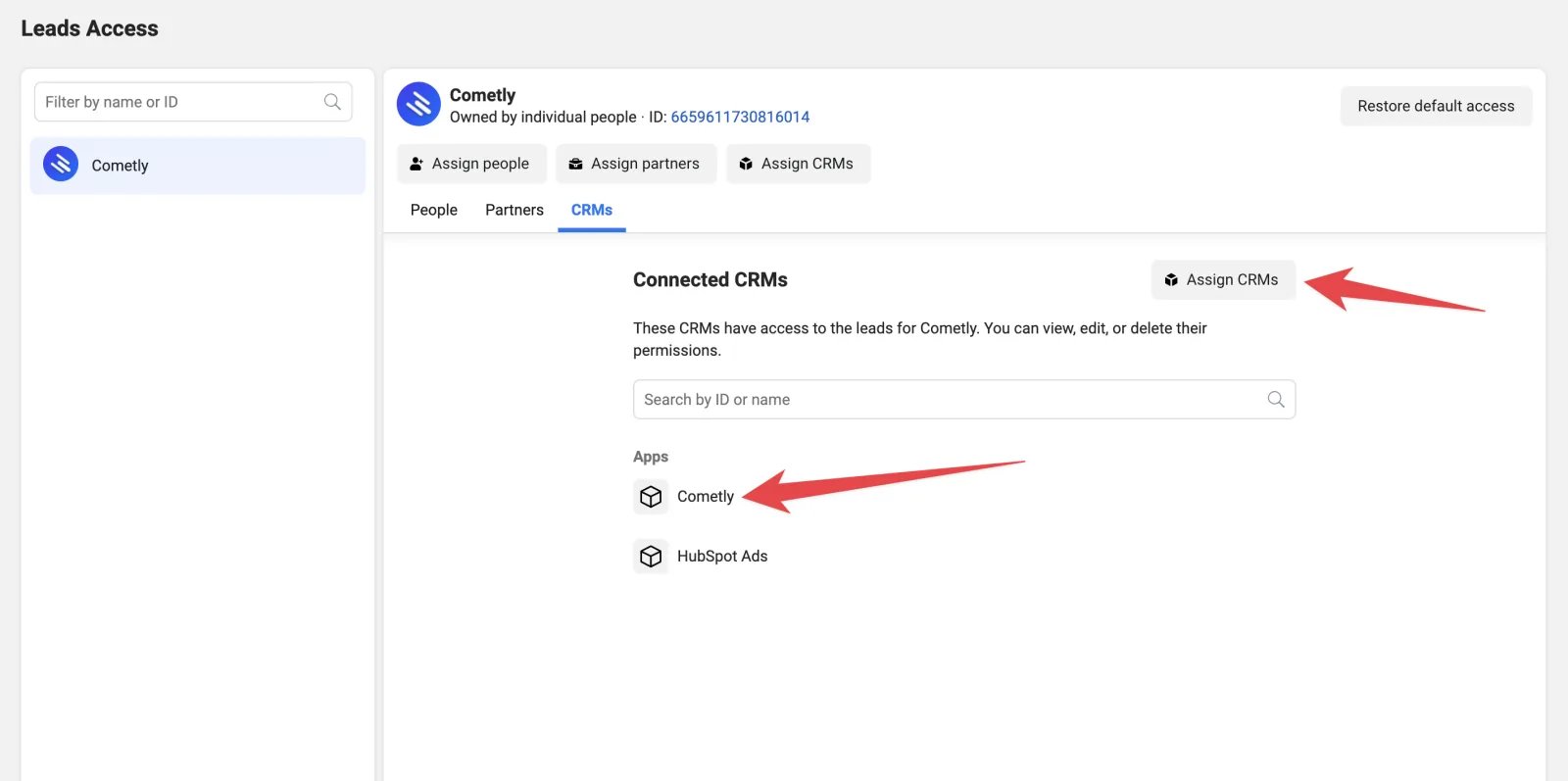
-
Click People and check that you are listed. If you are not, click Assign people and give yourself access. You must be an admin of the page to do this.
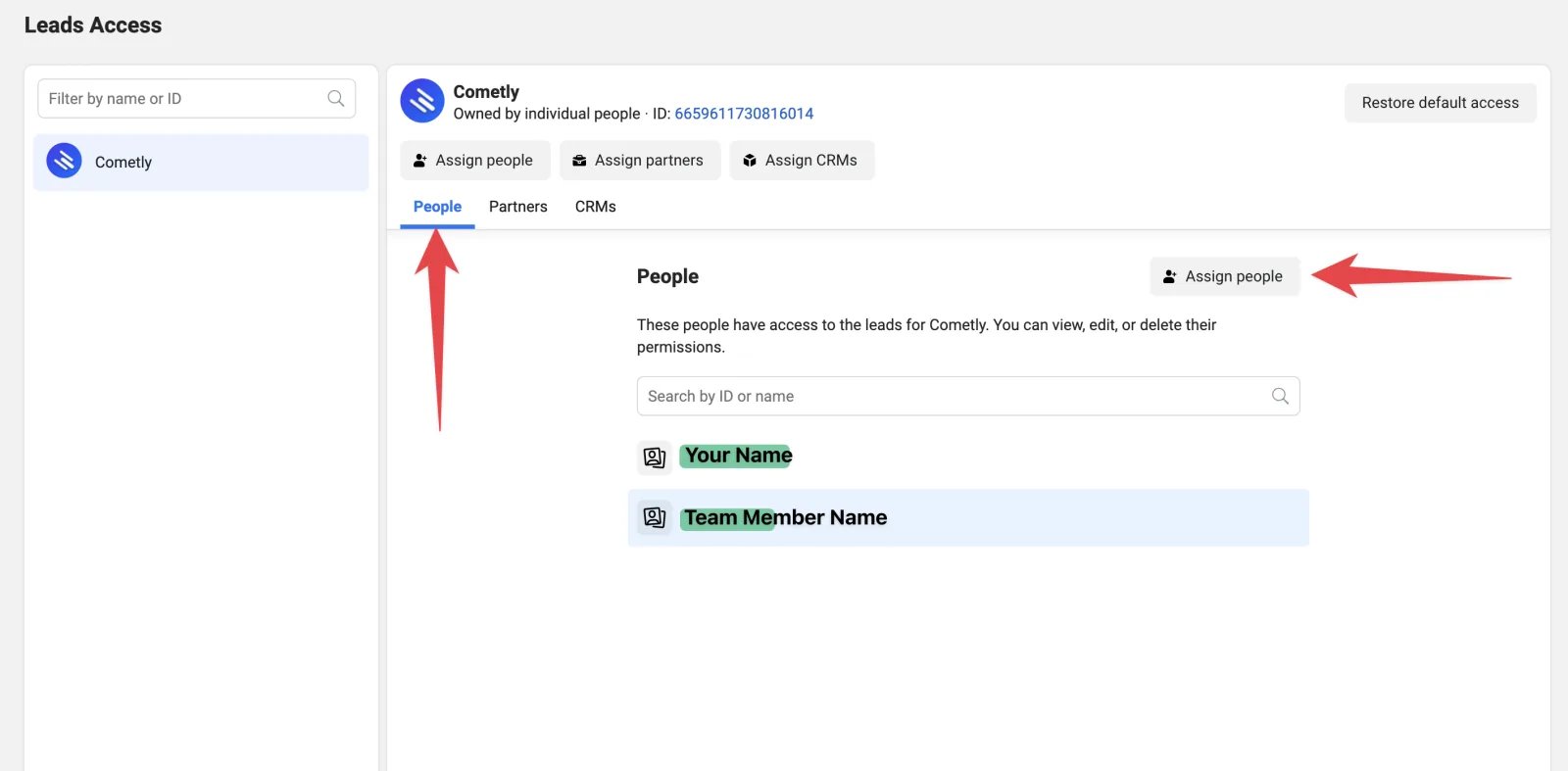
Form settings
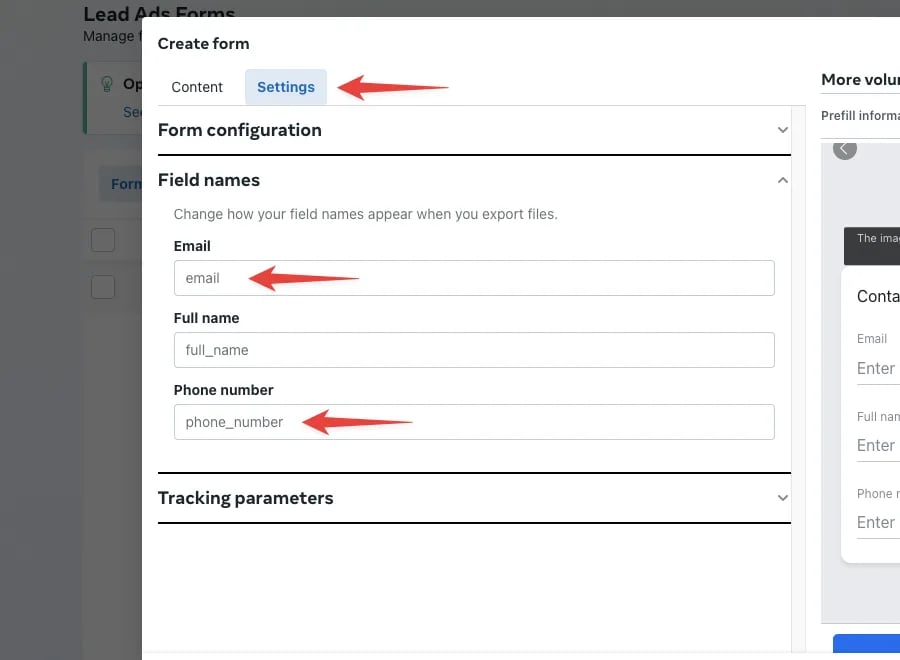
When you create your instant form, use Meta’s standard Field names, found on the form’s Settings tab. Meta uses these names by default:
Cometly also reads Meta’s work email (
work_email) and work phone number (work_phone_number) fields.
If an existing form uses custom field names, change them back to the default names above. Otherwise Cometly will not capture that data.
Lead form tracking for agency clients
If you are an agency managing Meta lead form tracking for a client, Business Partner access is not enough to add Cometly as a CRM in Meta. Use one of these two options.Option 1: Get invited to the client’s Business Manager
- Ask the client to invite your personal Meta profile to their Business Manager as an Admin (not just a Partner).
- Once you are an admin, you can assign Cometly as a CRM and set up Leads Access.
Option 2: Have the client connect Facebook to Cometly
- Invite the client to your Cometly space as an Advertiser.
- Have the client connect their Meta ad account in Cometly with their own Facebook login.
- They can then assign Cometly as a CRM from their own Business Manager.
Check it worked
When the next lead comes in from one of your lead form ads, open Events Manager. The lead appears as a Lead event with Meta Instant Form in the Integration column. If no leads show up, resync your Meta profile and check Leads Access, as described above.Frequently asked questions
Do I need the Cometly pixel on my website to track Meta lead forms?
No. Meta sends the lead to Cometly when someone submits the form, and Cometly matches it to the ad it came from, so no website visit is involved. You still need the pixel to track visitors and forms on your own site.Does Cometly send Meta lead form leads back to Meta through the Conversion API?
No. Meta already has these leads, because the form was filled in on Facebook or Instagram. Cometly records the Lead event without sending it back through the Conversion API (the server-side connection that sends your conversions to ad platforms).Why is my Meta test lead not showing in Cometly?
Cometly records a lead only when Meta says which ad it came from and that ad belongs to an ad account connected to your space. A lead that arrives without an ad, which is usually the case for test leads, is skipped. To check your setup, wait for a lead from a live lead form ad.Next steps
- See whether lead forms pass the Tracking Health check
- Learn how events work in Cometly
- Connect or manage your Meta ad account
- Send conversions to Meta with the Conversion API
- Track LinkedIn Lead Gen Forms