

Before you start
If you use Paperform forms on your website, make sure the Cometly pixel (the tracking script on your website) is set up on them first. Follow the Paperform form tracking guide to complete the required steps.Get your Cometly webhook URL
- In Cometly, click Events Manager in the sidebar, then click Create Event.
- Under App / Integration, select Webhooks. Under Events, choose the event you want to track (or create a new one), then click Create.
- Find the new event in the Events Manager table and click Configure.
-
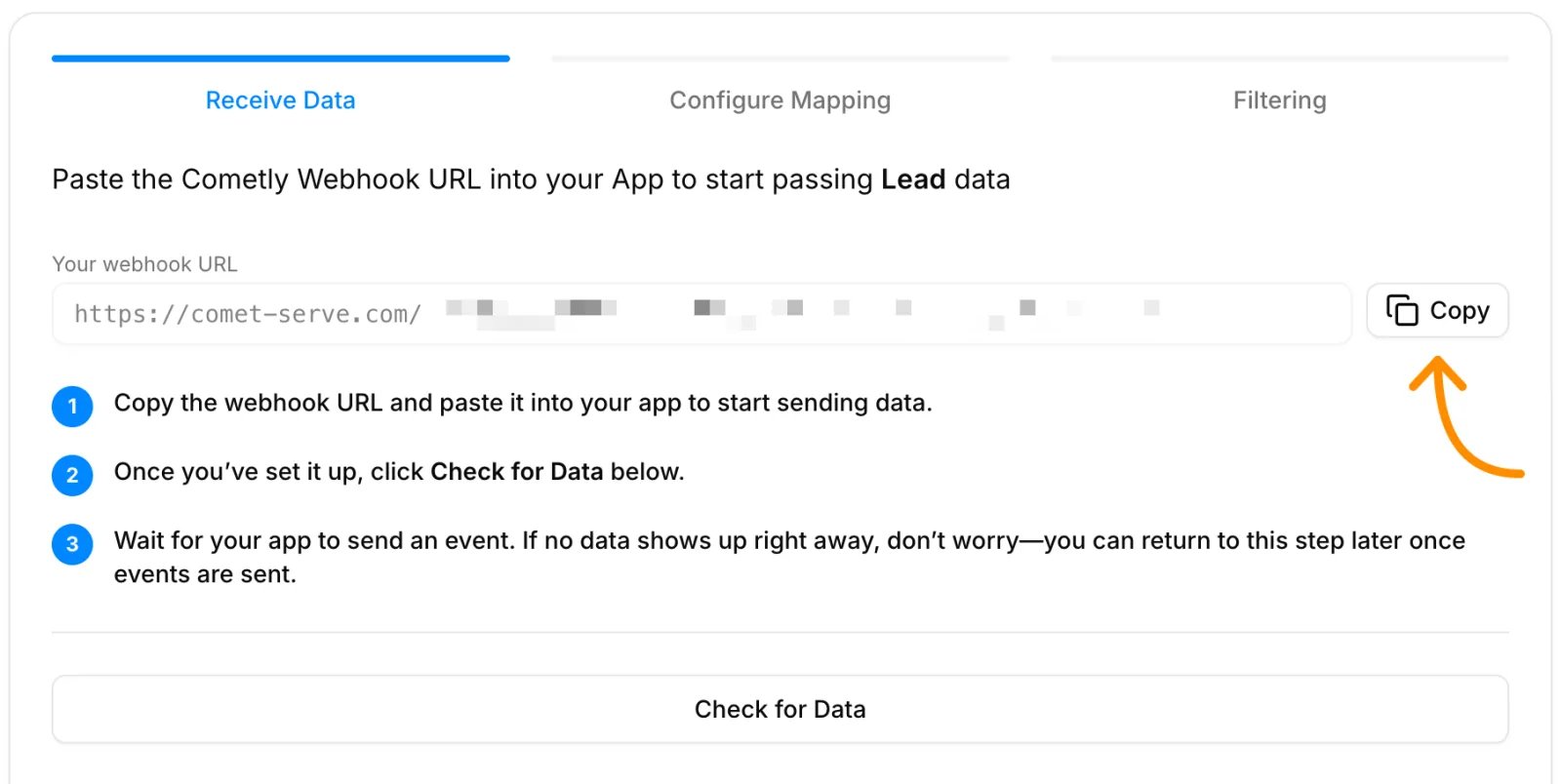
Under Your webhook URL, click Copy.
Add the webhook in Paperform
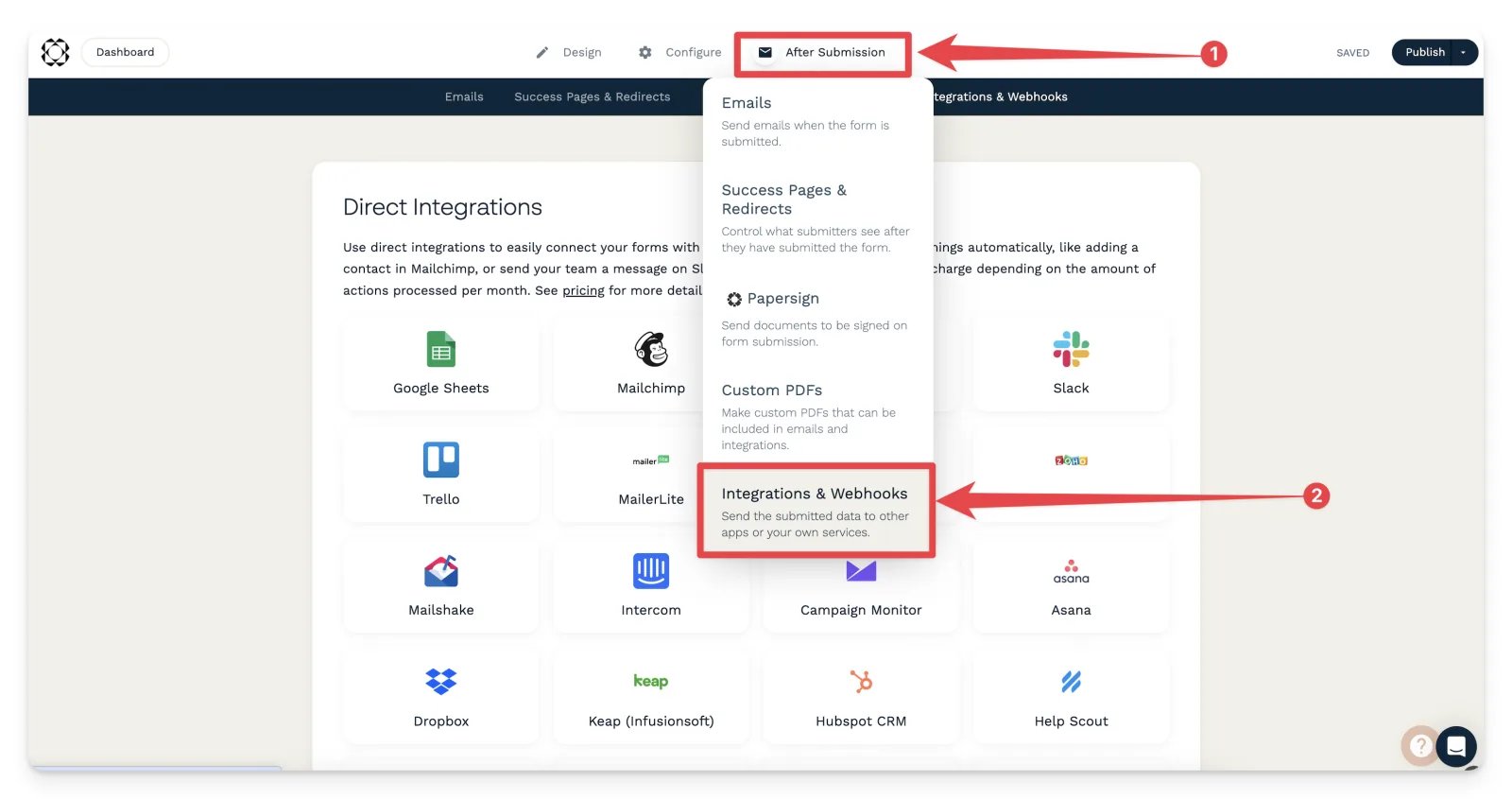
- Open your form in Paperform and select After Submission in the top menu bar.
-
Under After Submission, select Integrations & Webhooks.
-
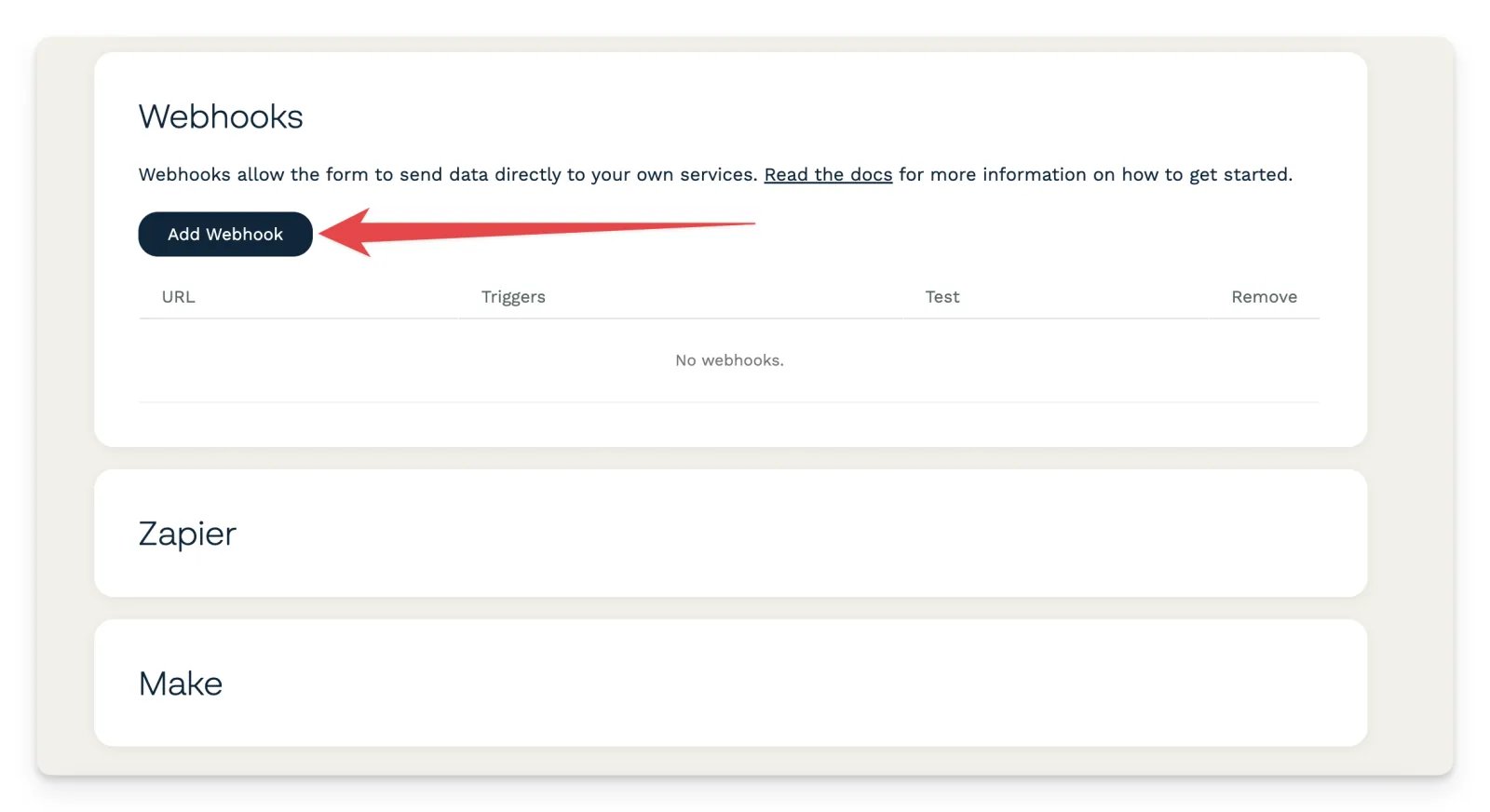
Scroll down to the Webhooks section and click Add Webhook.
-
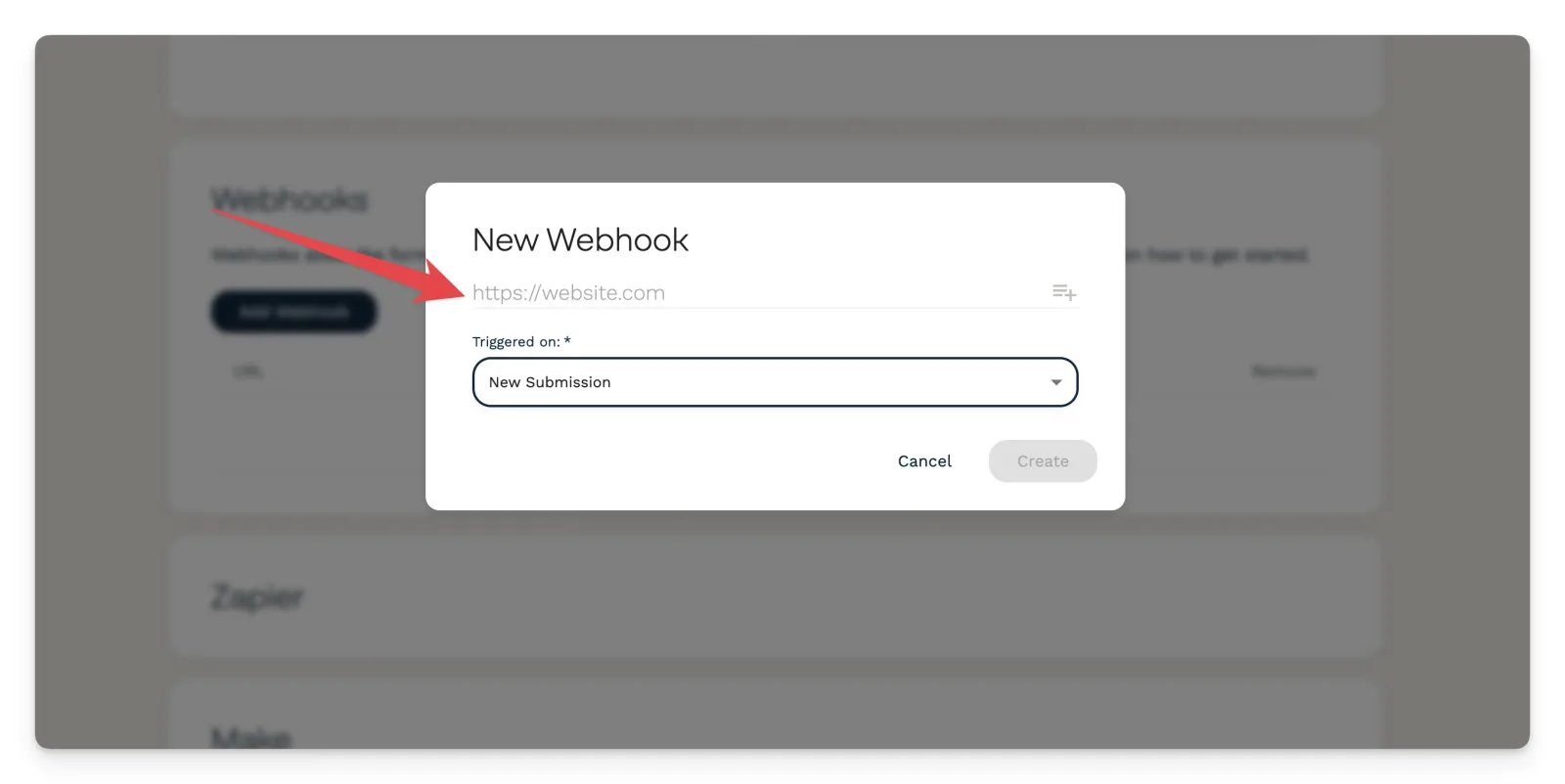
In the New Webhook window, set the following, then click Create:
- Webhook URL: paste the Cometly webhook URL you copied.
- Triggered on: select the event, such as
New Submission.
Finish the setup in Cometly
Once the webhook is configured in Paperform, go back to the event in Cometly and click Check for Data. Then follow the Cometly webhooks guide to:- Select the record Paperform sent.
- Map the webhook data to the matching fields in Cometly (Email and Event Time are required).
- Set up filters so only the data you want is tracked.
- Activate the event.
Check it worked
In Events Manager, your Paperform webhook event shows a switch that is turned on in the Status column. Submit your Paperform form again, then open the Events Log tab: the submission appears there within 60 seconds, with SUCCESS in the Details column.Frequently asked questions
How long does it take for a Paperform submission to show up in Cometly?
The submission shows in the Events Log within 60 seconds of being sent. It can take up to 15 minutes to appear in the reporting areas, such as the Report Builder or Ads Manager.Why is my Paperform test submission not showing in Cometly reports?
Test data sent before the webhook event was activated is not processed and does not appear in your reports. Activate the event first, then submit the form again.What if my Paperform submission has no event time to map?
Event Time is required, but it does not have to come from Paperform. Choose The time we receive the event for Event Time, and Cometly uses the time the submission arrives.Next steps
- Follow the full Cometly webhooks guide
- Add the Cometly pixel to a Paperform form
- Use the Events Log to check incoming events
- Learn how events work in Cometly