

Get your Cometly webhook URL
- In Cometly, click Events Manager in the sidebar, then click Create Event.
- Under App / Integration, select Webhooks.
- Under Events, choose the event you want to track (or create a new one), then click Create.
-
Find the new event in the Events Manager table and click Configure.
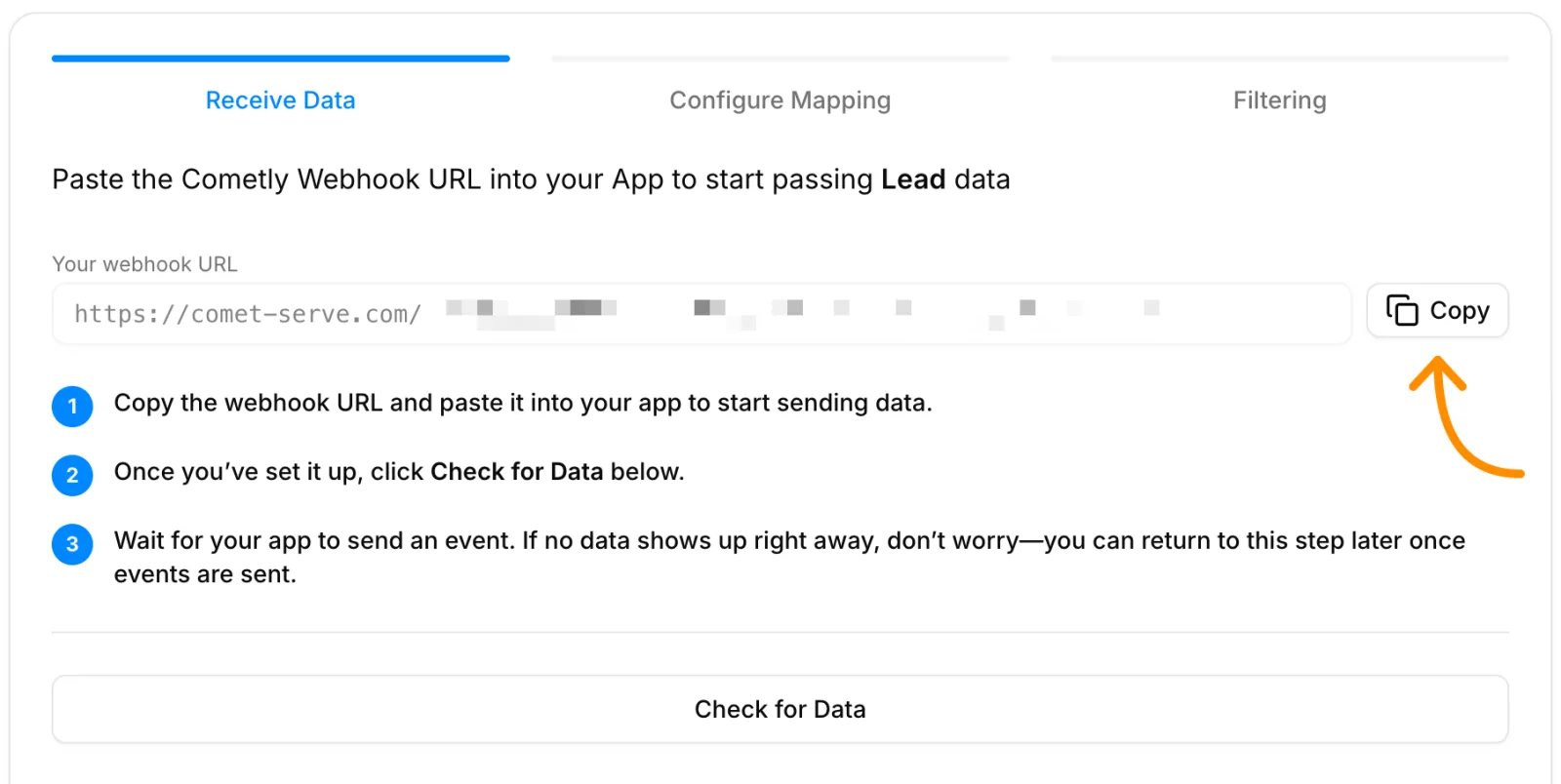
- Under Your webhook URL, click Copy.
Add the webhook in PandaDoc
To set up the webhook in PandaDoc, follow their official instructions: PandaDoc webhook integration guide. It walks you through configuring a webhook in PandaDoc that sends data to an endpoint you specify. When you reach the step that asks for the endpoint URL, paste the Cometly webhook URL you copied.Finish the setup in Cometly
Once the webhook is configured in PandaDoc, go back to the event in Cometly and click Check for Data. Then follow the Cometly webhooks guide to:- Select the record PandaDoc sent.
- Map the webhook data to the matching fields in Cometly (Email and Event Time are required).
- Set up filters so only the data you want is tracked.
- Activate the event.
Check it worked
In Events Manager, your webhook event shows a switch that is turned on in the Status column. Test data sent before you activated the event is not processed, so trigger the webhook in PandaDoc once more. Then open the Events Log tab: the event appears there within 60 seconds, with SUCCESS in the Details column.Frequently asked questions
Does Cometly have a native PandaDoc integration?
No. PandaDoc connects to Cometly through a webhook, as described on this page. If you would rather build the connection as a Zap, you can also send events to Cometly with Zapier.What if the PandaDoc webhook data has no event time to map?
Choose The time we receive the event for Event Time, and Cometly uses the time the event arrives. Email still has to be mapped to a field in the data PandaDoc sends. You can map more fields with Add Field.How long does it take for a PandaDoc event to show up in Cometly?
The event shows in the Events Log within 60 seconds of being sent. It can take up to 15 minutes to appear in the reporting areas, such as the Report Builder or Ads Manager.Next steps
- Map fields, add filters and activate your webhook
- Use the Events Log to check incoming events
- Learn how events work in Cometly
- Send events to Cometly with Zapier