

The direct HighLevel integration is no longer available. On the Integrations page, the HighLevel card shows No longer available and the button Use webhooks instead. Webhooks, as described on this page, are how you send HighLevel events to Cometly.
Before you start
- Install the Cometly pixel (the tracking script that records your visitors) in HighLevel. See GoHighLevel pixel installation.
- If you use embedded HighLevel forms, set up GoHighLevel form capture.
- Leads: new contacts created in HighLevel.
- Opportunities created: a new opportunity is created in HighLevel.
- Opportunity won: an opportunity is moved to a specific stage in HighLevel.
Send lead events
When a new lead is created in your GoHighLevel account, a GoHighLevel workflow sends it to Cometly as an event.1
Create the event and webhook URL in Cometly
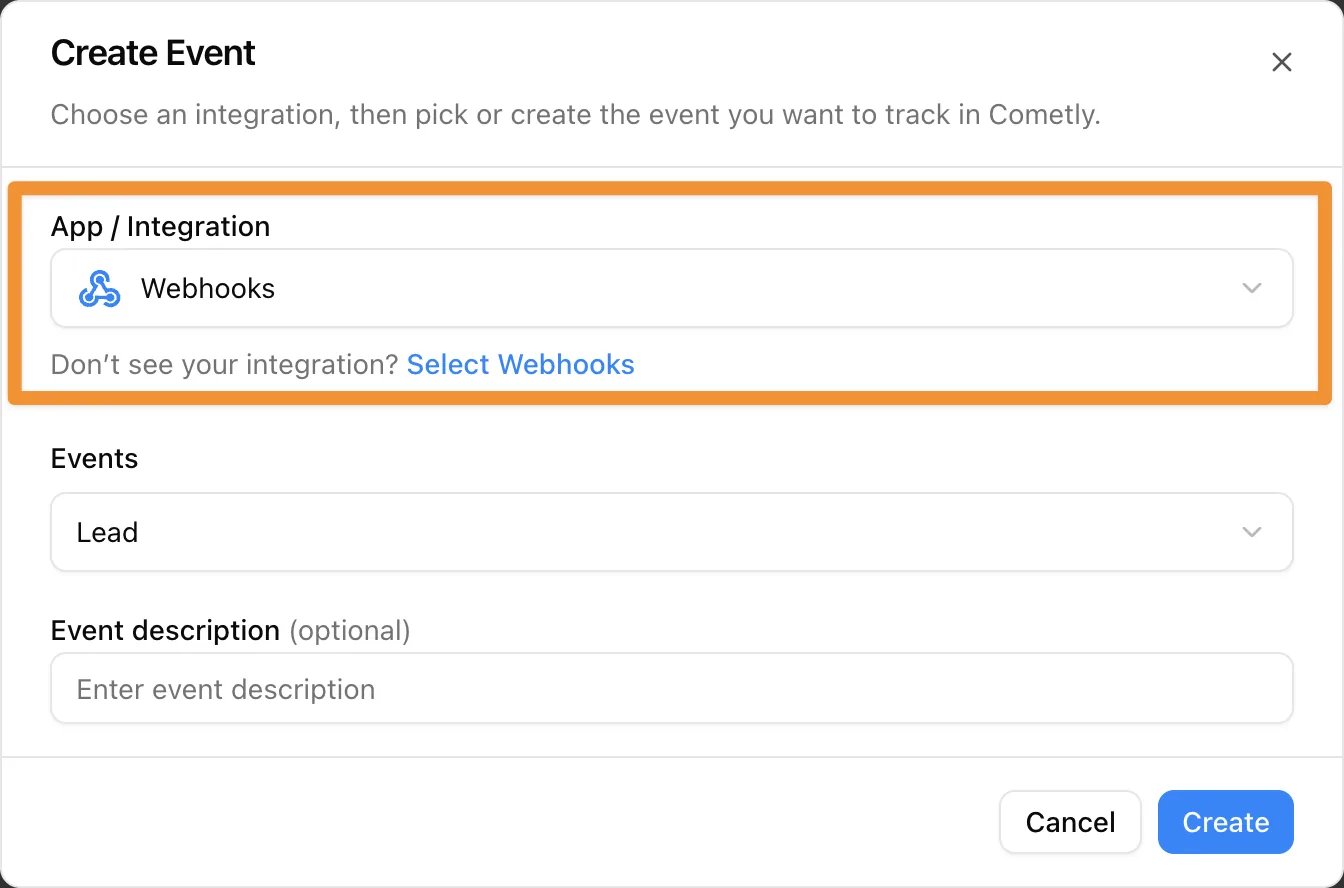
- In Cometly, go to Events Manager and click Create Event.
- Under App / Integration, select Webhooks.
- Choose an existing event (for example Lead) or choose Create New Event for your GoHighLevel leads. Click Create.
- Under Your webhook URL, click Copy.
2
Set up a workflow in GoHighLevel
- Log in to your GoHighLevel account and create a new workflow.
- Choose New Contact Created as the trigger for the workflow.
- Add an action, search for Webhook, and paste the webhook URL you copied from Cometly.
- Save and publish the workflow.
3
Test and check for data in Cometly
- Wait for a new lead to come in, or test the workflow manually with an existing contact in GoHighLevel.
- In Cometly, click Check for Data and verify that the lead information is received. Select a record and click Continue With Selected Record.
4
Map fields in Cometly
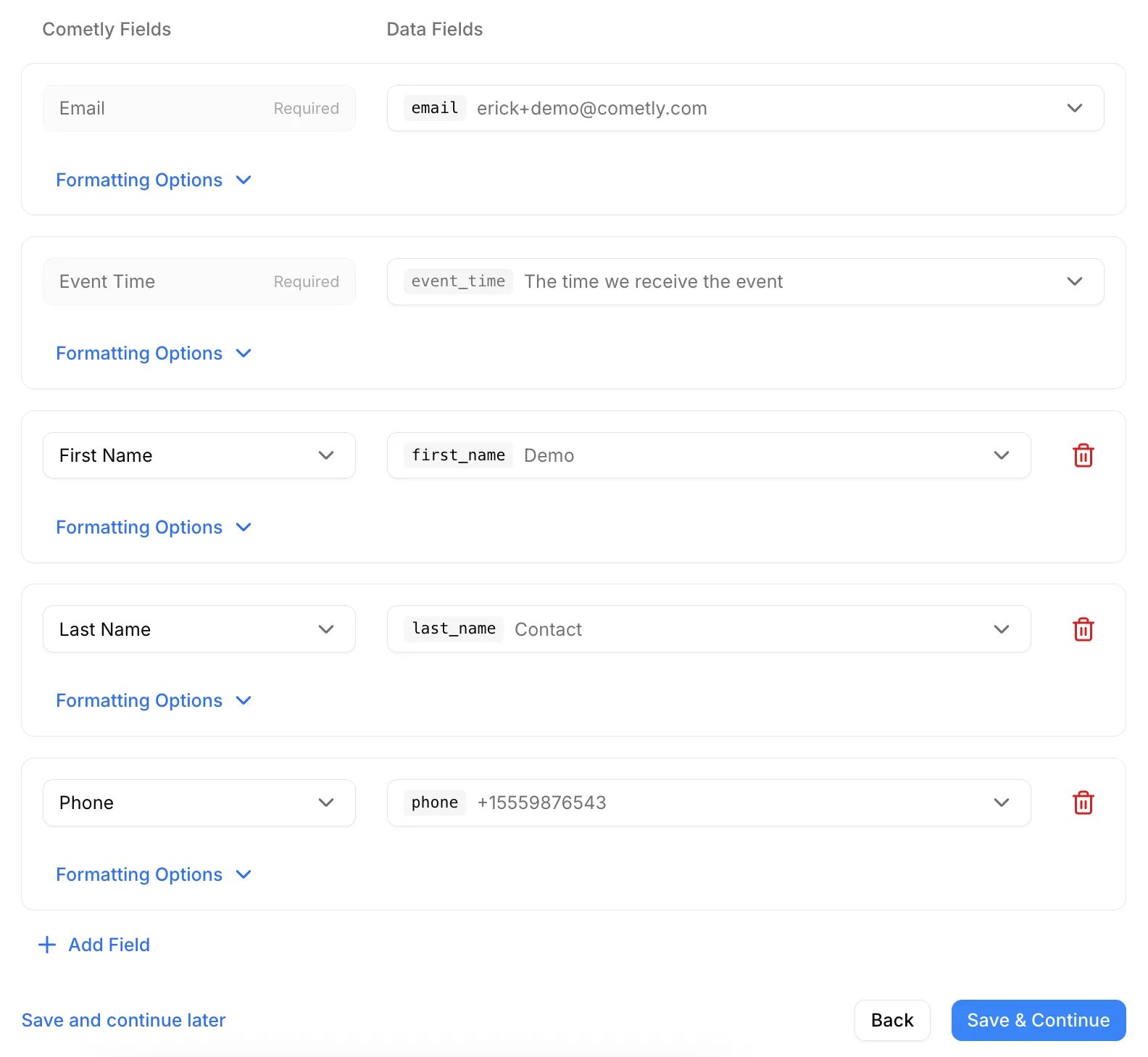
- Map Email and Event Time (both are required), plus First Name and Last Name.
- Click Add Field to add more fields such as Phone. This improves event match quality when the data is sent back to ad platforms.
- Click Save & Continue, then Activate on the filtering step.
5
Optional: filter leads
If you only want to send specific leads (for example only qualified leads), set up conditions in the GoHighLevel workflow.
Where to view your data
Leads appear in Cometly under the event you selected (for example “Lead”) and in your reports. To monitor incoming webhook data, open Events Manager and the Events Log tab.Send opportunity created events
When a new opportunity is created in your GoHighLevel account, a GoHighLevel workflow sends it to Cometly as an event.1
Create the event and webhook URL in Cometly
- In Cometly, go to Events Manager and click Create Event.
- Under App / Integration, select Webhooks.
- Choose Create New Event and name it (for example “Opportunity Created”).
- Leave Include this event value in the “Gross Revenue” metric unchecked unless the event reflects actual revenue.
- Click Create, then under Your webhook URL, click Copy.
2
Set up a workflow in GoHighLevel
- Log in to your GoHighLevel account and create a new workflow.
- Name the workflow (for example “Opportunity Created - Send to Cometly”).
- Set the trigger to Opportunity Created.
- Add an action, search for Webhook, and paste the webhook URL from Cometly.
- Save and publish the workflow.
3
Create an opportunity in GoHighLevel
- Go to the Opportunities section in GoHighLevel.
- Add a new opportunity with details such as name, pipeline stage and value.
- Save the opportunity to trigger the workflow.
4
Check for data and map fields in Cometly
- In Cometly, click Check for Data, select the record and click Continue With Selected Record.
- Map Email, Event Time, First Name, Last Name and Phone, and map the opportunity value to Amount.
- Click Save & Continue.
5
Optional: use filters
On the filtering step, add filters to refine your data, for example by pipeline. Then click Activate.
Where to view your data
Opportunities created in GoHighLevel appear in Cometly under the event you configured (for example “Opportunity Created”). The event is also available in your Cometly reports.Send opportunity won events
When an opportunity is moved to a specific pipeline stage in GoHighLevel (for example “Closed Won”), a GoHighLevel workflow sends it to Cometly as an event.1
Create the event and webhook URL in Cometly
- In Cometly, go to Events Manager and click Create Event.
- Under App / Integration, select Webhooks.
- Choose Create New Event and name it (for example “Opportunity Won”).
- Decide whether to check Include this event value in the “Gross Revenue” metric (for example, check it if you are not tracking purchases through Stripe).
- Click Create, then under Your webhook URL, click Copy.
2
Set up a workflow in GoHighLevel
- Log in to your GoHighLevel account and create a new workflow.
- Name the workflow (for example “Opportunity Won - Send to Cometly”).
- Set the trigger to Pipeline Stage Changed.
- Add a filter to specify the pipeline (for example Sales Pipeline) and the stage (for example Closed Won).
- Add an action, search for Webhook, and paste the webhook URL from Cometly.
- Save and publish the workflow.
3
Move an opportunity to the closed stage
In GoHighLevel, go to your Opportunities section and move an opportunity to the stage you chose in the workflow filter. This triggers the workflow.
4
Check for data and map fields in Cometly
- In Cometly, click Check for Data, select the record and click Continue With Selected Record.
- Map Email, Event Time, First Name, Last Name and Phone, and map the opportunity value to Amount.
- Click Save & Continue.
5
Optional: apply filters and activate
On the filtering step, add filters to refine the data further, for example by pipeline or stage. Then click Activate.
View and analyze your data
Your “Opportunity Won” events appear in Cometly under the event name you configured. Each event gets its own metrics in your reports:- Opportunity Won (the number of events)
- Opportunity Won Value
- Cost per Opportunity Won
- Opportunity Won ROAS
Check it worked
In Events Manager, your webhook event shows a switch that is turned on in the Status column. Trigger the GoHighLevel workflow again (for example with a new contact or opportunity), then open the Events Log tab: the event appears there within 60 seconds, with SUCCESS in the Details column.Frequently asked questions
How long does it take for a GoHighLevel event to show up in Cometly?
The event shows in the Events Log within 60 seconds of the workflow sending it. It can take up to 15 minutes to appear in the reporting areas, such as the Report Builder or Ads Manager.Why is my GoHighLevel test event missing from my Cometly reports?
Test data sent before the webhook was activated is not processed and does not appear in your reports. After you click Activate, trigger the workflow again to send a new event.What if my GoHighLevel webhook data has no event time?
Event Time is required, but it does not have to come from GoHighLevel. When you map fields, choose The time we receive the event for Event Time, and Cometly uses the time the event arrives.Next steps
- Map, format and filter webhook data in Cometly
- Use the Events Log to check incoming events
- Learn how events work in Cometly
- Send your events back to the ad platforms with the Conversion API