

Before you start
This setup is for Jotform forms embedded as an iframe.
- The Cometly pixel is installed on the page that holds the embedded form. The code in step 2 reads the Comet Token from the pixel. See Install the Cometly pixel.
Step 1: Add a hidden field to your Jotform form
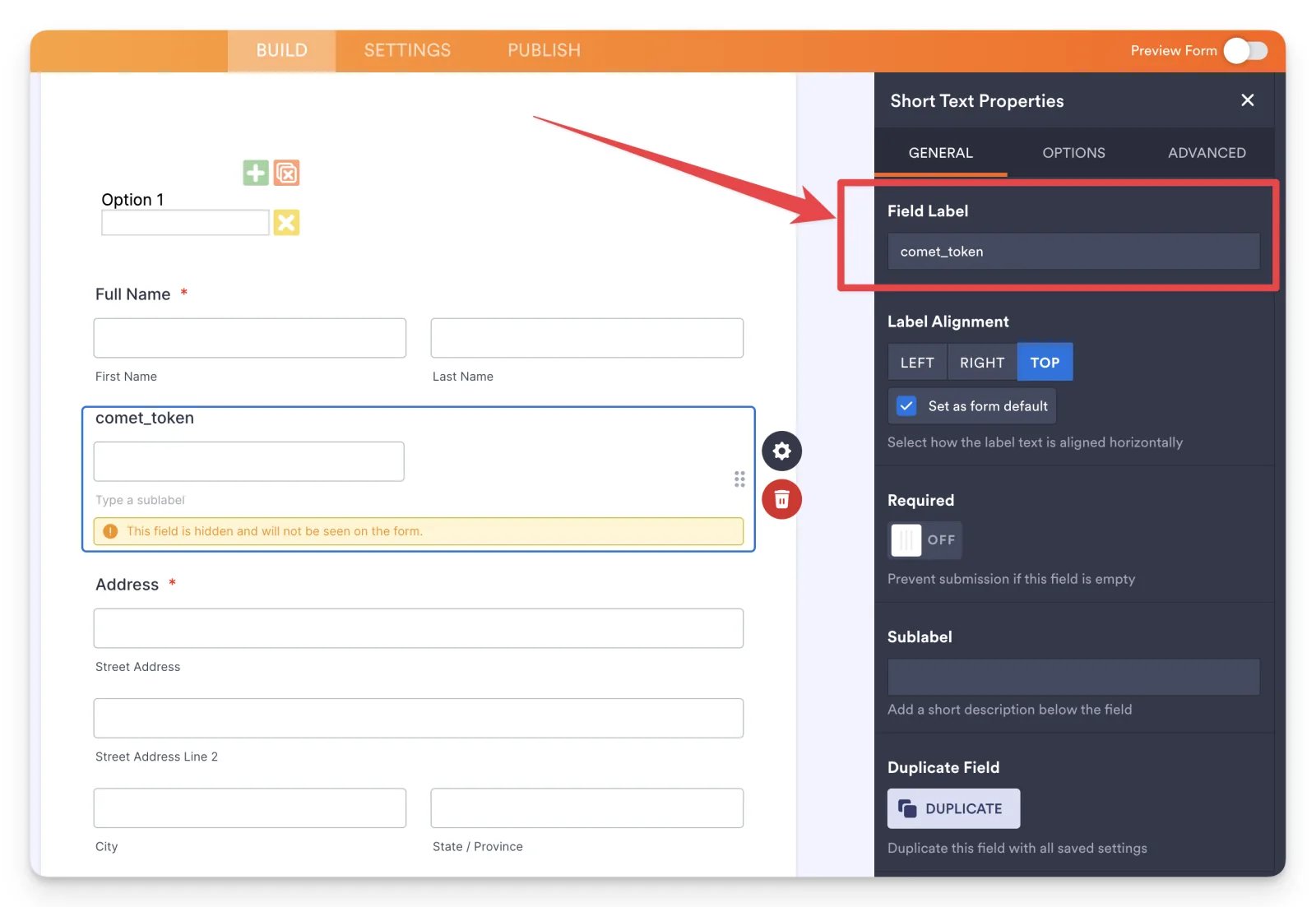
Add a new Short Text element to your form. For the Field Label, entercomet_token.
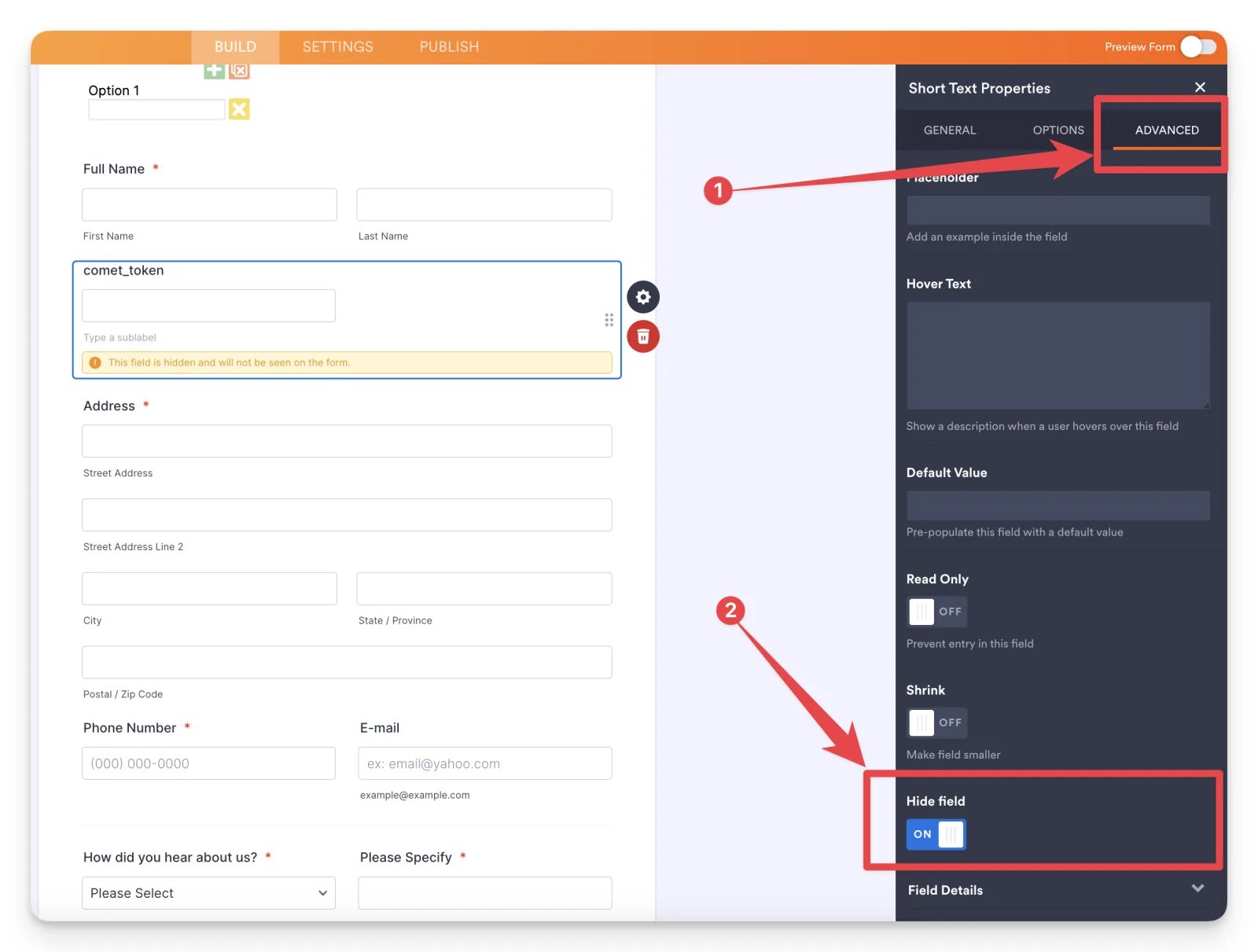
comet_token Short Text field still selected, click Advanced and turn on Hide field.
Step 2: Add custom code to your web page
On the page that holds the embedded Jotform iframe, add custom code that appends the Comet Token from the Cometly pixel to the iframe URL. This lets you retrieve the Comet Token from the submission and include it when you send the event to Cometly.1
Open the iframe embed code
On the Jotform Publish page, click Embed, then IFRAME.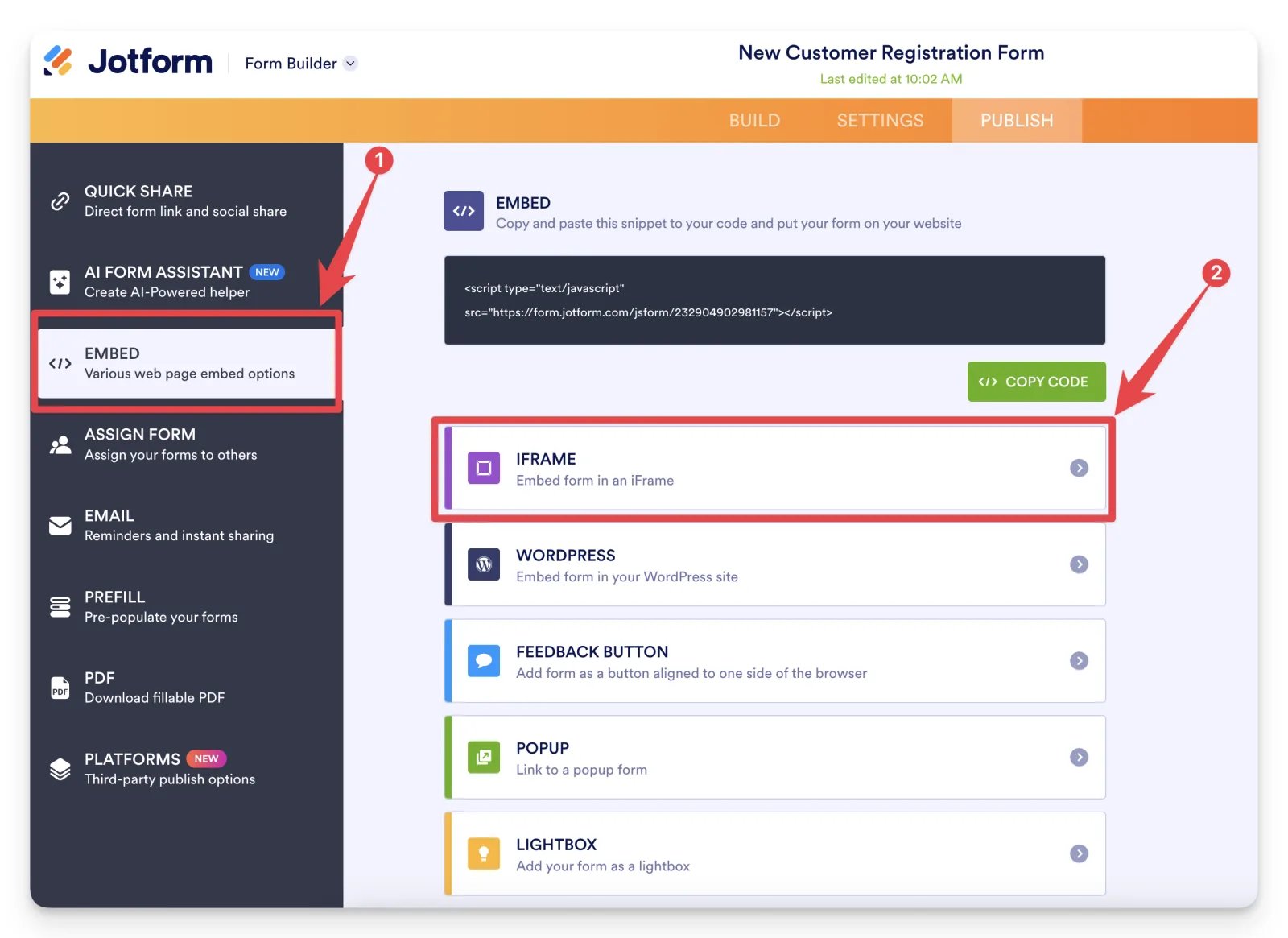
2
Copy the iframe ID
In the IFRAME code, find 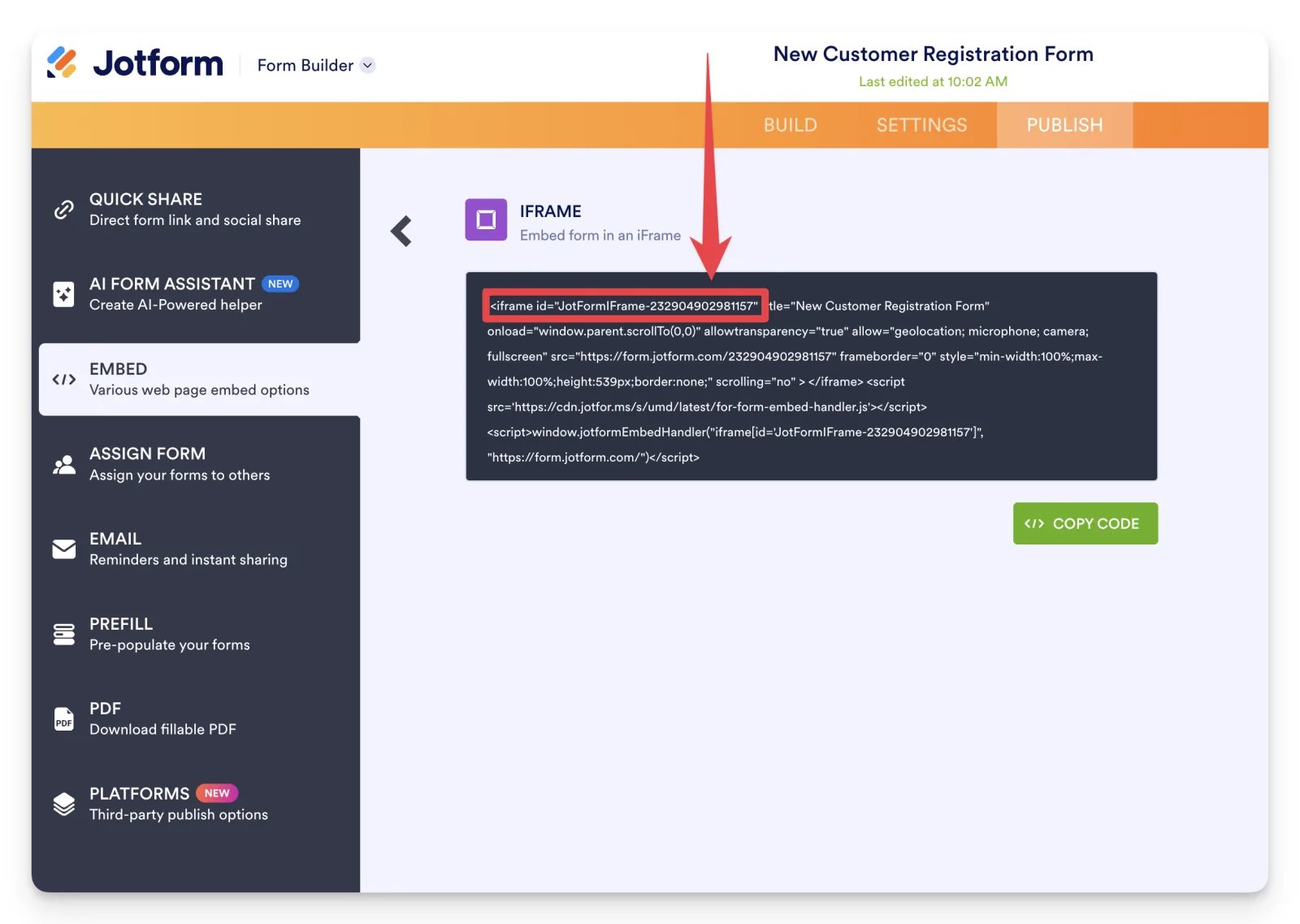
iframe id= and copy the ID between the quotes. In the example below it is JotFormIFrame-232904902981157.3
Add the code to your page
Add the code below to your page and replace
ADD.IFRAME.ID.HERE with your iframe ID.Step 3: Send event data with a Cometly webhook or Zapier
You can send event data from Jotform to Cometly with a Cometly webhook or with Zapier. The Jotform integration guide covers both: Set up the Jotform integrationCheck it worked
Publish your page with the code added, then submit a test entry on the embedded form. The submission in Jotform now has a value in thecomet_token field. If you send submissions with Zapier, the same value shows as Answers Comet Token in the test record.
Frequently asked questions
Why is the comet_token field empty in my Jotform submissions?
The code only adds the token when it can read one from the Cometly pixel, so first check that the pixel is installed on the page that holds the form. Then check that you replacedADD.IFRAME.ID.HERE with your own iframe ID, and that the hidden field’s Field Label is exactly comet_token.
Do I need the Cometly pixel to track Jotform forms?
Yes. The Comet Token comes from the Cometly pixel, so the pixel has to be installed on the page where the Jotform iframe is embedded. Without it, the code has no token to pass into the form.Does adding the hidden field send my Jotform submissions to Cometly?
No. The hidden field and the code only attach the Comet Token to each submission. To get the submission into Cometly as an event (an action Cometly tracks, such as a lead), you still send it with a Cometly webhook or Zapier, as in step 3.Next steps
- Send Jotform submissions to Cometly with a webhook or Zapier
- Create and map a Cometly webhook
- Connect Cometly to Zapier
- Use the Events Log to check incoming events
- Form tracking for third-party embedded forms