

Step 1: Install the Cometly pixel on all pages of your Cvent event funnel
The Cometly pixel is the tracking script that records where your visitors come from.- Copy your Cometly pixel. In Cometly, click Setup in the sidebar, open the step Install the Cometly pixel and click Copy Code under Install the pixel. See Install the Cometly pixel for details.
- Add the Cometly pixel to the </> HEADER CODE section in Cvent. Cvent explains how in its help article on adding code snippets to your Cvent pages.
Step 2: Configure the Cometly webhook in Cvent
A webhook is a message Cvent sends to Cometly every time someone registers.-
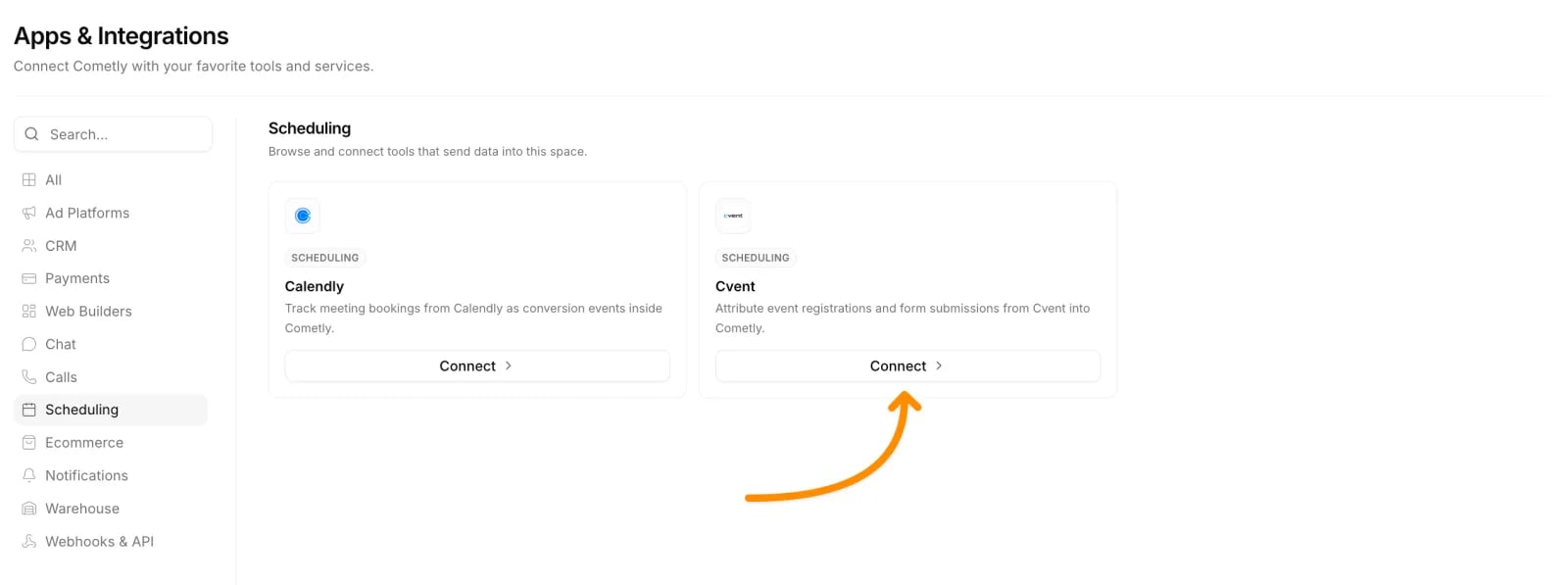
In Cometly, click Integrations in the sidebar. Find the Cvent card (it is in the Scheduling category) and click Connect.
The Cvent page opens.
- Click Activate Cvent.
- Under Copy the webhook URL, copy the webhook URL and the API Key shown below it.
-
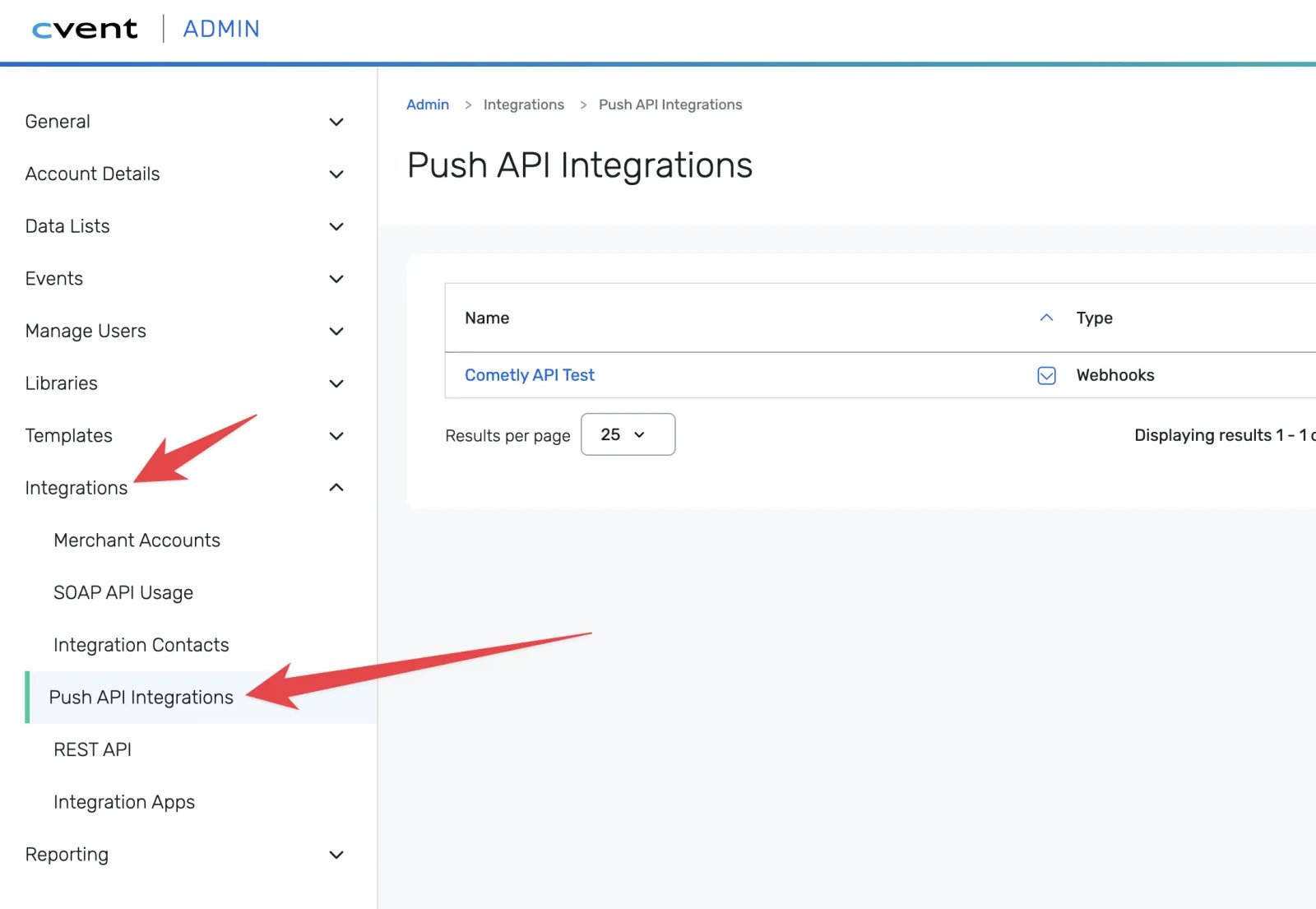
In Cvent, open Integrations in the admin panel and click Push API Integrations.
-
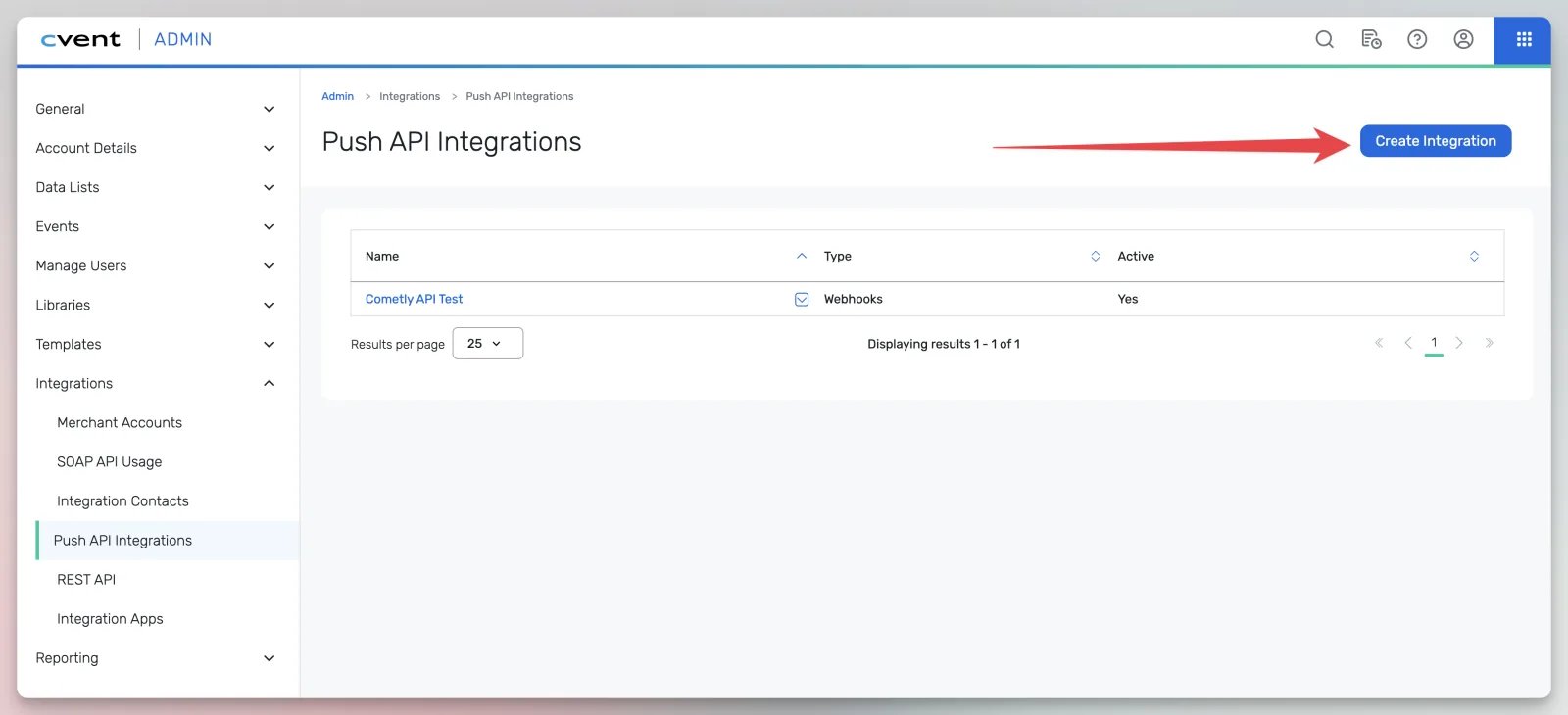
Click Create Integration.
-
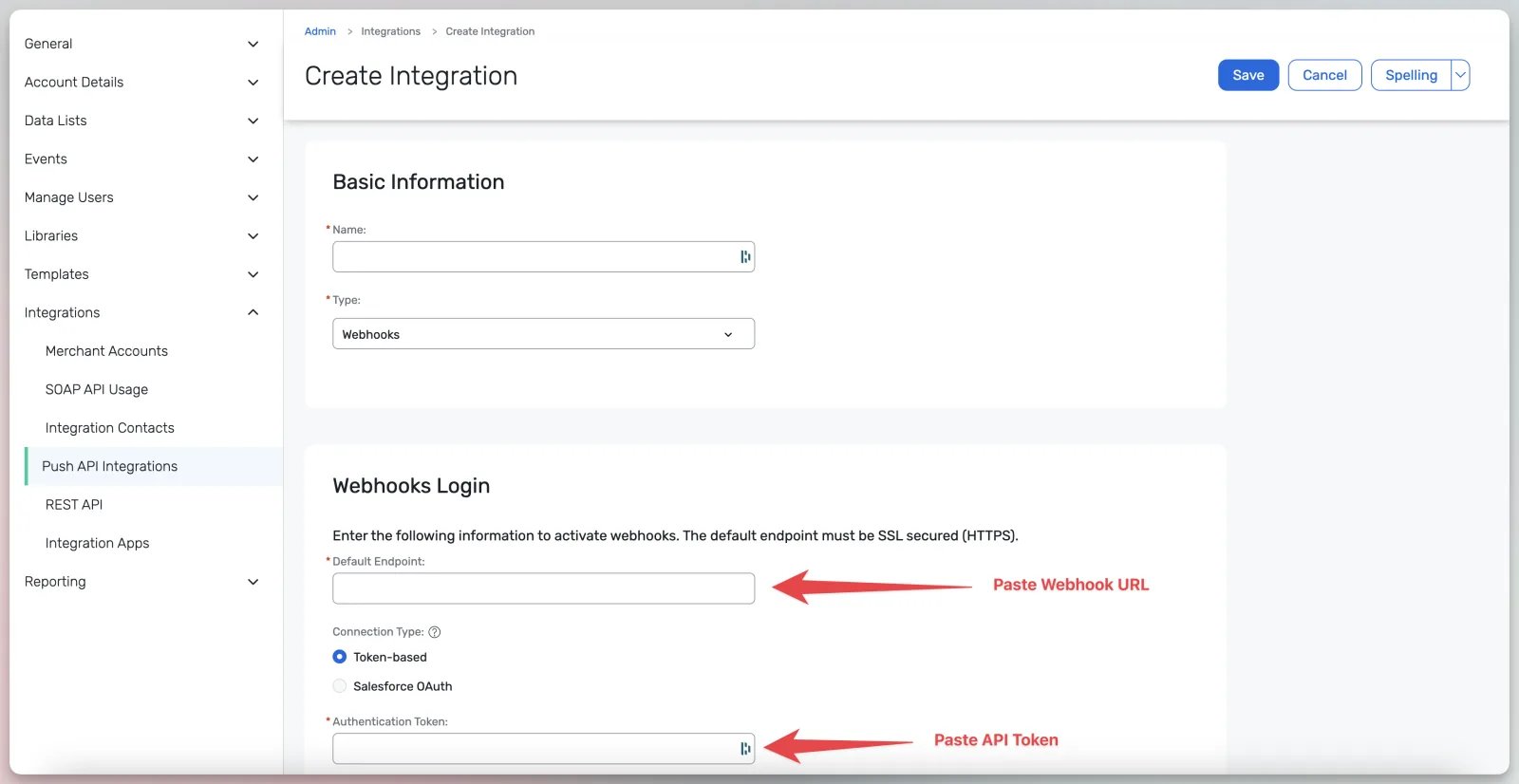
Fill in the webhook configuration:
- Give the integration any Name you like.
- Choose Webhooks as the Type.
- Paste your Cometly webhook URL into Default Endpoint.
- Paste your Cometly API Key into Authentication Token.
- Click Save in the top right of the page.
-
After you see the message that your changes have been saved, click Integration Points.
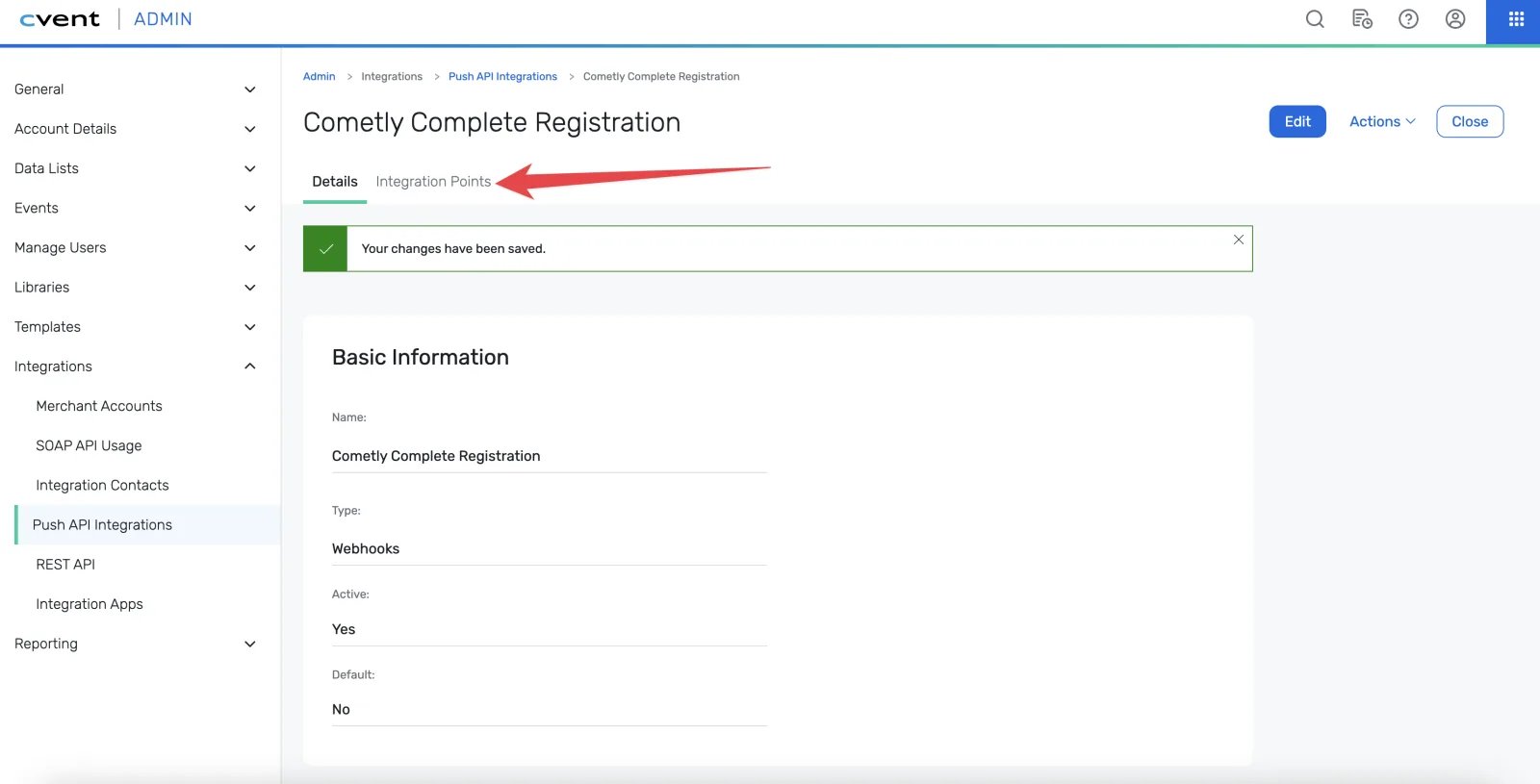
-
Click Add Integration Point.
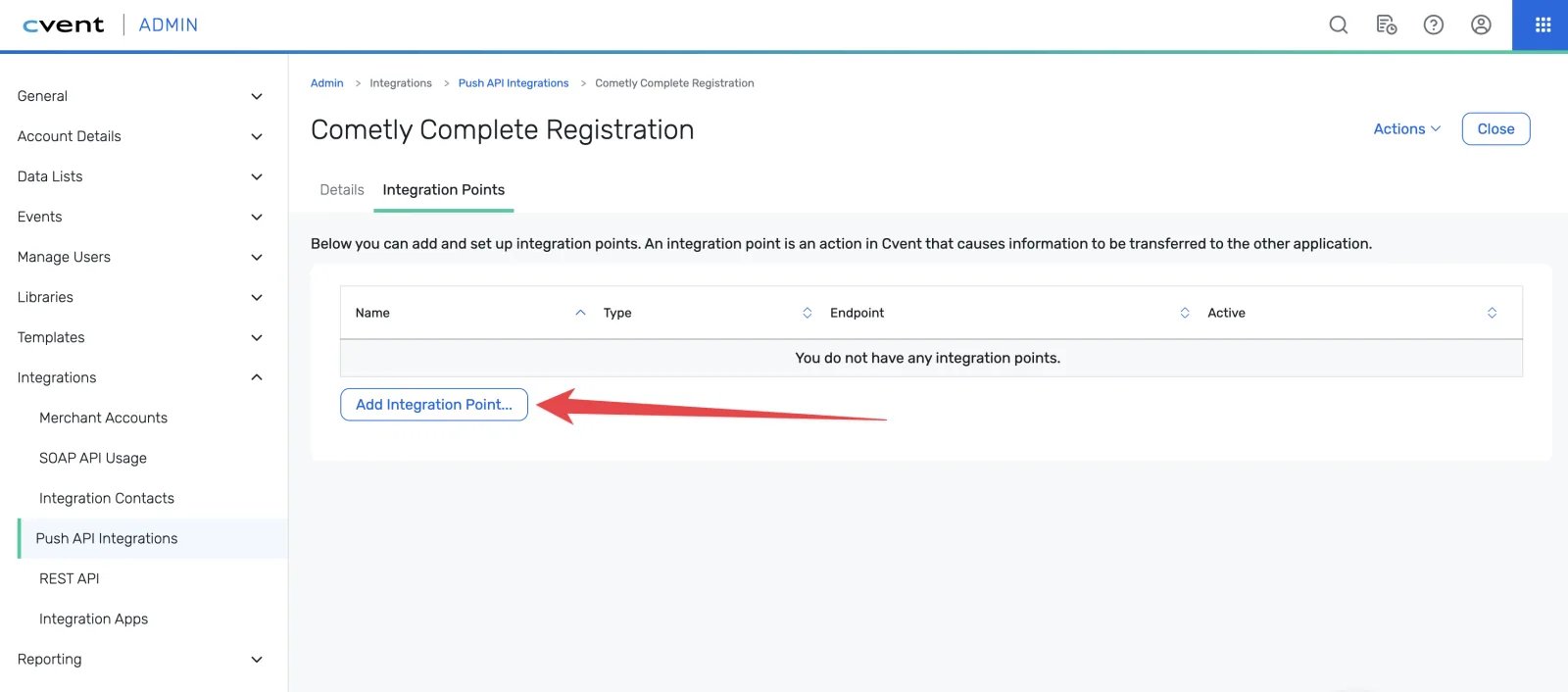
-
Select Invitee Added to Invitation List and click Save. This is the only Cvent integration point Cometly processes.
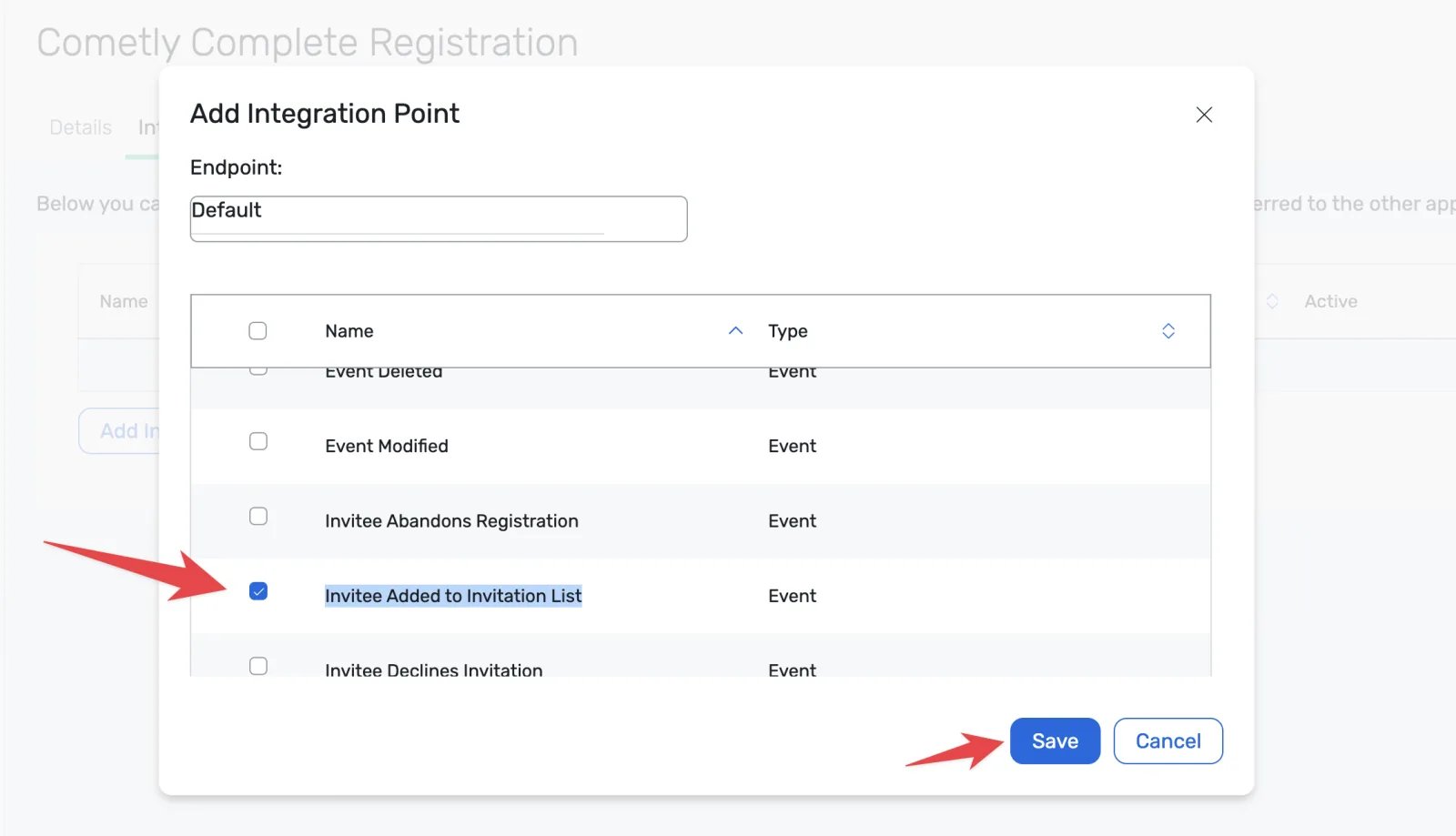
- Back on the Cvent page in Cometly, under Map Cvent events to Cometly, check which Cometly event Cvent registrations are mapped to. To use a different event, choose it and click Save.
Check it worked
Your Cvent integration is now configured. Cometly now receives Complete Registration events (or the event you mapped) from Cvent. To confirm, register a test invitee in Cvent. Then click Events Manager in the Cometly sidebar and open the Events Log tab, with Source set to Server. The registration appears in the list with the registrant’s details.Frequently asked questions
What registrant details does Cvent send to Cometly?
Cometly reads the registrant’s email, first name, last name and mobile phone number from each Cvent registration, along with the time Cvent sent it. Cometly uses these details to build the contact’s profile and to date the event.Why do I need the Cometly pixel on my Cvent pages?
The pixel records where each visitor came from, such as the ad they clicked. The webhook tells Cometly who registered. You need both for Cometly to tie a registration back to the ad or channel that produced it.Can Cometly track other Cvent integration points?
No. Cometly only processes Invitee Added to Invitation List. If you add other integration points in Cvent, Cometly skips those messages and does not create events from them.Next steps
- Use the Events Log to check that registrations arrive and inspect their data
- How events work to understand how Cometly records and attributes events
- Send conversions to your ad platforms so they can optimize for registrations
- Install the Cometly pixel if you add more pages to your event funnel