

- Leads: a new lead is created in Zendesk Sell.
- Deals created: a new deal is created in Zendesk Sell.
- Closed won deals: a deal is moved to your won stage in Zendesk Sell.
Prerequisites
- A Zapier account.
- Cometly connected to Zapier. See the Zapier integration guide.
Send lead events
-
Create a new Zap in Zapier
- In your Zapier account, click Create Zap.
- Select Zendesk Sell as the trigger app.
-
Choose the trigger event
-
Select New Lead as the trigger event.
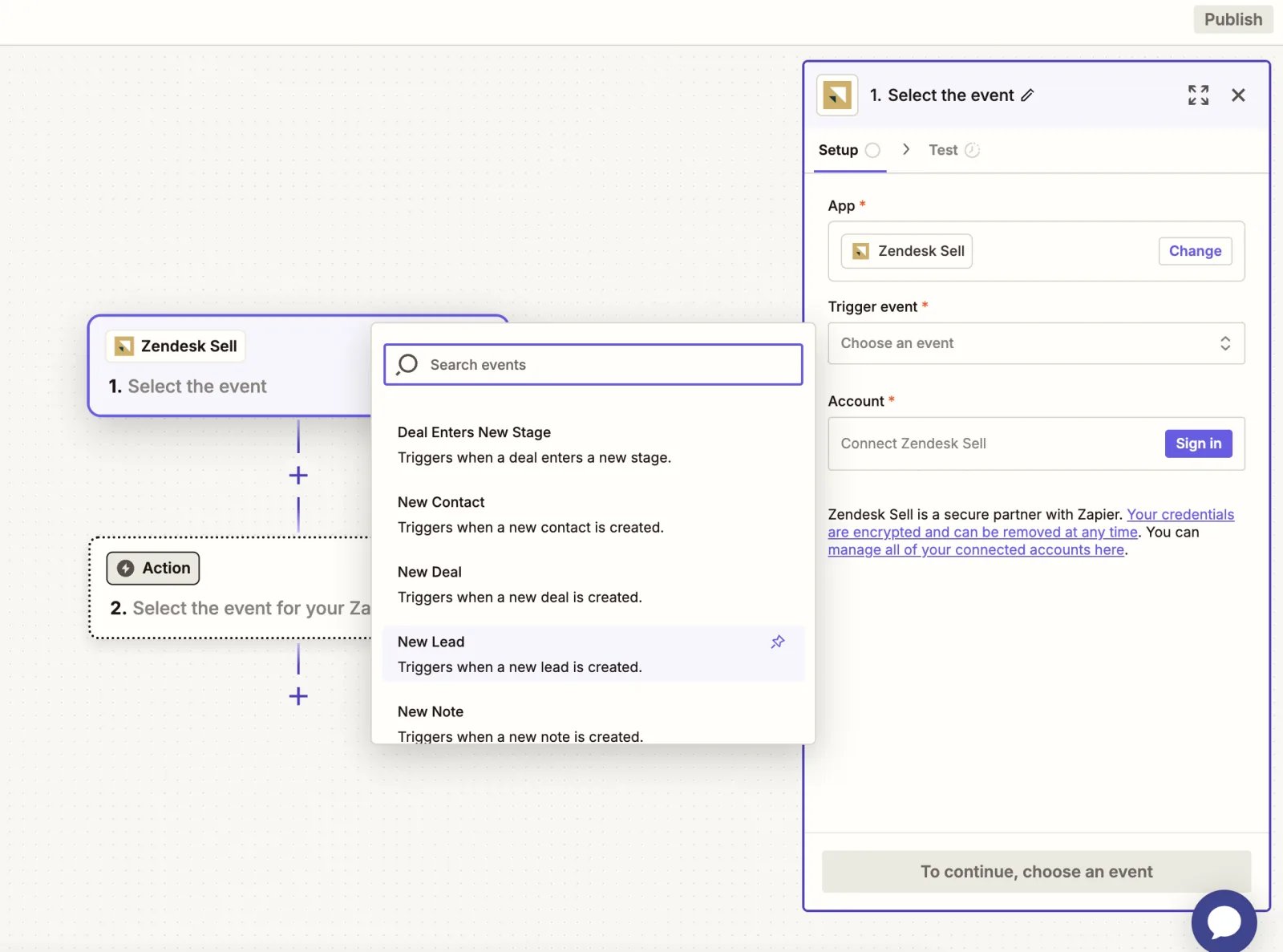
- Connect your Zendesk Sell account and test the connection.
-
Select New Lead as the trigger event.
-
Choose Cometly as the action
- Select the Lead event.
- Include the first name, last name, email address and phone number.
- If you have Zendesk Chat leads in your Zendesk Sell account, map the Zendesk field called
Cometly_tracking_tokento the Comet Token field (the Comet Token is the Cometly tracking token that ties an event to a website visitor). - If you do not use the Zendesk Chat integration, you do not need to add the Comet Token.
- Test and activate the Zap Send a test lead to Cometly to make sure the data is captured correctly. In Cometly, go to Events Manager, then the Events Log tab, to check that the data is coming in.
Send new deal events
-
Create a new Zap in Zapier
- In your Zapier account, click Create Zap.
- Select Zendesk Sell as the trigger app.
-
Choose the trigger event
-
Select New Deal as the trigger event.
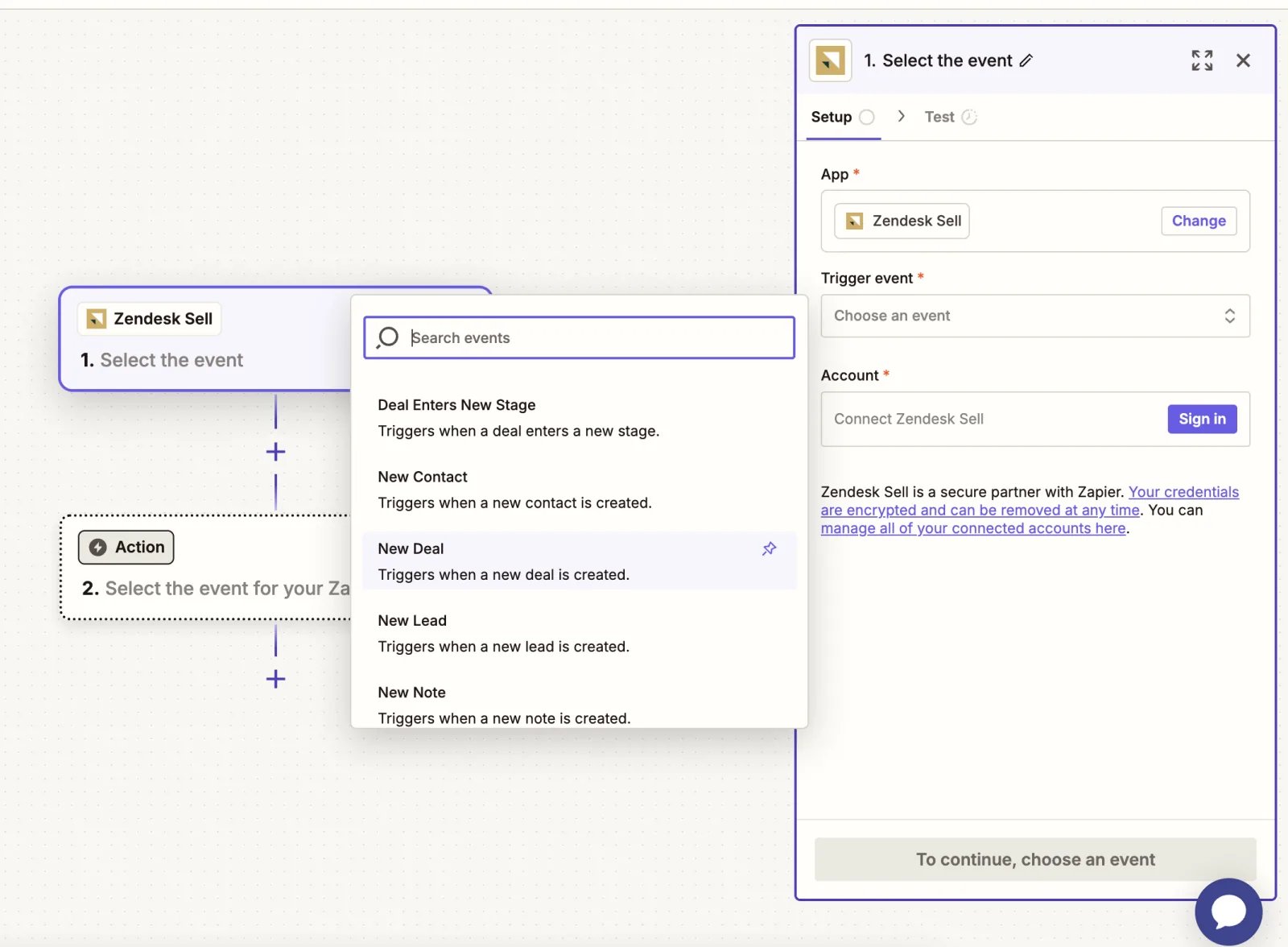
-
Select New Deal as the trigger event.
-
Choose Cometly as the action
- Create a new event in Cometly called Deal Created. See Events to learn how to create a new event in Cometly.
- Include the amount (the deal amount), first name, last name, email address and phone number.
- If you have Zendesk Chat leads in your Zendesk Sell account, map the Zendesk field called
Cometly_tracking_tokento the Comet Token field. - If you do not use the Zendesk Chat integration, you do not need to add the Comet Token.
- Test and activate the Zap Send a test deal to Cometly to make sure the data is captured correctly. In Cometly, go to Events Manager, then the Events Log tab, to check that the data is coming in.
Send closed won deal events
-
Create a new Zap in Zapier
- In your Zapier account, click Create Zap.
- Select Zendesk Sell as the trigger app.
-
Choose the trigger event
- Select Deal Enters New Stage as the trigger event.
-
The Zap asks you to select the deal stage that triggers it. Choose the stage that is your closed won stage (the one that means a deal has closed).
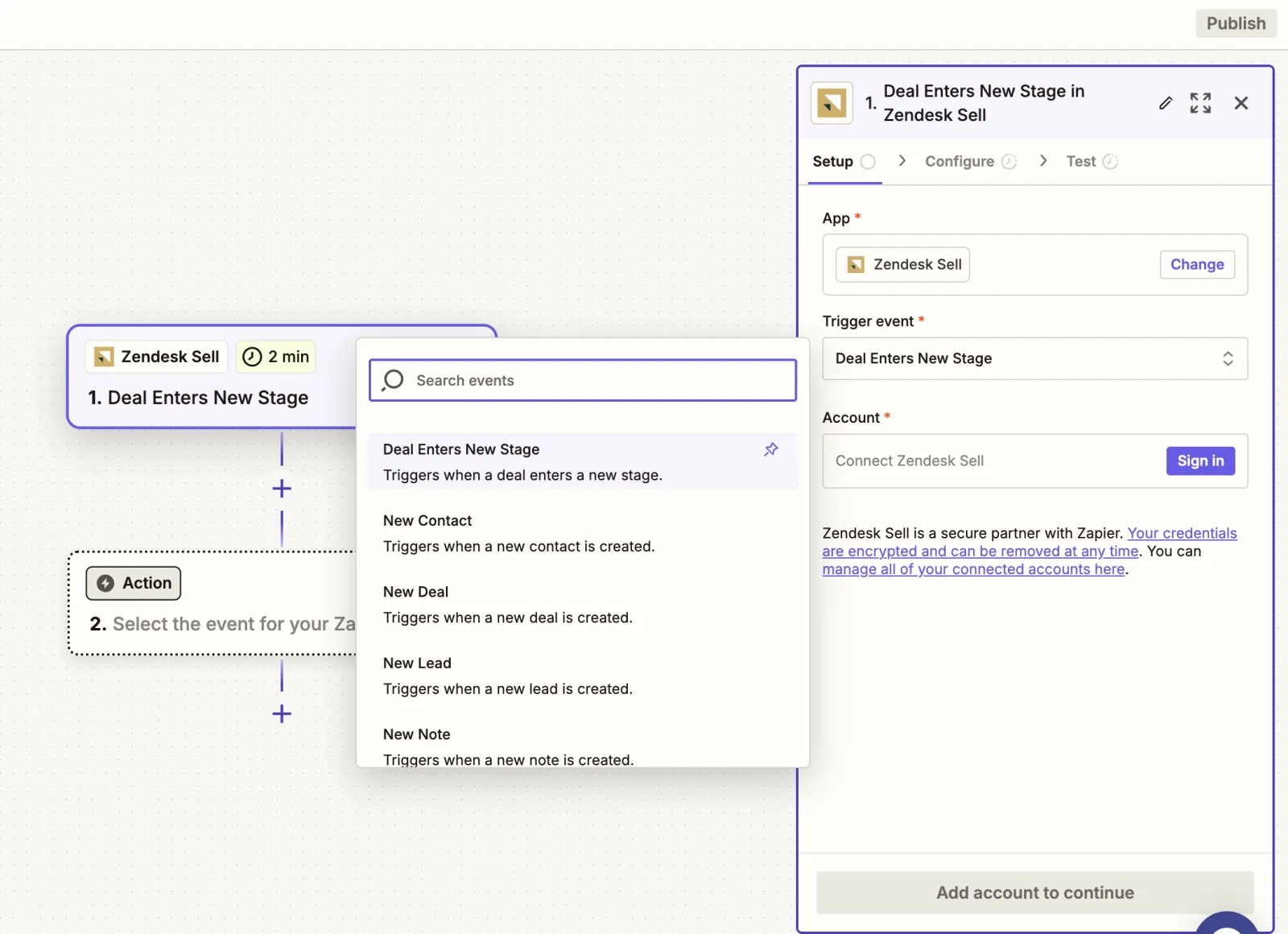
-
Choose Cometly as the action
- Create a new event in Cometly called Closed Won. See Events to learn how to create a new event in Cometly.
- Include the amount (the deal amount), first name, last name, email address and phone number.
- If you have Zendesk Chat leads in your Zendesk Sell account, map the Zendesk field called
Cometly_tracking_tokento the Comet Token field. - If you do not use the Zendesk Chat integration, you do not need to add the Comet Token.
- Test and activate the Zap Send a test deal to Cometly to make sure the data is captured correctly. In Cometly, go to Events Manager, then the Events Log tab, to check that the data is coming in.
Check it worked
After you send a test from each Zap, the test event appears in Cometly in Events Manager, on the Events Log tab. Once your Zaps are turned on, new leads, new deals and closed won deals from Zendesk Sell show up there too.Frequently asked questions
How does Cometly match a Zendesk Sell lead to the ad that produced it?
Cometly uses the contact details your Zap sends, mainly the email address. If the Cometly pixel (the tracking script on your site) captured that email earlier, for example on a form submission, Cometly ties the event to that visitor and the ad they came from. For chat leads, the Comet Token passed by the Zendesk Chat integration does the matching.Do I need a separate Zap for each Zendesk Sell event?
Yes. Create one Zap for leads, one for new deals and one for closed won deals. Each Zap has its own Zendesk Sell trigger and sends its own event to Cometly.Can I send only some Zendesk Sell leads or deals to Cometly?
Yes. Add a Zapier filter step between the Zendesk Sell trigger and the Cometly action to control which records are sent, for example only qualified leads.Next steps
- Connect Cometly to Zapier and send events from any app
- Pass the Comet Token from your Zendesk Chat widget
- Manage custom events such as Deal Created and Closed Won
- Use the Events Log to check incoming events
- Browse all Cometly integrations