

Start here
Zaps, Zapier’s automated workflows, can be set up in minutes without any coding. Each Zap includes:- A trigger: an event in one app that starts the workflow (for example a form submission or a deal update).
- An action: what happens in response to the trigger, such as sending event data to Cometly.
Common use cases
- Form submissions: send an event to Cometly when a lead submits a form. Cometly receives the event from the app where the form is hosted.
- CRM updates: track key CRM activity such as deal creation or status updates. For example, send a server-side event to Cometly whenever a deal is created or marked as Closed Won in your CRM.
- Payments: capture purchases and transaction events for accurate revenue tracking.
Example: Cometly as the action in your Zap
In this example, the goal is to send a Qualified Trial event to Cometly. When the lifecycle stage of a contact changes to “Qualified Trial” in HubSpot, the Zap sends a Qualified Trial event to Cometly.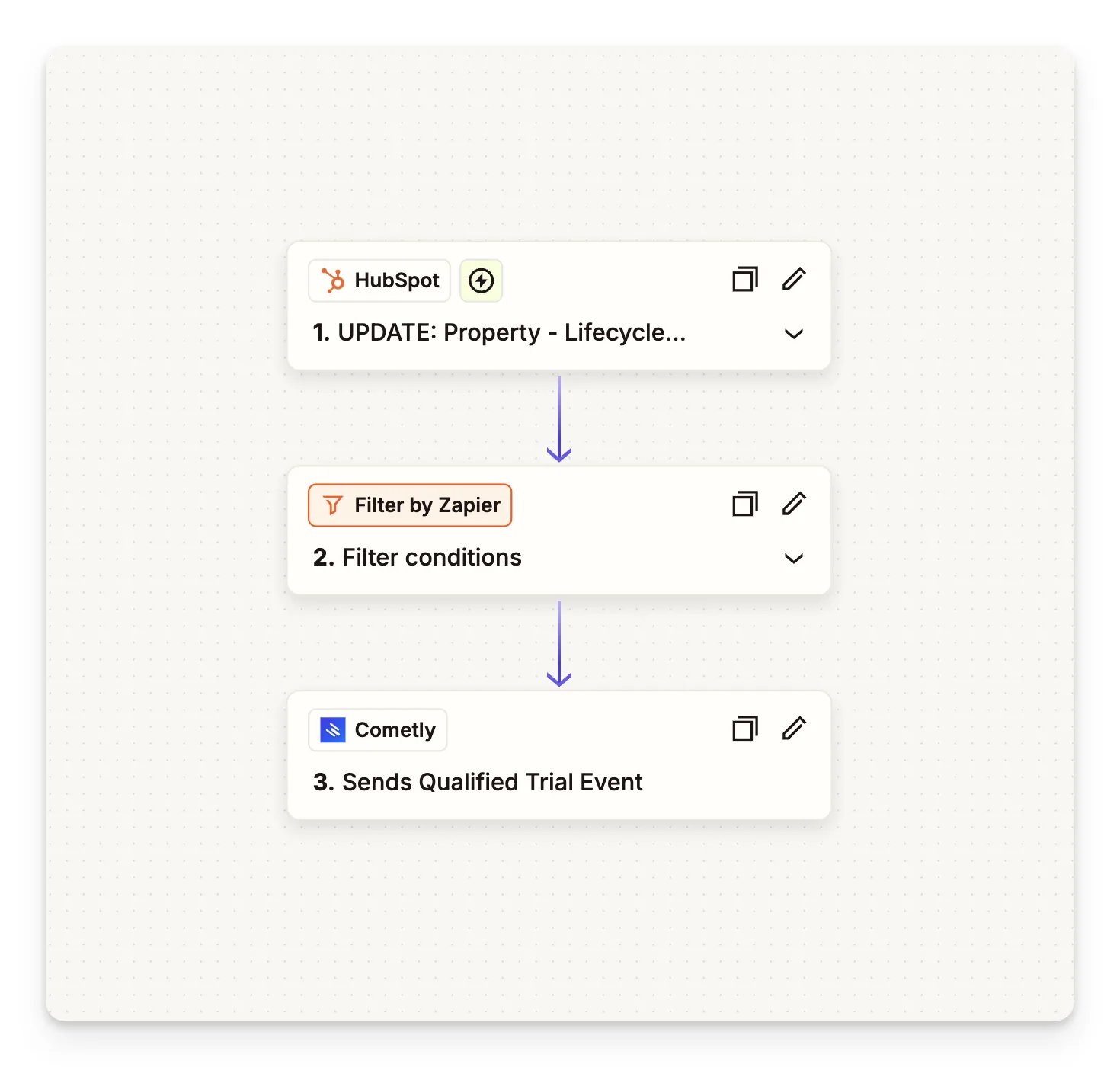
Connect Cometly to Zapier
This video shows how to connect your Cometly account to your Zapier account.
Before you start: creating API tokens requires the Administrator or Advertiser role in the space (a workspace in your Cometly account).
1
Open the Zapier integration in Cometly
Go to the Integrations page, find the Zapier card (category Webhooks & API) and click Connect.
2
Activate Zapier and create an API token
- Click Activate Zapier.
- Under Manage API tokens, enter a Token Name and click Create Token.
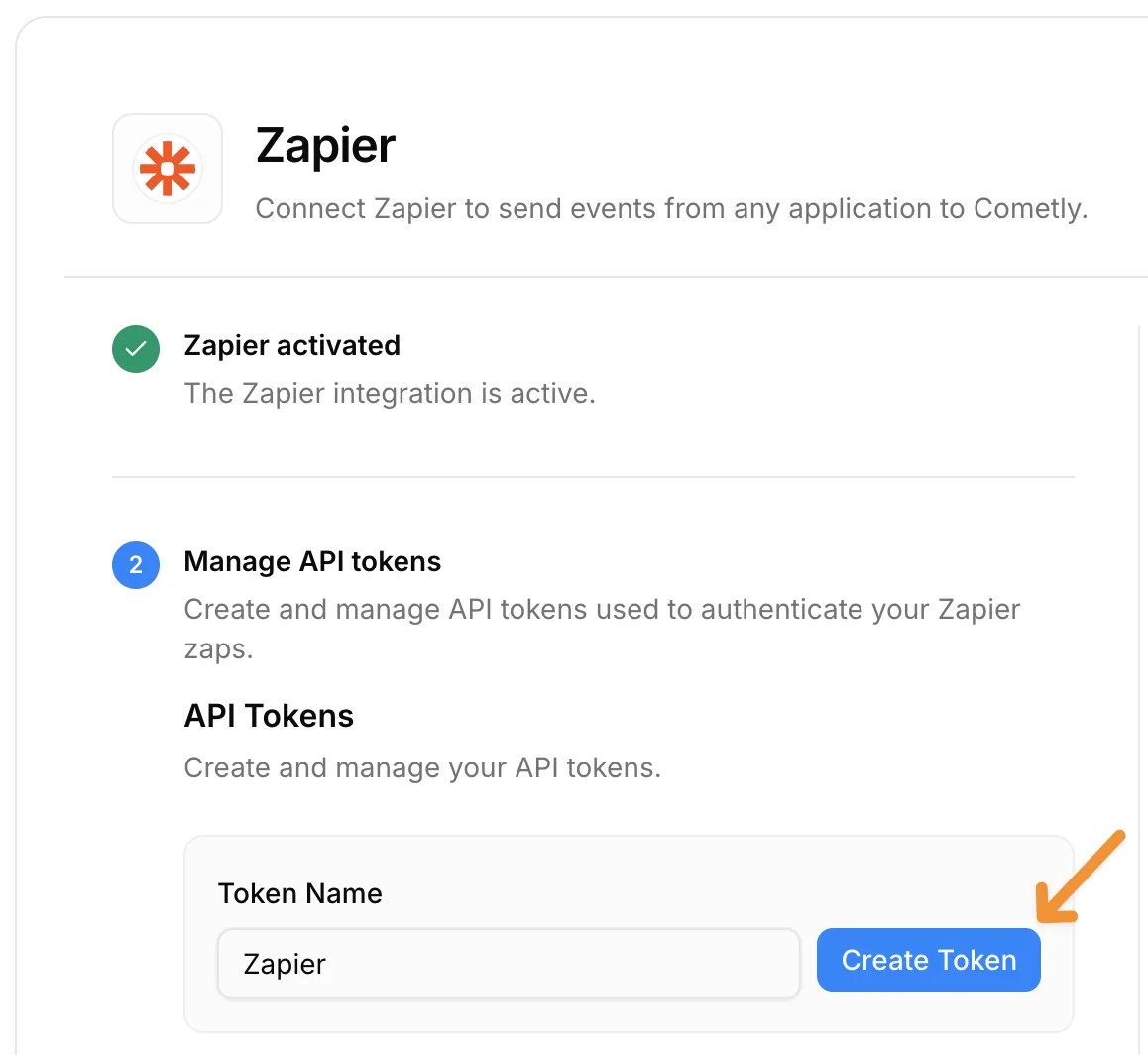
- Copy the token right away for the next step. For security reasons, Cometly does not show it again.
3
Connect Zapier to Cometly
- In Zapier, set up your Zap with a trigger event (for example a new contact in HubSpot).
- Add a new action step to your Zap and search for Cometly.
- For the action event, select Send Event.
- For the account, paste the Cometly API token you created in the previous step.
4
Name your connection
Optionally, rename the connection in Zapier to match the name of your Cometly space so it is easy to identify.
5
Use the connection
Once connected, you can send events to Cometly from any app in Zapier.If you have more than one Cometly space, repeat the process with an API token created in each space. Name each Zapier connection after its space to stay organized.
Send events to Cometly from Zapier
In your Zap, select any app as the trigger (CRM, website builder, payment provider and so on) and set Cometly as the action to send event data automatically. If you have not connected your Cometly account to Zapier yet, follow Connect Cometly to Zapier first. This video shows step by step how to set up Cometly as an action that receives event data.1
Choose your trigger app
In Zapier, select the app you want to use as the trigger (for example HubSpot, another CRM, a website builder or a payment provider) and set up the trigger event.
2
Add Cometly as an action step
Click Add Step in your Zap, search for Cometly, and select Send Event as the action event.
3
Connect your Cometly account
If it is not connected yet, paste your Cometly API token when prompted. See Connect Cometly to Zapier.
4
Choose your event
Select a pre-configured event such as Lead, Purchase or Add to Cart, or create an event in Cometly.
5
Map your data fields
Match fields from the trigger app (for example email, first name, last name and phone number) to Cometly.For event values (for example deal amounts), map the field that holds the amount so Cometly can report revenue.
6
Test and verify
Click Test Step in Zapier to send a test event to Cometly. Then open Events Manager in Cometly and check the Events Log tab to confirm the data was received.
7
Activate your Zap
Once everything is verified, turn on your Zap to start sending live event data to Cometly.
- Create separate Zaps for different event types (for example leads, deals and purchases).
- Use Zapier filters to control which data is sent (for example only qualified leads).
Check it worked
On the Zapier page in Cometly, step 1 shows Zapier activated. After you click Test Step in Zapier, the test event appears in Events Manager on the Events Log tab. Once your Zap is on, new events from your trigger app show up there too.Use cases
Each use case has its own requirements for Cometly to track customer actions accurately.Ecommerce stores
To track purchases:- Make sure the email address is captured on the order form (this is usually automatic).
- If the email is not captured, include all of the following in your data:
- IP Address
- Fingerprint
- Comet Token
Marketing funnels, CRM actions and payments
To track leads and purchases in a marketing funnel:- If the customer’s email address is captured earlier in the funnel (for example through a form submission), you can use Zapier to send only the email to Cometly.
- Cometly associates the email with that lead, using the pixel installed on your site.
- For purchases, platforms like Stripe can send only the email, because Cometly already has the customer’s information from earlier in the funnel.
Webhooks
If Zapier has no integration with the app or service you need, use Cometly webhooks instead. The Webhooks guide explains how to:- Create your webhook in Cometly.
- Select the event (or create a new event) for the webhook.
- Map the webhook data to the right fields in Cometly.
- Set up filters so only the data you want is tracked.
Frequently asked questions
What do I do if I lost my Cometly API token for Zapier?
Create a new one. Cometly shows a token only once, so open the Zapier page in Cometly, create another token under Manage API tokens and paste it into your Cometly connection in Zapier. You can delete the old token from the Your Tokens list.Can I send HubSpot, Salesforce or Stripe events to Cometly with Zapier?
Yes. Each has its own walkthrough: HubSpot deals, Salesforce leads and opportunities and Stripe first-time and recurring payments. HubSpot and Stripe also have direct Cometly integrations, so check those first.Do I need Zapier if Cometly already integrates with my tool?
Usually not. A direct integration sends events to Cometly without a Zap in between. Check the Integrations overview for your tool, and use Zapier when it is not listed or when you need a trigger the direct integration does not offer.Next steps
- Send HubSpot deals to Cometly with Zapier
- Set up Salesforce with Zapier
- Track Stripe first-time and recurring payments with Zapier
- Manage the custom events your Zaps send to
- Send events with webhooks when Zapier has no app for your tool