

Before you start
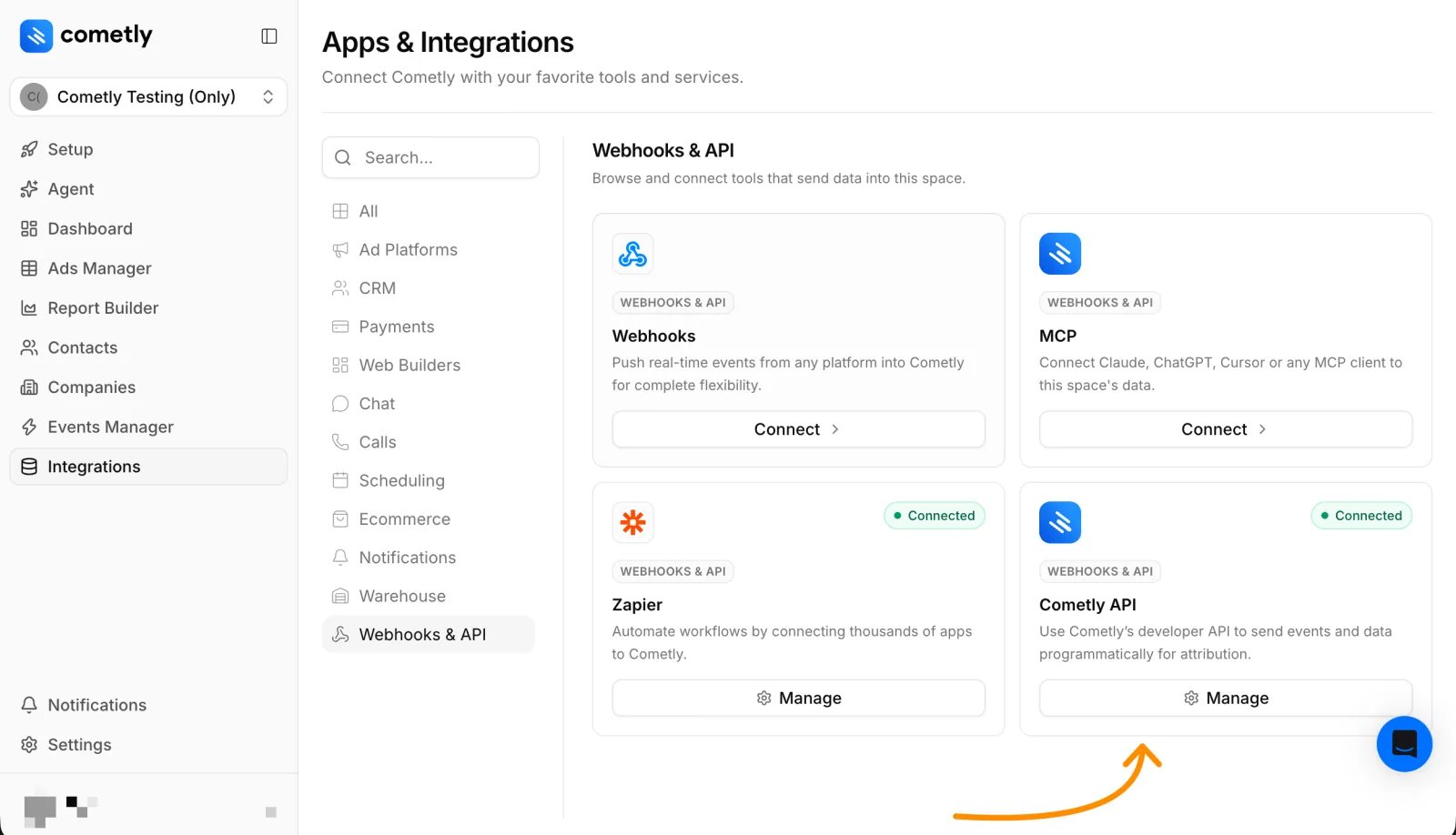
You need a Cometly API token, the key Freshworks uses to sign in to the Cometly API. You need the Administrator or Owner role in the space (a workspace in your Cometly account) to see the Cometly API card.- In Cometly, click Integrations in the left sidebar and open the Cometly API card.
- If the integration is not active yet, click Activate Cometly API.
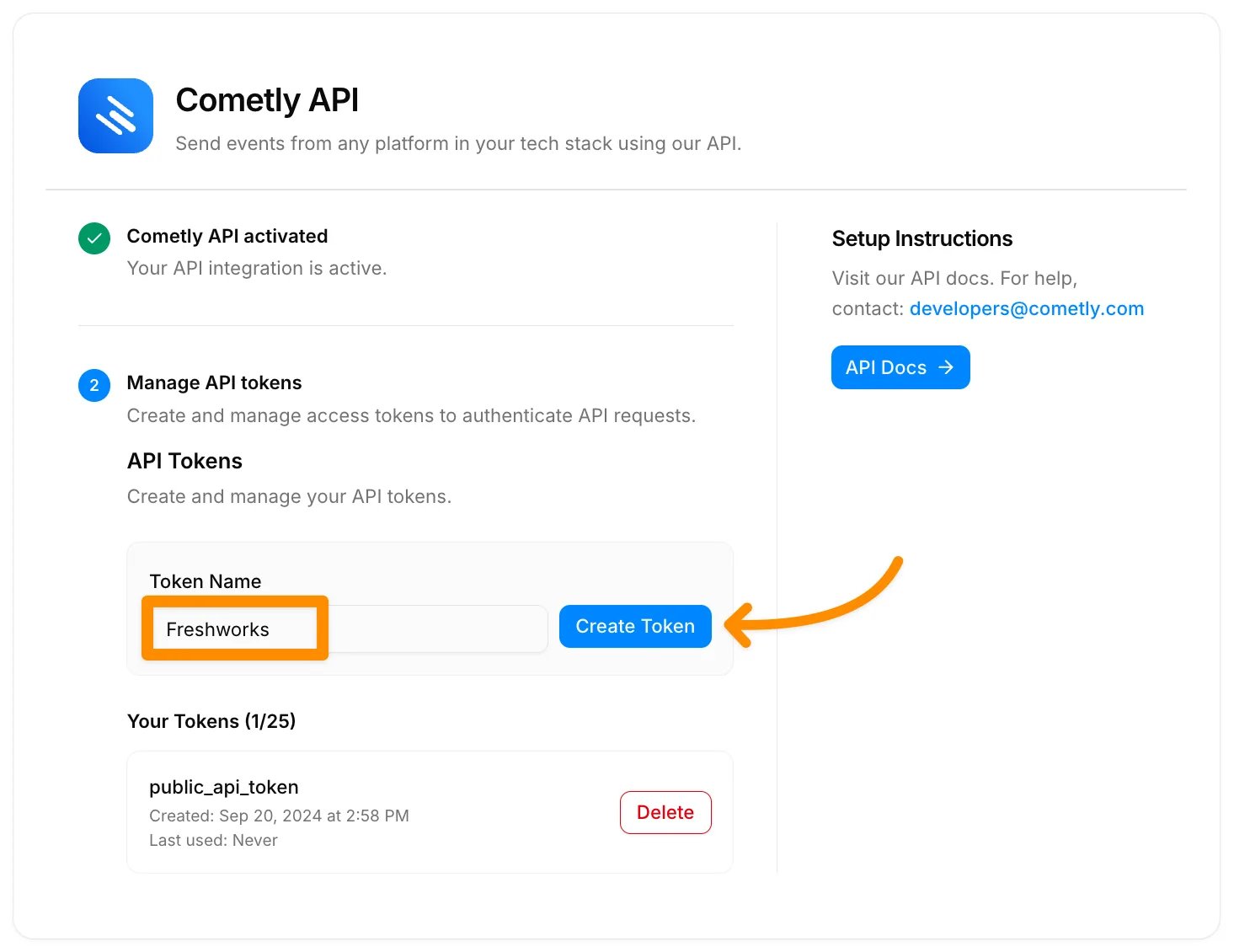
- Under API Tokens, enter a Token Name and click Create Token. Copy the token and keep it somewhere safe.
Set up the webhook in Freshworks
1
Select POST as the request type
Create a new Freshworks webhook automation and configure the trigger based on the event you want to send to Cometly. Set the request type to POST.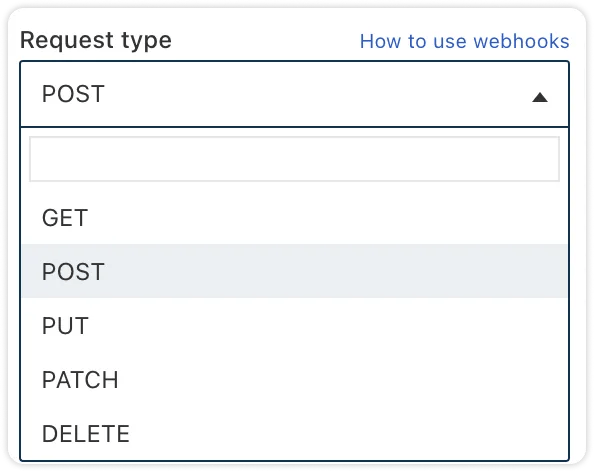
2
Enter the callback URL
For the callback URL, enter: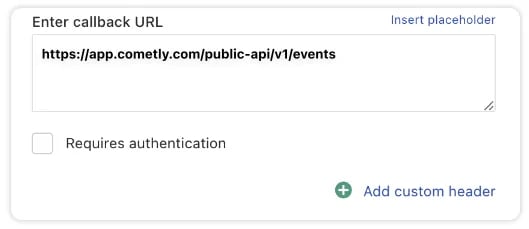
3
Add authentication
In Freshworks, select Requires authentication.For the API key, enter Replace 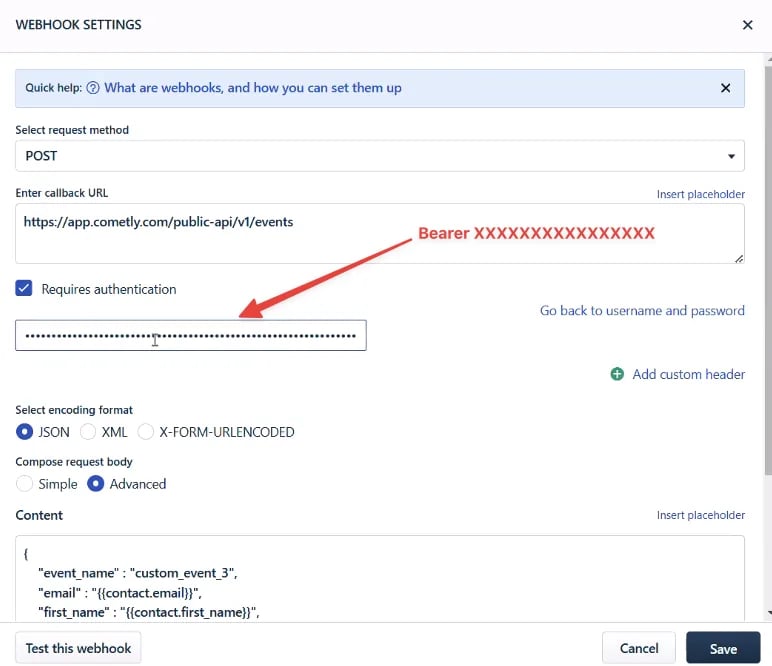
Bearer followed by a space and your Cometly API token:XXXXXXXXXXXXXXXX with the token you created in Cometly.4
Build the content
Set the encoding format to JSON.The content keys must match the field names in the Cometly API documentation. The values are dynamic Freshworks placeholders, with one exception:
event_name is a static value, the name of the Cometly event you are sending (for example custom_event_3).Click Save to save the webhook configuration.5
Test the webhook
Enroll a contact in the workflow to test it. Then, in Cometly, open Events Manager and click the Events Log tab to confirm the server event was received.
Check it worked
In Cometly, open Events Manager, click the Events Log tab and set Source to Server. The event Freshworks sent is listed there within 60 seconds, with SUCCESS in the Details column.Frequently asked questions
How long does it take for a Freshworks CRM event to show up in Cometly?
The event shows in the Events Log within 60 seconds of Freshworks sending it. It can take up to 15 minutes to appear in the reporting areas, such as the Report Builder or Ads Manager.Where do I find the event_name for a custom event in Cometly?
In Cometly, click Events Manager in the sidebar, then click Manage custom events. Each custom event has a fixedevent_name shown under its name, from custom_event_1 to custom_event_50. See Manage custom events for how to name and configure one.
Do I need a separate Freshworks webhook for each Cometly event?
Yes. Theevent_name in the webhook content is a static value, so each webhook sends one Cometly event. To send a second event, add another webhook action in Freshworks with its own trigger and its own event_name.
Next steps
- Use the Events Log to check incoming events
- Create and manage Cometly API tokens
- Manage custom events
- Learn how events work in Cometly
- Freshworks: What are webhooks, and how to configure webhooks for workflows