

Before you start
- A LinkedIn login with access to the ad accounts. Cometly lists the business ad accounts your LinkedIn login can access.
- The right LinkedIn roles, if you plan to send conversions or track lead forms. See Required permissions and LinkedIn Lead Gen Form tracking.
- The Administrator or Advertiser role in the Cometly space (a space is the workspace that holds one business’s tracking, ad accounts and reports).
- The Cometly pixel (the tracking script that records your visitors) on your landing pages. See Install the pixel.
Connect LinkedIn Ads
1
Open the LinkedIn Ads row
In Cometly, click Integrations in the left sidebar and find LinkedIn Ads under Ad Platforms.
2
Sign in with LinkedIn
Click Sign in with LinkedIn. A pop-up window opens on LinkedIn. Sign in and allow the access Cometly asks for. When the window comes back to Cometly, click Done to close it.
3
Find your ad accounts
The row expands and the Ad Accounts table lists the accounts your LinkedIn login can access. Use Search ad account to find one.
4
Connect each ad account to the space
In the space the account should report into, click Connect & Sync Data next to it. You see Ad Account Connected - Data will sync in 30-60 minutes.
Your LinkedIn sign-in is personal: only you can see and manage it. An ad account can be connected to one space at a time. See Same ad account in two spaces.
Check it worked
The account now shows Connected with the space’s name in the Space column, and it appears in the Connected LinkedIn Ad Accounts card, where everyone in the space can see which LinkedIn profile connected it. Within 30 to 60 minutes, your active campaigns start to appear in the Ads Manager with their spend, impressions and clicks.Add Cometly’s URL parameters
Add these parameters to your LinkedIn ads: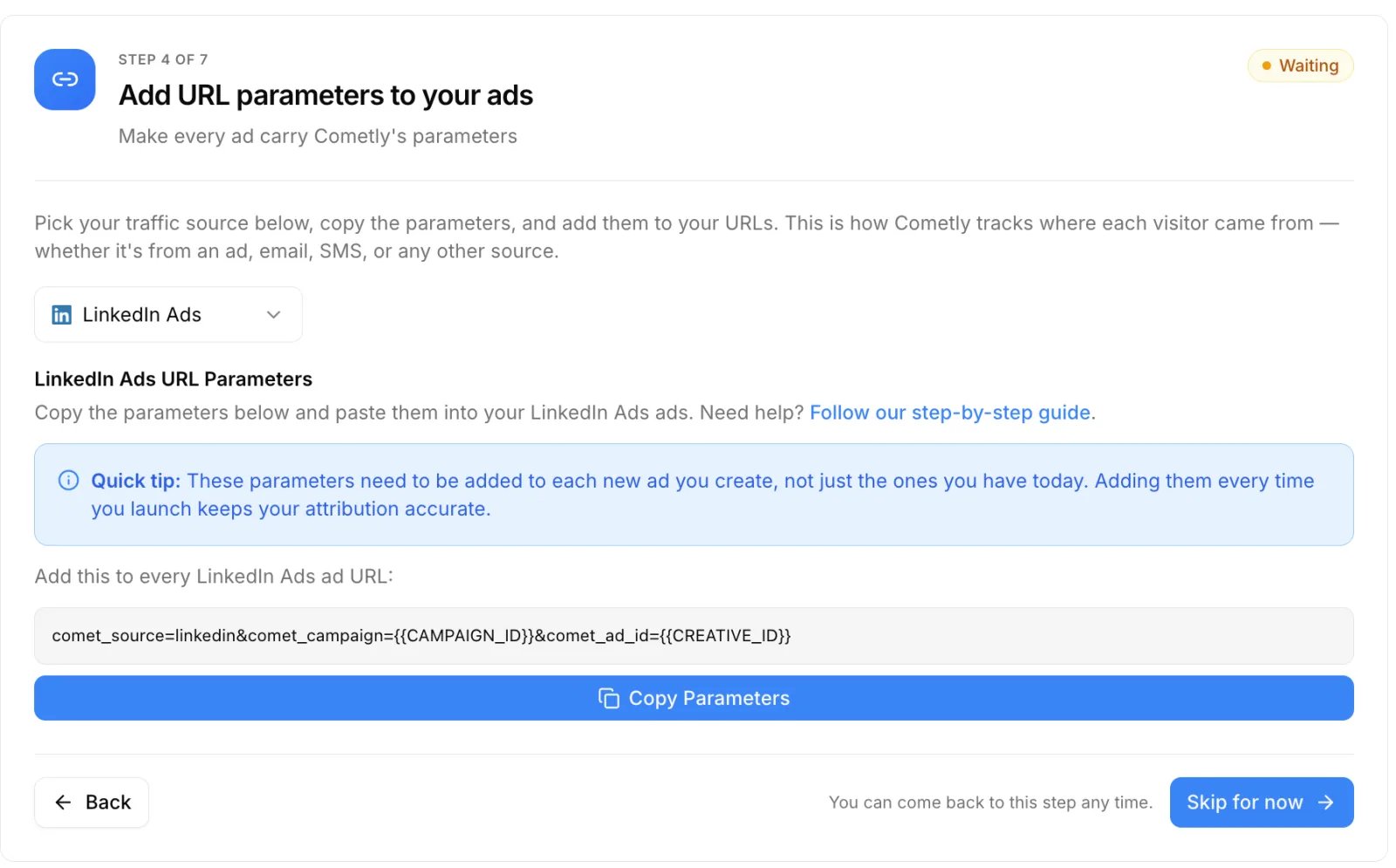
Send conversions back (Conversion API)
The LinkedIn section of the Conversion API (Events Manager, then the Conversion API tab) sends your Cometly events to LinkedIn. You create a Conversions API conversion in LinkedIn Campaign Manager, turn on data sharing, and map each LinkedIn conversion to a Cometly event with a rule: Send all events or Only send attributed events. See Configure the LinkedIn Conversion API.What to expect after connecting
- Data. Active campaigns start populating within 30 to 60 minutes. After that, Cometly refreshes LinkedIn Ads data every 30 minutes and pulls the previous two days again once a day, so LinkedIn’s later adjustments are captured.
- Ads Manager. The level tabs follow LinkedIn’s structure: Campaign Groups, Campaigns and Creatives. Besides Default, the Columns menu has the presets Delivery, All Events and Linkedin Forms. If you have ads management permission, you can turn campaign groups, campaigns and creatives on or off, rename campaign groups and campaigns, and change a campaign’s daily or lifetime budget from Cometly.
- Lead forms. Submissions of LinkedIn Lead Gen Forms on a connected ad account are recorded as leads. See LinkedIn Lead Gen Form tracking.
- Campaigns. New campaigns are picked up automatically while Auto-track new campaigns is on (Settings, then Campaign tracking under Workspace). If a campaign that was already running is missing, see Manually turn on tracking.
- Status. The row shows Connected, or Connection Issue, Resync Required when Cometly cannot load your ad accounts from LinkedIn: click Resync to sign in again (see Ad data not syncing). Last Synced is the last time Cometly renewed its connection to your LinkedIn profile, not the time of the last data refresh.
- Disconnect. At the top of the expanded row it removes your LinkedIn profile, and ad data stops tracking immediately in every space that uses its ad accounts. Next to one ad account it removes only that account from its space.
Troubleshooting
You received “Action Required: Resync LinkedIn Connection”
LinkedIn no longer accepts the sign-in made by the user named in the message, so ad data has stopped for that space. LinkedIn sign-ins expire: Cometly renews its access on its own for as long as LinkedIn allows, and after that LinkedIn requires you to sign in again. That user clicks Resync on the LinkedIn Ads row and signs in. Cometly posts this notification in the space and sends it by email. When data flows again you get LinkedIn Connection Restored, and the last 48 hours of data are restored automatically.The table says “No ad accounts found”
Your LinkedIn login has no business ad account that Cometly can list. Ask for access to the ad account in LinkedIn Campaign Manager, or have a user who has it connect instead, then click Resync.LinkedIn spend is missing from a dashboard report
A filter on a URL parameter can hide ad metrics. See Troubleshoot LinkedIn data on a dashboard.Conversions do not appear in LinkedIn
See the troubleshooting section of the LinkedIn Conversion API guide.Frequently asked questions
Does Cometly import LinkedIn campaigns that were running before I connected?
Not retroactively. Cometly tracks a campaign from the moment its tracking is turned on, and from that point forward. For campaigns that were already running, see Tracking historical ad data.Do I need the LinkedIn Conversion API to see which LinkedIn ads produce conversions?
No. Cometly attributes conversions to your LinkedIn ads from the pixel on your landing pages and the URL parameters on your ads. The Conversion API is a separate step that sends those conversions back to LinkedIn.Next steps
- Add URL parameters to your ads, so every LinkedIn click can be attributed to its campaign and ad.
- Configure the LinkedIn Conversion API to send your Cometly events back to LinkedIn.
- LinkedIn Lead Gen Form tracking to record lead form submissions as leads.
- Use the Ads Manager to read your LinkedIn spend and conversions side by side.