

- With the native Keap integration, which connects your Keap account to Cometly directly.
- With Zapier, which lets you build each event as a Zap.
Use the native Keap integration
Keap is available as a native integration in Cometly (Integrations > Keap, category CRM). You pick a Keap trigger for each Cometly event.1
Create the event
In Cometly, go to Events Manager and click Create Event. Under App / Integration, choose Keap. Select the event name (or create a new event) and click Create.
2
Choose the account and trigger
Under Account, select your Keap account, or choose Connect new account to sign in to Keap. Under Trigger, choose the Keap trigger that should send this event, then click Continue.
3
Map, filter and activate
Map the Keap data to the Cometly fields, add filters if you only want some records to count, and activate the event.
Use Zapier
This section covers five use cases for sending events from Keap to Cometly with Zapier:- Leads (triggers when a new contact is created in Keap)
- Opportunity created (triggers when a new opportunity is created in Keap)
- Opportunity closed won (triggers when a deal is moved to Won in Keap)
- New payment (triggers when a new payment is created in Keap)
- Qualified lead (triggers when a contact is updated in Keap)
Send lead events
-
Create a new Zap in Zapier
- In your Zapier account, click Create Zap.
- Select Keap as the trigger app.
-
Choose the trigger event
-
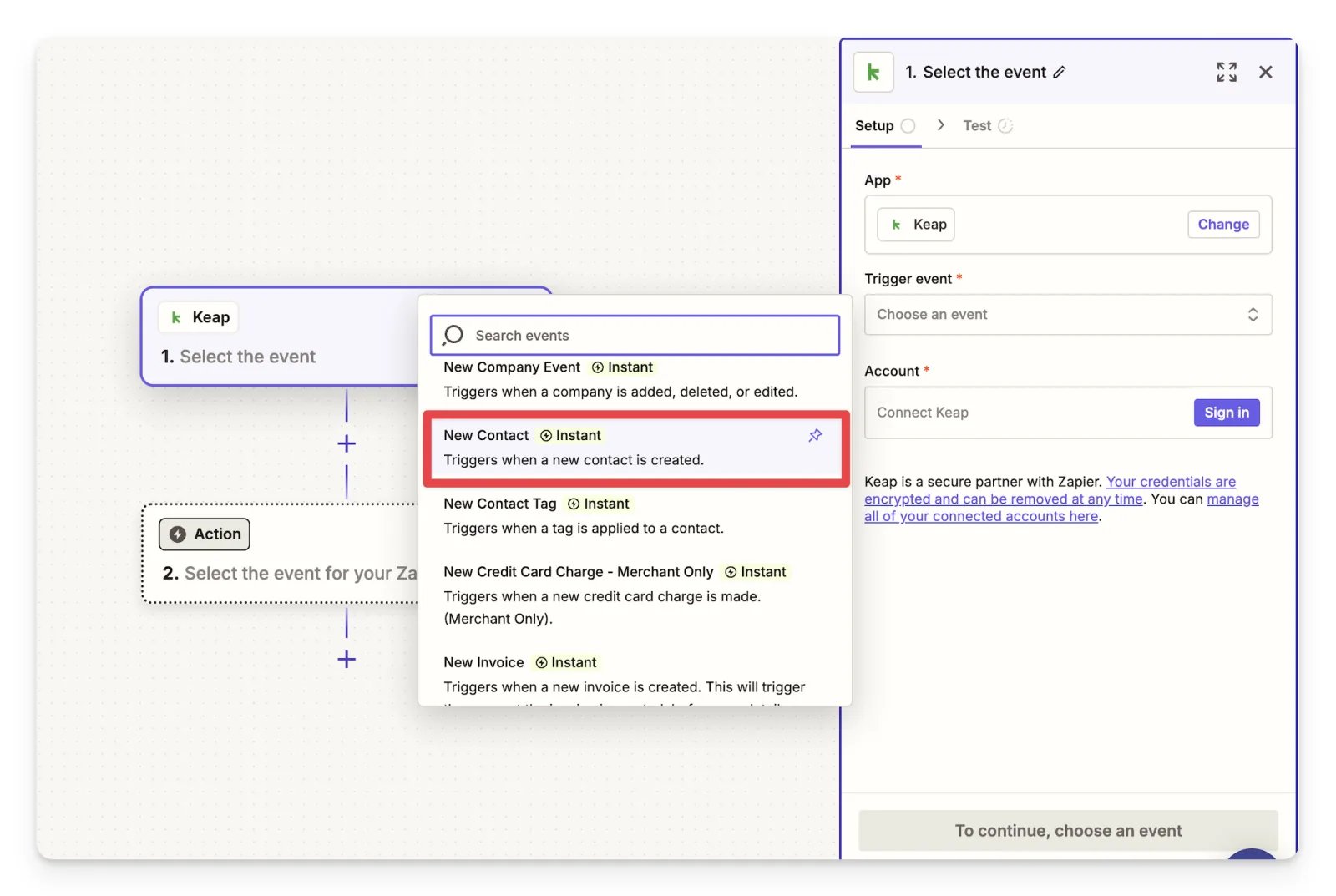
Select New Contact as the trigger event. When a new contact is created in Keap, this triggers the Zap to send the lead event to Cometly.
-
Select New Contact as the trigger event. When a new contact is created in Keap, this triggers the Zap to send the lead event to Cometly.
-
Choose Cometly as the action
- For the event action, choose Send Event.
- Choose your event. We recommend Lead, or you can create a new event in Cometly.
- Follow the steps in the Zapier integration guide to set up Cometly as an action.
Send opportunity created events
-
Create a new Zap in Zapier
- In your Zapier account, click Create Zap.
- Select Keap as the trigger app.
-
Choose the trigger event
-
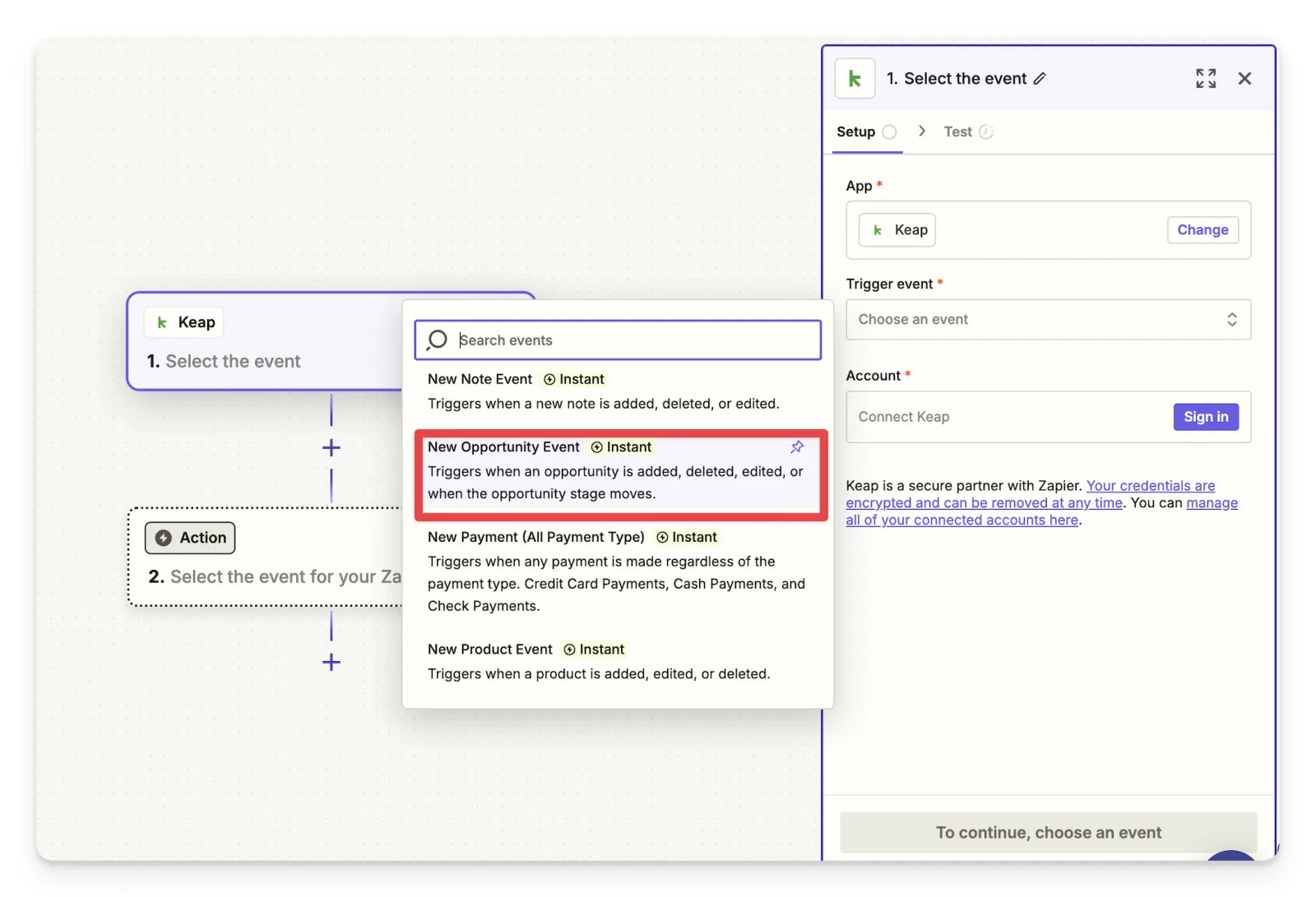
Select New Opportunity Event as the trigger event.
-
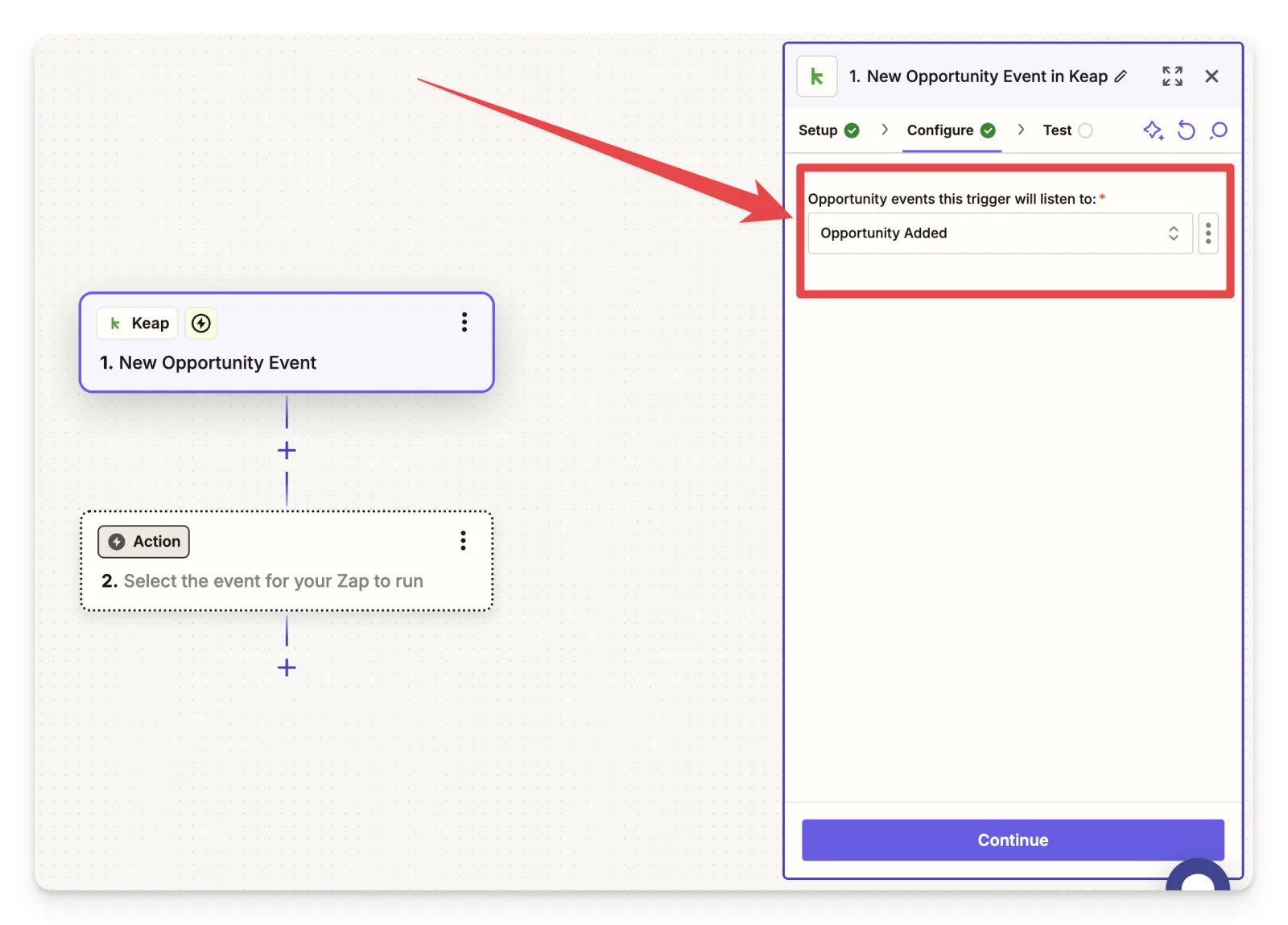
On the Configure step, where it says Opportunity events this trigger will listen to, select Opportunity Added.
-
Select New Opportunity Event as the trigger event.
-
Choose Cometly as the action
- For the event action, choose Send Event.
- Choose your event. We recommend creating a new event in Cometly called Opportunity Created.
- Follow the steps in the Zapier integration guide to set up Cometly as an action.
Send opportunity closed won events
- Create a new Zap in Zapier
- In your Zapier account, click Create Zap.
- Select Keap as the trigger app.
- Choose the trigger event
-
Select Opportunity Stage Moved as the trigger event.
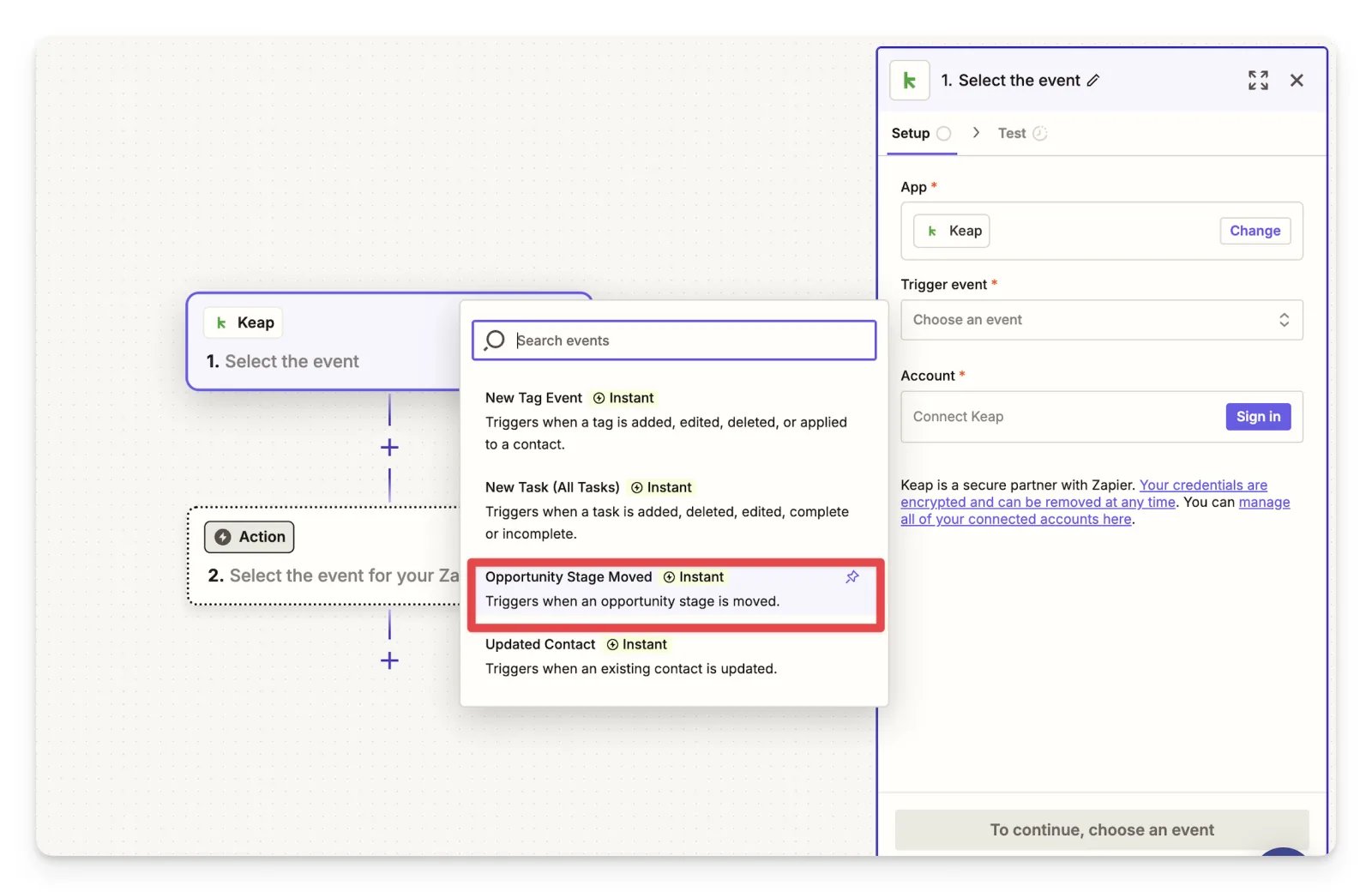
- On the next step, choose the opportunity stage in your Keap sales pipeline that means a deal is closed won. With this selection, the event is sent to Cometly when a deal is moved to closed won.
-
Select Opportunity Stage Moved as the trigger event.
- Choose Cometly as the action
- For the event action, choose Send Event.
- Choose your event. We recommend creating a new event in Cometly called Opportunity Won.
- Follow the steps in the Zapier integration guide to set up Cometly as an action.
Send new payment events
- Create a new Zap in Zapier
- In your Zapier account, click Create Zap.
- Select Keap as the trigger app.
- Choose the trigger event
-
Select New Payment (All Payment Type) as the trigger event.
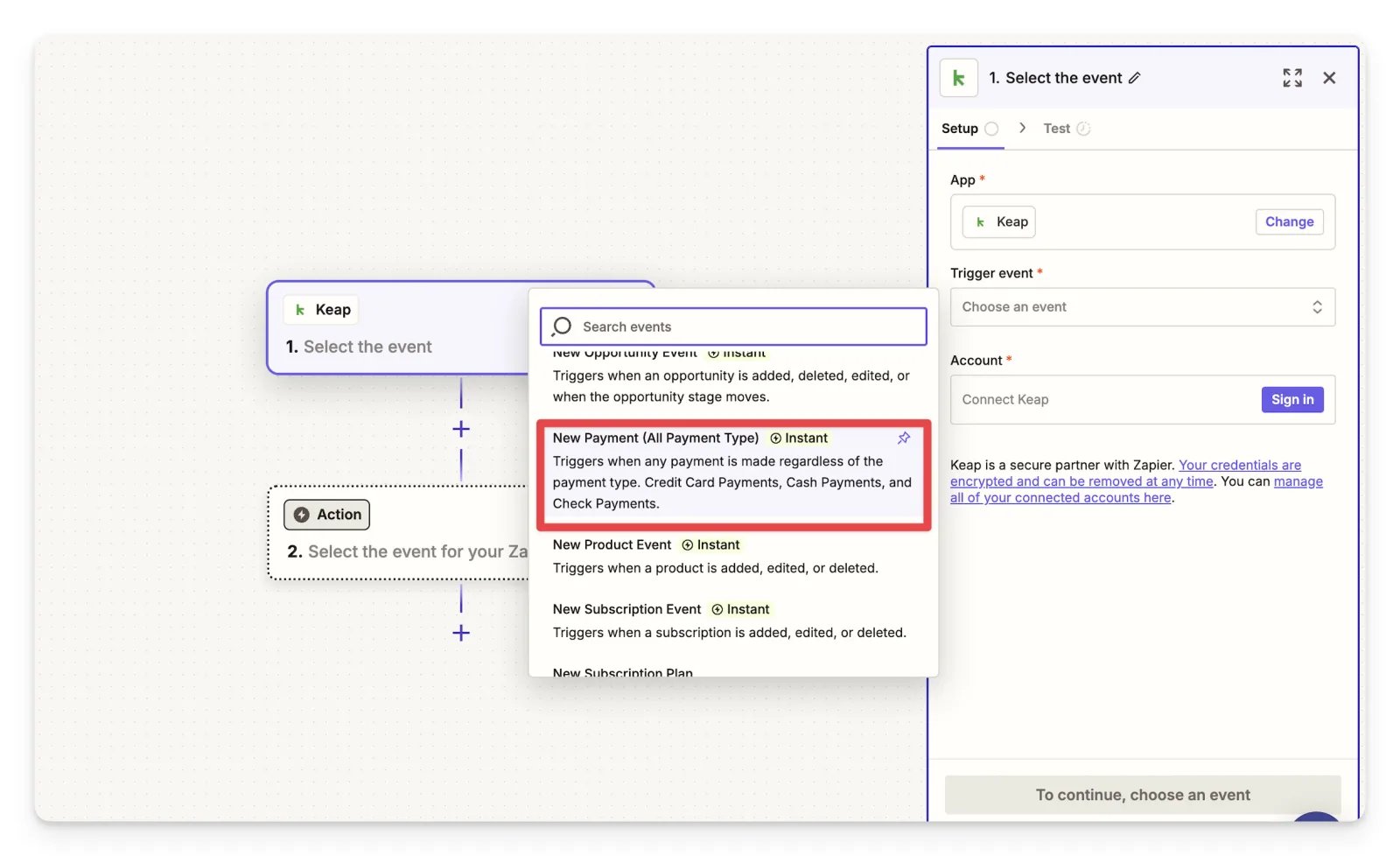
- This triggers the Zap to send payments to Cometly when any Keap payment is made (credit card, cash and check payments).
-
Select New Payment (All Payment Type) as the trigger event.
- Choose Cometly as the action
- For the event action, choose Send Event.
- Choose your event. We recommend Purchase.
- Follow the steps in the Zapier integration guide to set up Cometly as an action.
Send qualified lead events
- Create a new Zap in Zapier
- In your Zapier account, click Create Zap.
- Select Keap as the trigger app.
- Choose the trigger event
-
Select Updated Contact as the trigger event.
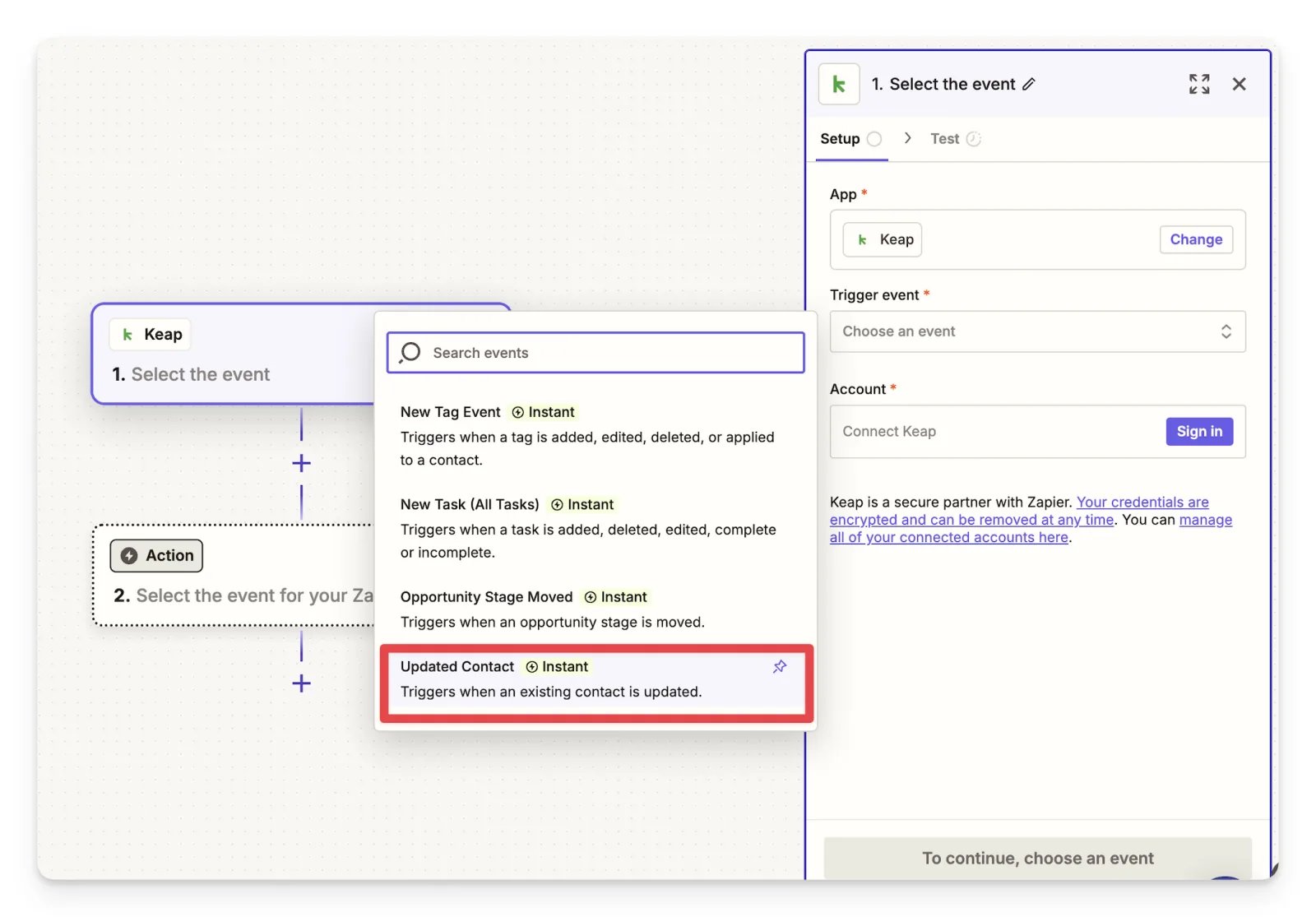
- The Zap triggers whenever a contact is updated. Add a filter step between the trigger and the Cometly action so that data is only sent when the lead’s status is updated to “qualified” (or your equivalent indicator).
-
Select Updated Contact as the trigger event.
- Choose Cometly as the action
- For the event action, choose Send Event.
- Choose your event. We recommend creating a new event in Cometly called Qualified Lead.
- Follow the steps in the Zapier integration guide to set up Cometly as an action.
Check it worked
For a native event, open Events Manager: your Keap event shows a switch that is turned on in the Status column. Make the change in Keap that your trigger listens for (for example, create a contact), then open the Events Log tab. The event appears there with SUCCESS in the Details column. For a Zap, click Test Step in Zapier, then check the Events Log tab for the test event.Frequently asked questions
Does the Keap integration send my existing Keap contacts to Cometly?
No. Cometly receives an event when the trigger you chose fires in Keap, so only records created or updated after you activate the event are sent. Contacts, orders and opportunities that were already in Keap and do not change are not sent.Should I use the native Keap integration or Zapier?
Both send Keap events to Cometly. The native integration connects your Keap account to Cometly directly, and you set up each event in Events Manager. With Zapier you build each event as a Zap, which lets you add steps of your own between Keap and Cometly, such as a filter step.How do I see what data Keap sent to Cometly?
Open Events Manager, then the Events Log tab. Each event is listed with its raw data, and the Details column shows SUCCESS or the error message when something went wrong. See Use the Events Log for the full walk-through.Next steps
- Set up Cometly as the action in your Zaps with the Zapier integration guide
- Map fields, format values and add filters with the Cometly Webhooks guide
- Use the Events Log to check incoming events
- Learn how standard and custom events work
- Browse all Cometly integrations