

Before you start
Copy your Cometly pixel. In Cometly, go to Setup > Install the Cometly pixel, find Install the pixel and click Copy Code. See Install the Cometly pixel for the full walkthrough.Add the pixel to your Formstack form
1
Open the form in the Formstack form builder
In your Formstack dashboard, select the form you want to track.
2
Add an Embed Code field
In the form builder, find Embed Code under Advanced Fields and drag it to the top of your form.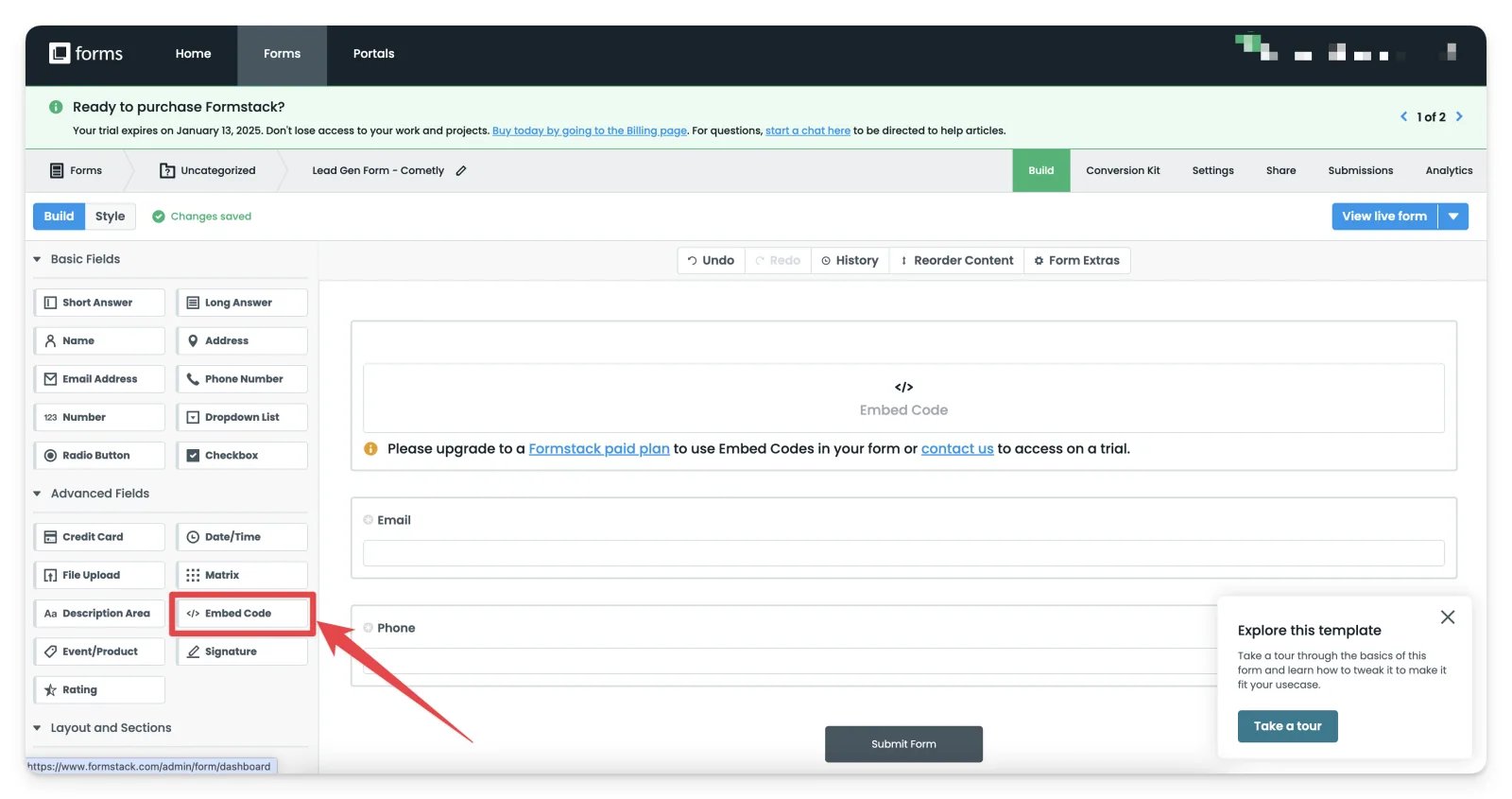
3
Paste the Cometly pixel
Click the pencil icon to edit the Embed Code field, then paste your Cometly pixel into the code box.Save your changes.
4
Keep the Embed Code field at the top of the form
This makes the Cometly pixel load and start tracking as soon as the form loads.
Confirm the pixel is in both places
The pixel must be in both locations for Cometly to capture form field data:- On the Formstack form itself, through the Embed Code field you added above.
- On the web page where the form is embedded.
Test form tracking
Use the Cometly Pixel Helper to check that the email address field is captured automatically as you fill in the form.Check it worked
Open the Cometly Pixel Helper on the page that holds your form. You should see an Init event, which means the pixel is firing, and the email address you type into the Formstack form should show in the Pixel Helper.Send Formstack submissions to Cometly as events
To send an event to Cometly for each Formstack submission, use a Cometly webhook: Set up the Formstack integrationFrequently asked questions
Which Formstack form fields does Cometly capture?
Cometly only captures form fields related to name, email and phone. Email is the most important one, because Cometly uses it to connect a form submission to the right person.Can I test Formstack form tracking without the Chrome extension?
Yes. In Cometly, go to Setup > Install the Cometly pixel and use Test form tracking. The Test form tracking guide walks you through it.Why is Cometly not capturing the email from my Formstack form?
Check that the pixel is in both places: in the Embed Code field at the top of the form, and on the web page where the form is embedded. If the email is still not captured, follow the form tracking troubleshooting guide.Next steps
- Send Formstack submissions to Cometly as events
- Test form tracking on a page
- Set up form tracking for other third-party embedded forms
- Learn how form tracking works
- Troubleshoot form tracking