

- Check for errors in your Cometly pixel installation.
- Identify the Cometly events loading on your page, and verify that the pixel is automatically capturing data from your opt-in forms. An event is an action Cometly records, such as a lead or a purchase.
Install the Cometly Pixel Helper
Install the Cometly Pixel HelperYou can also run both checks inside Cometly, without the extension. Go to Setup > Install the Cometly pixel, then use Verify your pixel and Test form tracking. See Install and verify the Cometly pixel and Test form tracking.
Test the Cometly pixel
-
Go to your web page and open the Cometly Pixel Helper to check that the Cometly pixel is firing on that page.
You should see an Init (short for “initiation”) event fire on each page you visit that contains the Cometly pixel.
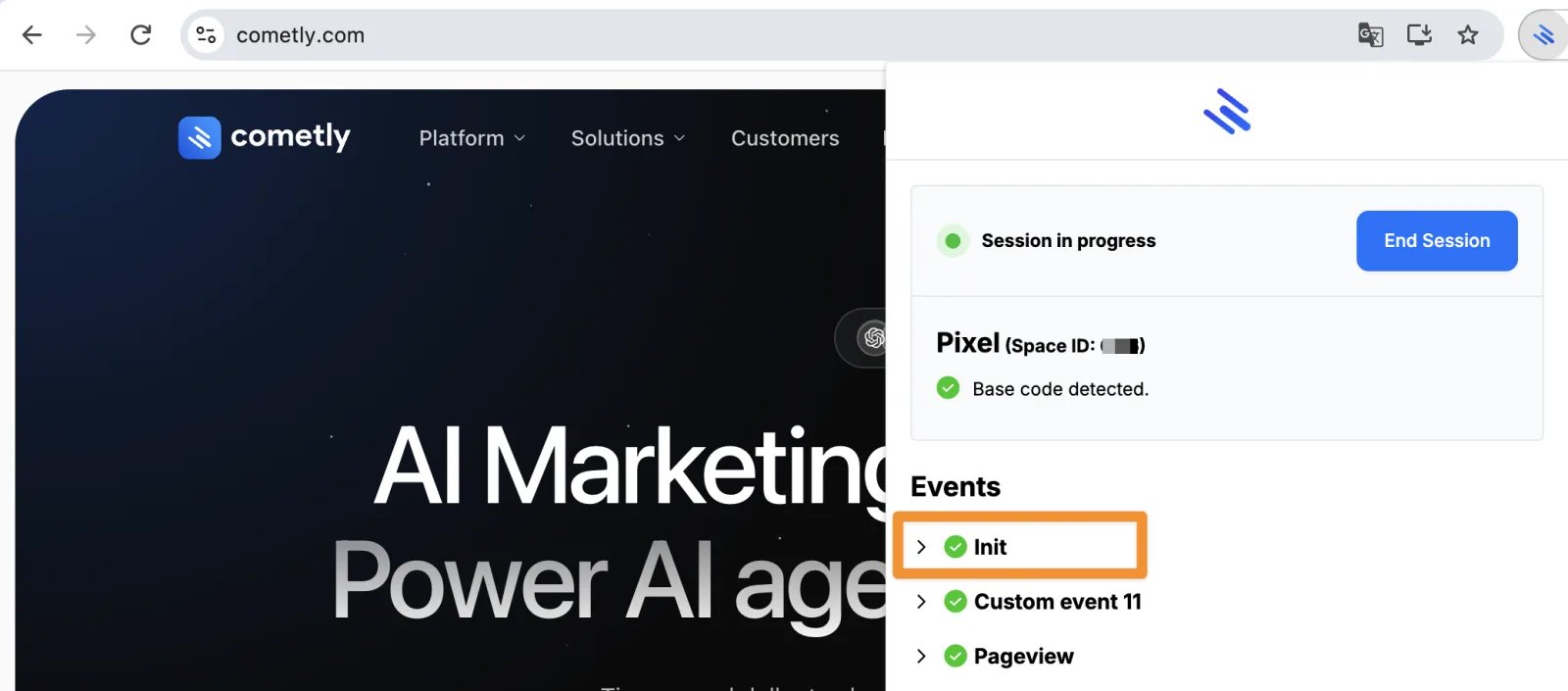
- If you have an opt-in form on your page, fill it out and check that the Cometly Pixel Helper shows the information you enter. Cometly only captures form fields related to name, email and phone.
- If everything fires correctly inside the Cometly Pixel Helper, your pixel is installed and working.
- Inside the Cometly Pixel Helper, click End Session.
Test Cometly browser events
- Open the Cometly Pixel Helper, start a session by clicking Start, then reload the page.
- Go to the web page where you placed the Cometly browser event code.
- Open the Cometly Pixel Helper. You should see the event name listed under Events.
- If everything fires correctly inside the Cometly Pixel Helper, your event code is working.
- Inside the Cometly Pixel Helper, click End Session.
Check it worked
With a session running, the Cometly Pixel Helper shows an Init event on each page that contains the Cometly pixel, the name, email and phone details you enter in an opt-in form, and each event name under Events on the page where you placed its code. To confirm the pixel inside Cometly as well, go to Setup > Install the Cometly pixel. Under Verify your pixel, the domain shows Pixel detected.Frequently asked questions
Why does the Cometly Pixel Helper say base code not detected?
Most often the session was not started before the page loaded: click Start, then reload the page. If it still does not detect the base code (the Pixel Helper’s name for the Cometly pixel), the pixel is missing from the page, does not match the script Cometly shows for your space, or your browser is showing an old cached copy. See Base code not detected.Why does the Cometly Pixel Helper show Init not detected?
Check that the Cometly pixel is in the<head> of your website and that it matches the script Cometly shows under Setup > Install the Cometly pixel. Then clear your website cache and try again. See Init not detected for the full steps.
Why doesn’t the Pixel Helper show the details from my embedded form?
If the form sits inside an iframe (content embedded from another service), the Cometly pixel has to be installed directly in the iframe’s code to capture its fields. See Track forms inside iframes.Next steps
- Install and verify the Cometly pixel
- Test form tracking inside Cometly
- Learn how events work in Cometly
- Fix the base code not detected error
- Fix the Init not detected error