

Before you start, the Meta Conversion API needs to be set up in Cometly. See Configure the Meta Conversion API.
Why add an event source URL?
Meta flags or blocks Conversion API events from sites that deal with sensitive topics (health, political or social issues) unless the event includes the Event Source URL parameter. Without it, Meta warns the site that it is “in a category with restrictions” and eventually stops processing its events. If your business is in a restricted category, you need to send the Event Source URL.Benefits of including the event source URL
- Continued use of the Meta Conversions API: prevents blocked events.
- Compliance with Meta’s health, social and political rules.
- Clear source attribution: Meta knows which domain your events come from.
Set up the event source URL for the Meta Conversion API
1
Identify your root URL
This is your full website root URL, for example:
2
Map the Event Source URL field
How you do this depends on how the event reaches Cometly.
- Cometly webhooks
- Zapier
- API
Open the event’s setup from Events Manager and go to the mapping step (the one with the Cometly Fields and Data Fields columns).
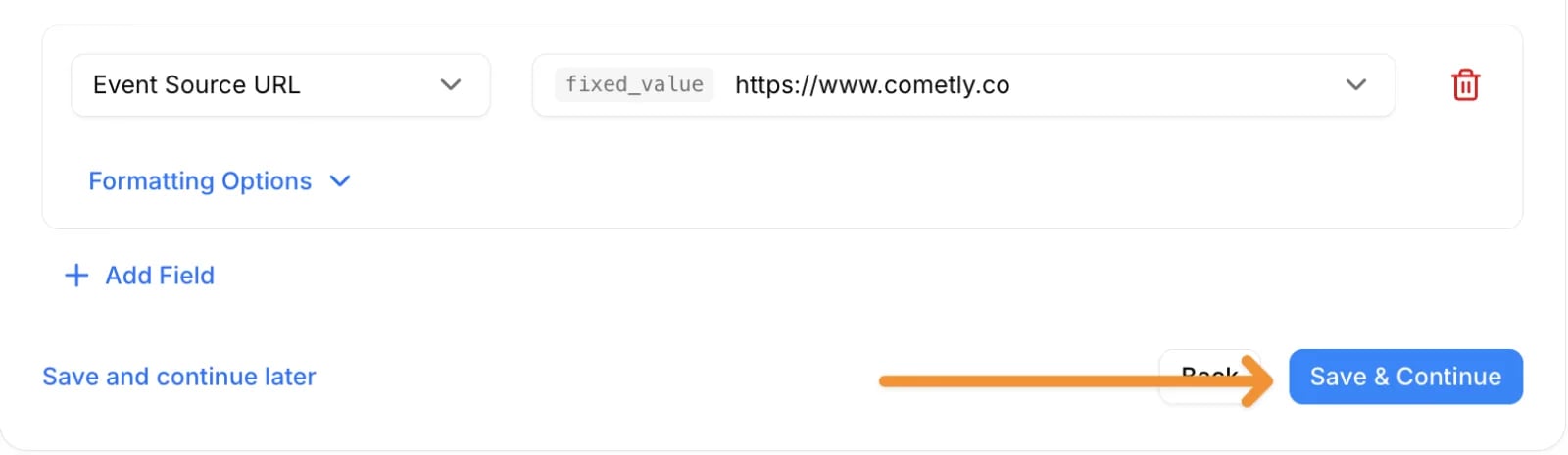
- Click Add Field and select Event Source URL as the Cometly field.
-
Open the data field picker next to it. Under Dynamic Data, choose
fixed_valueand type your root URL (for examplehttps://www.cometly.com).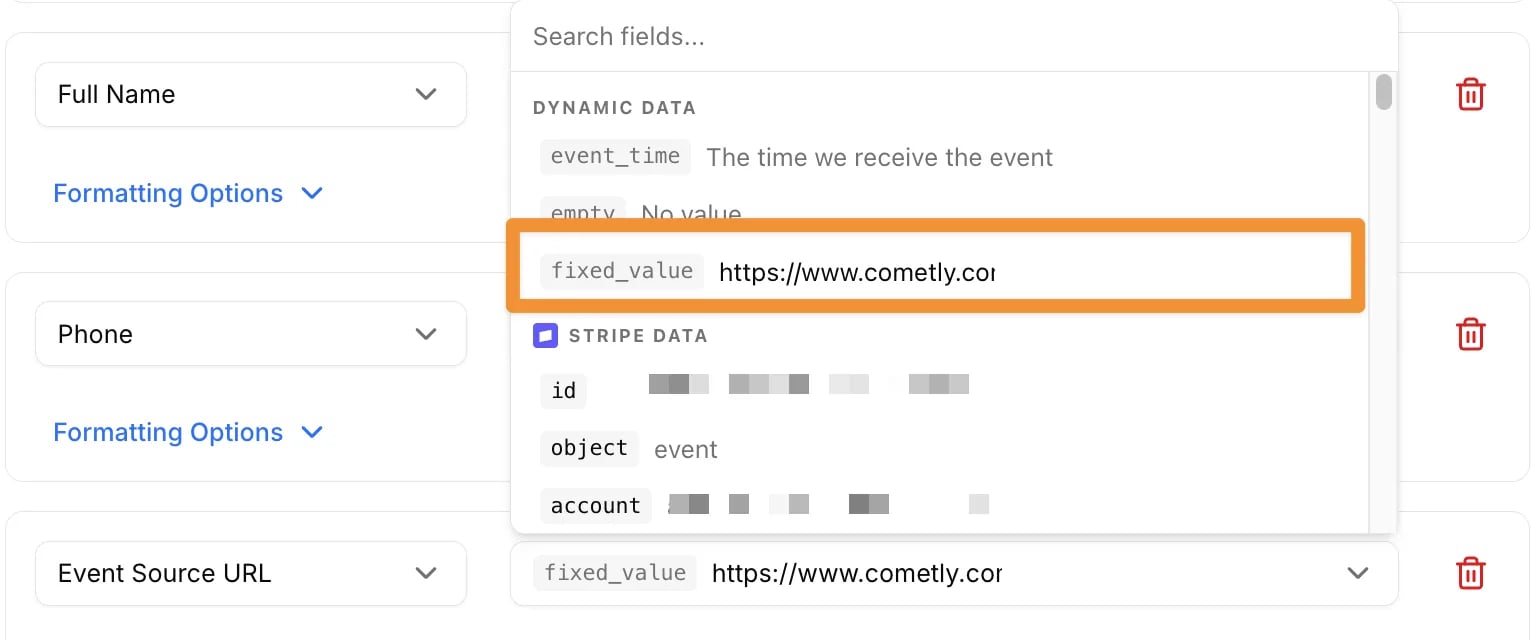
-
Click Save & Continue.
3
Test and verify
- Send a test event that contains the Event Source URL.
- Check Meta Events Manager or the debug API and make sure no warnings appear.
- Confirm that conversion events are processed normally and nothing is blocked.
Check it worked
Open the event’s mapping step in Events Manager again: Event Source URL is listed with your root URL as its fixed value. After your next test event, Meta Events Manager shows no restricted-category warning for that event.Best practices and troubleshooting
Frequently asked questions
Does Cometly send the event source URL to Meta automatically?
For events tracked on your website, yes: Cometly sends the URL where the event was tracked as the event source URL. Events that arrive through a webhook, Zapier or the API may not include a page URL, so you add it yourself with the steps on this page.Do I need a new Meta pixel to send the event source URL?
No. You do not need to reinstall or reconfigure your pixel, and your tracking stays the same. The event source URL is set in the event’s mapping, in your Zapier action or in your API payload.Is the Event Source URL field required on every event?
No. Event Source URL is an optional field in the event mapping, andurl is an optional field in the API. Add it if your business is in one of Meta’s restricted categories, or if Meta warns you that your site is in a category with restrictions.
Next steps
- Send the event source URL when one pixel covers multiple funnels
- Configure the Meta Conversion API
- Fix Meta Conversion API events that are not sending
- Create event API reference