

Add URL parameters to a Meta catalog ad
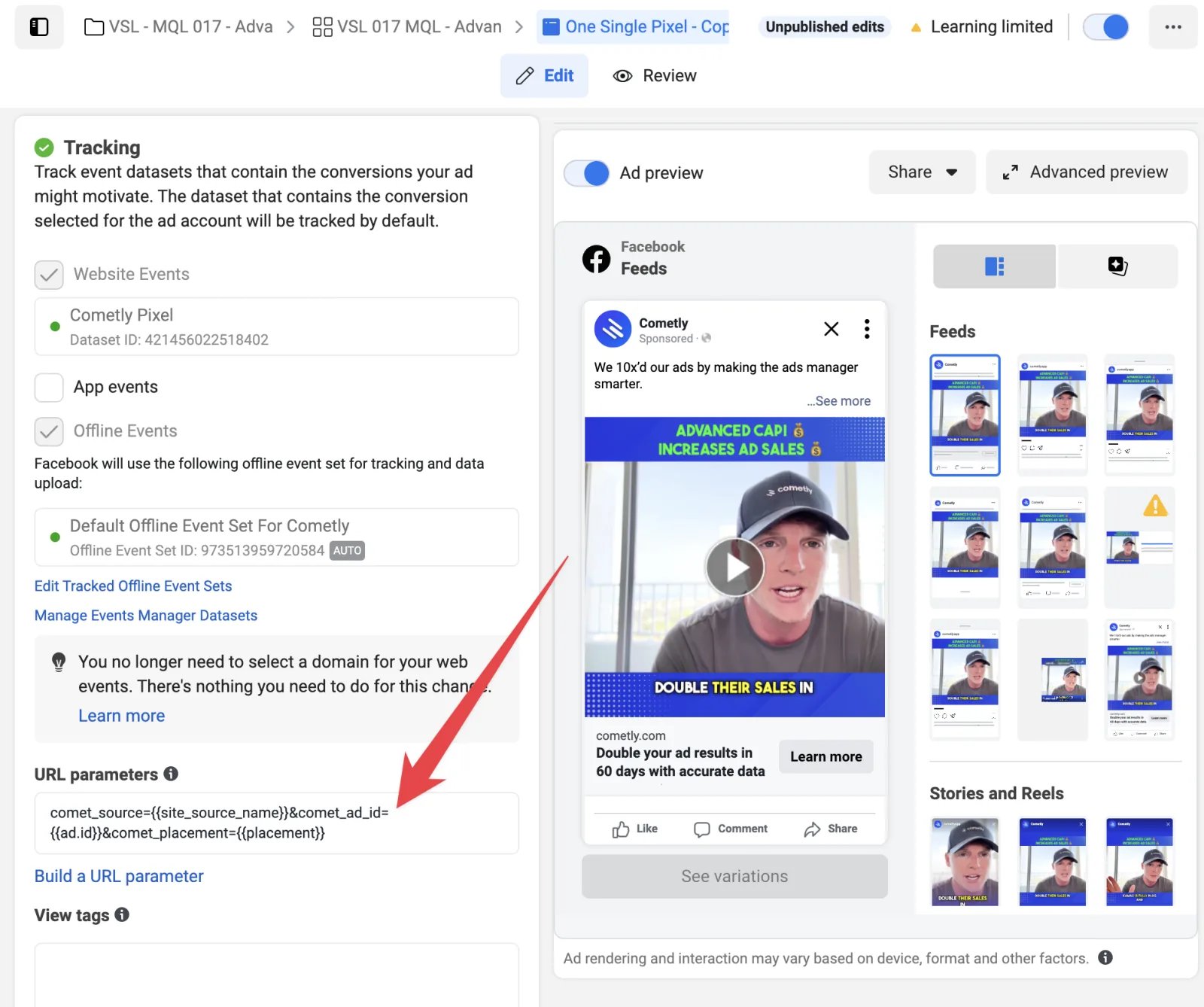
- In Meta Ads Manager, open the catalog ad and scroll to the Tracking section at the bottom of the ad.
-
Find the URL parameters box:
-
Paste the Cometly Meta Ads parameters into that box:
You can also copy them in Cometly under Setup, step 4 Add URL parameters to your ads, with Meta Ads selected.
- Publish the ad.
When you update the parameters in the URL parameters box, your ads go back into review for a short time. Updating URL parameters is not considered a significant ad edit, so learning is not reset on your ads. See Meta’s article on significant edits for what does reset learning.
Check it worked
In the Cometly Ads Manager, select your Meta ad account, open the Columns menu and choose the preset Tracking Status. On the Ads tab, the URL Params column shows the parameters the catalog ad carries, and the Tracking Status column shows Normal. Allow up to 1 hour for the next data refresh before the change appears.Frequently asked questions
What if my Meta catalog ad already has UTM parameters in the URL parameters box?
Keep them, and append the Cometly parameters after them with an& sign. See Set up URL parameters for an example.
Why does Cometly show a UTM Setup Error on my catalog ad?
The red UTM Setup Error dot means an active ad is missing the Cometly URL parameters or has them set up incorrectly. If you just added them, the error can stay until the next data refresh, which takes up to 1 hour. If it is still there after that, follow Fix UTM Setup Errors.Next steps
- Set up URL parameters on your other ads and platforms
- Add URL parameters to Meta carousel ads
- Add URL parameters to Meta ads that use an existing post
- Fix UTM Setup Errors in the Ads Manager
- Test your Meta ads tracking