

Before you begin
You need:- A connected Microsoft profile. Sign in with Microsoft on Cometly’s Integrations page so Cometly has permission to talk to your Microsoft Ads account (Step 1).
- A Microsoft ad account connected to your space. The ad account you want to send conversions to must be connected to your current space (Step 2). A space is a Cometly workspace with its own settings, integrations and data.
- Offline conversion goals in Microsoft Ads. CAPI sends data as offline conversions, so you need at least one offline conversion goal in your Microsoft Ads account (Step 3). Cometly loads these goals during configuration.
Step 1: Connect your Microsoft profile
If you have not connected your Microsoft profile yet:- Click Integrations in the sidebar.
- Under Ad Platforms, expand the Microsoft Ads row.
- Click Sign in with Microsoft.
- Complete the sign-in in the pop-up window.
Step 2: Connect your ad account to your space
- On the Integrations page, expand the Microsoft Ads row. You see a list of the ad accounts your profile can access.
- Click Connect & Sync Data next to the ad account you want to use.
Step 3: Create offline conversion goals in Microsoft Ads
For every offline conversion you want to measure, create an offline conversion goal in Microsoft Ads. You can create as many as you need. Auto-tagging of the Microsoft Click ID is turned on automatically when you create your first offline conversion goal. You can check the auto-tagging status of the click ID on the account-level options page.- From the navigation menu on the left, hover over Conversions and select Conversion goals.
- Select Create conversion goal and select the Offline conversions type.
- Enter a name for your goal in the Goal name box. Use a descriptive name that makes sense to you (for example, “Check-out page”). You cannot use the same name for two different conversion goals.
- Under Sharing, select whether this goal applies to all accounts or a specific account.
-
If you want to add a monetary value for each conversion, under Revenue value, select one of these checkboxes:
- Each time it happens, the conversion action has the same value. Enter the amount and select the currency, if available. This is a static value that doesn’t change.
- The value of this conversion action may vary (for instance, by purchase price). Enter the default amount and select the default currency, if available, to be used when no value is received for a conversion.
- You can also assign a Count to the conversion and enter a Conversion window to track up to 90 days in the past.
- Select Save.
Step 4: Turn on the Microsoft Conversion API
- In Cometly, click Events Manager in the sidebar, then open the Conversion API tab.
- Click the Microsoft row to expand it.
- Under Manage data sharing, select Turn on data sharing. The change is saved straight away.
Step 5: Map your events to conversion goals
This is the most important step. You tell Cometly which of your events to send to Microsoft, and which Microsoft conversion goal each one belongs to.- Under Microsoft Advertising account, select the ad account.
- Cometly loads the offline conversion goals from that account and lists them under Microsoft conversion goals.
-
For each conversion goal you want to receive data:
- Under Cometly events, select the event that should trigger this conversion (for example Purchase, Lead, or any custom event you’ve created).
- Under Rule, choose one of:
- Send all events. Every time this Cometly event fires, it is sent to Microsoft regardless of which ad platform gets the attribution.
- Only send attributed events. The event is sent only if Cometly attributed the conversion to this Microsoft ad account. This is the more conservative option and avoids inflating your Microsoft conversion counts.
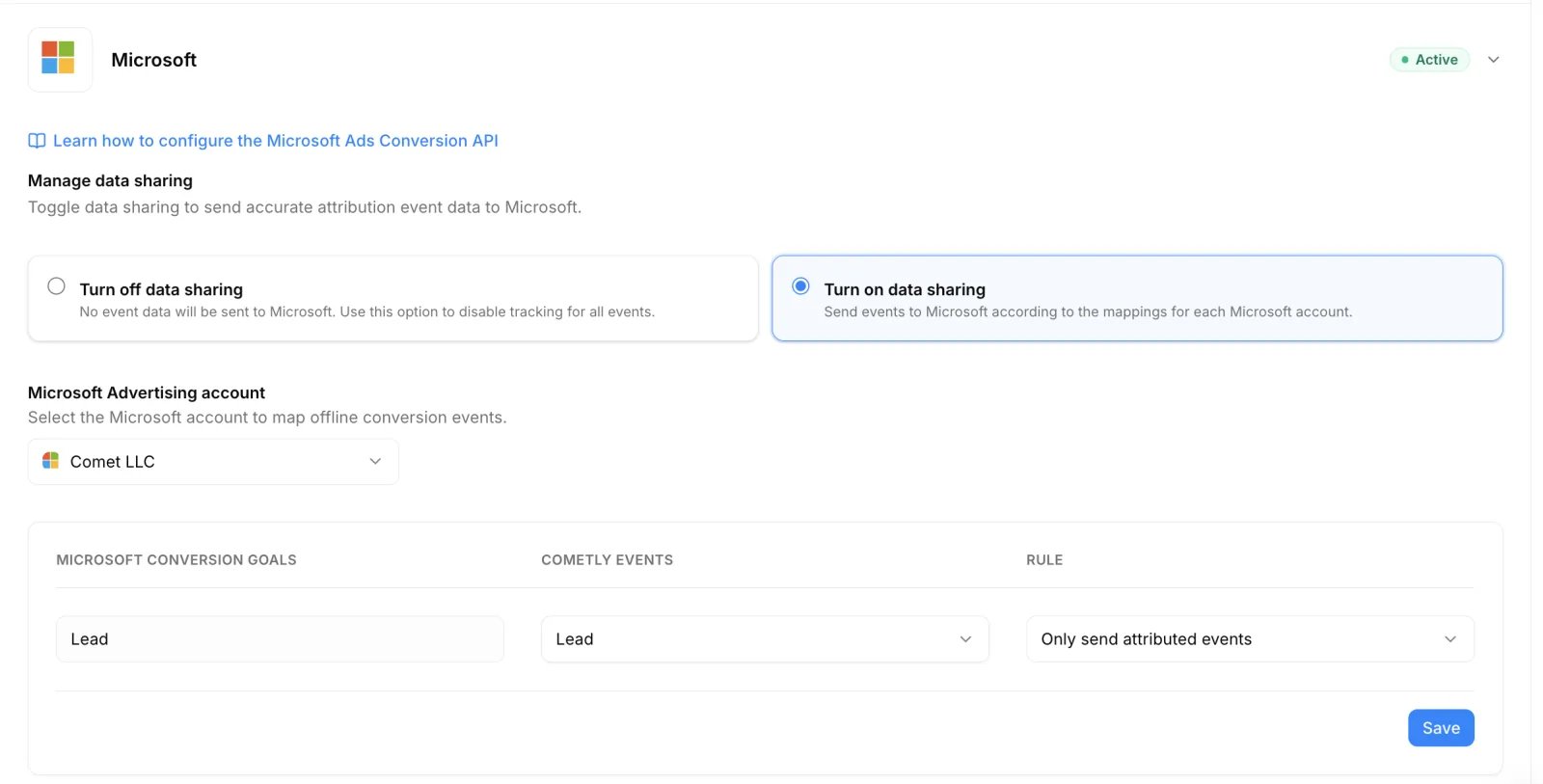
- Click Save.
Check it worked
On the Conversion API tab, the Microsoft row now shows the Active badge, and your mapping is listed under Microsoft conversion goals. From here, Cometly sends each mapped conversion about 15 minutes after the event is tracked. Microsoft Ads can take up to 24 hours to process offline conversions before they show in its reporting.What data gets sent to Microsoft
When a mapped event fires and CAPI is on, Cometly sends this data to Microsoft Ads:
Cometly normalizes and hashes personal data before sending. Microsoft needs at least one identifier (msclkid, email, or phone) to accept the conversion.
Turn CAPI off
To disable the Microsoft Conversion API:- Click Events Manager in the sidebar and open the Conversion API tab.
- Expand the Microsoft row.
- Select Turn off data sharing.
Troubleshooting
If conversions aren’t appearing in Microsoft Ads, check the following:- Is CAPI turned on? The Microsoft row on the Conversion API tab should show the Active badge, with Turn on data sharing selected.
- Is the event mapped? Make sure the Cometly event that fires is mapped to a Microsoft conversion goal.
- Are identifiers present? Microsoft needs at least one of msclkid, email, or phone number. A conversion with none of these cannot be matched.
- Is the account active? Make sure the Microsoft ad account is still connected and active in your space.
- Are you using “Only send attributed events”? With this rule, the event is not sent when Cometly did not attribute the conversion to that Microsoft account. Switch to “Send all events” to test.
- Does the conversion goal still exist in Microsoft Ads? The offline conversion goal must exist in your Microsoft Ads account. Cometly sends conversions by goal name, so if the goal was deleted or renamed on the Microsoft side, the mapping fails. Reload the mapping in Cometly and save it again.
Frequently asked questions
Do I need a UET tag if I use the Microsoft Ads Conversion API?
No. CAPI works independently of the UET tag. However, Microsoft recommends using both together for the most complete tracking coverage.How quickly do conversions appear in Microsoft Ads?
Cometly sends each conversion about 15 minutes after the event is tracked. Microsoft Ads then takes time to process and display offline conversions in its reporting. This is controlled by Microsoft, not Cometly, so expect up to a 24 hour delay.Is personal data shared with Microsoft?
Email addresses and phone numbers are normalized and hashed (SHA-256) before being sent. Cometly never sends raw personal data to Microsoft.Next steps
- Connect and manage the Microsoft Ads integration
- Set up the Conversion API for your other ad platforms
- Exclude an event from the Conversion API
- Learn how Cometly events work
- Troubleshoot a Microsoft Ads connection