

comet_source parameter there, so email and SMS touchpoints show up in your contacts’ journeys in Cometly.
With the parameter on every link, you can see which leads and sales came from your emails and text messages, next to the ones that came from your ads. You set it up once in Klaviyo, so you do not have to tag each link by hand.
This setup does not connect Klaviyo to Cometly or send events. It only adds Cometly’s URL parameter to your Klaviyo links. For the Klaviyo integration itself, see Klaviyo.
Before you start
The Cometly pixel (the small script that records visits to your website) must be installed on the site your Klaviyo links point to. Without it, Cometly has no record of the visit. See Install and verify the Cometly pixel.Klaviyo setup instructions
1
Open your Klaviyo settings
In your Klaviyo account, click your account name at the bottom left, then click Settings.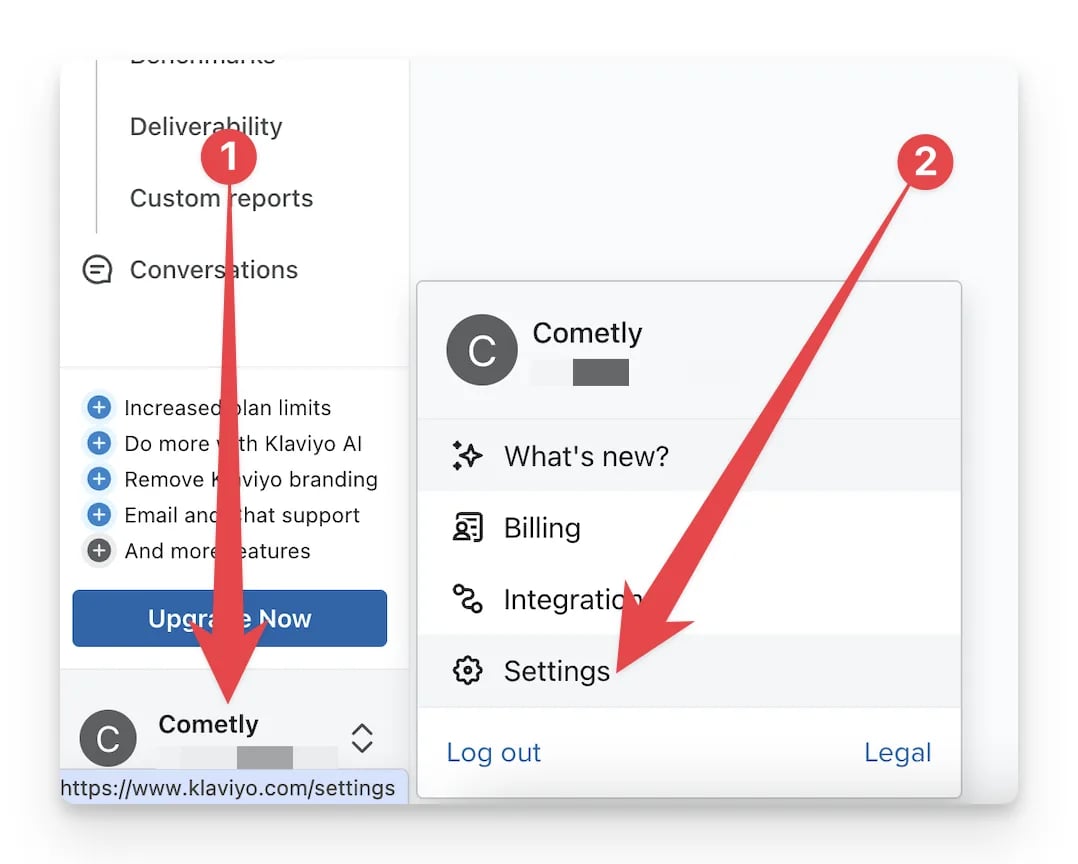
2
Add a UTM parameter
On the Settings page, click Other, then UTM tracking, and then click Add UTM parameter.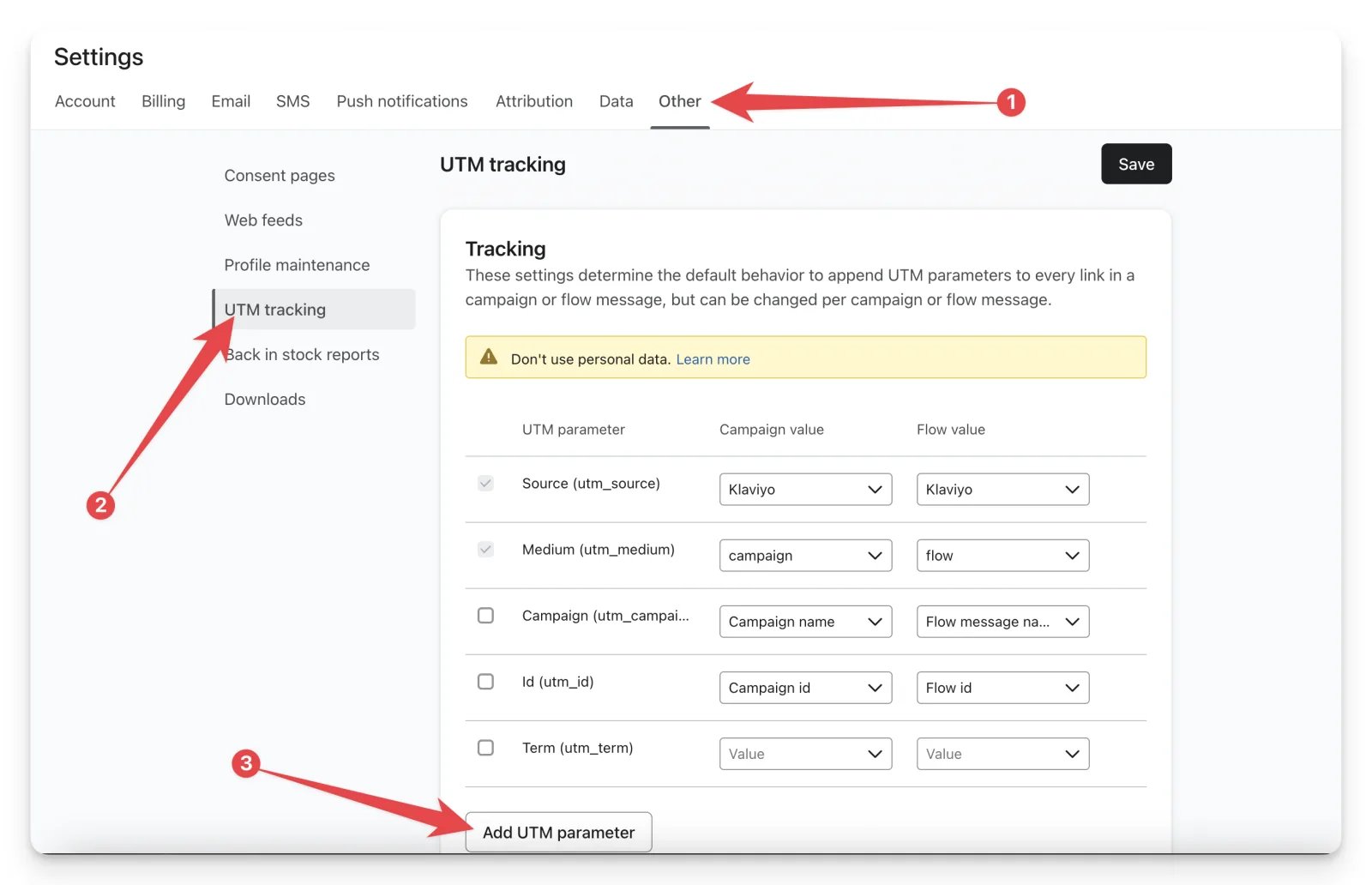
3
Enter comet_source and select Message type
Enter 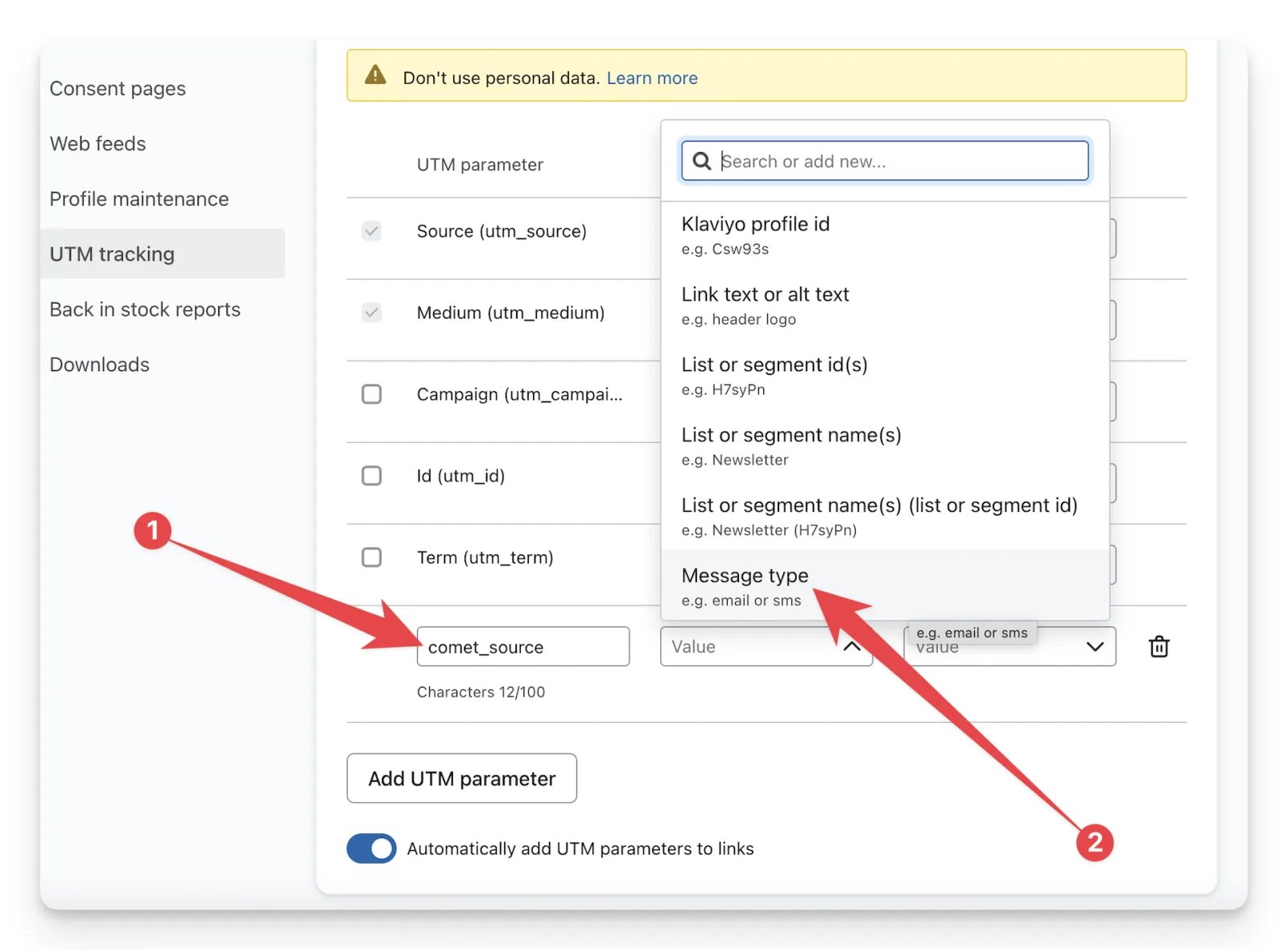
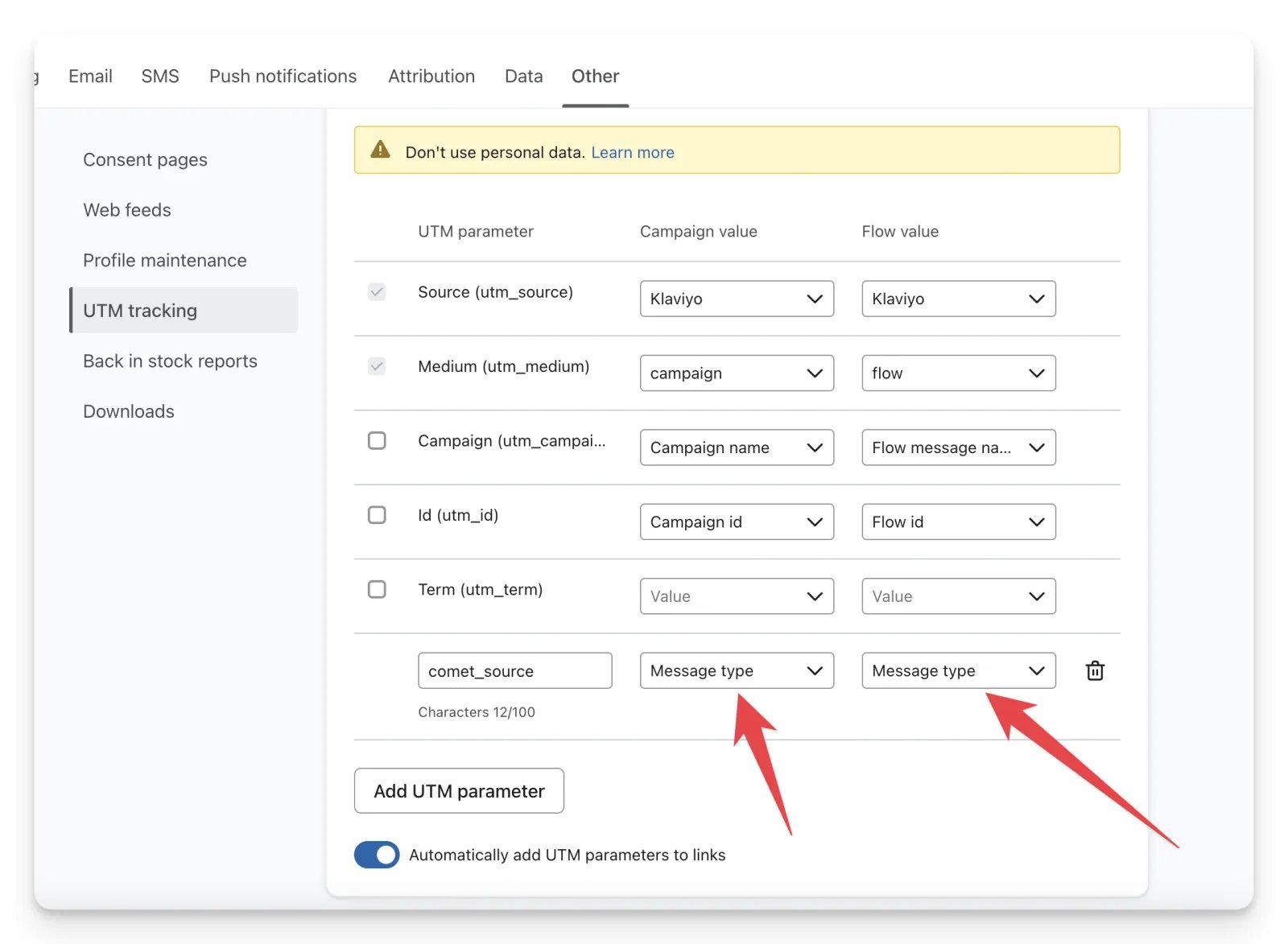
comet_source as the parameter name. For the value, open the dropdown and select Message type.Message type adds email or sms as the value, depending on the type of message you send. Cometly reads comet_source=email as the Email source and comet_source=sms as the SMS source.4
Turn on automatic UTM parameters and save
Make sure Automatically add UTM parameters to links is toggled on. With it on, every email or SMS link carries the source 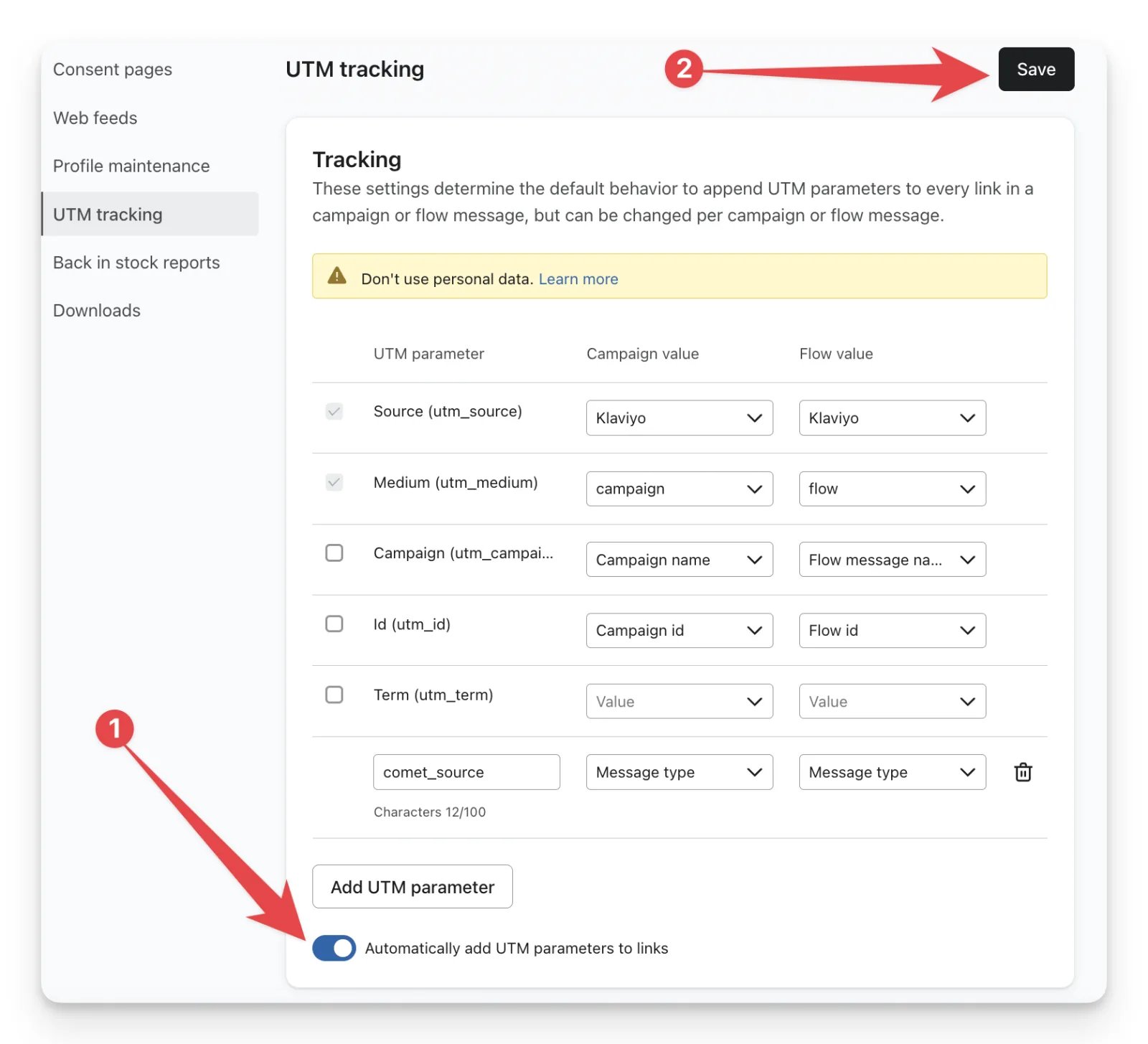
email or sms.Scroll to the top and click Save.Check it worked
Send yourself a test email or SMS from Klaviyo and click a link in it. The address of the page that opens should containcomet_source=email or comet_source=sms. In Cometly, visits from these links are recorded under the Email or SMS source.
Frequently asked questions
How do I see Klaviyo email and SMS results in Cometly?
Open the Report Builder and select the Email or SMS source under Sources. The report then shows the visits and conversions that came from links carryingcomet_source=email or comet_source=sms.
Do I still need to add comet_source to each Klaviyo link by hand?
No. With Automatically add UTM parameters to links toggled on, every email or SMS link carries the sourceemail or sms. You only add the parameter by hand for emails and text messages you send outside Klaviyo.
Does Cometly track email clicks that do not have the comet_source parameter?
Sometimes. Cometly also checks the referring domain of a visit and classifies it as Email when it matches a known email domain, such as Gmail or Yahoo Mail. Thecomet_source parameter is the dependable way to mark every email and SMS click, whichever app the contact opens the message in.
Next steps
To report on this traffic, see Track email campaigns and Track SMS campaigns.- Build a report in the Report Builder
- URL vs. URL Parameters filters
- Set up URL parameters for all channels