

How it works
The AdRoll CAPI is attribution-aware. It only sends conversions that Cometly has already attributed to AdRoll, rather than sending every event for every visitor. For a conversion to qualify, the original click must carry AdRoll’s click ID, theadct parameter, which AdRoll appends automatically when it serves your ad.
- A user clicks your AdRoll ad and lands on your site with an
adctvalue on the URL. - Cometly captures that click and ties it to the visitor.
- When that visitor converts, Cometly attributes the conversion to AdRoll and sends it through the Conversion API using your server access token.
adct, only events that can be matched back to an AdRoll click are eligible to be sent.
Before you start
You need:- An active AdRoll account with running campaigns, connected to this space as an ad account in Cometly (Integrations > Ad Platforms > AdRoll Ads). Cometly sends each conversion to the AdRoll account that owns the attributed ad.
- An AdRoll server access token for server-to-server conversions. This is not the same as your standard pixel or API key. It is issued by AdRoll staff specifically for S2S conversions, so you may need to request it from your AdRoll account representative or support contact.
- AdRoll tracking links that pass
adctthrough to your landing pages. If you already run AdRoll traffic through Cometly, this is typically handled automatically when AdRoll serves the ad.
Set up the AdRoll Conversion API
1
Open the AdRoll section of the Conversion API
In Cometly, go to Events Manager, open the Conversion API tab, and click the AdRoll row to expand it. The Manage Data Sharing settings are where you control whether Cometly sends conversions to AdRoll and how your events are mapped.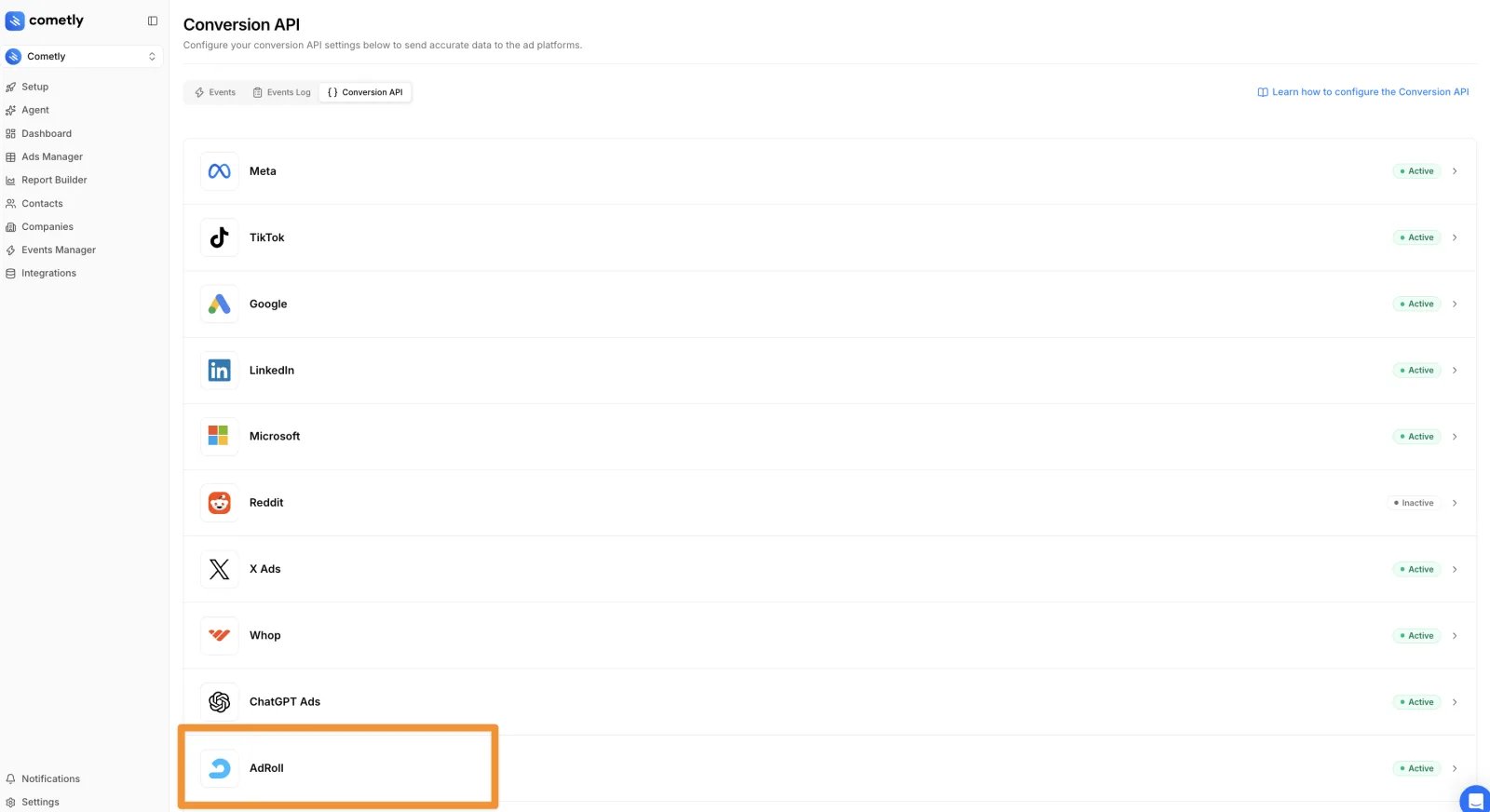
2
Turn on data sharing
You see two options: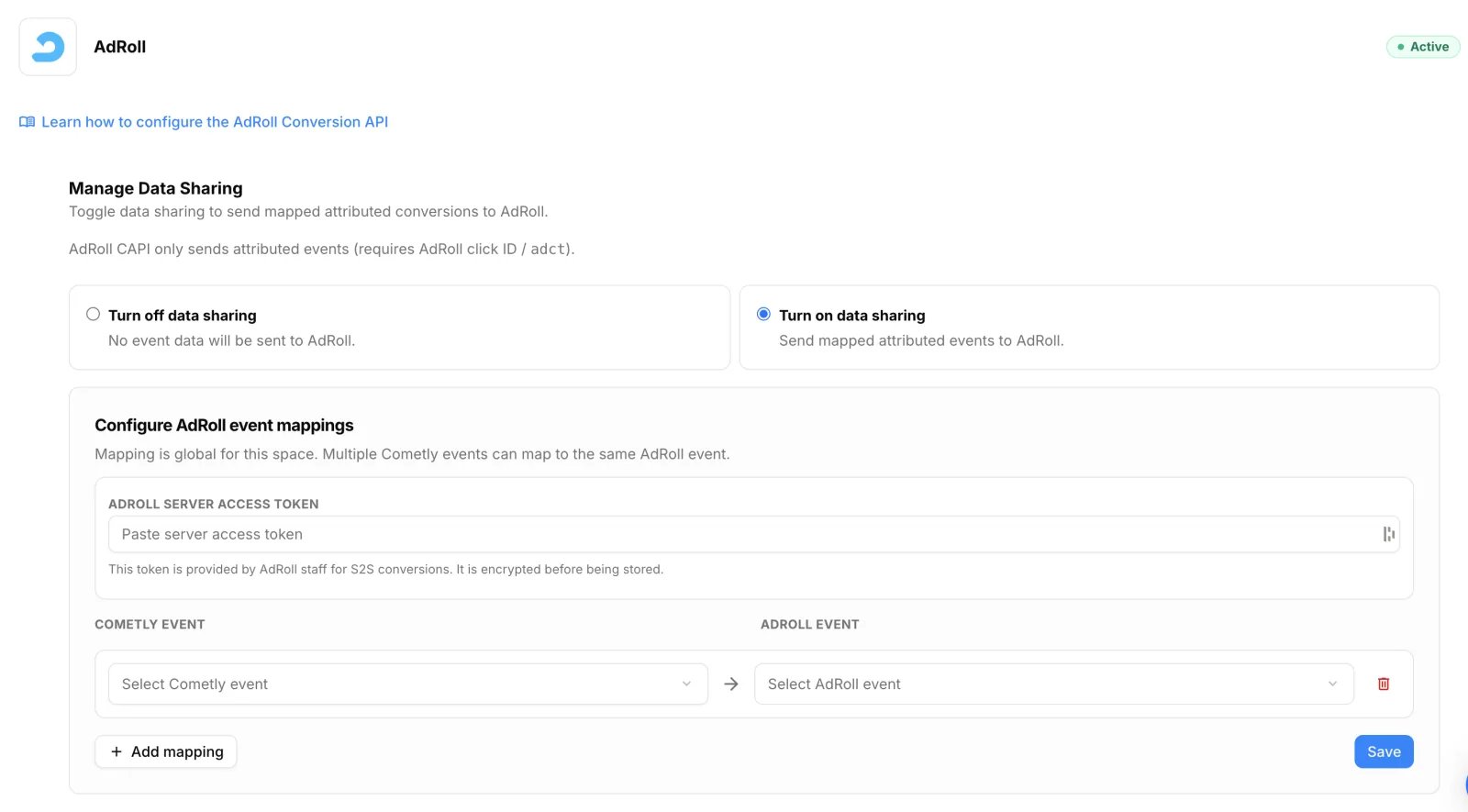
- Turn off data sharing: no event data is sent to AdRoll.
- Turn on data sharing: Cometly sends your mapped attributed events to AdRoll.
3
Add your AdRoll server access token
In the Configure AdRoll event mappings card, paste your token into the AdRoll server access token field.About the token: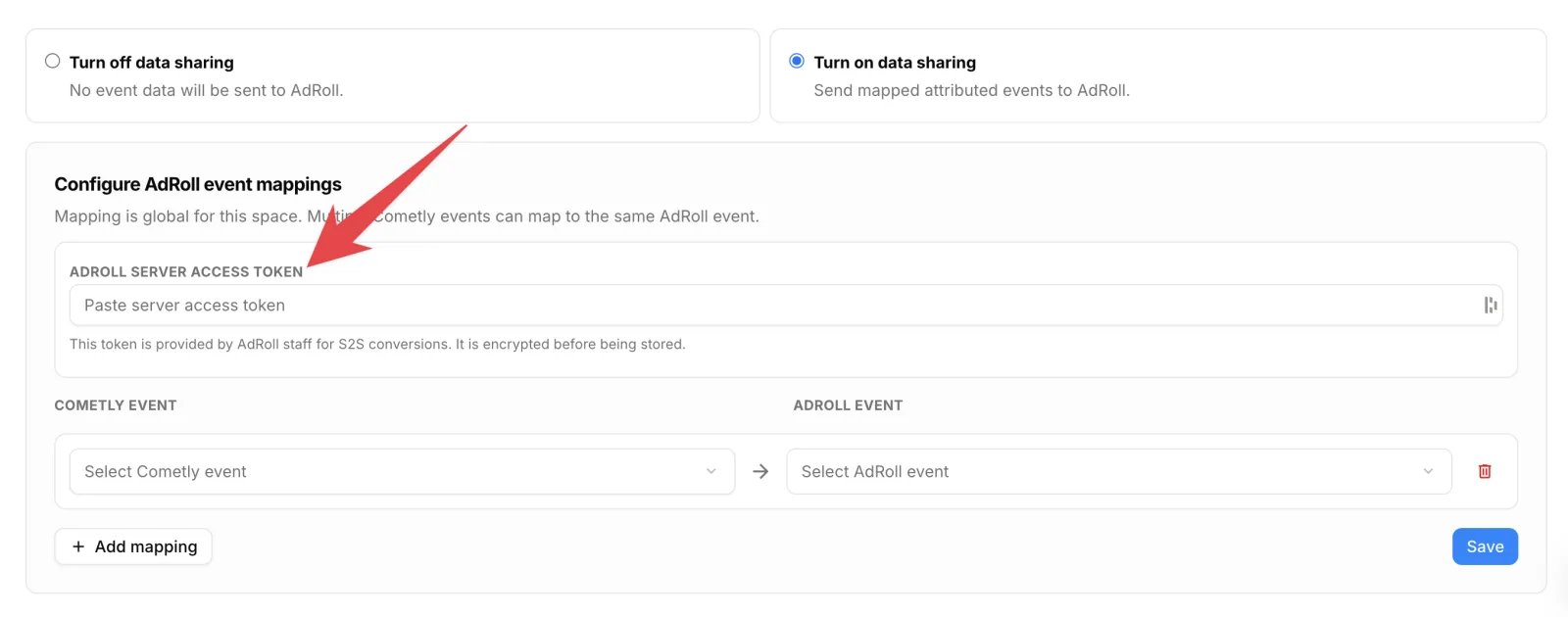
- It is provided by AdRoll staff for server-to-server conversions.
- Cometly encrypts the token before storing it, so it is never saved in plain text.
- Once a token is saved, the field shows empty again. Leave it blank to keep the current token.
- If you do not have a token yet, contact your AdRoll representative and ask for a server access token for S2S conversions.
4
Map your Cometly events to AdRoll events
A mapping tells Cometly which AdRoll event to send when a given Cometly event is attributed. Each mapping is one pairing: a Cometly event and the AdRoll event it becomes.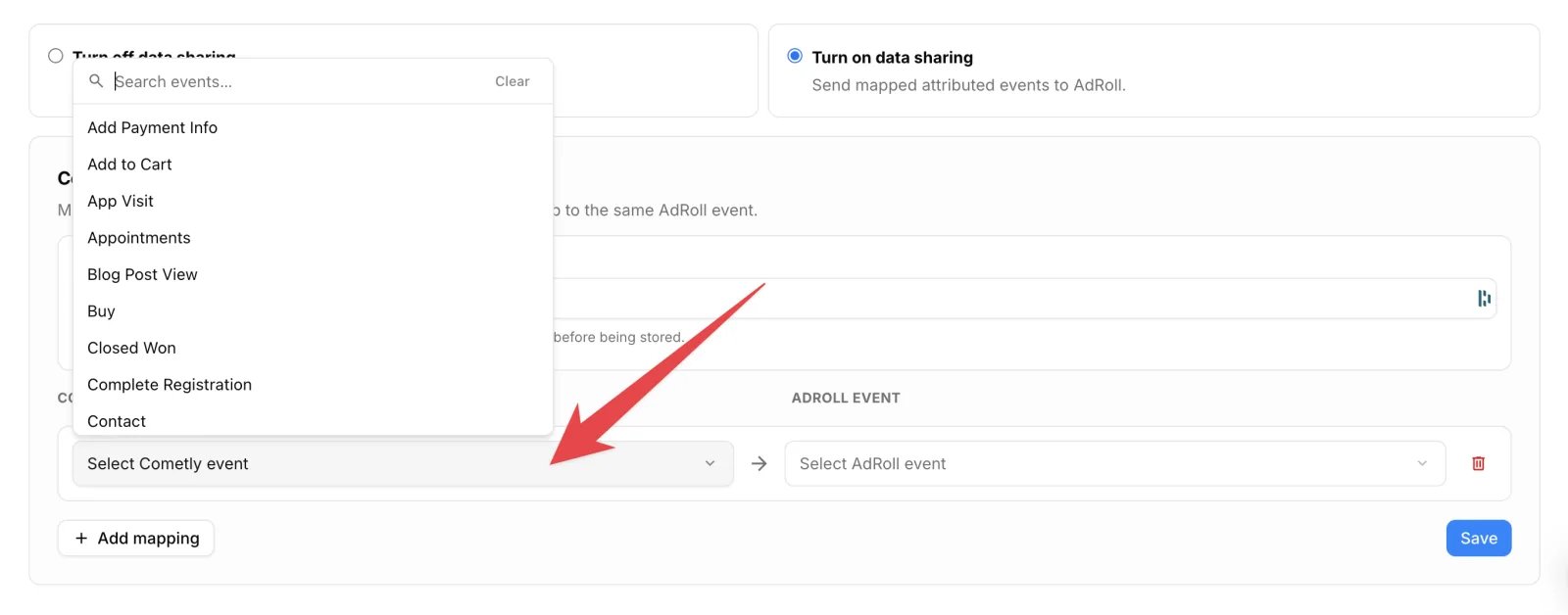
- Under Cometly event, choose the event you want to send (for example a purchase or a lead).
- Under AdRoll event, choose the AdRoll event it maps to: Page View, Home View, Product Search, Add To Cart, Purchase, High Value Page, Gated Content, Demo Request, Signup Plan, Signup Trial, Contact Sales, Live Chat or Form Fill.
- Click Add mapping to add more pairings.
- Click the trash icon next to a row to remove a mapping.
- Mapping is global for the space. The mappings apply across the whole space, not per campaign.
- Several Cometly events can map to the same AdRoll event. For example, several lead actions in Cometly can all map to Form Fill.
- Only mapped events are sent. A Cometly event with no mapping is not passed to AdRoll.
- A row is only saved when both sides are selected.
5
Save
Click Save. Cometly then sends newly attributed conversions for your mapped events to AdRoll through the Conversion API.
Check it worked
After you save, Cometly confirms with the message AdRoll settings saved. and the badge on the AdRoll row reads Active. When you reopen the section, your mappings are listed and the token field is empty, with a note that a token is already saved.Good to know
- Only attributed events are sent. Cometly does not send unattributed or non-AdRoll conversions through this integration.
- The
adctclick ID is required. Conversions that cannot be matched back to an AdRoll click are not eligible to be sent. - Changes take effect going forward. Turning on data sharing or updating mappings affects conversions attributed after you save, not historical data.
Troubleshooting
No conversions are showing up in AdRoll
No conversions are showing up in AdRoll
Confirm that data sharing is turned on, your server access token is saved, and you have at least one event mapping saved. Then check that your AdRoll traffic carries
adct to your landing pages. If adct is missing, Cometly cannot attribute the click to AdRoll and the conversion is not sent. Also check that the AdRoll ad account that runs the ad is connected to this space.I do not have a server access token
I do not have a server access token
The token is issued by AdRoll for server-to-server conversions and is separate from your pixel. Contact your AdRoll account representative or AdRoll support to request one.
My token was rejected or stopped working
My token was rejected or stopped working
Tokens can expire or be rotated on AdRoll’s side. Request a new server access token from AdRoll, paste it into the AdRoll server access token field, and click Save again.
I want one AdRoll event to capture several Cometly events
I want one AdRoll event to capture several Cometly events
Map each Cometly event to the same AdRoll event. Several Cometly events can point at a single AdRoll event.
Frequently asked questions
Does Cometly send the purchase value to AdRoll?
Yes, for Cometly events you map to the AdRoll Purchase event. Cometly sends the purchase amount as the conversion value, in your space’s currency. Events mapped to other AdRoll events are sent without a value.What data does Cometly send to AdRoll with each conversion?
Each conversion carries the AdRoll event you mapped, the time of the event, theadct click ID, the page URL and the visitor’s IP address. Cometly also includes the contact’s email address when it has one.
Can I stop a single event from being sent to AdRoll?
To stop a whole event type, remove its mapping and click Save, because only mapped events are sent. To hold back individual events (for example, a visitor who opted out of data sharing), see Exclude an event from the Conversion API. That option keeps the event out of every ad platform, not only AdRoll.Next steps
- Connect AdRoll to Cometly
- Exclude an event from the Conversion API
- Set up the Conversion API for another ad platform
- Contact Cometly support