

yourdomain.com and app.yourdomain.com), three setup steps matter most:
1. Install the Cometly pixel
Add the Cometly pixel to the<head> of:
- Your marketing website (including funnels, blogs, academy and so on)
- The registration and login pages of your application
Marketing site pixel installation
- For the general steps, see Install the pixel.
- For platform-specific guides, see the integrations overview.
- Using Google Tag Manager? Follow the Google Tag Manager installation guide.
- Have a WordPress site? Follow the WordPress installation guide. WordPress needs extra steps to deal with caching.
Add and verify domains
- In Cometly, go to Setup and open step 2, Install the Cometly pixel.
- Under Add domains, add every domain and subdomain where the pixel is installed, then click Add Domain.
- Under Verify your pixel, click Verify next to each domain.
cometly.com to app.cometly.com) are then left out of your referral reports, which keeps your referral data accurate.
To exclude more domains, go to Settings, then Traffic permissions under Workspace, and use the Exclude domain from referrer source card. See Exclude referral domains.
2. Enable cross domain tracking
To track users as they move between your marketing site and your app, Cometly uses a unique identifier called thecomet_token. This token links user interactions across different domains, so traffic and conversions are attributed correctly.
Example: traffic moving from cometly.com to app.cometly.com.
How to enable it: if the pixel is installed on both your marketing website and your app registration page, go to Setup, step 2 Install the Cometly pixel, and turn on Automatic Cross Domain Tracking under Pixel options. Your verified domains then use cross domain tracking automatically.
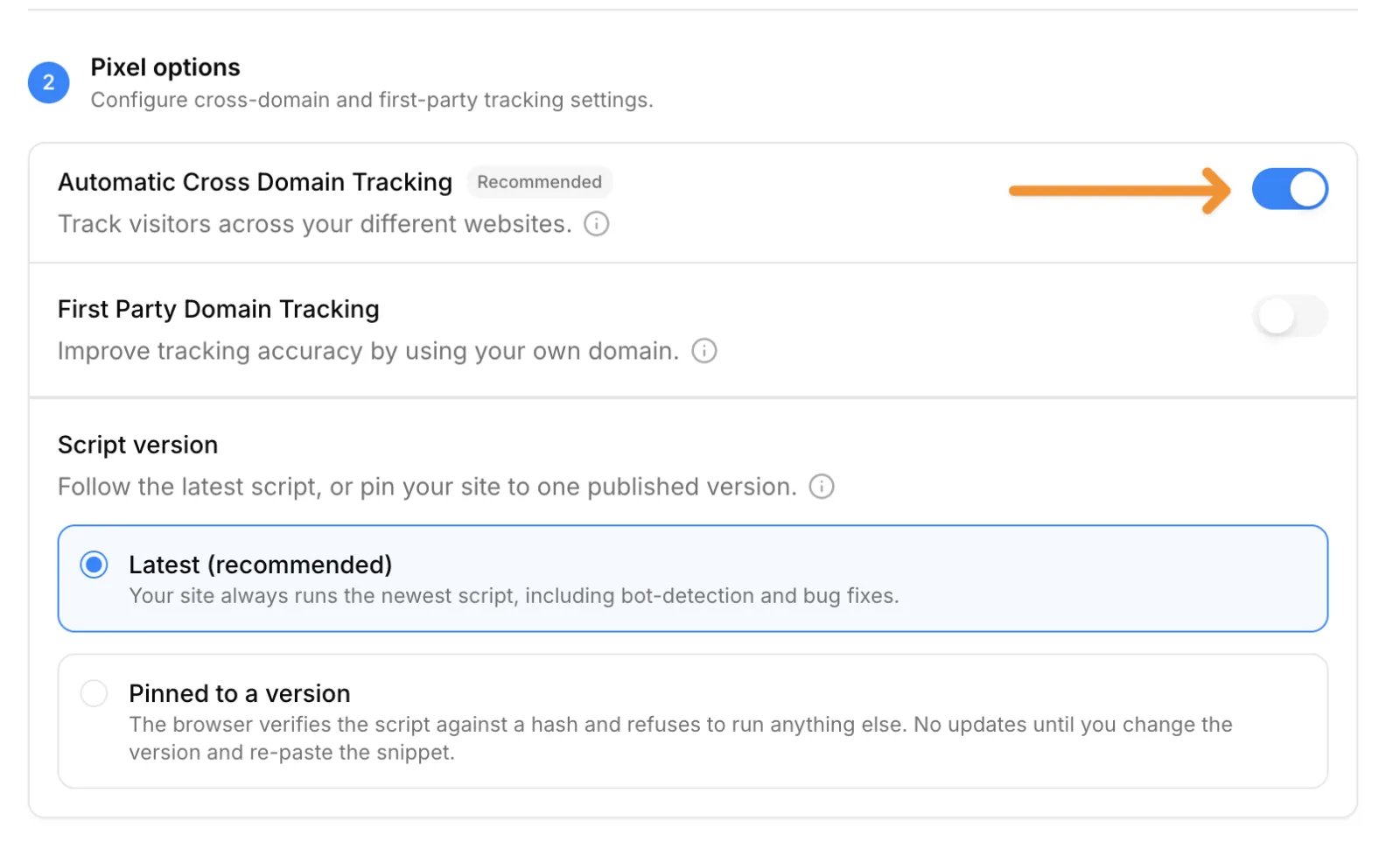
Changing your domains or pixel options can change your tracking script. When Cometly tells you the script has changed, copy the updated script from the Install the pixel section and replace the one on your site.
- Automatic tracking: the
comet_tokenis passed between your verified domains automatically. - Connected user journeys: you track user interactions across multiple websites as one journey.
3. Configure OAuth if applicable
The Cometly pixel automatically captures essential form fields such as full name, first name, last name, email and phone number. Cometly uses the captured email address to link user actions to their attribution journey. If your app uses OAuth for authentication (Google or another social login), you need a small extra setup so Cometly can connect the sign-up back to the ad that brought the user in:- Follow the setup guide: see the OAuth configuration guide for step-by-step instructions.
- Send the
comet_token: make sure thecomet_tokenis included during the OAuth process. This token links the OAuth authentication event back to the original user journey, so Cometly can track sign-ups and authentication events accurately.
comet_token, each OAuth event is attributed to the user’s first interaction with your platform.
Check it worked
In Setup, step 2 Install the Cometly pixel, each domain under Verify your pixel shows Pixel detected, and Automatic Cross Domain Tracking is turned on under Pixel options. If your app domain shows Pixel not detected, see the first question below.Frequently asked questions
Why does Cometly pixel verification fail on my app domain?
If you are already logged in, your app domain redirects you to another page (for example/dashboard), and Cometly cannot match the redirect when the path is empty. In the verification dialog, expand Test a specific page, enter the path you land on after login (only the path, not the full URL), then click Verify. See Install and verify the Cometly pixel.
Why are several users merged into one contact in Cometly?
This usually happens when the pixel is installed on every page of your app. When a user types another person’s email, for example to invite a colleague, Cometly may merge the two into one contact. Limit the pixel to your app’s registration and login pages. See Troubleshoot multiple emails on a contact.Do I need cross domain tracking if my app is on a subdomain?
Yes. If traffic flows from a site such ascometly.com to an app such as app.cometly.com, cross domain tracking makes sure the visitor is tracked as the same person on both. You need at least one domain under Add domains before you can turn on Automatic Cross Domain Tracking.
Next steps
- Install and verify the Cometly pixel
- Set up cross-domain tracking
- Track sign-ups made with OAuth
- Check your installation with the Cometly Pixel Helper
- Test form tracking on your pages