

How the X Ads Conversion API works
X CAPI is attribution-aware. When Cometly records a conversion, it looks for the X ad click that drove it (through X’s click ID,twclid, and the Cometly URL parameters on your ads), then sends the event to the X pixel attached to that ad.
- A visitor clicks your X ad and converts on your site.
- Cometly attributes the conversion to that ad and its X pixel.
- Cometly sends the mapped event to X’s Conversion API, server to server.
X CAPI does not need an API token. It uses the same X Ads connection you authorized when you connected the ad account, so make sure X Ads is connected first.
Before you start
- An active X Ads account connected in Cometly (Integrations, then the X Ads row under Ad Platforms).
- Your X pixel installed on your site and at least one manually created event in X Ads Manager under Tools > Events Manager. Cometly can only map events that have their own event tag. The auto-created standard events can’t receive CAPI data.
-
Your ads should carry the Cometly URL parameters from the X Ads template so conversions can be attributed to the right ad. X expands its dynamic parameters automatically, so you can paste the template as it is:
Step 1: Open the Conversion API settings
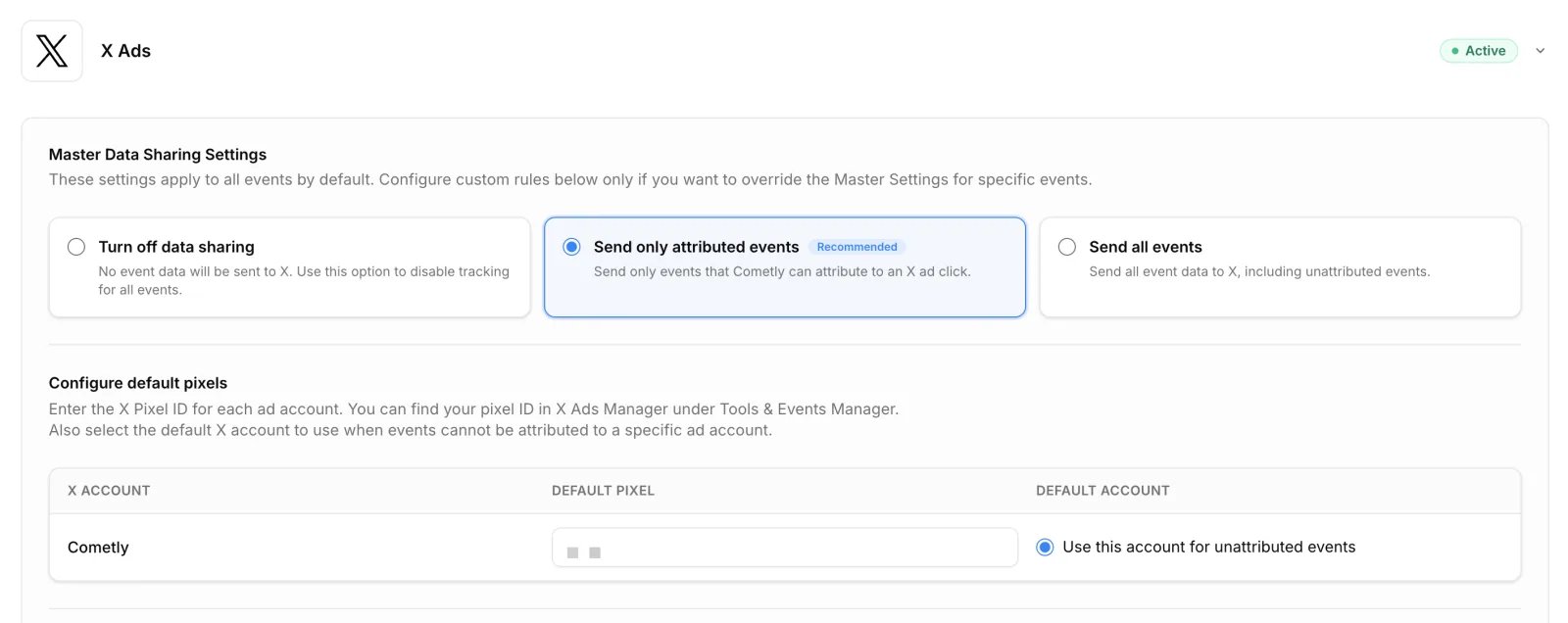
In Cometly, click Events Manager in the sidebar, open the Conversion API tab, and click the X Ads row to expand it.Step 2: Choose a data sharing mode
At the top you see the Master Data Sharing Settings. Pick one:- Turn off data sharing: no events are sent to X.
- Send only attributed events (recommended): sends only events Cometly can attribute to an X ad click.
- Send all events: sends all events, including unattributed ones.
Step 3: Set your default pixel and default account
Under Configure default pixels, enter the X pixel ID for each ad account in the Default pixel column. You can find it in X Ads Manager under Tools > Events Manager. Cometly fills it in for you when it loads that account’s events in Step 4, if the field is still empty.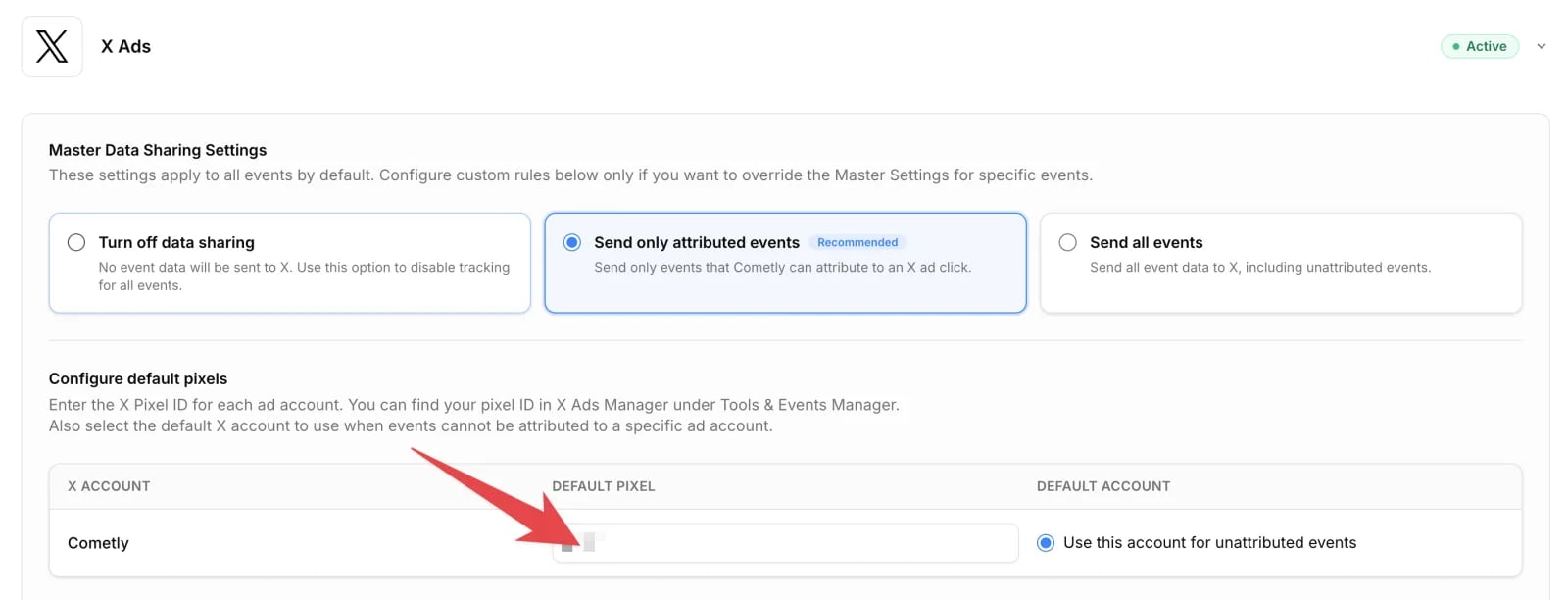
Step 4: Map your events to X conversions
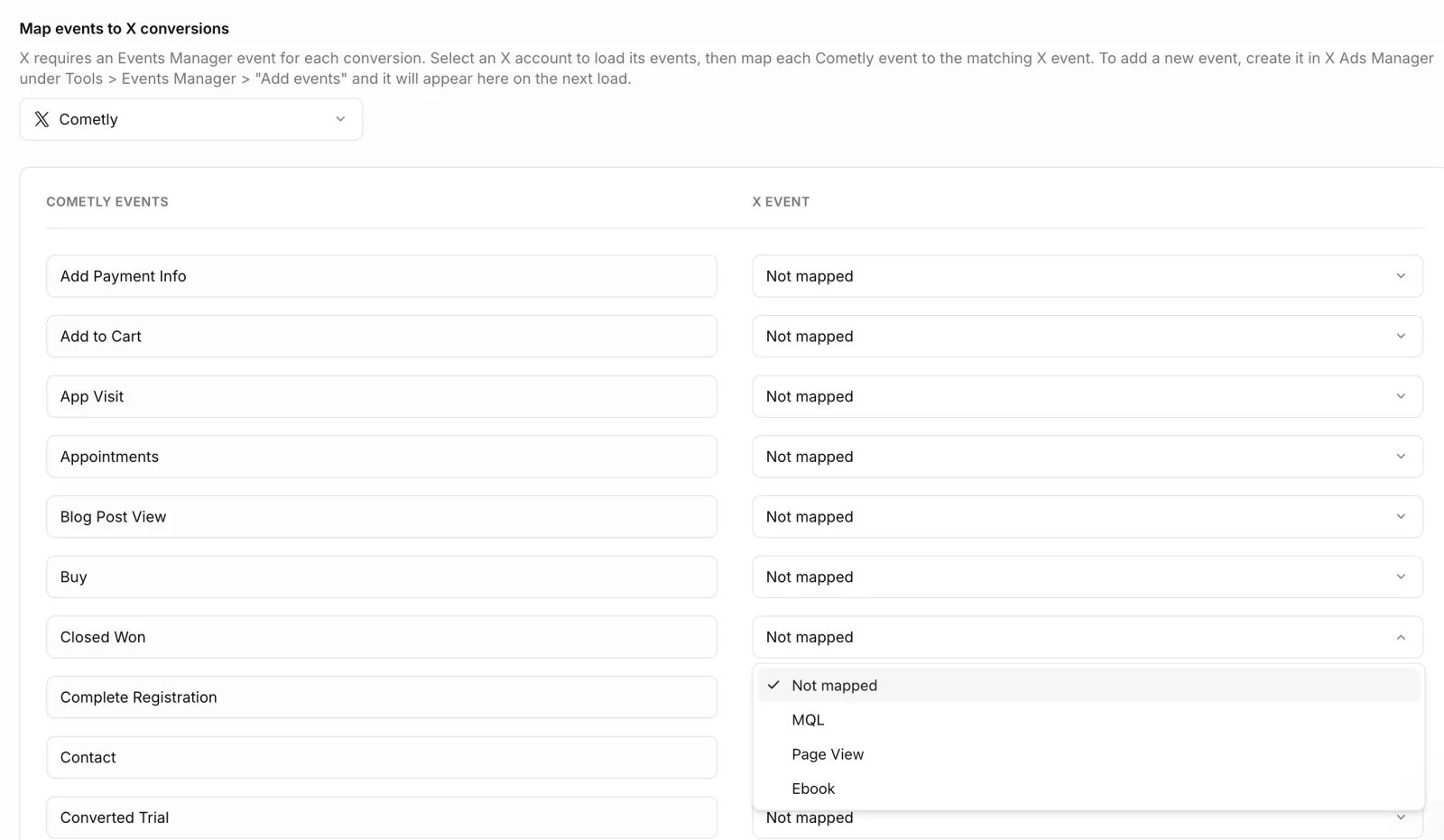
X requires an Events Manager event for each conversion. Under Map events to X conversions, select an X account to load its events.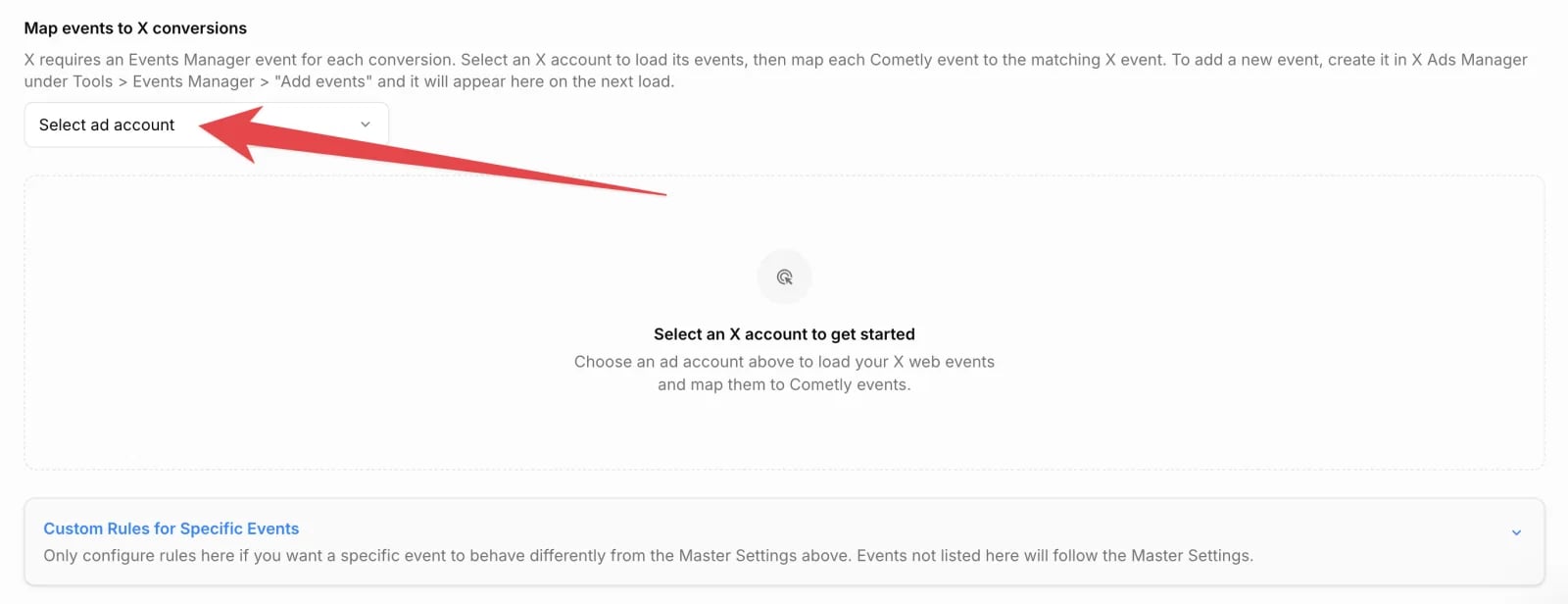
Step 5: Save
Click Save at the bottom of the X Ads section to activate your Conversion API settings.Check it worked
After you click Save event map, Cometly confirms with the message “X event map saved.”, and after you click Save it confirms with “X CAPI settings saved successfully.” From then on, new conversions for your mapped events show up in X Ads Manager under Tools > Events Manager.Event mapping rules
- Mappings are per X ad account. Select each account and map its events separately.
- Multiple Cometly events can map to the same X event.
- Only mapped events are sent. If a Cometly event isn’t mapped to an X event, it is never sent to X.
- Custom rules let you override the master setting for specific events (for example, send all occurrences of one event even though the master mode is “Send only attributed events”). Expand Custom Rules for Specific Events and click Add custom rule.
Good to know
- Once active, Cometly sends mapped conversions to X going forward. It does not backfill past events.
- By default, Cometly auto-routes each conversion to the X pixel attached to the ad that drove it. This keeps your per-campaign reporting in X accurate and is the correct behavior for nearly all accounts.
- When the master setting is Send all events, an Advanced section offers Force all events to a single X pixel. It overrides auto-routing and sends every conversion to your default account’s pixel. Only use it if you’ve consolidated to a single pixel, or X support or your agency told you to. Forcing the wrong pixel can break attribution and is hard to reverse.
Troubleshooting
No conversions showing up in X Events Manager- Confirm your data sharing mode isn’t set to “Turn off data sharing”.
- Confirm the Cometly event is mapped to an X event (Step 4). Unmapped events are never sent.
- Confirm your ads carry the Cometly URL parameters so conversions can be attributed.
Frequently asked questions
What customer data does Cometly send to X through the Conversion API?
Cometly sends X’s click ID (twclid) when the visitor has one, plus the contact’s email address and phone number in hashed form. When at least one of those is present, it also includes the visitor’s IP address and browser user agent to help X match the conversion. A conversion with no click ID, email or phone number is not sent.
Does Cometly send each conversion to every connected X ad account?
No. Each conversion goes to one X pixel only. An attributed conversion goes to the pixel of the ad account that owns the ad, and an unattributed one goes to the account you marked Use this account for unattributed events.Does Cometly send the purchase amount to X?
Yes. When the event has an amount, Cometly sends it as the conversion value, along with the currency of your Space (your Cometly workspace). Events without an amount are sent without a value.Next steps
- Connect or review your X Ads integration
- Exclude an event from the Conversion API
- Check incoming events in the Events Log
- Set up the Conversion API for another ad platform