

<head> of the page, that the script on your website does not match the one Cometly shows for your space (the workspace that holds one business’s tracking data), or that your website is serving an old cached copy of the page. Cometly only tracks the pages that carry the pixel, so fix this before you rely on the data from that page.
Troubleshoot the Init not detected error
-
Make sure the Cometly pixel is in the
<head>of your website. If you are using the Cometly Pixel Helper on a GoHighLevel page, see Install the pixel in GoHighLevel for installation instructions. -
Check that the pixel on your website matches the script Cometly shows for your space. In Cometly, go to Setup > Install the Cometly pixel and find the code under Install the pixel. By default it is a single script tag:
If the script on your website is different, click Copy Code and replace the one on your website. See Install and verify the Cometly pixel.
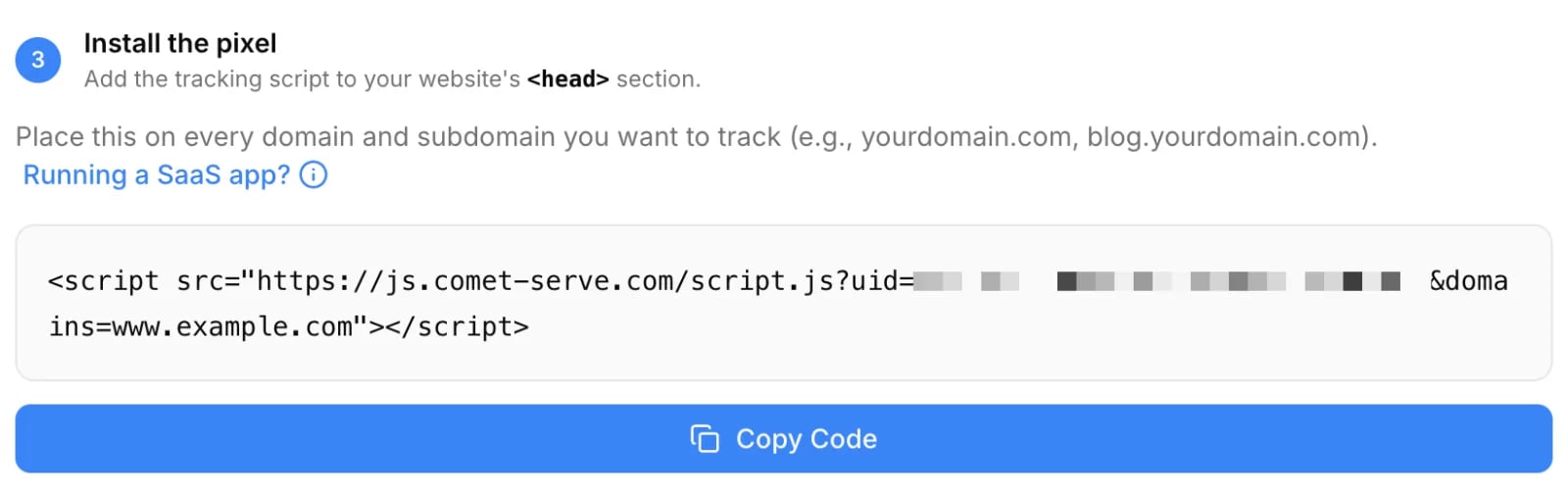
- Clear your website cache and retry using the Cometly Pixel Helper.
Confirm the Init event fires
Open the page again, start a session in the Cometly Pixel Helper by clicking Start, then reload the page. You should see an Init event fire on each page that contains the Cometly pixel. To confirm the pixel inside Cometly as well, go to Setup > Install the Cometly pixel and click Verify next to your domain under Verify your pixel. The domain shows Pixel detected.Frequently asked questions
Can I check the Cometly pixel without the Pixel Helper extension?
Yes. In Cometly, go to Setup > Install the Cometly pixel and click Verify next to your domain under Verify your pixel. Cometly opens your website in a pop-up window and checks whether the pixel is installed, which usually takes a few seconds.Does the Init event have to fire before my other Cometly events?
Yes. The pixel’s Init event must come first, before any Cometly browser event code on the page. If Init is not detected, fix the pixel installation before you test your event code.Can a speed or caching plugin stop the Cometly pixel from loading?
Yes. A plugin or code setting that delays JavaScript execution (on WordPress, the most common one is WP Rocket) delays the Cometly pixel, which results in missed data. See Delayed JavaScript execution or lazy loading for the fix.Next steps
- Check your pixel and events with the Cometly Pixel Helper
- Install and verify the Cometly pixel
- Fix the base code not detected error
- Fix delayed JavaScript execution or lazy loading
- Use Cometly with a Content Security Policy