

Why this matters
HubSpot only sends webhook events based on the permissions of the user who installs the app. If these permissions are not enabled, Cometly may not receive contact or deal data, which causes gaps in your attribution and event tracking. In HubSpot, a user’s permissions are edited on the Choose permissions screen of that user. Each section below names the group to open in its left menu.Enable contact permissions
The user who installs Cometly must have full access to Contacts. Open CRM > CRM objects and expand Contacts.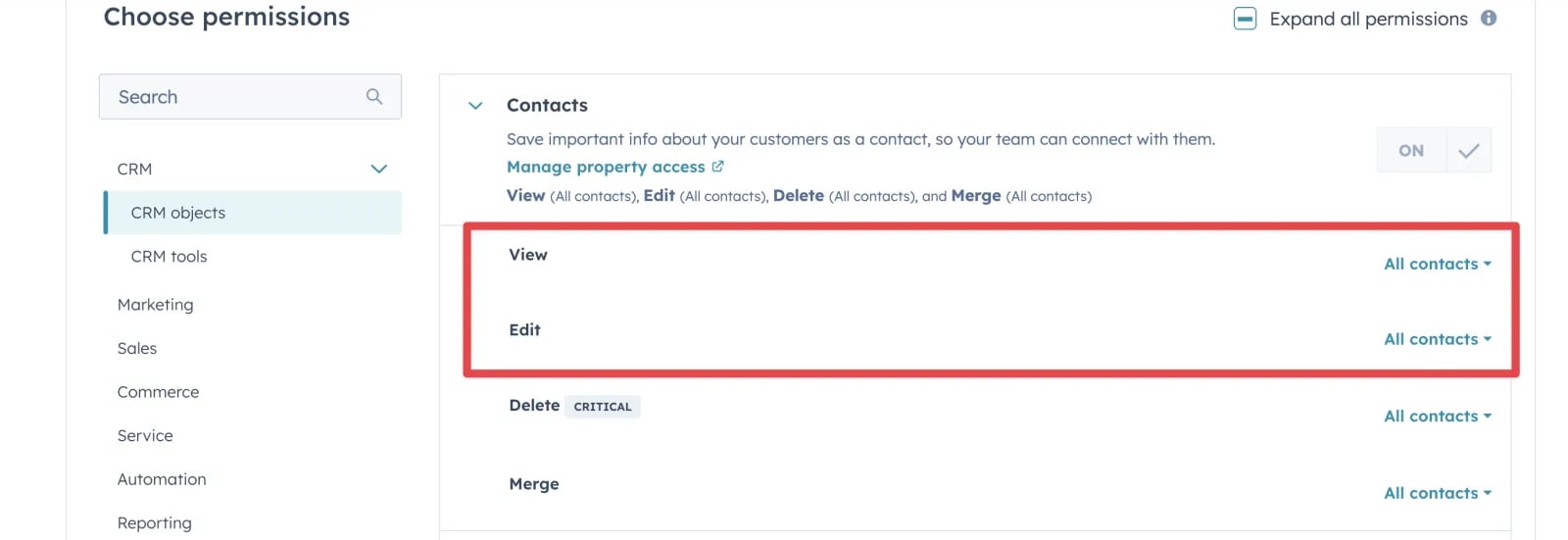
- View: All contacts
- Edit: All contacts
Enable deal permissions
The user must also have full access to Deals. In the same CRM objects group, expand Deals.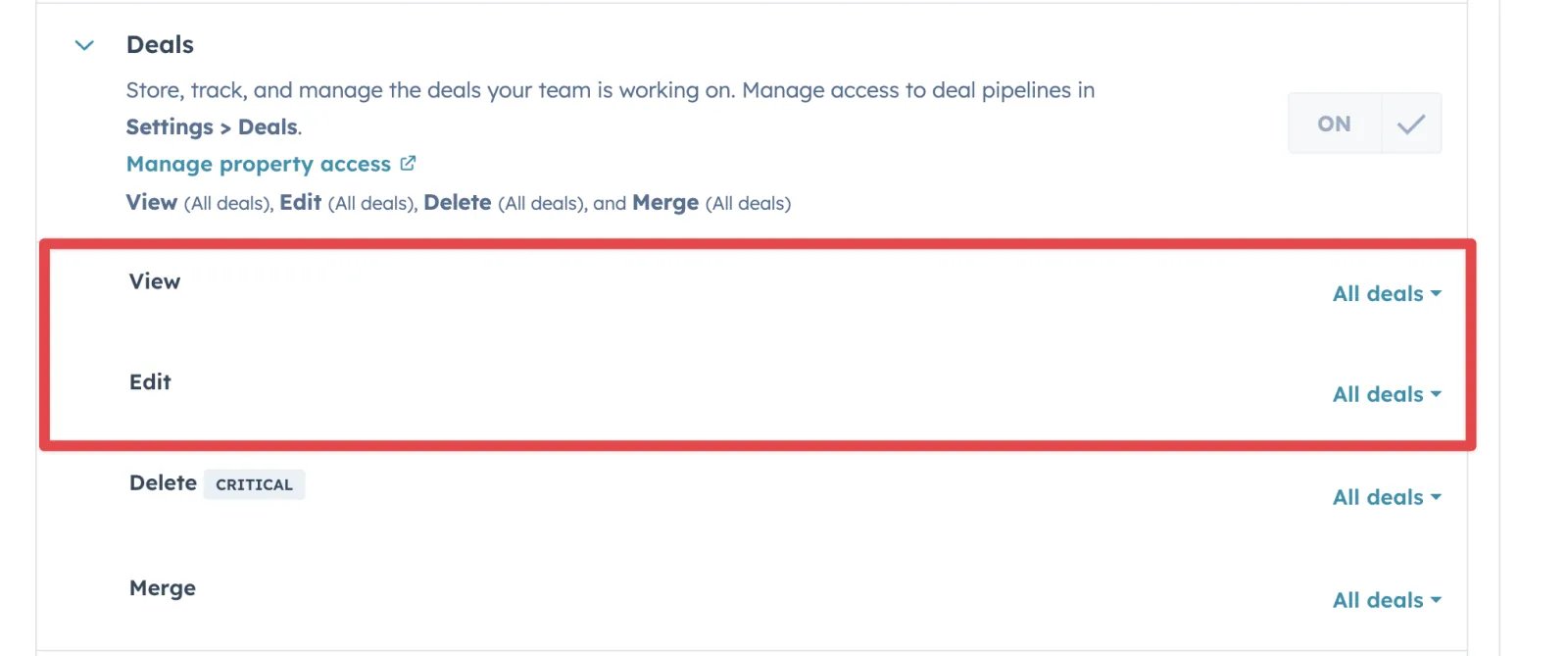
- View: All deals
- Edit: All deals
Enable Automation > Workflows permissions
These permissions are not required for webhooks alone, but they prevent issues if you later automate actions that involve the Cometly integration. Open Automation and expand Workflows.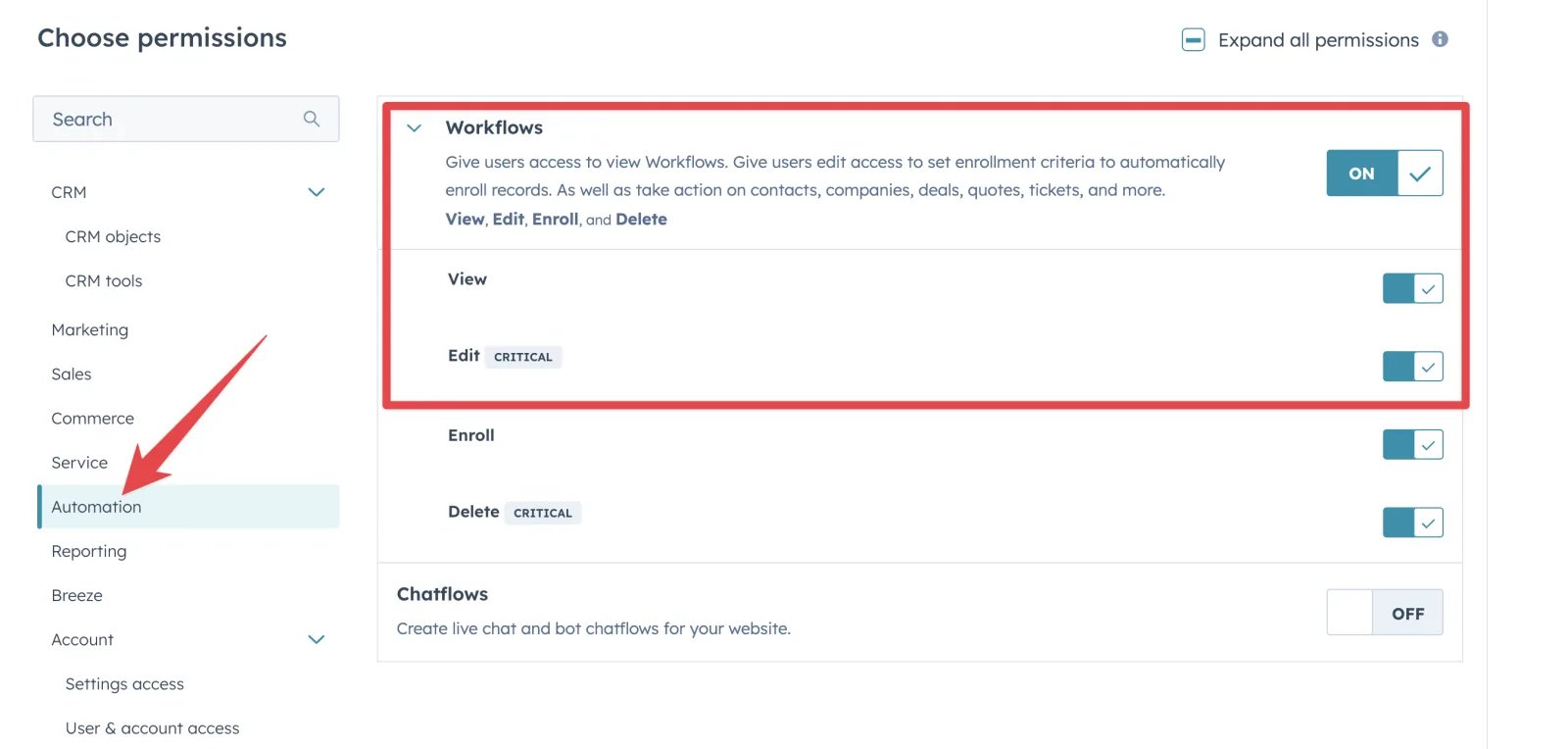
- View
- Edit
- Enroll
- Delete
Enable App Marketplace access
This is required to install the Cometly app in HubSpot. Open Account > Settings access.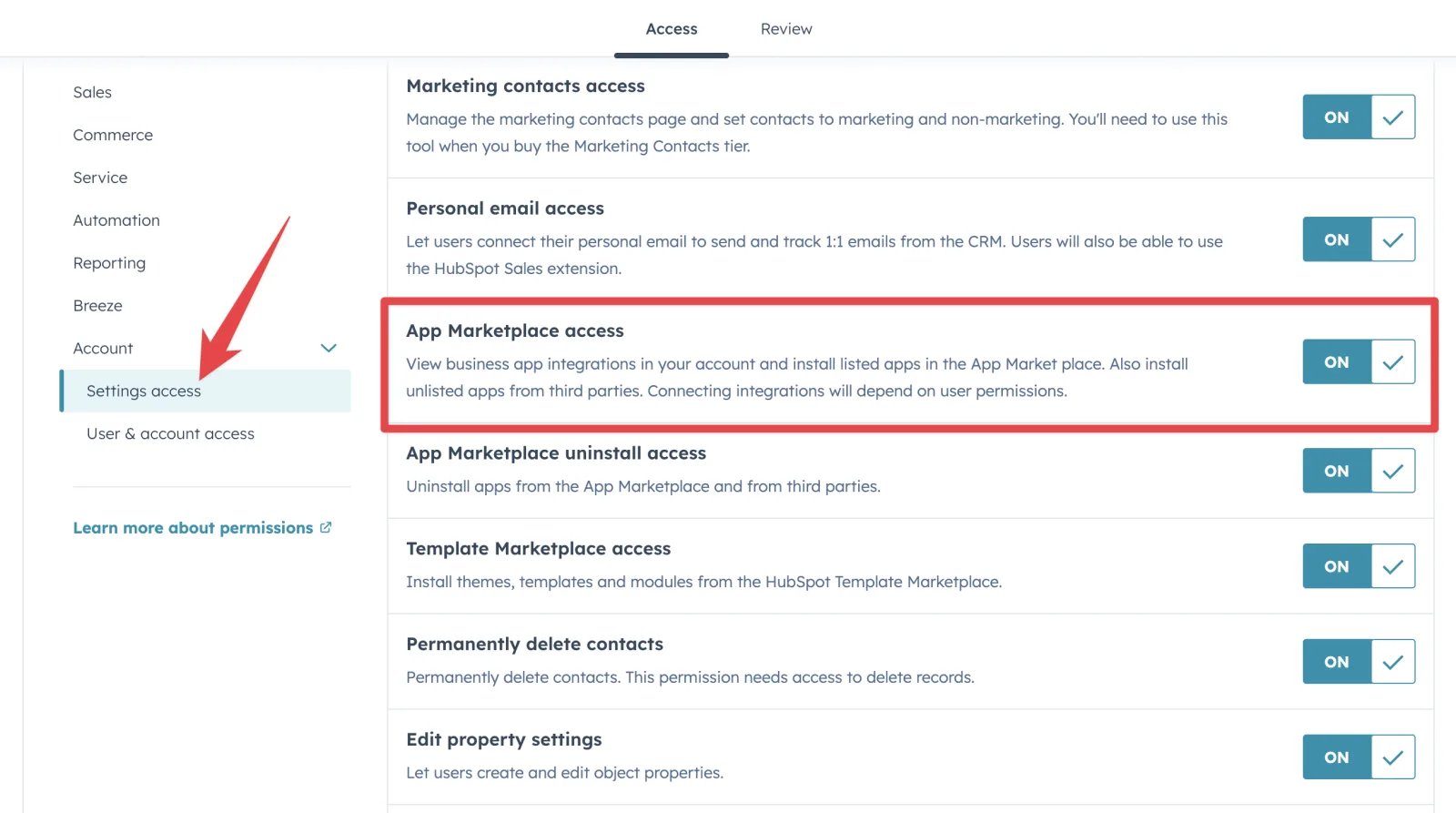
Confirm the HubSpot user permissions are fixed
- In HubSpot, make one of your triggers fire, for example create a test contact or update a deal that has an associated contact.
- In Cometly, open Events Manager and click the Events Log tab.
- Check that the new event is listed.
Frequently asked questions
Do I need to be a HubSpot Super Admin to connect HubSpot to Cometly?
No. We recommend that a Super Admin installs the Cometly app in HubSpot, but it is not required. Any user with the CRM object permissions and App Marketplace access on this page can connect HubSpot to Cometly.Why is my HubSpot deal still missing in Cometly when the permissions are correct?
Cometly only records a deal event when the deal has at least one associated contact, because it needs a contact to attribute the deal to. The deal must also match the pipeline and pipeline stage you selected for the event in Cometly.Will Cometly pick up the contacts and deals it missed before I fixed the permissions?
No. HubSpot sends an event when something happens, so Cometly receives events from that point on. A contact or deal that already existed is sent only if it later fires one of your triggers, for example when its tracked property changes.Next steps
- Set up the HubSpot integration and its events
- Check incoming events in the Events Log
- Send HubSpot events from workflows with webhooks
- Learn how events work in Cometly