

Where to find it
Click Settings at the bottom of the left sidebar, then Traffic permissions under Workspace. The page is titled with the space name followed by Traffic Permissions, and every setting on it applies to that space only.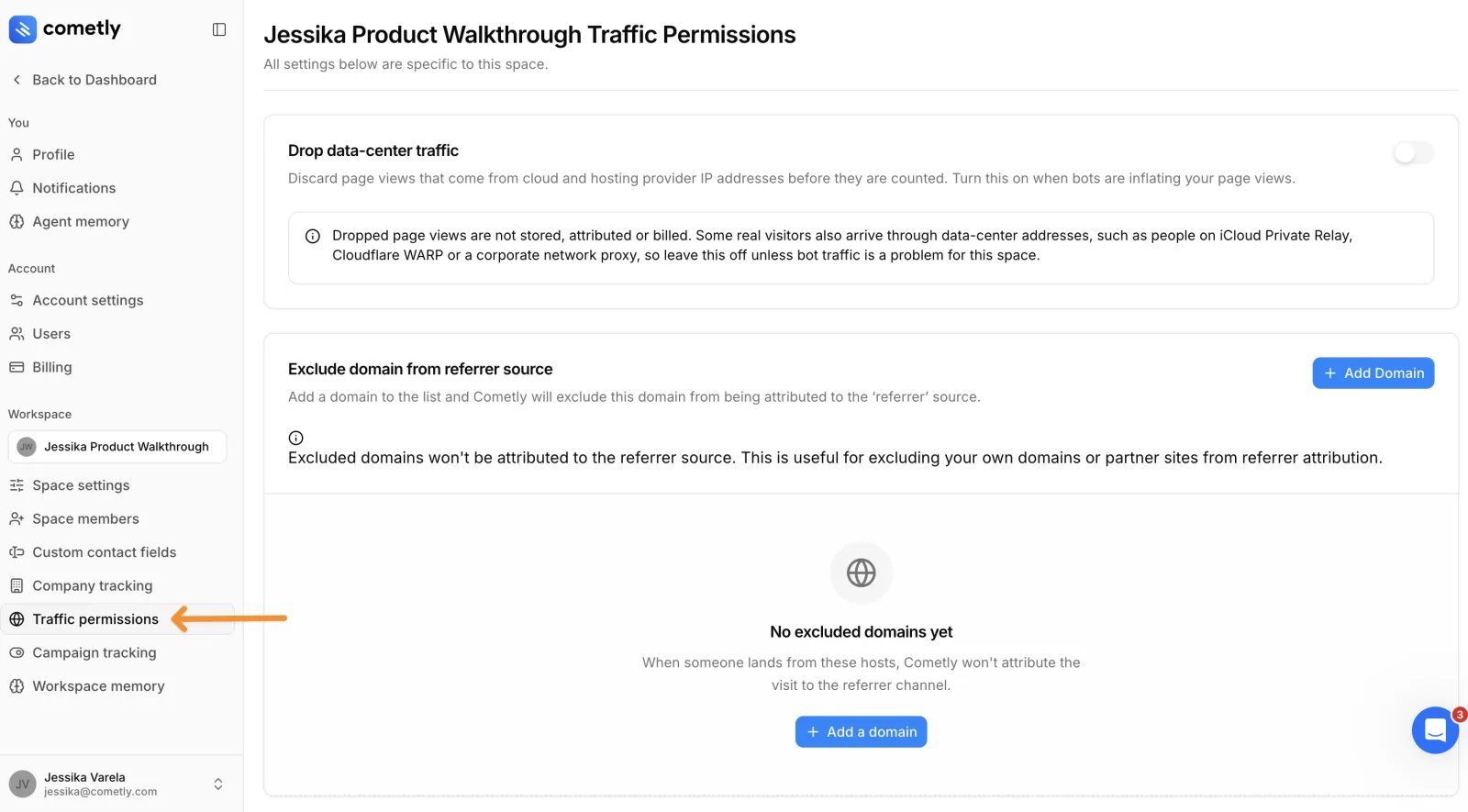
This is not where you add the domains your pixel runs on. Those are added in Setup, step 2. See Install the pixel.
Who can use it
The account Owner and members with the Administrator or Advertiser space role see Traffic permissions in the settings menu and can change everything on the page. Viewers do not see the menu item and cannot open the page.Drop data-center traffic
A switch that discards page views coming from cloud and hosting provider IP addresses before they are counted, for when bots inflate your page views. It also drops some real visitors, so read Drop data-center traffic from your page views before you turn it on.Exclude domain from referrer source
A list of domains whose visits Cometly does not attribute to the referrer source, such as your own domains or partner sites. Click Add Domain to add one, and see Exclude domains from the referrer source for the details.Advanced traffic rules
This card, marked advanced, is a JSON editor. The card describes its contents as “Rules the tracker applies to this space’s page views before they are stored, attributed or billed, on every visitor address.” Leave the editor empty for no rules.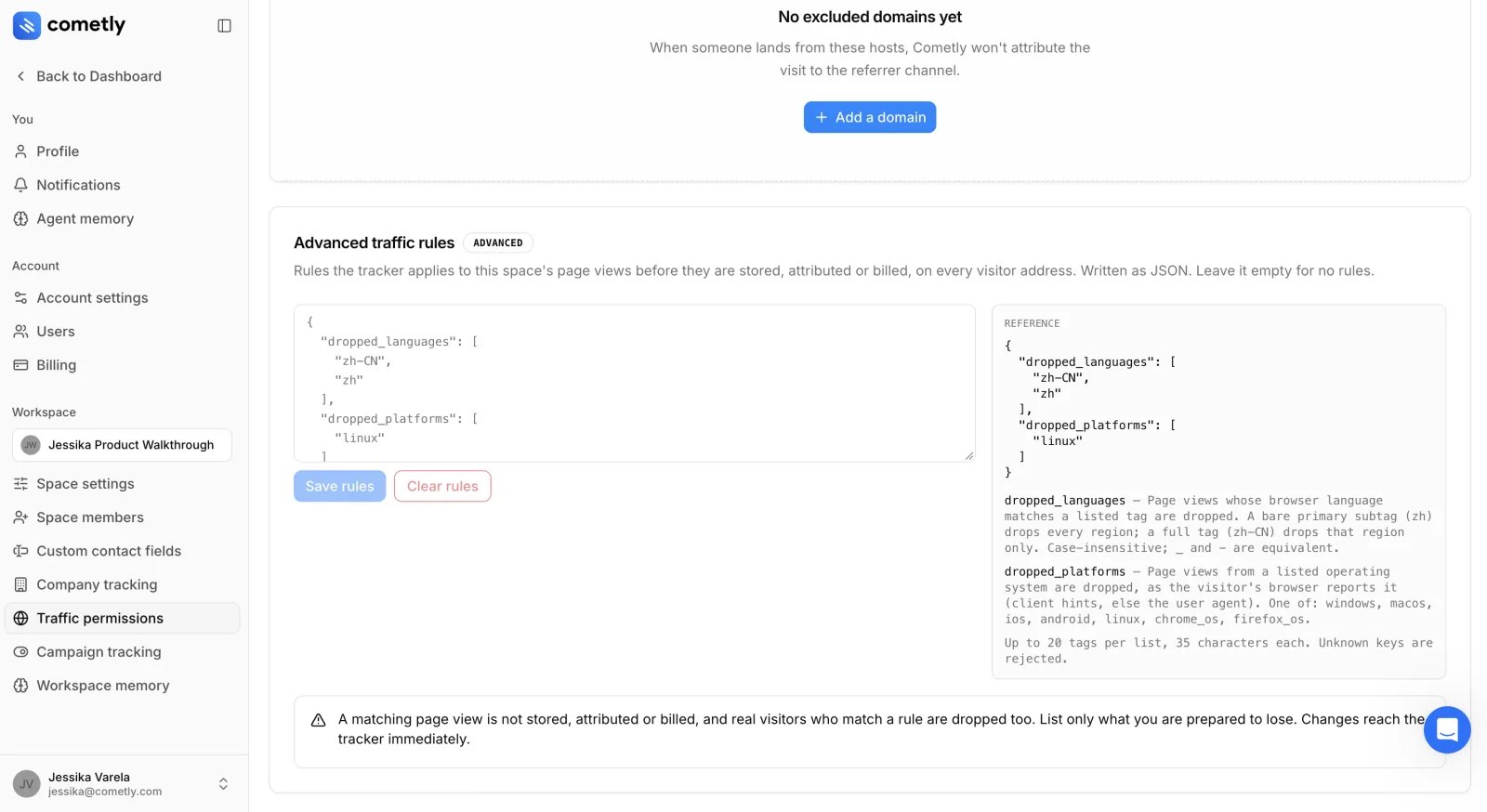
What a rule does
Rules are written as one JSON object. Each key is a rule, and its value is a list. A page view that matches any value in a list is dropped. The Reference panel next to the editor lists the rule keys you can use:
The Reference panel shows this sample of the format (it is also the editor’s placeholder text). It is a format sample, not a recommendation:
Limits
- Up to 20 tags per list, 35 characters each.
- Unknown keys are rejected.
- The text in the editor can be at most 5,000 characters.
Save or clear rules
1
Edit the JSON
Type or paste your rules into the editor. The note unsaved changes appears next to the buttons.
2
Save
Click Save rules. You see Traffic rules saved. The tracker applies them from the next page view.Cometly tidies what it stores: duplicates are removed,
_ in a language tag becomes -, platforms are saved in lower case, and a rule with an empty list is left out. The editor then shows the stored version.3
Clear the rules when you no longer need them
Click Clear rules. All rules are removed at once, with no confirmation dialog, and you see Traffic rules cleared. Saving an empty editor or
{} does the same.Validation messages
If the text is not accepted, nothing is saved and a message appears in red under the editor.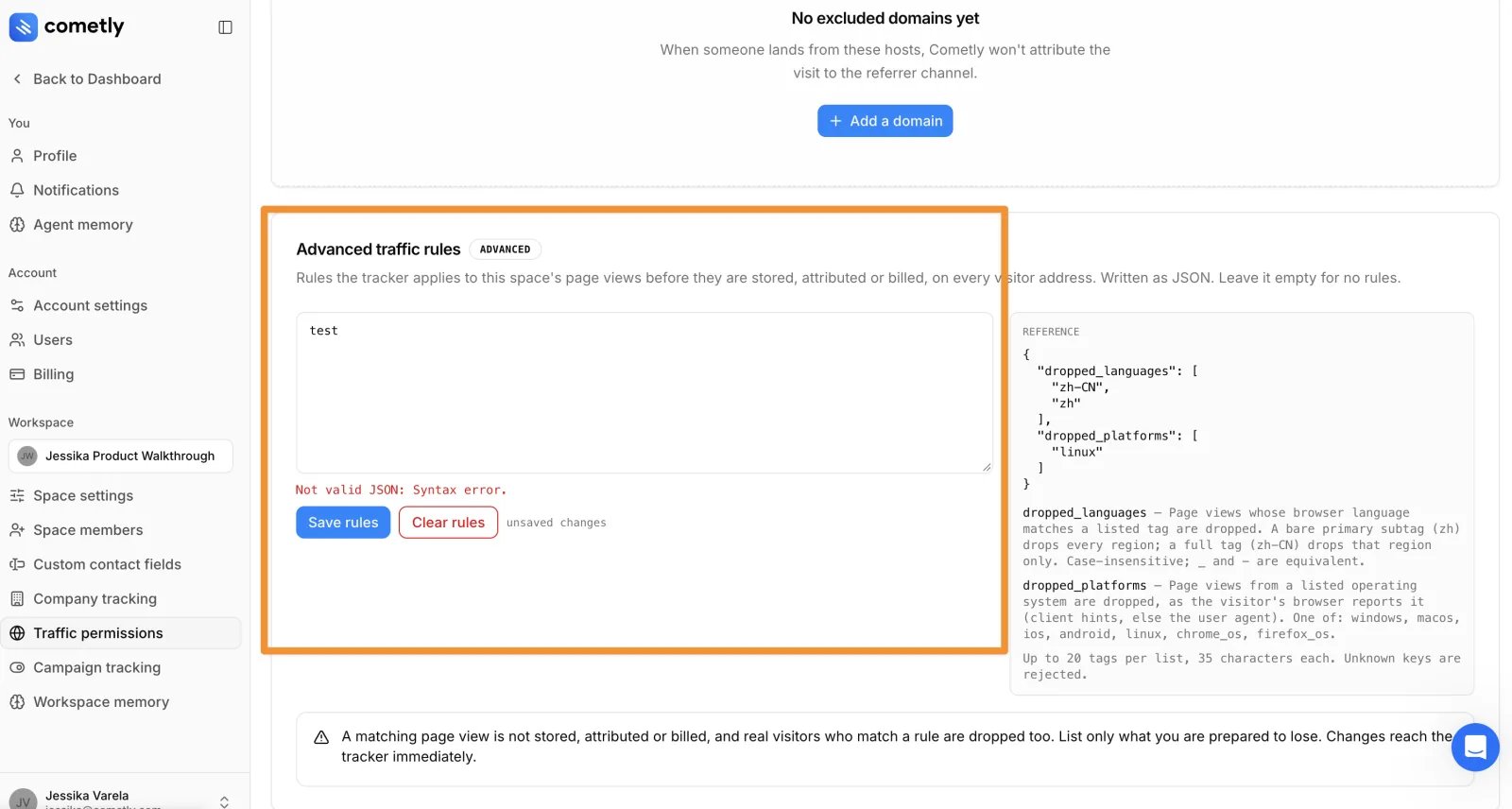
Frequently asked questions
Do traffic permissions apply to all my spaces in Cometly?
No. Every setting on the page applies only to the space you are in. To use the same settings in another space, switch to that space and set them there.Do traffic rules remove page views that were already tracked?
No. Rules are applied to page views as they arrive, before they are stored, so a rule starts with the next page view after you save it. Page views recorded before that stay in your data.Are page views dropped by a traffic rule billed?
No. A page view that matches a rule is not stored, attributed or billed. It also cannot be recovered later, so list only traffic you are prepared to lose.Next steps
- Drop data-center traffic from your page views
- Exclude domains from the referrer source
- Install the pixel
- Space roles and permissions
- Contact support