

Where to find it
Click Setup in the left sidebar. On the Setup tab, click About your business, the first step in the list. A space that has not answered it yet opens on this step. Anyone who can open Setup can answer the questions. Adding a domain from this step needs a role that can manage domains: the account Owner, or the Administrator or Advertiser role in the space. See Space roles.Look at your site
1
Enter your website
In Your website, type your address (for example 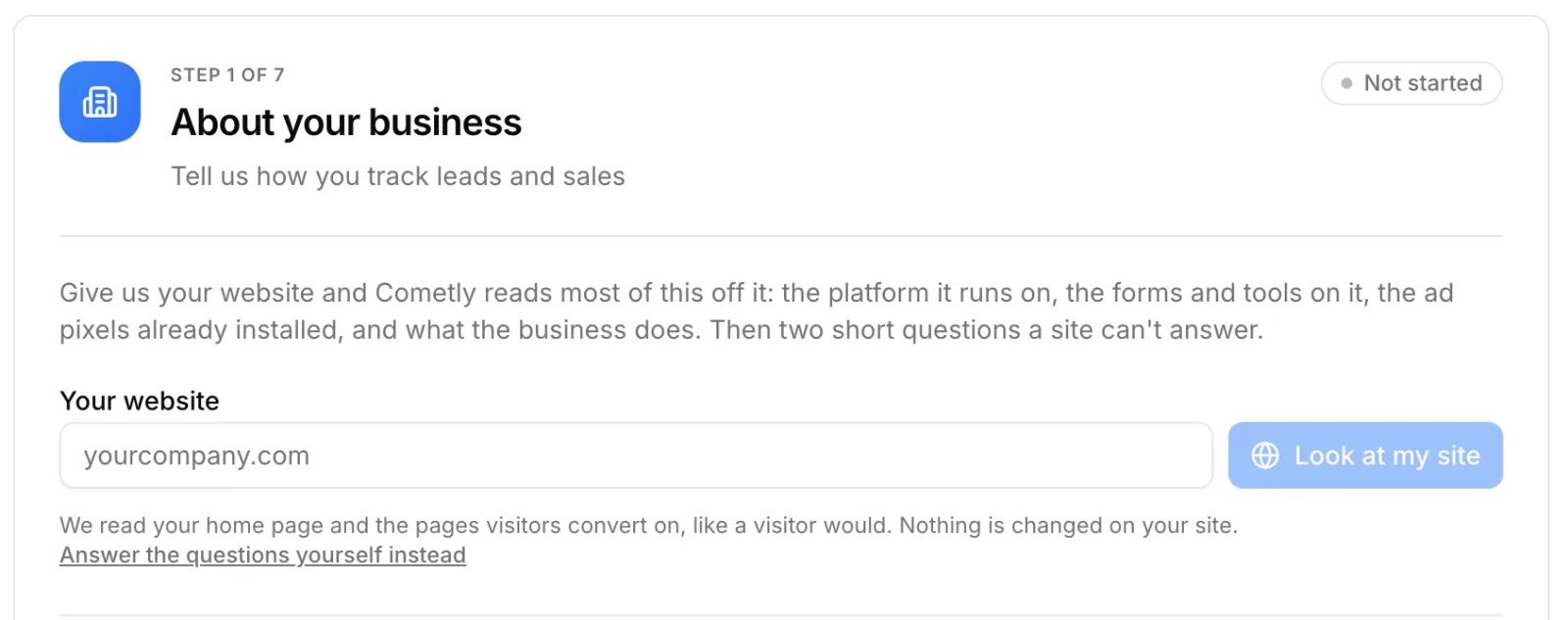
yourcompany.com) and click Look at my site.2
Wait for the check
The button shows Looking at your site…. Cometly reads your home page and up to two pages visitors convert on (such as a demo, contact, sign-up, pricing or checkout page), like a visitor would. Nothing is changed on your site.
3
Review the result
When Cometly can tell what kind of business you run, it saves what it found straight away and shows the summary, with the message Saved what we found on yourcompany.com. Change anything that’s off. Otherwise the questions open for you to finish.
The questions
After a site check, a card above the questions lists the pages checked and what Cometly found: Platform (what the site is built on, and its tag manager), Forms and tools, Ad pixels and Cometly pixel. Check another site starts over with a different address. Every answer below it is editable, including the ones filled in from your site.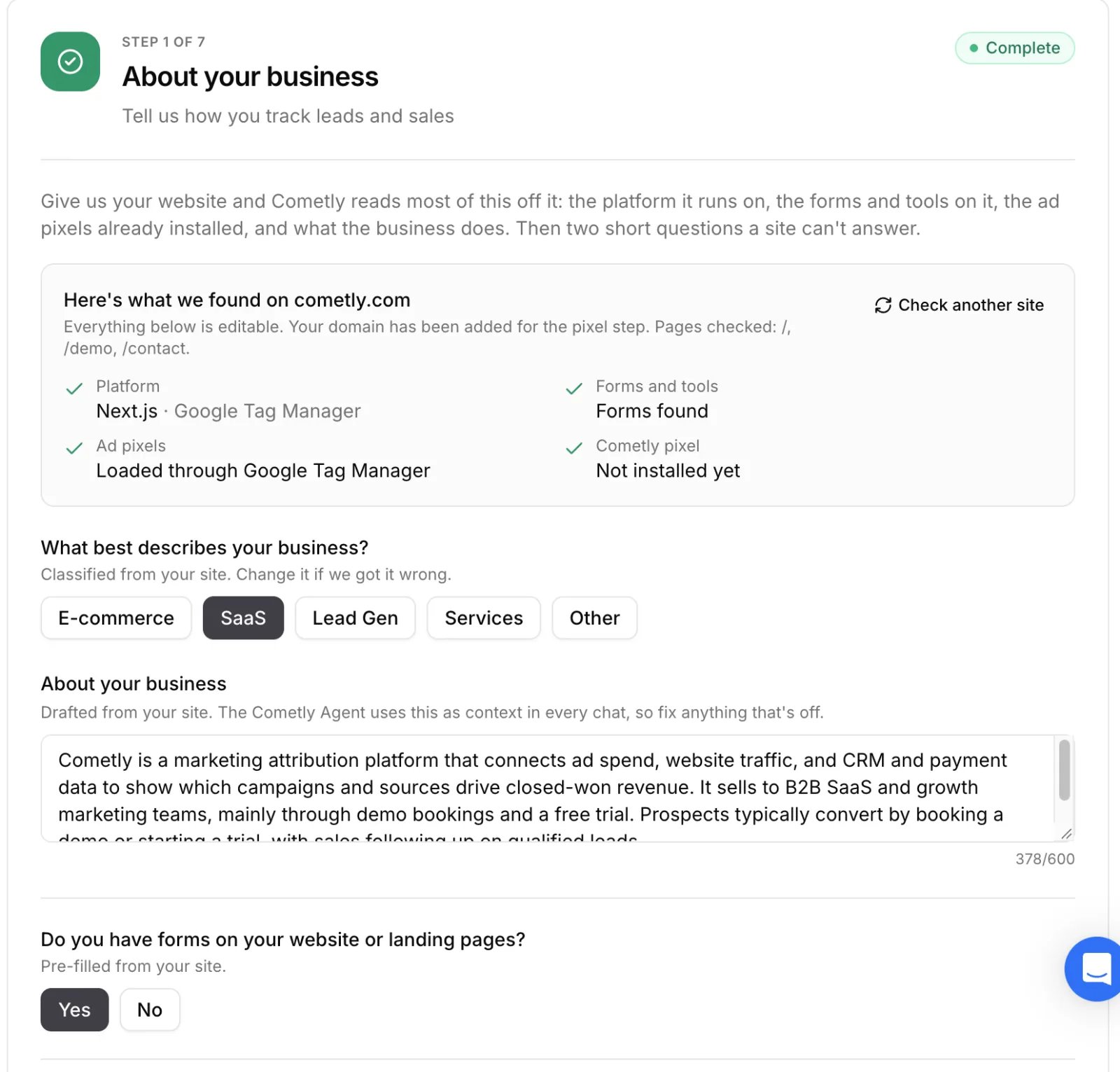
Click Save and continue. The button is available once the business type, both yes or no questions and where your leads or sales are recorded are answered. If this is the first time the step is saved, you move on to step 2. When you edit saved answers, the button reads Save answers and Cancel discards your edits.
Saving an app domain adds it to the space’s domains and turns on Automatic Cross Domain Tracking, so a visitor who signs up is still attributed to the ad that brought them. It needs a role that can manage domains. See Cross-domain tracking.
After you save
The step shows Complete and a summary of your answers: your description, then Website, Platform, Business type, Forms on your site, Native lead forms, Leads and sales recorded in, Ad platforms and App domain.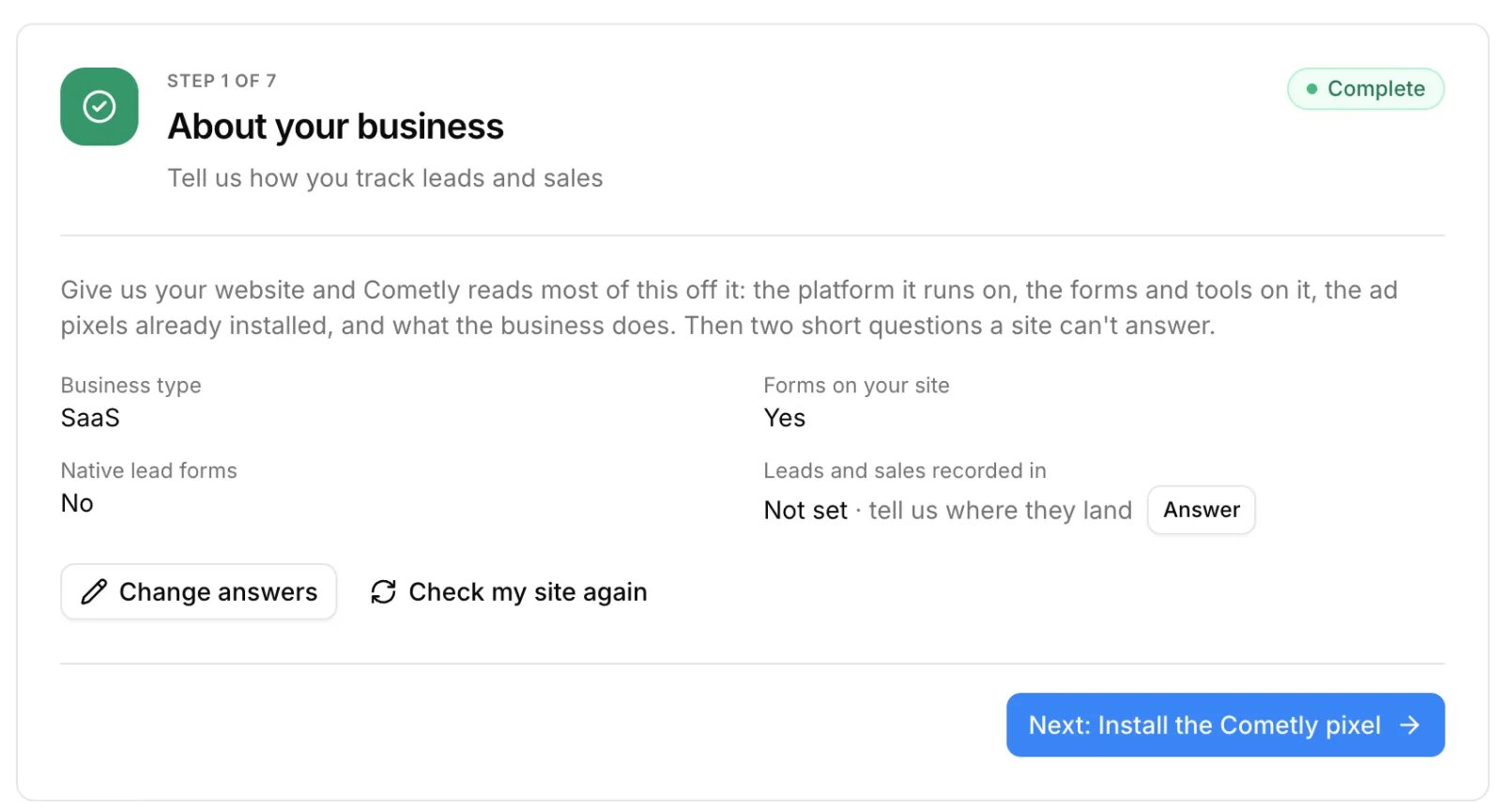
- Change next to Leads and sales recorded in edits that one answer in place (the button reads Answer while it is not set).
- Answer next to Native lead forms appears when Cometly saved the site check for you and assumed No, and you run Meta, LinkedIn or TikTok ads. Click it to confirm or correct the answer.
- Change answers reopens all the questions.
- Check my site again returns to the website field. Your description, the native lead forms answer and where leads are recorded are drafted again from the new check.
What your answers change
- Tracking Health. The report does not appear until this step is saved. The Form Tracking check runs only if you answered Yes to forms on your site, and the Lead Form Tracking check only if you answered Yes to native lead forms. See Tracking Health.
- Setup steps 4 and 6. Add URL parameters to your ads and Send conversions to ad platforms show After step 1 until this step is saved, because they depend on Tracking Health checks.
- The pixel step. Your website’s domain, and your app domain if you gave one, are already added when you reach step 2.
- The Agent. Your description, website, platform, business type, where leads and sales are recorded, native lead forms answer and ad platforms are given to the Agent as context. AI assistants you connect over MCP can read the same business profile, and the setup assistant uses it to suggest your first conversion event.
Check it worked
On the Setup tab, About your business shows Complete with a summary of your answers. The Tracking Health tab shows its report instead of Answer three questions first, and steps 4 and 6 no longer show After step 1.Frequently asked questions
Can the Cometly setup assistant fill in About your business for me?
Yes. The setup assistant can read your website, draft the answers and save them once you confirm or correct its draft. Saving through the assistant needs the account Owner or the space Administrator role. See Setup assistant.Do I need to answer About your business again for each space?
Yes. The answers are saved for one space, so each space has its own business description, website and answers. When you create or switch to another space, open Setup there and complete step 1 for that business.Does Cometly store or change anything on my website when it checks it?
No. The check only reads your home page and up to two conversion pages, like a visitor would, and nothing on your site is changed. What Cometly saves is on its side: your answers, and your website’s domain in the space’s domains if your role can manage domains.Next steps
- Install and verify the Cometly pixel: step 2
- Create a tracking plan: decide which events to track for your business type
- Set up Cometly: the seven steps at a glance
- Tracking Health: the checks your answers turn on
- Setup assistant: have the assistant walk you through Setup