

Where to find it
Click Setup in the left sidebar, then Use the AI assistant above the step list. In a narrow window the button shows only a sparkle icon.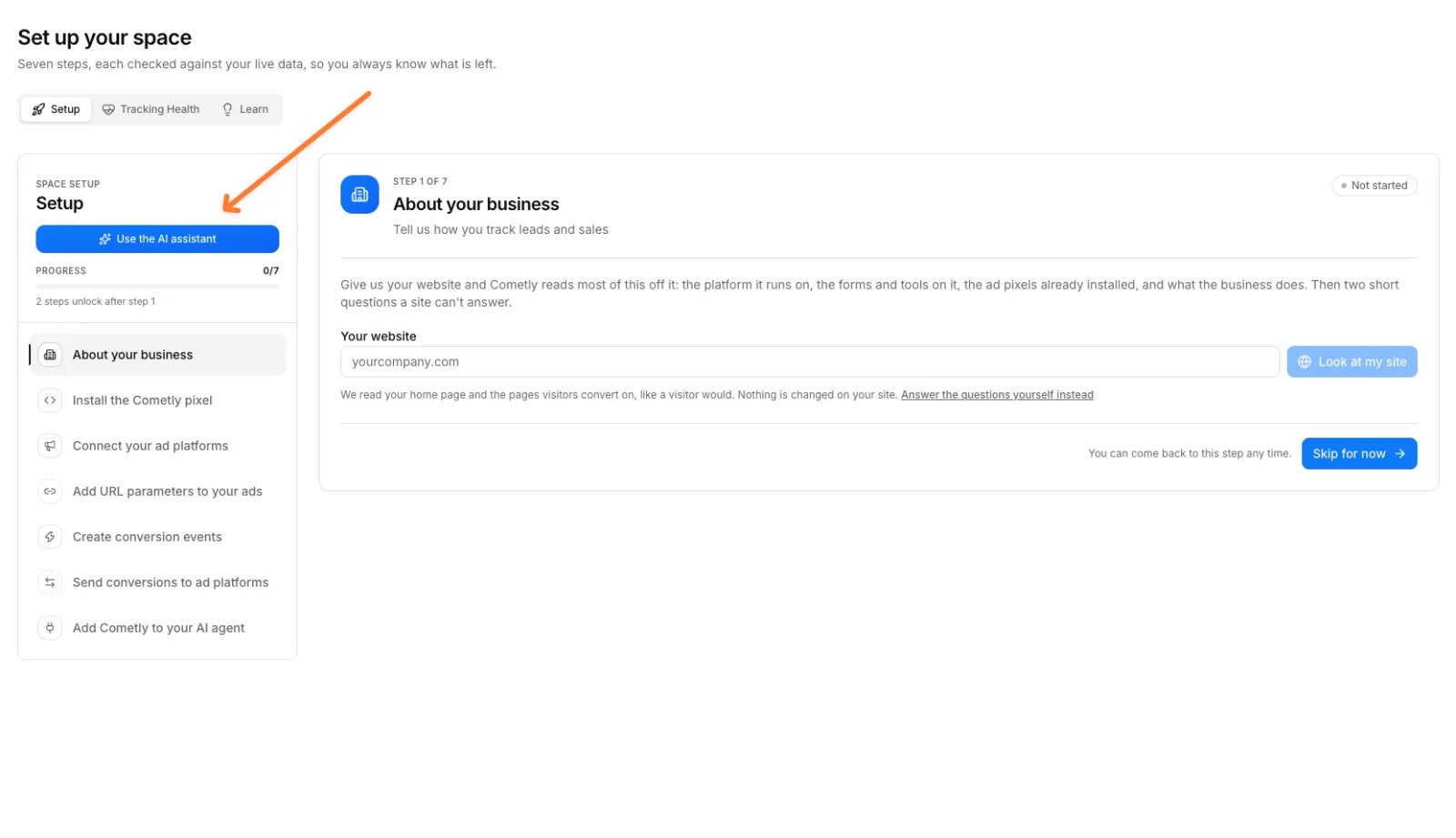
- Exit Setup (top left) goes to your dashboard.
- Switch to manual setup (top right) goes back to the Setup page.
The chat
The assistant speaks first. Its greeting is built from your current setup status: what is already in place, the next thing to do, and buttons such as Start setup for me, the name of the next open step and Something else. Click a button or type in Reply or ask anything…. You can attach an image (JPEG, PNG or WebP, up to 5 MB), for example a screenshot of where you pasted the pixel.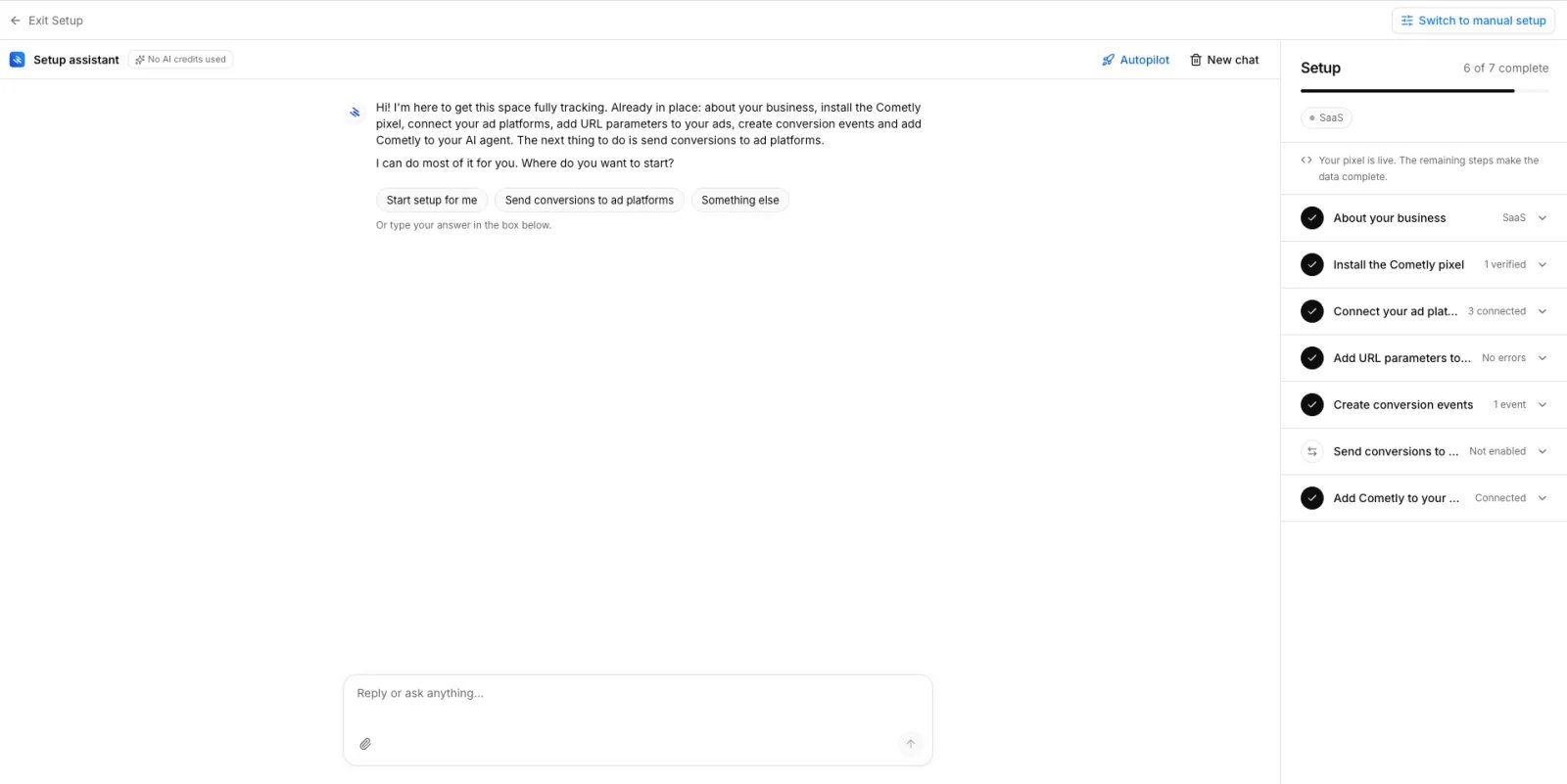
- No AI credits used: see No AI credits.
- Autopilot or Interactive: the working mode. Click it to switch.
- New chat: opens Start a new setup chat?. Start new chat clears the current conversation. Your setup progress, domains, accounts and events are not affected.
- Progress (small screens only): opens the progress panel.
Autopilot and Interactive
The mode sets the assistant’s pace. Your choice is remembered in your browser, and the assistant starts in Autopilot.
In both modes, the assistant adds a domain only after you say yes to that exact domain.
What it can do for you
- Read your website and draft the About your business answers, then save them once you confirm.
- Add a domain to the space’s domains, and turn on automatic cross-domain tracking when you say the domain is where your app or login lives. If that changes your pixel script, it gives you the updated script.
- Give you the exact pixel script for the space, with install steps for your website platform.
- Check a page on one of your domains: whether the Cometly pixel is on it, whether it belongs to this space, whether events arrived in the last 24 hours and whether the domain is verified.
- Create a draft conversion event and link you to the page where you finish configuring it.
- Create a scheduled data export to an export destination you have already added.
- Give you the link to connect each ad platform, and the steps to connect your AI assistant or coding agent over MCP.
- Look up what exists in the space (connected ad accounts, integrations, events, tracking health) and search the Cometly docs.
What it cannot do
- Paste the pixel on your site, or verify a domain. You click Verify in step 2.
- Sign in to an ad platform. It gives you the link and you approve the access. See Connect ad platforms.
- Add URL parameters to your ads. It explains the fix for the platforms you run and links to step 4. See URL parameters.
- Turn on the Conversion API. It explains why it matters and links to step 6.
- Add an export destination. Credentials and access tokens are entered on their own pages, not in the chat.
- Mark a step complete. Steps are checked against your live data.
- Build reports or analyze performance. For that, use the Agent.
Progress panel
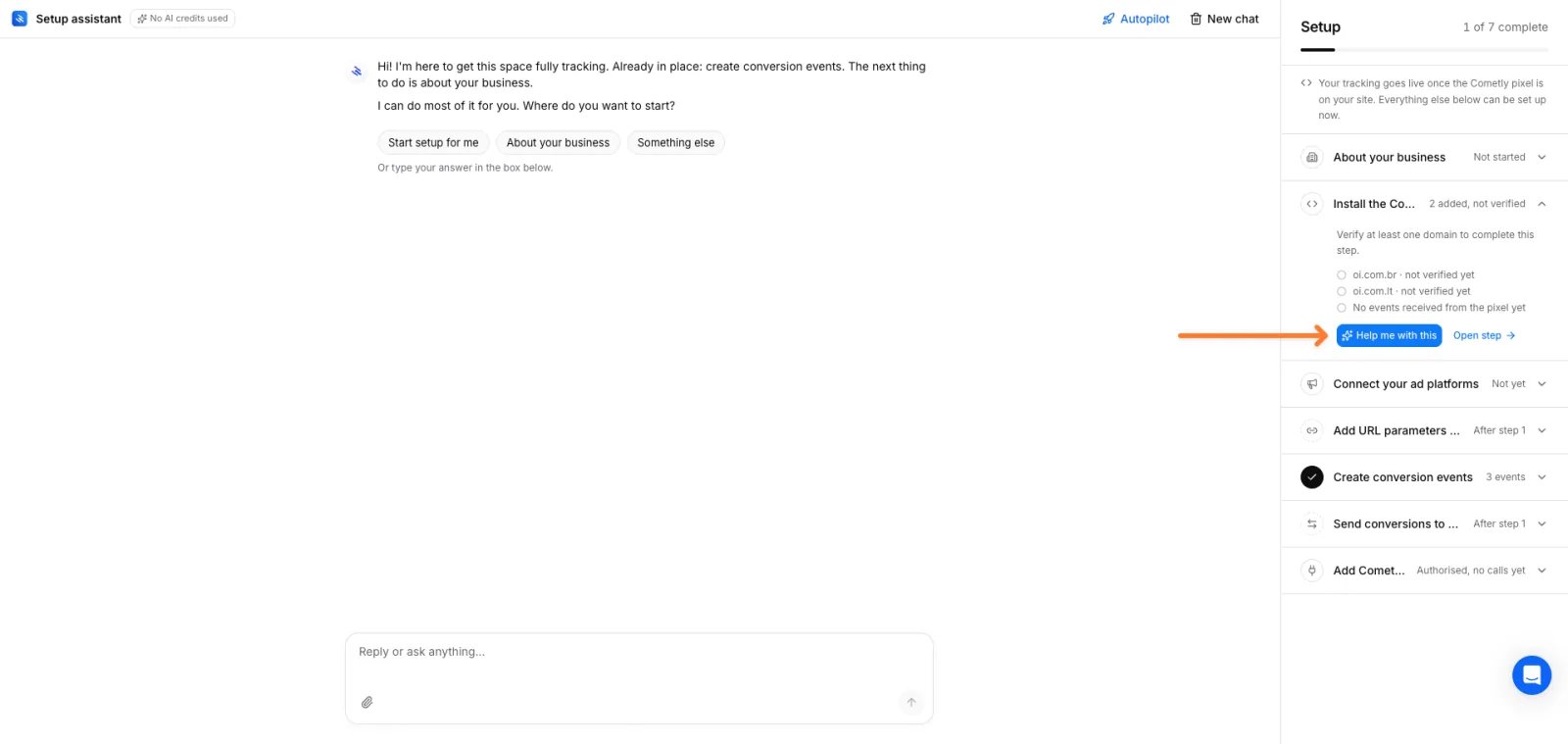
The panel on the right shows Setup, how many of the seven steps are complete and, once step 1 is answered, your business type. Each step shows its current status. Click a step to expand it and see the details behind that status, plus two buttons:- Help me with this (or Update with the assistant on a completed step) sends that request to the chat.
- Open step opens the step on the Setup page.
No AI credits
Messages to the setup assistant do not use your AI credits, and the assistant works when your credit balance is empty. Instead, each space has a daily allowance of setup assistant turns, shared by everyone in the space. When it is used up, the chat shows a message that the assistant has used today’s allowance for this space, with the number of turns. Try again the next day (the day is counted in UTC), or continue on the Setup page.Frequently asked questions
Can I switch between the Cometly setup assistant and the manual Setup page?
Yes. Click Switch to manual setup to go back to the Setup page, and Use the AI assistant to return to the chat. Both show the same progress, because each step is checked against your live data, not against what was said in the chat.What is the difference between the setup assistant and the Agent?
The setup assistant only helps you finish the seven Setup steps, and it uses no AI credits. The Agent answers questions about your ads and conversions once data is coming in, and it uses AI credits. Setup conversations are kept separate from your Agent chats.Can my teammates see my setup assistant conversation?
No. Your setup conversation is private to you, and each person has their own conversation per space. The setup progress itself is the same for everyone in the space, and so is the daily allowance of assistant turns.Next steps
- Set up Cometly: the seven steps
- About your business
- Tracking Health
- Use the Agent: the Agent for questions about your data, and how AI credits work
- Troubleshooting